Printer Not Printing? Common Causes and How to Fix It

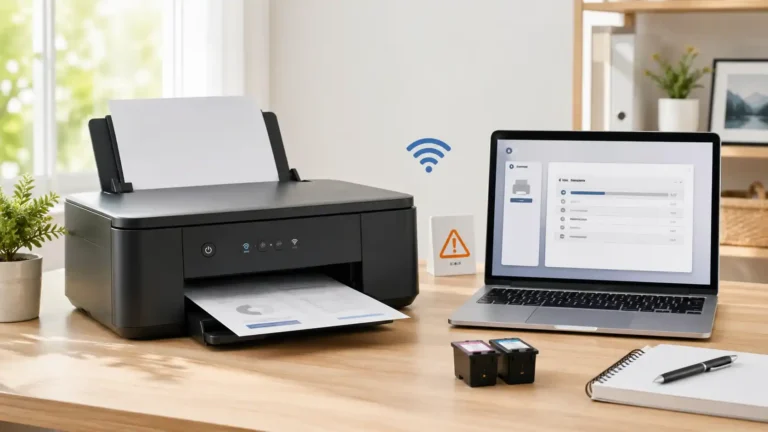
If your printer is not printing, the cause usually falls into one of three groups: the printer itself, the connection between the printer and your device, or the print job and software settings. The fastest fix usually comes from narrowing the problem down before you start changing settings or reinstalling anything.
This page is the main guide for the broad printer not printing problem. It is written for beginners who need to work out the root cause first. It also helps you separate a general not-printing issue from nearby problems like printer offline, driver unavailable, printer in error state, paper jam, or print queue and spooler issues.
Table of Contents
Start with what happens when you click Print
Nothing happens when you click Print
If you press Print and the printer stays silent, the issue is often with the connection, the selected printer, the queue, or the device you are printing from.
The job appears to send, but no page comes out
This can happen when the printer is awake but blocked by a warning, a stuck job, low ink or toner, the wrong network connection, or a software problem.
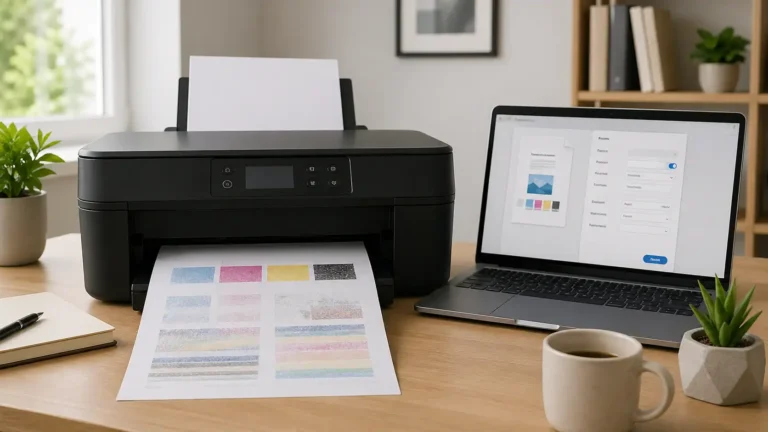
The printer runs, but the page is blank
That usually points more toward ink, toner, cartridge seating, printhead, or print settings than a pure connection problem.
It prints from one device but not another
That usually means the printer itself is partly working. The issue is more likely with the computer, phone, app, driver, or saved printer settings on that one device.
What “printer not printing” usually means
When people search for why their printer is not printing, they are often describing a broad symptom rather than one exact fault. That is why many troubleshooting pages feel messy. They mix several printer problems together instead of helping you identify which problem you have first.
A printer that is not printing may be dealing with:
- a simple setup problem, such as the wrong printer being selected
- a communication problem, such as a USB or Wi-Fi failure
- a blocked print job in the queue
- a printer-side problem, such as low ink, empty toner, an open cover, or a feed issue
- a driver or software problem on the device
The goal is not to guess. The goal is to narrow the problem down in the right order.
Follow this diagnosis order first
1. Check whether the printer can do anything on its own
If your printer has a screen, maintenance menu, or copy function, try a self-test, status page, nozzle check, or simple copy. You do not need the exact option name. The idea is simple: can the printer produce output without depending fully on your computer?
If it can print a built-in page or make a copy, the hardware may be mostly fine. In that case, the cause is often the connection, the queue, the app, or the driver. If it cannot do anything on its own, look more closely at the printer itself.
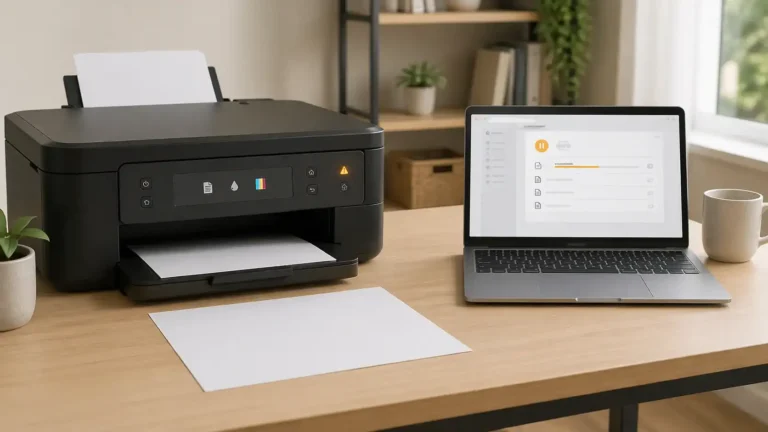
2. Look for printer-side warnings
Before you change software settings, check the printer for obvious warnings.
- low or empty ink or toner
- a cover or cartridge door that is not fully closed
- paper loaded incorrectly
- a tray that is not seated properly
- a paper jam or even a small torn scrap
- a blinking light or an error message
A printer may look ready from your computer while the printer itself is blocking the job.
3. Try another device or app
Print a small test document from another laptop, phone, or app.
- If it fails on every device, the problem is more likely with the printer or the network.
- If it fails on only one device, the problem is more likely local to that device.
4. Send one small test page
Do not keep sending the same job again and again. That can make the queue harder to sort out. Send one simple one-page document or test page instead.
Basic checks that solve a lot of cases
Make sure the printer is fully on and awake
A printer in sleep mode may take longer to respond. Some appear connected but are not ready yet. Turn it on fully and wait for the normal ready screen or steady status light.
Restart the printer first
Turn the printer off, wait a short moment, then turn it back on. After that, restart the device you are printing from. If it is a wireless printer, restarting the router can also help.
Check the paper path and doors
Even when there is no full jam, badly loaded paper, a tray that is slightly out of place, or a door that is not fully closed can stop printing.
Make sure you selected the right printer
Many people have multiple saved printers, a PDF printer, or an old device still listed. Your document may be going to the wrong destination without you noticing.
Connection problems that stop printing
USB printers
Check that the cable is attached firmly at both ends. If possible, try another USB port. If you are using a hub or adapter, connect the printer directly for testing. A weak or failing cable can make a printer appear connected without printing reliably.
Wireless printers
If your printer uses Wi-Fi, make sure both the printer and your device are on the same network. This is a very common reason a printer connected but not printing situation happens.
- The printer joined a guest network
- The router changed names or bands
- The device moved to a different Wi-Fi network
- The printer dropped off Wi-Fi after sleep or a restart
If the printer has a wireless status screen or network test option, use it.
Mobile and Mac printing
If you mainly print from a phone, tablet, or Mac, test from a computer too. Mobile print failures sometimes come from the app or pairing method rather than the printer itself. Mac users can check Apple’s guide to solving printing problems on Mac when they need to remove and re-add a printer or reset the printing system.
Print job and settings problems
The wrong printer is set as the default
If your device keeps sending documents to an old printer, the current printer may never receive the job properly. Set the correct printer as the active printer and try again.
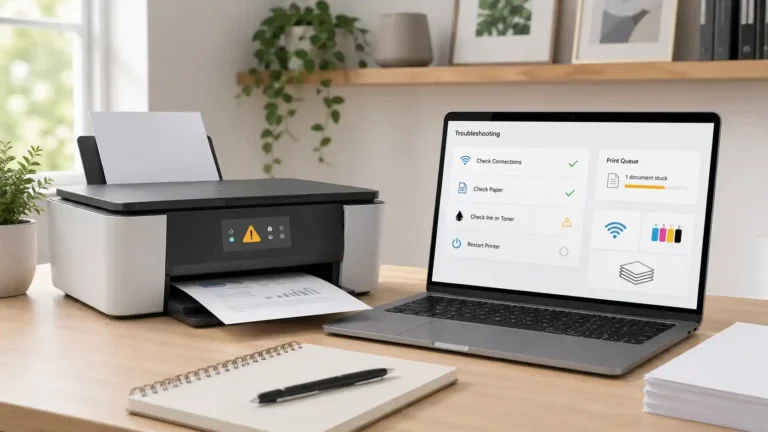
A stuck job is blocking later jobs
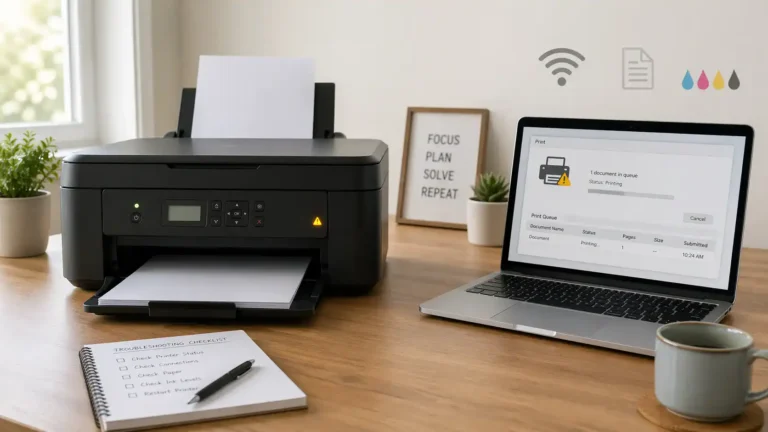
One failed job can sometimes hold up everything behind it. If you see jobs stuck on printing, pending, or deleting, clear them before testing again. If you use Windows, Microsoft’s steps for stuck print jobs in Windows can help you clear jobs that refuse to leave the queue.
The printer is paused or set to offline
This can happen even when the printer looks turned on. If your device shows the printer as paused or offline, fix that first instead of continuing with unrelated steps.
The app is the problem, not the printer
If a web page will not print but a test page does, the printer may be fine. Try printing from another app, such as a text editor or simple document viewer.
Printer-side causes
Low or empty ink or toner
Do not assume the printer will always warn you clearly. Some printers stop printing before a cartridge is fully empty. Others may print faintly, partially, or not at all.
Cartridges are not seated correctly
If you recently changed ink or toner, open the cartridge area and make sure everything is fitted correctly. A cartridge that is slightly out of place can stop output.
Clogged printhead or dried ink
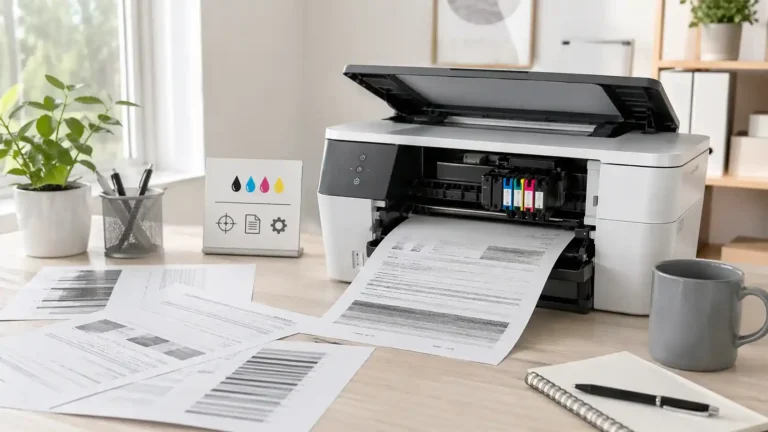
This matters more for inkjet printers. If your printer is making noise but giving blank pages, very light text, or missing colors, a nozzle or printhead problem may be involved. A maintenance check or cleaning cycle may help, depending on the model.
Small feed obstructions
A printer may not show a dramatic paper jam and still fail to feed correctly. Look carefully for scraps, labels, or curled paper.
Possible hardware failure
If the printer makes unusual grinding noises, cannot pick up paper, reboots repeatedly, or shows the same hardware warning after basic checks, this may be more than a general not-printing issue.
Software and driver causes
The printer may have been added incorrectly
This can happen after a network change, system update, or moving the printer to another computer. Removing the printer and adding it again can sometimes fix hidden setup issues.
The driver may be outdated or corrupted
Drivers tell your device how to talk to the printer. If that link breaks, the job may never print properly, even when the printer is powered on and connected.
Re-add the printer before doing a full reinstall
For beginners, it is usually better to remove the printer, restart the device, add the printer again, and then test with one small print job before moving to a full driver reinstall.
If you use Windows, Microsoft’s guide to printer connection and printing problems in Windows is a helpful reference for device-side checks and re-adding a printer.
If your printer is online but still not printing
A printer can appear online and still fail to print. Online only means your device can see the printer at some level. It does not always mean the printer is ready to accept and complete jobs.
If the printer is online but still not printing, check these in order:
- Is the correct printer selected?
- Is there a stuck job in the queue?
- Does the printer itself show a warning?
- Can it print a self-test or a copy?
- Does the same file fail from every device or just one?
This is where a lot of confusion happens. A user sees the printer online, assumes the connection is fine, and jumps straight to advanced fixes. In reality, the issue may still be the queue, printer setup, or a printer-side warning.
How to tell this problem apart from nearby printer issues
Printer offline
This usually means your device cannot communicate with the printer correctly, or the printer is being treated as unavailable. If the main symptom is the offline label itself, that is a separate issue.
Printer driver unavailable
This is more specific than general, not printing. If your device clearly says the driver is unavailable, missing, or unsupported, that is a driver-focused issue.
Printer in error state
This usually means the printer is reporting a direct fault. The root cause may be paper, ink, cover position, hardware, or another printer-side issue.
Paper jam
If the main issue is jammed paper, feed resistance, or repeated jam warnings, stay focused on the jam rather than broad no-printing steps.
Print queue or spooler problem
If jobs pile up, do not delete properly, or never leave the queue, that is more specific than the general not-printing problem.
Related “not printing” cases that need their own page
This pillar page should help you diagnose the broad issue first, but some cases deserve their own focused guide.
- Printer connected but not printing usually needs an extra connection and queue checks.
- Printer not printing anything often leans more toward a no-output diagnosis.
- Printer not printing properly is more about quality, alignment, streaks, faded output, or partial pages.
- A printer not printing in color is usually a color-setting, cartridge, or nozzle issue.
- Printer not printing black ink is specific enough to need black-ink troubleshooting.
If one of those descriptions matches your exact problem, move to the narrower guide after you finish the basic diagnosis here.
Brand-specific help
This page stays generic on purpose. That helps avoid mixing every brand into one long article. If you have an HP or Epson printer and the general checks above do not solve the issue, a brand-specific guide may be the better next step. Brand pages are more useful when the problem involves model-specific menus, maintenance tools, or software behavior.
When to contact official support
It may be time to contact the manufacturer or a repair professional if:
- The printer cannot print a self-test or a copy
- It keeps showing the same hardware warning after resets
- It makes unusual mechanical noises
- It repeatedly refuses to detect cartridges or toner
- It loses connection after every restart, even after you re-add it
- You suspect a damaged port, printhead, sensor, or feed mechanism
Before contacting support, note your printer model, the exact warning message, and what you have already tested. That makes troubleshooting much faster.
Final takeaway
If your printer is not printing, do not start with the most advanced fix. First, check the printer itself. Then check the connection. Then check the print job, settings, and driver. That order usually gets you to the real cause faster and helps you avoid mixing up printer not printing with nearby issues like offline status, driver errors, paper jams, or spooler problems.
FAQs
Why is my printer not printing even though it is connected?
A connected printer can still fail because of the wrong default printer, a stuck job, a paused queue, low ink or toner, a printer-side warning, or a driver problem. Connected does not always mean ready to print.
Why is my printer not printing, but it has ink?
Ink is only one part of the process. The issue may be clogged nozzles, cartridge seating, wrong print settings, a queue problem, or a connection issue between the device and printer.
Why does nothing happen when I click Print?
That usually points to a communication or software issue. Check the selected printer, clear stuck jobs, confirm the printer is awake, and test from another app or device.
Why does my printer print a test page but not documents?
If the test page works, the printer itself may be fine. The problem is more likely with the app, device, queue, saved printer settings, or driver.
Is a printer offline the same as a printer not printing?
No. Printer not printing is the broad symptom. Printer offline is one possible cause or status inside that bigger problem.
Should I clear the print queue before reinstalling the printer?
Yes, that is often a smart step. A stuck job can keep causing trouble even after other changes, so clearing the queue first can help you test more cleanly.
Why is my wireless printer not printing from one device only?
If it works from other devices, the printer and network may be mostly fine. The problem is probably on that one device, such as saved printer settings, an app problem, or a driver issue.
When does a printer not printing become a hardware problem?
It starts to look hardware-related when the printer cannot print a self-test, keeps showing the same printer-side warning, makes unusual noises, fails to feed paper, or repeatedly refuses cartridges after basic checks.
Short excerpt
Printer not printing? This beginner-friendly guide helps you find the real cause in the right order, from printer-side problems and connection issues to stuck jobs, settings, and driver trouble.