HP Printer Paper Jam: How to Fix It

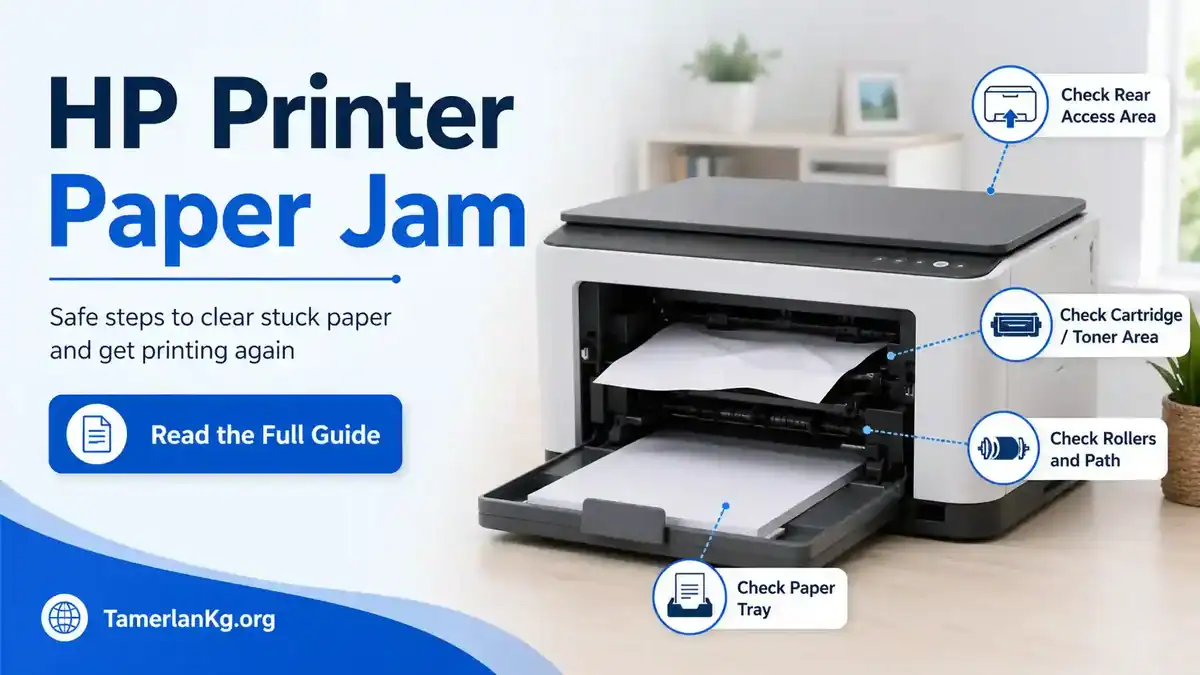
An HP printer paper jam means the printer has detected paper stuck, folded, blocked, or moving incorrectly through the paper path. In most cases, you can fix it by turning the printer off, unplugging it, removing visible paper slowly, and checking the tray, cartridge, or toner access area, rear access door, duplexer, if your model has one, and torn paper pieces. For a broader non-brand overview, see our printer paper jam guide.
Do not force the paper out. If the sheet does not move easily, stop and check another access point. Pulling too hard can tear the paper and leave small fragments inside the printer.
Exact steps vary by HP model. A DeskJet, ENVY, OfficeJet, LaserJet, and Smart Tank printer may not open in the same way. Follow the message on the printer screen, HP Smart app, or your HP manual if a step looks different. HP’s paper jam help and printer manuals can help when your model uses a different access door or error code.
Table of Contents
Quick steps to clear an HP printer paper jam
1. Cancel the print job if you can.
2. Turn off the HP printer.
3. Unplug the power cord before reaching inside.
4. Remove loose paper from the input tray.
5. Check the input tray and output tray.
6. Open the cartridge or toner access area.
7. Check the rear door or duplexer if your HP printer has one.
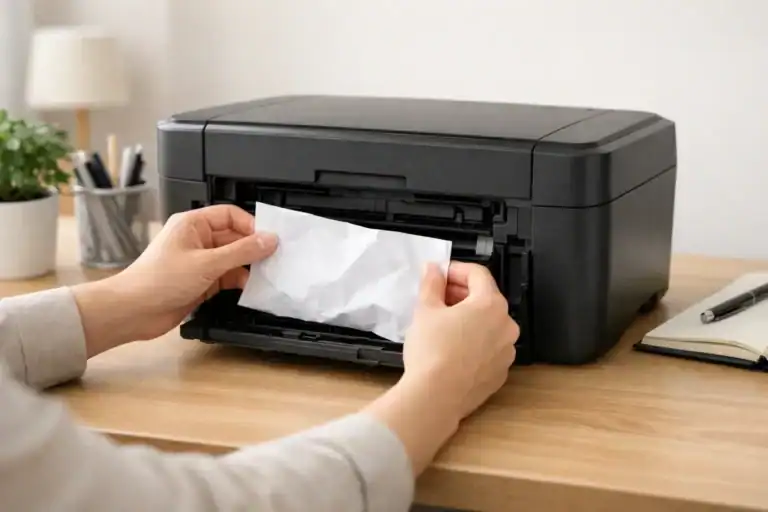
8. Remove jammed paper slowly with both hands.
9. Look for torn paper scraps.
10. Reload clean, flat paper and test again.
If the paper is trapped deep inside the printer or you cannot remove it without tools, stop and use HP’s model-specific instructions or contact support.
What an HP paper jam message can mean
A paper jam on an HP printer does not always mean a full sheet is clearly stuck. The printer may show a paper jam message because the paper did not move through the printer at the right speed or in the right direction.
Depending on the model, you may see messages such as:
- Paper Jam
- Clear paper jam
- Paper jam in the tray
- Paper jam in the cartridge area
- Paper jam in the rear door
- Paper jam in the duplexer
- E4 error
- Flashing paper or attention light
- A paper jam message in the HP Smart app
The cause can be visible paper, a small torn piece, a blocked roller, an overloaded paper tray, the wrong paper type, or an access door that is not fully closed.
Before you remove the jammed paper
Turn off and unplug the HP printer
Before putting your hand inside the printer, turn it off and unplug the power cord. This helps prevent the carriage, rollers, or other moving parts from shifting while you are checking the paper path.
For a LaserJet printer, allow the printer to cool if it was printing recently. Some internal areas can be warm after use.
Let all movement stop
Wait until the printer is quiet. If the cartridge carriage is moving, do not reach inside yet. Let it stop before opening the access area.
Use a flashlight, not a sharp tool
A flashlight can help you see torn paper in corners, behind rollers, or near the rear path. Do not use knives, screwdrivers, paper clips, or other sharp tools inside the printer. These can damage rollers, sensors, or plastic guides.
Pull the paper slowly with both hands
If you can see the jammed sheet, hold it with both hands and pull slowly. Try to pull in the direction the paper normally moves. If the paper resists, do not yank it. Open another access area and try from there.
Step-by-step: how to fix an HP printer paper jam
Step 1: Cancel the print job and remove loose paper
Cancel the current print job from your computer, printer screen, or HP Smart app if possible. Then remove any loose sheets from the input tray.
Do not pull hard on paper that is already partly inside the printer. Loose paper in the tray can be removed safely, but paper caught in the feed path should be removed slowly after the printer is off and unplugged.
Check the paper stack while you are here. If the tray is packed too tightly, the printer may pull sheets unevenly and jam again.
Step 2: Check the input tray and feed area
The input tray is where many HP paper jams begin. Remove the paper stack and look inside the tray area.
Check for:
- folded paper
- curled paper
- torn corners
- labels or envelope pieces
- paper clips or small debris
- paper was pushed too far into the tray
- paper guides pressed too tightly against the stack
Reload only clean, flat paper. Make sure the paper guides touch the sides of the stack without bending the paper. Do not mix different paper sizes or types in the same stack.
Step 3: Check the output tray
Look where the printed paper exits the printer. A jam can happen if paper folds near the output slot or if printed pages pile up and block the next page.
Remove any wrinkled or folded sheets. Check for small torn pieces near the output path. If your HP printer has an output tray extender, make sure it is open and not blocking the paper.
Step 4: Open the cartridge or toner access area
Many HP DeskJet, ENVY, OfficeJet, and Smart Tank printers have a cartridge or printhead access area. HP LaserJet printers usually have a toner access area.
Open the access door carefully. Use a flashlight to check for paper around the carriage path, cartridge area, or toner path.
For HP inkjet printers:
- Check whether the paper is blocking the cartridge carriage.
- Do not force the carriage if it does not move freely.
- Remove only the paper you can reach safely.
- Look for torn pieces near the left and right sides of the carriage path.
For HP LaserJet printers:
- Open the toner access area.
- Remove the toner cartridge only if your printer’s screen or manual indicates it is safe for your model.
- Check below and behind the toner path for jammed paper.
- Avoid touching hot internal parts after recent printing.
Close the access door firmly after checking this area.
Step 5: Check the rear access door or duplexer
Some HP printers have a rear access door or duplexer. The duplexer is the part used for two-sided printing on supported models. Paper can fold or stop in this rear path, especially during double-sided printing.
If your printer has a rear door or duplexer:
1. Make sure the printer is off and unplugged.
2. Open the rear door gently.
3. Look for folded or stuck paper.
4. Pull visible paper slowly with both hands.
5. Check for torn scraps near the rollers.
6. Close the rear door or duplexer firmly.
If your HP printer does not have a rear door, do not try to remove covers that are not designed to open.
Step 6: Look for torn paper fragments
A small paper scrap can keep the HP printer paper jam message active even after the main sheet is removed.
Check these areas carefully:
- input tray
- output slot
- cartridge or toner access area
- rear door
- duplexer
- roller area
- corners of the paper path
Use a flashlight and remove only pieces you can reach with your fingers. Do not push tools into the printer to dig out fragments.
Step 7: Check the rollers
Rollers help pull paper from the tray and move it through the printer. If the rollers are dusty, worn, or covered with paper debris, the printer may grab paper unevenly or fail to feed it properly.
Where reachable, wipe loose paper dust with a dry, lint-free cloth. Do not spray liquid inside the printer. Do not use alcohol, water, or cleaners on internal parts unless HP’s official instructions for your exact model say to do so.
If the rollers look damaged or the same jam keeps happening with clean paper, the printer may need service.
Step 8: Reload the paper and test the printer
1. Make sure all access doors are closed.
2. Reload a small stack of clean, flat paper.
3. Adjust the paper guides gently.
4. Plug the printer back in.
5. Turn it on.
6. Print a simple test page.
If the printer starts normally, the jam is likely cleared. If you want a broader checklist that applies to non-HP printers too, see how to fix a printer paper jam.
If the HP printer still shows a paper jam message, turn it off, unplug it, and check again for small scraps or an access door that is not fully seated.
HP DeskJet, ENVY, OfficeJet, and LaserJet paper jam differences
HP DeskJet and HP ENVY printers
HP DeskJet and ENVY models often jam around the input tray, cartridge access area, output slot, or cleanout area. Some models may show an E4 error or flashing light instead of a full text message.
Focus on:
- tray feed area
- cartridge carriage path
- output slot
- hidden torn scraps
- cleanout area if your model has one
HP OfficeJet printers
HP OfficeJet printers often have larger trays and may include a rear access door or duplexer. If the jam happened during two-sided printing, check the rear path carefully.
Focus on:
- paper tray alignment
- cartridge access area
- rear door
- duplexer
- output tray
- automatic document feeder if the jam happens while copying or scanning
HP LaserJet printers
HP LaserJet paper jams may appear around the tray, toner area, rear door, output bin, or duplexer. Some LaserJet models identify the jam location on the printer screen or in the HP Smart app.
Focus on:
- toner access area
- rear door
- duplexer
- output path
- paper type and tray settings
- Warm internal areas after recent printing
Why does your HP printer keep jamming
The tray is overloaded
Too much paper can make the printer pull more than one sheet at a time. Use a smaller stack and keep it below the tray’s limit.
The paper guides are too tight or too loose
Paper guides should touch the stack lightly. If they squeeze the paper, the sheets can bend. If they are too loose, the paper can feed at an angle.
The paper is curled, damp, or wrinkled
Damaged paper does not move smoothly through the printer. Use clean, dry, flat paper. Avoid paper that has already been through the printer.
Different paper types are mixed together
Mixing plain paper, photo paper, envelopes, labels, or cardstock can cause uneven feeding. Use one paper type and size at a time.
A torn piece is still inside
Even a small scrap can block the paper path or trigger the jam message again. Check corners, rollers, and rear areas carefully.
The rollers are dirty or worn
If the rollers cannot grip paper evenly, the page may slip, skew, or fold. Dry cleaning reachable dust may help, but worn rollers may need service.
A rear door or duplexer is not closed properly
If an access door is loose or not seated correctly, the printer may continue to report a jam. Open and close the tray, rear door, cartridge door, or duplexer again.
What not to do when fixing an HP paper jam
- Do not pull the paper aggressively.
- Do not use knives, screwdrivers, tweezers, or sharp tools inside the printer.
- Do not spray liquid cleaner inside the printer.
- Do not force the cartridge carriage.
- Do not remove covers that are not meant to be opened.
- Do not keep sending print jobs while the jam message is active.
- Do not bypass sensors or tape parts into place.
- Do not ignore repeated jams in the same area.
If the paper will not move with gentle pressure, stop and check another access point.
What if the HP paper jam message will not clear?
If your HP printer still says paper jam after you removed the paper, check again for torn scraps. Look around the tray, rollers, cartridge or toner area, output slot, rear door, and duplexer.
Also check that:
- The paper tray is installed correctly
- The rear door is closed
- The duplexer is seated
- The cartridge or toner access door is closed
- The paper stack is not too thick
- The paper guides are adjusted correctly
If no paper is visible and the message still stays on, the issue may be a false paper jam, sensor problem, stuck carriage, roller issue, or model-specific hardware fault. At that point, follow the printer screen, HP Smart app, HP manual, or HP support instructions for your exact model.
How to prevent HP printer paper jams
- Use clean, flat paper.
- Store paper in a dry place.
- Do not overload the tray.
- Adjust the paper guides correctly.
- Do not mix paper sizes or types.
- Remove printed pages before the output tray gets too full.
- Avoid using wrinkled, torn, damp, or curled paper.
- Check the rear door or duplexer after a two-sided printing jam.
- Keep reachable paper dust away with a dry, lint-free cloth.
- Use paper that matches the printer settings.
Final check
An HP printer paper jam is usually caused by stuck paper, torn fragments, tray loading problems, a blocked rear path, or rollers that are not feeding paper smoothly. Start with the safest checks first: turn the printer off, unplug it, remove visible paper slowly, check each access area, and reload clean paper.
If the printer still shows a jam after the paper path is clear, use the HP Smart app, printer screen, or model manual for the next step. Stop if the paper is deep inside, the carriage will not move freely, or the printer keeps jamming in the same place. If the jam clears but your HP printer still will not print, use our printer not printing troubleshooting page next.
FAQ section
How do I clear a paper jam on an HP printer?
Turn off the HP printer, unplug it, remove loose paper from the tray, and check the input tray, output tray, cartridge or toner area, rear door, and duplexer if your model has one. Pull visible paper slowly with both hands and remove any torn scraps before restarting the printer.
Why does my HP printer keep saying paper jam?
Your HP printer may still detect a torn paper piece, a blocked paper path, a misaligned paper stack, a dirty roller, a loose rear door, or a duplexer problem. If no paper is visible, the issue may be a false paper jam or sensor-related problem.
Can I pull jammed paper out from the front of my HP printer?
You can pull paper from the front only if it moves easily. If it resists, stop and check another access area, such as the rear door, duplexer, tray, or cartridge area. Pulling too hard can tear the paper and make the jam harder to clear.
What should I do if paper tears inside my HP printer?
Turn off and unplug the printer, then use a flashlight to look for torn pieces in the tray, roller area, cartridge or toner area, output slot, rear door, and duplexer. Remove only pieces you can reach safely with your fingers.
Why does my HP printer say paper jam when there is no paper?
A hidden paper scrap, dirty roller, stuck carriage, blocked sensor area, or feed problem can cause the printer to report a jam even when no full sheet is visible. Recheck the paper path carefully and follow your model’s HP Smart app or screen instructions.
Are HP DeskJet, ENVY, OfficeJet, and LaserJet paper jams fixed the same way?
The safe order is similar, but the access points can differ. DeskJet and ENVY printers often involve the tray and cartridge path. OfficeJet printers may include a rear door or duplexer. LaserJet printers may require checking the toner area, rear path, output bin, or duplexer.
Should I use tweezers to remove paper from an HP printer?
It is safer to avoid tweezers, sharp tools, or metal objects inside the printer. They can damage rollers, sensors, or plastic guides. Use your fingers only for reachable paper and stop if the fragment is too deep.
When should I contact HP support?
Contact HP support or a qualified repair option if the paper is trapped deep inside, the printer keeps jamming in the same place, the carriage or rollers do not move freely, or the paper jam message stays after all safe checks.
Short excerpt
Learn how to fix an HP printer paper jam safely by checking the tray, cartridge or toner area, rear door, duplexer, rollers, and torn paper fragments without forcing the paper.