
Printer Queue Stuck: How to Clear It

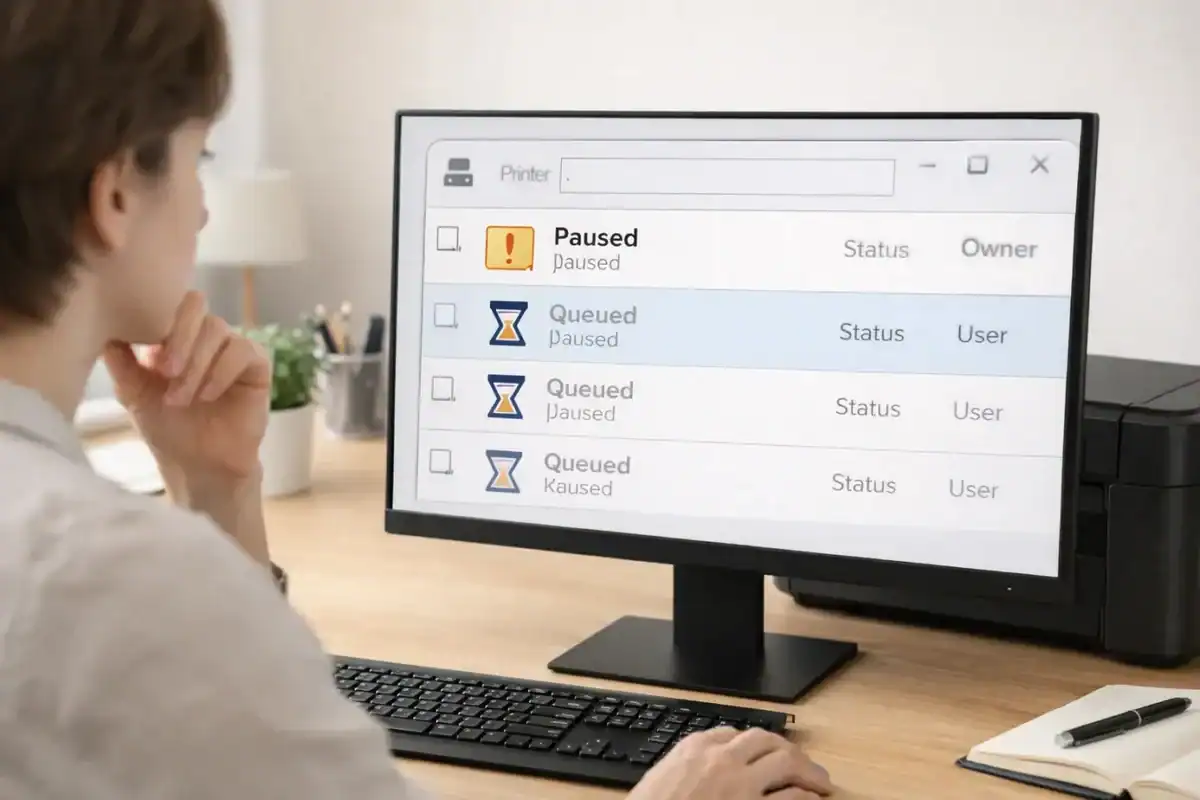
When your printer queue is stuck, one blocked job can hold up everything behind it. You may see a document sitting on “Printing,” “Queued,” “Deleting,” or “Error,” while newer files never move.
This guide focuses on that exact problem. It is about a stuck print queue, blocked print jobs, and spooler-related fixes. It does not cover every reason a printer fails, so if the real issue is a printer offline, a paper jam, a driver unavailable, or a general printer not printing problem, you will usually need a different fix path.
Table of Contents
Printer queue stuck? Start here
A stuck queue often shows one or more of these signs:
- A print job stays in the queue and never finishes
- New jobs keep piling up behind the first one
- A job says deleting, but it never disappears
- The printer looks ready, but nothing actually comes out
- You cancel a job, but it comes back or stays frozen
In simple terms, the queue is the waiting line for documents. On many systems, the print spooler manages that line. If one job hangs, the rest may stay blocked until the bad job is removed or the spooler starts working normally again.
Make sure this is really a queue problem
Before you start clearing files and restarting services, check whether this is actually a stuck queue.
It is probably a queue problem if:
- You can see one or more print jobs waiting
- One document seems frozen
- Canceling a job does not work
- The printer was working earlier, and then suddenly stopped after one file
It may be a different problem if:
- The printer shows offline all the time
- The printer has a paper jam or a hardware warning
- Your computer says the driver is unavailable
- The printer never appears correctly in your device list
- The queue is empty, but the printer still does not print
That difference matters. A stuck queue is usually a blocked workflow problem. A printer offline or driver issue is usually a connection, setup, or software problem.
Why do print jobs get stuck in the queue
One bad print job is blocking everything
A damaged PDF, a very large image, or a file with unusual formatting can freeze the first job in line. When that happens, later jobs wait behind it.
The connection dropped during printing
If the printer briefly loses Wi-Fi, USB, or network access while a job is processing, the queue can get stuck halfway through.
The print spooler stopped responding
On Windows, the Print Spooler service manages print jobs. If it hangs or crashes, jobs may stop moving, refuse to delete, or keep returning.
The printer queue itself is corrupted
This is more common after repeated failed print attempts, interrupted jobs, or old driver leftovers.
A driver or software conflict is causing repeat failures
If print jobs keep getting stuck in the queue again and again, the issue may be deeper than one blocked document.
The fastest way to fix a stuck printer queue
For most beginners, this is the best order:
- Cancel the stuck job
- Remove any other waiting jobs
- Restart the printer
- Restart the computer
- Try one simple test page or one small document
If the queue still stays blocked, move to the operating system steps below.
How to clear a printer queue in Windows
Open the queue and cancel the stuck jobs
Go to your printer list in Windows, open the printer queue, and cancel the blocked item first. If there are several waiting jobs, cancel all of them. If you need help finding the queue, Microsoft shows how to open it in Windows.
After that, wait a moment and see if the list clears on its own. Sometimes the queue only needs a few seconds to update.
If the job disappears and the printer works again, print one small text document before you try the original file again. That helps confirm whether the problem was the file or the queue itself.
Restart the printer and the PC
Turn the printer off. Wait about 30 to 60 seconds. Turn it back on.
Then restart your computer. This clears many temporary queue problems and is worth doing before deeper steps.
Restart the Print Spooler service
If the queue still will not clear, restart the Print Spooler. Microsoft’s official Windows guide for stuck print jobs can be helpful if you want to compare the official steps while you work.
After the restart, open the queue again. If the stuck item is gone, try printing one small page. If the same job is still frozen, move to the next step.
Manually clear the spool folder
This is the step that often fixes a print job stuck in the queue when normal canceling does not work.
First, stop the Print Spooler service. Then open this folder on your PC:
C:\Windows\System32\spool\PRINTERS
Delete the files inside that folder. After that, go back to Services and start the Print Spooler again. Then check the printer queue.
A few notes:
- You may need administrator permission
- Only delete the files inside the spool folder, not the folder itself
- Make sure the spooler is stopped before deleting those files
If the queue is finally empty, try one simple print job.
Remove duplicate or old printer entries
Sometimes Windows keeps an older queue or duplicate printer entry, especially after updates, connection changes, or driver reinstallations.
If you see the same printer listed more than once, remove the one you are not using and test again. Duplicate queues can send jobs to the wrong place and make it look like the printer is stuck when the job is really going to an old entry.
Remove and re-add the printer if the queue keeps freezing
If print jobs keep getting stuck in the queue, remove the printer from Windows and add it again.
This creates a fresh queue. It can help when the existing queue is damaged or tied to old driver settings.
After you add the printer again, send one small test print. If that works, retry the original document.
How to clear a stuck print queue on Mac
Mac queue problems often look a little different, but the logic is similar: remove the blocked job, resume the queue if it is paused, and rebuild the printer setup if needed.
Open the printer queue and remove the blocked job
Open Printers & Scanners, select your printer, and open the queue. Apple’s Print Center guide explains how to pause, resume, and delete print jobs on a Mac.
If you see one job with an error, delete that job first. If several jobs are waiting, clear them and then try again with one small document.
Resume the printer if it is paused
Sometimes the printer is not frozen. It is simply paused.
If you see a Resume button, use it and watch whether the queue starts moving. A paused queue can look like a stuck one, especially to beginners.
Delete and re-add the printer queue
If the same job stays stuck or the queue behaves strangely, remove the printer from your Mac and add it again.
This creates a new queue and is often easier than chasing one broken item over and over.
Reset the printing system if the queue seems corrupted
If multiple printers or repeated jobs are misbehaving, you may need to reset the printing system on your Mac. Apple also explains how to reset the printing system.
This is a bigger step because it removes printer setups, so use it after the basic steps fail. Once you add the printer again, test with a simple document before retrying the original file.
What to do if the queue keeps getting stuck
Check whether one file is the trigger
Try printing a simple one-page text document. If the simple page prints, but one PDF or image does not, the file may be the problem. If every job gets stuck, the issue is more likely the queue, connection, or driver.
Try printing from another app
If the problem only happens in one app, the app or the document may be causing the blockage. For example, if a web page prints but a certain design file does not, the queue itself may not be the real problem.
Check the printer connection
For wireless printers, weak or unstable Wi-Fi can leave jobs hanging in the queue. For USB printers, make sure the cable is secure and try a different port if needed.
Update or reinstall the printer driver
If print jobs keep getting stuck in the queue, the driver may be damaged or outdated. Reinstalling the printer software can help, especially after operating system updates.
Watch for repeat spooler problems
If the queue clears only after restarting the spooler every time, the issue may be moving beyond one blocked job and into a broader spooler problem.
When the spooler is probably the real issue
A single stuck document does not always mean the spooler is broken. But the spooler is more likely involved if:
- Jobs will not be deleted at all
- The queue keeps freezing after every restart
- The printer disappears and reappears
- The spooler service keeps stopping
- Clearing one job does not stop the problem from coming back
At that point, you may need a more focused spooler guide rather than a broader spooler fix guide.
What not to do
When your printer queue is stuck, it is easy to make the problem worse by trying too many random fixes at once.
- sending the same document over and over
- Clicking Print repeatedly while the first job is frozen
- Deleting the spool folder before stopping the spooler
- Reinstalling everything before trying a basic queue clear
- Assuming the printer is broken when one file may be the only problem
A calmer order usually works better.
When this is not a queue issue
The printer is offline
That usually points to a connection or device status problem, not just a blocked queue.
The queue is empty, but nothing prints
That is often a broader printer not printing problem.
You see driver unavailable
That points more strongly to driver setup or software damage.
The printer shows an error state
That can be tied to hardware, connection, or system communication issues.
There is a real paper jam
A jam can stop printing, but it is not the same as a stuck queue.
Quick recap
If your printer queue is stuck, start with the simplest fix order:
- Cancel the blocked jobs
- Restart the printer and computer
- Restart the spooler if you are on Windows
- Clear the spool folder if jobs will not delete
- Re-add the printer if the queue keeps freezing
- test with one small document before retrying the original file
In many cases, one stuck print job is all it takes to block the whole line. Once that job is removed and the queue is reset, printing starts normally again.
If it keeps happening, look deeper at the file, the connection, the driver, or the spooler itself.
FAQ section
Why is my printer queue stuck and not clearing?
Usually, one blocked job is holding up the rest of the queue. It can also happen because of a connection drop, a spooler issue, or a damaged driver.
How do I clear a print job that says deleting but never disappears?
Start by canceling all jobs and restarting the printer and computer. If that does not work on Windows, restart the Print Spooler and clear the spool folder.
Does turning the printer off clear the queue?
Sometimes, but not always. Power cycling can help with a temporary freeze, but it may not remove a job that is stuck in the computer’s print queue.
What does the Print Spooler do?
The Print Spooler manages print jobs and sends them to the printer in order. If it stops responding, jobs can stay frozen or fail to delete.
Why do new print jobs stay behind one stuck document?
Because the queue usually processes jobs in order. If the first document hangs, later jobs may wait behind it until the blocked item is removed.
How do I know whether this is a queue problem or a printer not printing problem?
If you can see stuck or waiting jobs in the queue, it is usually a queue problem. If the queue is empty and nothing prints, the issue is often broader than the queue.
Can one bad file cause the whole printer queue to freeze?
Yes. A damaged PDF, large image, or app-specific print error can block the queue and stop other jobs from moving.
Should I remove and re-add my printer?
Yes, if the queue keeps freezing after basic fixes. Re-adding the printer can create a fresh queue and remove damaged settings.
Is this the same as printer offline?
No. A stuck queue means the jobs are blocked in line. Printer offline usually means the device is not communicating properly with your computer.
What should I do if the queue clears but the printer still does not print?
That usually means the main blockage is gone, but another problem remains. At that point, check the printer status, connection, and broader printer-not-printing fixes.
Short excerpt
Printer queue stuck? This guide shows how to clear blocked print jobs, restart the spooler, and fix repeat queue problems on Windows or Mac in the right order.
