Brother Printer Offline: How to Fix It

Brother printer offline problems usually come down to one of a few things: the printer is asleep or disconnected, a stuck print job is blocking communication, your computer is sending jobs to the wrong Brother printer entry, or the saved network details no longer match the printer.
The good news is that you usually do not need to try everything at once.
This guide keeps the troubleshooting focused on Brother-specific offline problems and walks through the most useful checks in the right order. Start at the top and stop when your printer comes back online.
Table of Contents
What “Brother printer offline” usually means
When a Brother printer shows as offline, your computer cannot talk to it properly at that moment. That does not always mean the printer is broken.
In many cases, the printer is still powered on, but one of these issues is getting in the way:
- The printer is in sleep mode and has not fully woken up
- The USB, Ethernet, or Wi‑Fi connection dropped
- A print job is stuck in the queue
- The printer is paused or marked offline in the queue
- Your computer is using the wrong Brother printer entry
- The printer’s IP address changed on the network
- The driver or installed printer setup no longer matches the way the printer is connected
That is why a Brother printer can sometimes say offline even when it still looks connected.
Start with the basics before changing settings
Make sure the Brother printer is actually on
Check the display, lights, and power button. If the screen is blank, the printer may be off or in a sleep state that did not wake correctly. Press the power or wake button and wait a moment before testing again.
If the printer shows another problem,m such as a paper jam, low toner warning, cover-open message, or another error, solve that first. An active error can make the printer appear offline from your computer.
Confirm how the printer is connected
Brother printers may be connected by USB, Ethernet, or Wi‑Fi. Make sure you know which one you are using before you troubleshoot further.
- If you use a USB, check that the cable is firmly connected at both ends.
- If you use Ethernet, make sure the network cable is seated properly in the printer, router, or switch.
- If you use Wi‑Fi, make sure the printer is still connected to your current wireless network.
Restart the printer and your device
Turn the Brother printer off, wait a few seconds, and turn it back on. Then restart the computer, phone, or tablet you are printing from. This clears many temporary communication problems and is worth doing before deeper fixes.
Clear the print queue first
A stuck print job is one of the most common reasons a Brother printer stays offline. Open the print queue for your Brother printer and look for jobs that are stuck, paused, or refusing to clear. If you are not sure where to find it, Microsoft’s guide to the print queue can help.
Cancel all pending jobs, wait a few seconds, and then send one small test page. If the queue does not clear the first time, restart the printer and your computer, then check the queue again.
Do not skip this step. A blocked queue can make it look like the printer itself is offline when the real problem is an old job that never finished.
Make sure the printer is not paused or forced offline
Sometimes the printer is available, but the queue is set to the wrong status.
Open your Brother printer’s queue and check whether it is paused or marked to use offline mode. If it is, turn that off and try printing again.
Also,o make sure your Brother printer is selected as the active printer before you send the test page. It is easy to accidentally print to an old copy, a virtual printer, or another device with a similar name.
Check for duplicate Brother printer entries
This is a very common Brother-specific problem, especially after reinstalling drivers, switching from USB to Wi‑Fi, changing routers, or re-adding the printer more than once.
You may see more than one Brother printer in your printer list, such as:
- Brother HL-Lxxxx
- Brother HL-Lxxxx Copy 1
- Brother MFC-xxxx Printer
- An older offline Brother entry that looks almost the same as the current one
If that happens, your computer may keep sending print jobs to the wrong Brother printer entry.
What to do
Look at all the Brother printers listed on your device and identify which one is actually active now. Then send a test page only to that one.
If one entry always shows offline and another one works, set the working one as the default printer. You can remove the unused duplicate later if needed. This one step solves a surprising number of Brother printer offline complaints.
Check the connection based on your setup
If your Brother printer uses USB
USB problems are usually simple. Unplug and reconnect the cable, try a different USB port on the computer, connect the printer directly instead of through a hub or adapter, and test another cable if one is available. If the printer comes online after changing ports or cables, the problem was likely the connection path rather than the printer itself.
If your Brother printer uses Ethernet
Make sure the Ethernet cable is connected securely, and the network port lights look normal. If possible, try another cable,r another router, or another switch port. A wired Brother printer can still appear offline if the cable connection is unstable or if the printer loses its network address.
If your Brother printer uses Wi‑Fi
Wi‑Fi models often go offline after network changes. This can happen when you change your router, the Wi‑Fi name or password changes,ges the printer is connected to a different network, the router is assigned a new IP address, or the printer drops off the wireless network after sleep or restart.
Make sure the printer and the device you are printing from are on the same network. That matters especially if you have more than one Wi‑Fi band, a guest network, or range extenders.
Print the network report and check the IP address
If your Brother printer is on Wi‑Fi or Ethernet, one of the most useful checks is the printer’s network report or network configuration page. The exact menu name varies by Brother model, but many models let you print a report that shows network details such as the IP address.
Why this matters
Your computer may be trying to reach the printer at an old network address. If the printer’s current address has changed, it may look offline even though the printer is connected.
When you print the network report, look for the IP address. If it shows a normal local address, the printer is at least on the network. If it shows 0.0.0.0 or no valid address, the printer has not joined the network correctly. In that case, reconnect the printer to the network and test again.
Use Brother tools when the connection keeps breaking
If your Brother printer is on a network and keeps dropping offline, Brother’s support website can help you find model-specific troubleshooting steps and utilities, including the Network Connection Repair Tool on supported setups.
This is most useful when the printer used to work and suddenly stopped, the printer is on the network, but your computer still shows it offline, the printer’s IP address has changed, or reinstalling has not solved the problem for long.
For beginners, this is often a better next step than guessing at advanced network settings.
Reinstall the Brother printer only after the earlier checks
Reinstalling can help, but it should not be your first move.
Try it only after you have already checked power and visible errors, the queue, offline or paused status, duplicate printer entries, the correct connection type, the network report or current IP address, and Wi‑Fi reconnect steps for wireless models.
When you do reinstall, remove the non-working Brother printer entry from your device and install it again using the correct connection type. If you need fresh software, get it from the Brother Downloads page for your exact model rather than from a third-party site.
This matters because a Brother printer can stay offline when the driver setup does not match how the printer is actually connected now.
What to do if the printer is connected but still says offline?
If your Brother printer looks connected but still shows offline, the most likely causes are the wrong Brother printer entry being selected, a stuck job still sitting in the queue, an outdated saved IP address, the printer dropping off the network briefly and failing to reconnect cleanly, or an installed driver setup that no longer matches the current connection type.
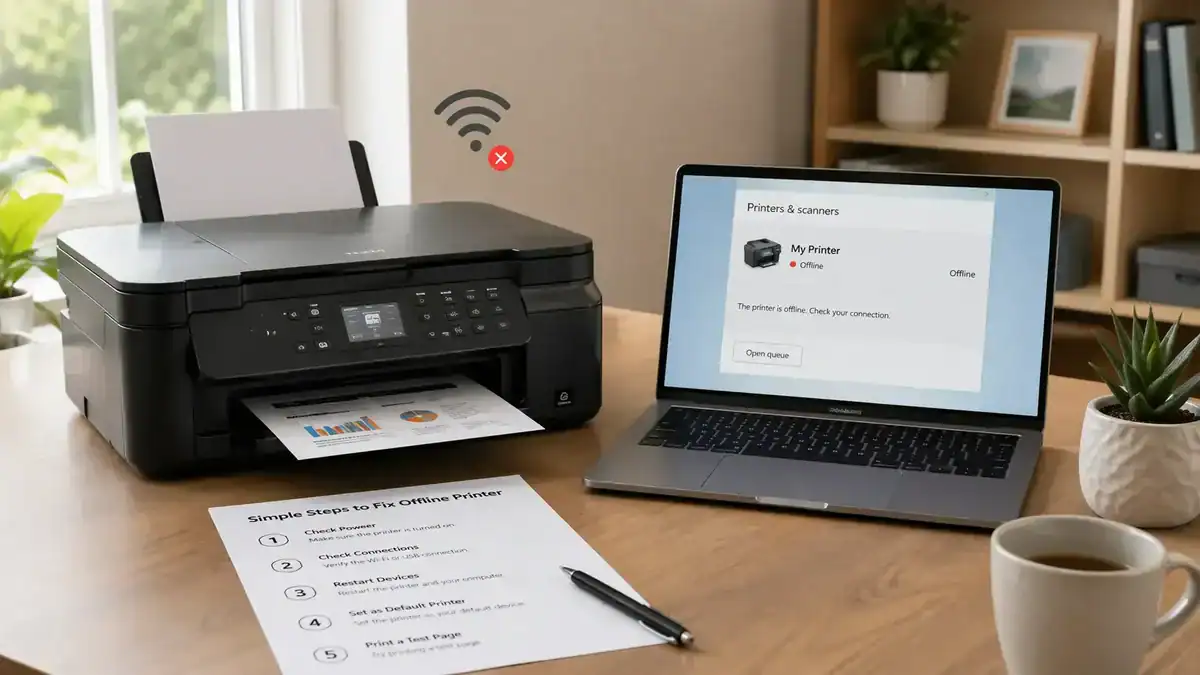
At that point, follow this order:
- Clear the queue
- Confirm the correct Brother printer is selected
- Remove duplicate entries if needed
- Print the network report
- Reconnect to Wi‑Fi if the network has changed
- Use Brother’s repair utility if available
- Reinstall the printer only if the earlier steps fail
When the problem is not really “offline.”
Sometimes the offline message is only part of the story. If the printer is online again but still does not print, the problem may have moved into a different category, such as print queue problems, driver issues, paper or toner errors, or a not-printing issue even though the printer appears ready.
That distinction matters because once the offline status is gone, you should stop treating it as an offline problem and troubleshoot the new symptom instead.
When to contact Brother support
Contact Brother support if the printer will not stay connected after repeated reconnect attempts, never gets a valid network address, disappears from the network regularly, or shows hardware or connection errors on its screen. At that stage, the issue may be tied to model-specific firmware, network compatibility, or a hardware fault.
Final takeaway
If your Brother printer is offline, do not jump straight to reinstalling everything.
Start with the quick checks, clear the queue, make sure the printer is not paused, confirm you are using the correct Brother printer entry, and then check the network details if it is a Wi‑Fi or Ethernet model.
Most offline problems are caused by a stuck job, a wrong printer entry, or a network mismatch. Once you find which one applies, the fix becomes much simpler.
FAQ section
Why is my Brother printer offline?
A Brother printer usually shows offline when your device cannot communicate with it properly. Common causes include a stuck print job, an incorrect printer status, a duplicate Brother printer entry, a dropped USB or network connection, or a changed IP address on Wi‑Fi.
How do I get my Brother printer back online?
Start by turning the printer on, clearing the print queue, checking that it is not paused, and making sure you are using the correct Brother printer entry. If it is a network printer, check the current connection and reconnect it if needed.
Why does my Brother printer keep going offline?
If it keeps happening, the problem is often a network issue rather than a one-time glitch. The printer may be losing its Wi‑Fi connection, getting a new IP address, or waking poorly from sleep mode. Duplicate printer entries can also cause repeat offline problems.
Why does my Brother printer say offline after I changed my router?
Your printer may still be using the old wireless settings or your computer may still be looking for it at an old network address. Reconnect the printer to the current Wi‑Fi network and then test again.
Do I need to reinstall my Brother printer?
Not always. Reinstalling is better as a later step after you check the queue, status, duplicate printers, and network connection. Many offline problems can be fixed without reinstalling.
Why are there two Brother printers on my computer?
This often happens after setup changes, repeated installs, or switching between USB and wireless use. One entry may be current while the other is old. If your device keeps choosing the wrong one, the printer may look offline.
What if my Brother printer is online but still not printing?
That usually means the problem is no longer the offline status itself. Check for queue issues, driver problems, paper or toner errors, or a separate not-printing issue.
Short excerpt
Brother printer offline? Use this simple Brother-specific troubleshooting order to check the queue, printer status, connection, IP address, and setup without turning it into a generic offline guide.