Printer Offline: Causes, Meaning, and What to Check First

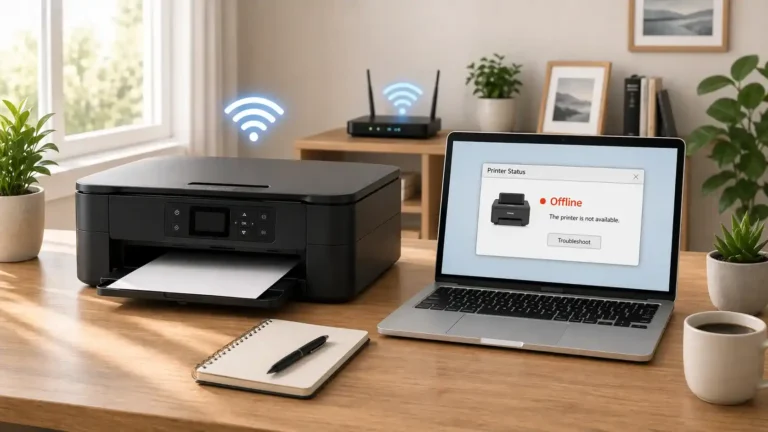
A printer offline message usually means your computer, phone, or network cannot communicate with the printer at that moment. It does not always mean the printer is broken.
Your printer may be turned on, connected to power, and still show offline if the device sending the print job cannot reach it properly. This can happen because of Wi-Fi problems, a loose cable, a stuck print queue, the wrong printer being selected, a driver issue, sleep mode, or a printer error that needs attention.
Start with simple checks first. Many offline printer problems come from basic connection or status issues, not major hardware failure.
Table of Contents
What Does Printer Offline Mean?
When a printer shows offline, your device is treating the printer as unavailable. In simple terms, your computer or phone is trying to print, but it cannot confirm that the printer is ready to receive the job.
This can happen with both wired and wireless printers. A USB printer can show offline if the cable is loose or the computer is not detecting it. A Wi-Fi printer can show offline if it is on the wrong network, too far from the router, asleep, or not responding correctly.
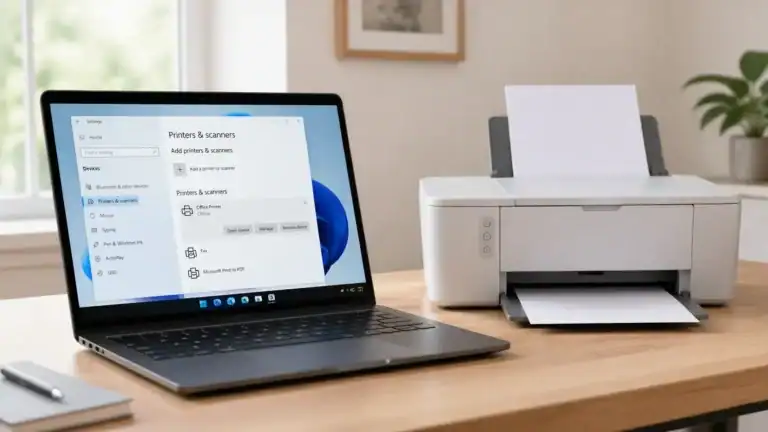
The message can appear in Windows, macOS, mobile printing apps, printer software, or the print queue. The wording may vary, but the basic meaning is usually the same: the device and printer are not communicating properly.
Printer Offline Does Not Always Mean the Printer Is Broken
An offline message can look serious, but it often points to a temporary communication problem.
For example, the printer may be:
- turned on but asleep
- connected to Wi-Fi but not reachable from your computer
- connected by USB but not detected
- blocked by a stuck print job
- set to offline or paused in printer settings
- showing a paper, cover, ink, toner, or jam warning
- using an outdated or damaged printer driver
That is why it helps to diagnose the problem in order. Check the printer itself first, then the connection, then the print queue, then software and driver issues.
Why Is My Printer Offline?
If you are asking, “Why is my printer offline?”, the most common answer is that your device cannot reach the printer correctly. The reason may be simple, or it may involve printer software, but the starting point should always be basic status and connection checks. For a deeper cause-focused explanation, see why does my printer say offline.
Common Causes of a Printer Offline Message
The Printer Is Turned Off, Asleep, or Not Ready
A printer can show offline if it is powered off, waking from sleep mode, stuck on a startup screen, or waiting for you to clear a warning.
Check the printer display or status lights. Look for messages about paper, ink, toner, jammed paper, an open cover, or a connection problem. Some printers will not accept jobs until the warning is cleared.
If the printer has been idle for a long time, press the power or wake button and give it a moment to reconnect.
The Printer and Device Are Not Connected Properly
Connection problems are one of the most common reasons a printer is offline.
For a USB printer, check both ends of the cable. Make sure the cable is firmly connected to the printer and the computer. If possible, try another USB port.
For a Wi-Fi printer, make sure the printer and the computer or phone are connected to the same network. A printer on a guest network, extender network, mobile hotspot, or different Wi-Fi band may not be found correctly by your device.
For an Ethernet printer, check the cable between the printer and the router or network port. A loose Ethernet cable can make the printer disappear from the network.
The Wrong Printer Is Selected
Many users have more than one printer entry on their device. You may see old printer names, duplicate copies, virtual printers, PDF printers, or a previous version of the same printer.
If the wrong printer is selected, your job may be sent to a device that is not available. This can make it look like your printer is offline even when the real printer is ready.
Before changing advanced settings, check that you are printing to the correct printer name.
The Default Printer Has Changed
Your device may choose a different default printer after an update, a new printer setup, or a change in recent printer use.
If the printer is offline, check your printer settings and confirm that the printer you want to use is selected as the default, where that option is available. Some systems can automatically manage the default printer, so the selected printer may not always be the one you expect.
The Print Queue Is Paused or Stuck
The print queue is the waiting line for print jobs. If one job gets stuck, paused, or fails, it can block newer jobs.
A stuck queue can make the printer look offline or unresponsive. You may see old documents waiting in the queue, jobs marked as paused, or jobs that do not cancel normally.
This does not always mean the printer itself has failed. Sometimes the problem is only the queue or the print service managing the queue.
The Printer Is Set to Offline Mode
Some systems include an option that lets a printer be used in offline mode. If that setting is enabled by mistake, the printer may stay offline even when it is powered on and connected.
This is more common on Windows computers, but printer status settings can vary depending on your operating system and printer software. If you see an option such as “Use Printer Offline” or “Pause Printing,” check whether it is enabled.
The Driver Is Missing, Outdated, or Not Communicating Correctly
A printer driver helps your computer communicate with the printer. If the driver is missing, outdated, corrupted, or changed after an update, the printer may show offline or fail to respond.
Driver issues are more likely if the offline problem started after:
- a Windows or macOS update
- installing a new printer app
- Replacing a router
- changing Wi-Fi settings
- removing and re-adding the printer
- switching from USB to wireless printing
Do not start by reinstalling drivers unless basic checks have already failed. Driver changes are useful, but they are better handled after power, connection, queue, and printer status have been checked.
The Printer Has an Error That Blocks Printing
A printer may show offline because it is waiting for you to fix something on the printer itself.
Common blocking issues include:
- paper jam
- empty paper tray
- open printer cover
- low or empty ink/toner on some models
- cartridge problem
- overheating or hardware warning
- network setup error
Always check the printer’s own display or lights. The computer may only say “offline,” while the printer screen gives the real reason.
What to Check First When Your Printer Is Offline
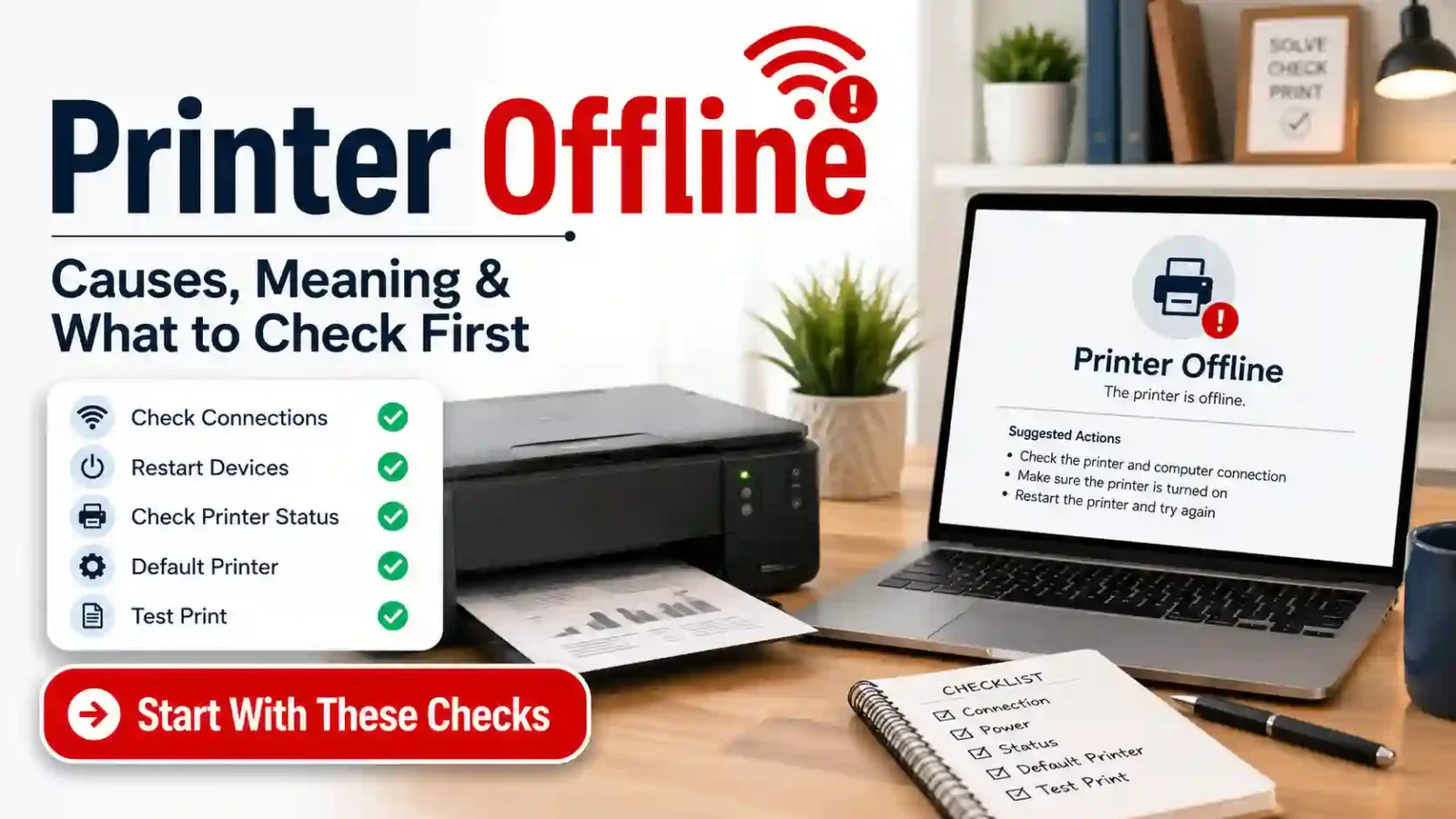
Use this order before changing deeper system settings. It keeps the process simple and reduces the chance of making the problem harder to fix.
1. Check the Printer Screen or Lights
Look at the printer first, not the computer.
Check for:
- paper jam warnings
- empty paper tray
- open cover message
- ink or toner warnings
- Wi-Fi or network warning
- blinking error light
- cartridge or maintenance message
Clear any obvious printer-side issues before trying software fixes.
2. Confirm the Printer Is Powered On and Awake
Make sure the printer is plugged in, switched on, and not stuck in sleep mode. If it uses a power strip, confirm the strip is switched on.
Press the printer’s power or wake button if needed. Wait a short time for the printer to reconnect to Wi-Fi or become ready.
3. Restart the Printer
A simple restart can clear a temporary connection problem.
Turn the printer off, wait briefly, and turn it back on. If the printer has been stuck for a while, unplugging it from power for a short period may help reset its connection state. Follow your printer manual if your model gives specific restart instructions.
4. Check the Cable or Wi-Fi Connection
For a USB printer, confirm the cable is not loose or damaged. Try another USB port if available.
For a Wi-Fi printer, confirm the printer is connected to the same Wi-Fi network as the device you are printing from. If the printer is far from the router, move it closer if possible or check whether the Wi-Fi signal is weak.
For a wired network printer, check the Ethernet cable and network port.
5. Make Sure You Selected the Right Printer
Open the print window or printer settings and check the selected printer name.
Avoid sending the job to:
- An old printer entry
- a duplicate printer copy
- a printer that is no longer installed
- a PDF printer
- a fax option
- a printer with a similar name
If you see more than one version of the same printer, try the one that matches your current connection type or the one that shows as available.
6. Check the Default Printer
If your device keeps choosing the wrong printer, check the default printer setting. Set your actual printer as the default if your system allows it.
This is especially useful if you recently installed another printer, printed to PDF, connected to a work printer, or updated your operating system.
7. Look for Paused or Stuck Print Jobs
Open the print queue and look for old jobs that are paused, failed, or stuck. Cancel jobs that you no longer need.
If the queue does not clear normally, a restart of the computer and printer may help. On Windows, the print spooler service manages print jobs, but restarting services should be treated as a later troubleshooting step if you are not comfortable with system settings.
8. Restart the Computer or Phone
The printer may be fine, but your computer or phone may be holding an old printer status.
Restart the device you are printing from, then try again. This can refresh printer discovery, network communication, and the print queue.
9. Check the Printer Status in Your Operating System
Open your computer’s printer settings and check whether the printer is shown as offline, paused, unavailable, or needing attention.
Different systems use different wording. Look for obvious status options before changing advanced settings. If you see an offline or paused option, turn it off only if you are sure it applies to the printer you are using.
10. Move to Deeper Fixes Only After Basic Checks
If the printer still shows offline after these checks, the issue may involve the driver, print spooler, network address, printer software, or operating system settings. For guided next steps, use the printer offline fix guide instead of guessing through advanced options.
Printer Offline vs Printer Not Printing
Printer offline and printer not printing are related, but they are not always the same problem.
A printer offline message means your device cannot properly communicate with the printer or believes the printer is unavailable.
A printer not printing problem is broader. The printer may appear online, but the job may still fail, print blank pages, get stuck in the queue, or stop halfway through. If your printer shows online but still does not print, use the printer not printing guide instead of treating it only as an offline issue.
Printer Offline vs Print Queue or Spooler Problems
A queue or spooler problem can make a printer appear offline, but the printer may not be the main problem.
The print queue holds jobs waiting to print. The print spooler, on Windows, helps manage those jobs. If a job gets stuck or the spooler stops responding, the printer may stop receiving new jobs.
This is why clearing stuck jobs is usually safer to try before reinstalling the printer or changing network settings.
Printer Offline vs Driver Unavailable
A driver-unavailable message points more directly to printer software. It usually means the computer does not have the right driver, cannot use the installed driver, or the driver is not working correctly.
A printer offline message is broader. It may involve the driver, but it can also be caused by power, Wi-Fi, cables, queue problems, default printer settings, or printer-side errors.
Printer Offline vs Printer in Error State
A printer in error state message usually means the printer or system has detected a problem that blocks printing.
Printer offline is more about communication or availability. However, a printer-side error can still lead to an offline status if the computer cannot get a ready response from the printer.
Check the printer display first. If the printer itself shows an error, fix that before changing computer settings.
Common Printer Offline Situations
Printer Is Offline, but It Looks Connected
A printer can look connected and still show offline. This often happens when the printer is on Wi-Fi, but the computer cannot reach it correctly.
Possible reasons include:
- The printer and computer are on different networks
- The router was restarted or replaced
- The printer has a weak signal
- The printer’s network address changed
- The device is using an old printer entry
- Printer software is not detecting the device correctly
This is a more specific issue than the root offline message, so it may need a separate connected-but-offline troubleshooting path.
Printer Keeps Going Offline
If the printer comes online and then goes offline again, the issue may be recurring rather than temporary.
Possible causes include:
- unstable Wi-Fi
- router distance
- sleep mode
- changing network address
- outdated printer software
- driver or firmware problems
- power-saving settings
For this root article, the key point is simple: repeated offline status usually needs a deeper look at network stability and printer configuration.
Printer Shows Offline After an Update
An operating system update can sometimes change printer behaviour. It may affect the driver, default printer, printer permissions, queue status, or device discovery.
Do not assume the printer is broken after an update. First, check whether the correct printer is selected, the queue is clear, and the printer is still connected to the same network.
Printer Offline on Windows
On Windows, offline problems may involve printer status, default printer settings, paused jobs, the print queue, the print spooler, or the installed driver.
Beginners should avoid changing advanced ports or services first. Start with the printer, connection, selected printer, queue, and restart steps before moving deeper. For Windows-specific instructions, Microsoft’s official printer troubleshooting page is a safer reference than guessing through advanced settings.
Printer Offline on Mac
On Mac, an offline printer can be caused by Wi-Fi connection issues, a paused queue, the wrong printer entry, or printer software problems.
Printer menus and settings may vary by macOS version and printer model, so it is better to confirm the printer is awake, connected, and correctly selected before trying bigger reset options. For Mac-specific help, use Apple’s Mac printing troubleshooting page.
Brand-Specific Printer Offline Messages
HP, Canon, Brother, Epson, and other printer brands may use their own apps, tools, and status messages. The basic causes are often similar, but the exact menus can differ by model.
This page is a general starting point. For brand-specific offline errors, use model instructions from the printer maker when needed, especially for firmware, warranty, or hardware warnings.
When to Use a Deeper Printer Offline Fix Guide
Use a deeper fix guide if:
- The printer still shows offline after basic checks
- The queue will not clear
- The printer keeps coming back as offline
- The driver may be damaged or missing
- Windows or Mac settings need deeper troubleshooting
- The printer is connected, but still shows offline
- you need step-by-step repair actions
The root page should help you understand the issue and check the safest first steps. A dedicated printer offline fix guide should handle the more detailed repair process.
When to Get Official Support or a Technician
You may need official support or a technician if:
- The printer display shows a hardware error
- The printer will not power on
- Paper jams keep returning
- The printer cannot connect to any network
- The printer is under warranty
- firmware updates fail
- The printer is used on a managed business network
- You need model-specific repair steps
TamerlanKg is an independent informational blog, not official manufacturer support. For warranty, hardware faults, firmware issues, or model-specific repair instructions, official support may be the safer next step.
Final Takeaway
A printer offline message usually means your device cannot communicate with the printer. It does not always mean the printer is broken.
Start with the basics: check the printer screen, power, sleep mode, cable or Wi-Fi connection, selected printer, default printer, and print queue. Restart the printer and the device you are printing from before changing deeper settings.
If those checks do not help, move to a focused printer offline fix guide so you can troubleshoot drivers, queue/spooler issues, and operating system settings in the right order.
FAQs About Printer Offline Problems
Why is my printer offline?
Your printer may be offline because your computer or phone cannot communicate with it. Common causes include power issues, sleep mode, loose cables, weak Wi-Fi, the wrong printer selected, a stuck print queue, offline mode, or a driver problem.
What does printer offline mean?
Printer offline usually means the device sending the print job cannot reach the printer or cannot confirm that it is ready. The printer may still be turned on, but the connection or status is not being detected correctly.
Why does my printer say offline when it is connected?
A printer can look connected but still show offline if it is on a different Wi-Fi network, has a weak signal, has a changed network address, is selected incorrectly, or has a printer software or driver communication problem.
Is a printer offline the same as a printer not printing?
No. Printer offline means your device cannot properly communicate with the printer. Printer not printing is broader and can happen even when the printer appears online.
What should I check first when my printer is offline?
Check the printer screen, power, sleep mode, paper, cables, Wi-Fi connection, selected printer, default printer, and print queue before changing drivers or deeper system settings.
Can a stuck print job make a printer show offline?
Yes. A stuck or paused print job can block new print jobs and may make the printer appear unavailable. Checking and clearing the print queue can help in some cases.
Should I reinstall the printer driver first?
Usually, no. Start with simple checks first, such as power, connection, Wi-Fi, correct printer selection, and the print queue. Driver changes are better as a later step if basic checks do not work.
Why does my wireless printer keep going offline?
A wireless printer may keep going offline because of weak Wi-Fi, router issues, sleep mode, changing network addresses, outdated software, or printer discovery problems. If it happens repeatedly, the network connection needs closer checking.
Can a printer be offline because of low ink or toner?
Sometimes. Low ink or toner does not always cause an offline message, but some printers may stop or show an error if supplies are empty, incorrectly installed, or not detected. Check the printer display for the exact warning.
Do I need official support for a printer offline message?
Not always. Many offline issues are caused by connection or settings problems. Official support is a good next step if the printer shows a hardware error, will not connect to any device, is under warranty, or needs model-specific repair instructions.
Short excerpt
A printer offline message usually means your device cannot communicate with the printer. Learn what it means, why it happens, what to check first, and when to move to deeper printer offline fixes.