Printer Connected But Not Printing? Here’s What to Check

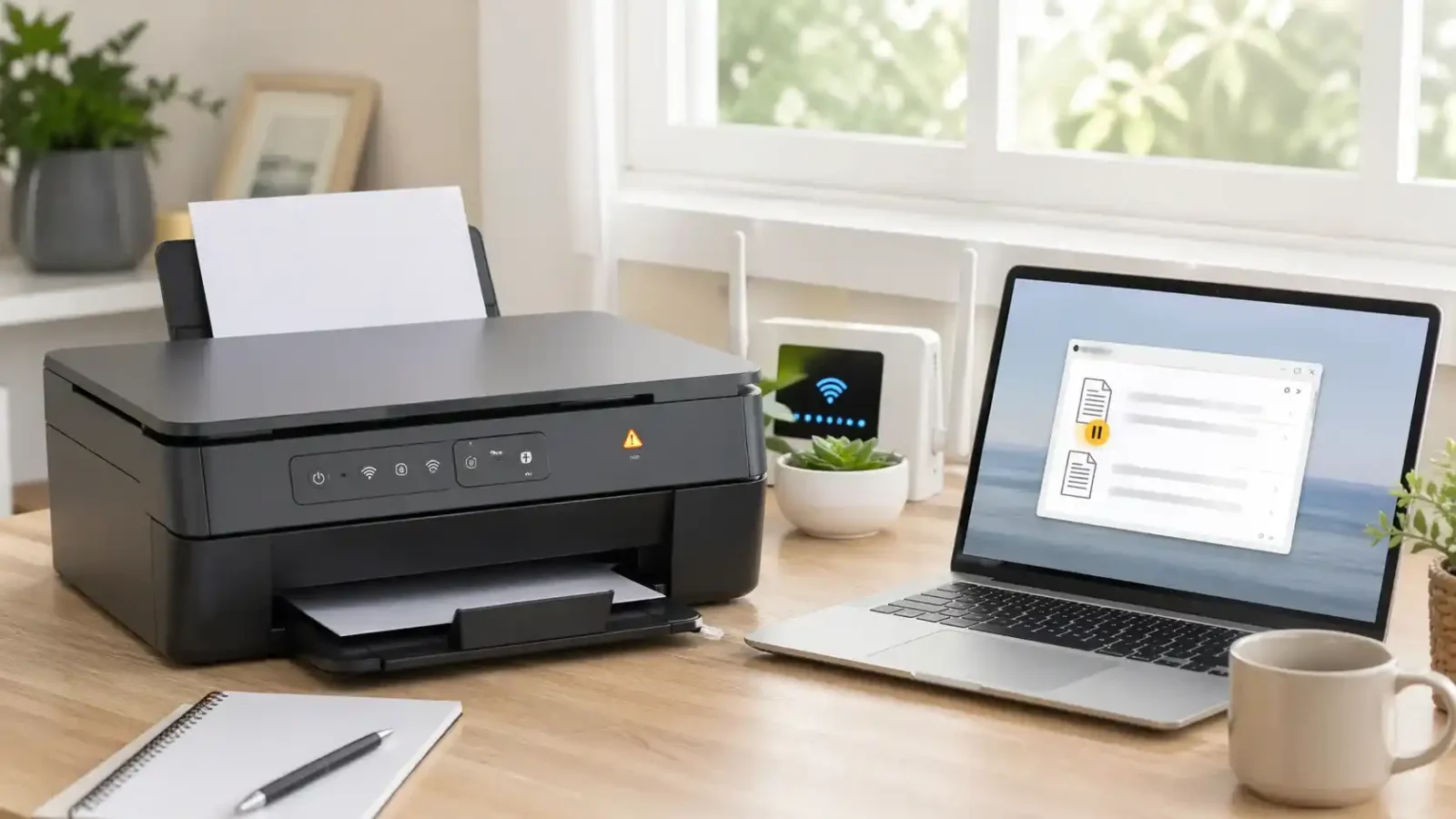
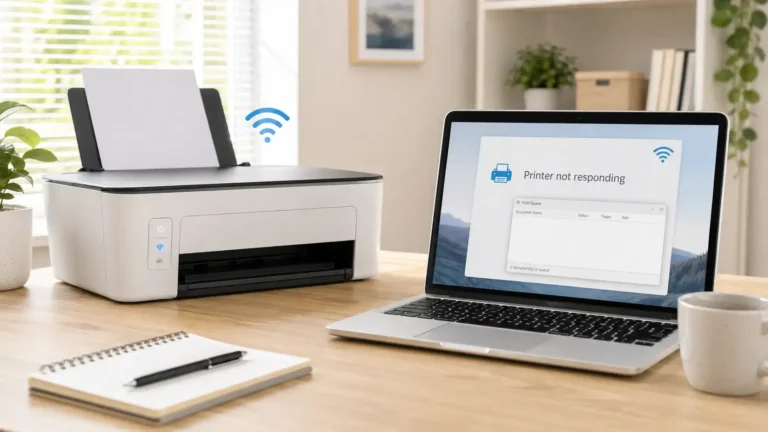
A printer can be connected and still not print. “Connected” usually means your computer, phone, or network can detect the printer. It does not always mean the print job is moving correctly, the right printer is selected, or the printer is ready to pull paper.
This guide is for the specific situation where the printer appears connected, recognized, or available, but nothing prints. If your issue is broader than that, use the related printer not printing guide for the wider no-printing problem. Printer Connected But Not Printing?
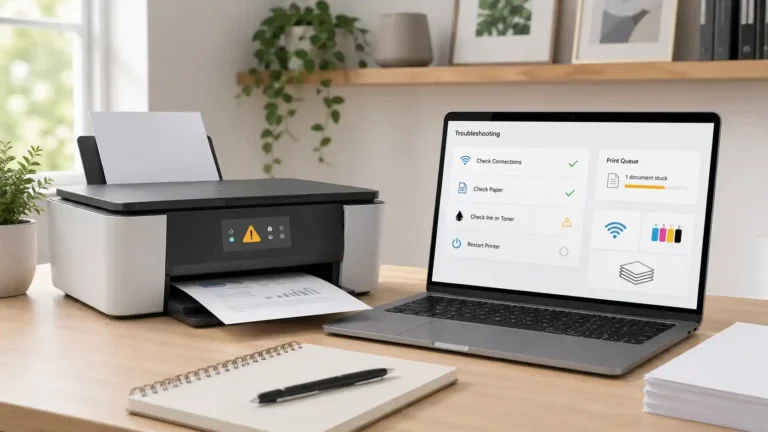
The most common reasons are a stuck print queue, the wrong printer being selected, a paused job, an app or file problem, a driver issue, weak Wi-Fi communication, or a printer-side warning such as paper, ink, toner, tray, cover, or jam trouble.
Start with the simplest test: check whether the printer can print by itself. If it can print a test page or make a copy, the printer hardware is probably able to print. If it cannot print anything on its own, check the printer screen, paper path, cartridges, and tray before changing computer settings.
Table of Contents
Why a Printer Can Be Connected But Not Print
Connected does not always mean ready to print
A connected printer is not always a ready printer. Your device may show the printer as connected because it can see the printer on USB, Wi-Fi, Ethernet, Bluetooth, or the local network. Printing still depends on several other steps.
For a document to print, all of these things need to work:
- The correct printer must be selected.
- The printer must not be paused or blocked in the print settings.
- The print queue must be clear enough to send the job.
- The app must send the file correctly.
- The driver or print service must translate the job properly.
- The printer must have paper, ink or toner, and no active warning.
- A wireless printer must remain reachable on the network while the job is sent.
This is why the question “Why is my printer connected but not printing?” can have more than one answer. The connection may be fine, but the job may still be blocked before it reaches the printer or after it reaches the printer.
How is this different from a printer being offline
A printer offline message usually means the computer cannot communicate with the printer in the expected way. A connected-but-not-printing problem is slightly different: the printer may appear available, but the job still does not complete.
If your printer clearly says offline, treat that as an offline issue first. If it looks connected but jobs do not print, continue with the checks below.
First Check: Can the Printer Print Without Your Computer?
Before reinstalling drivers or changing network settings, check whether the printer can print something by itself.
Try one of these:
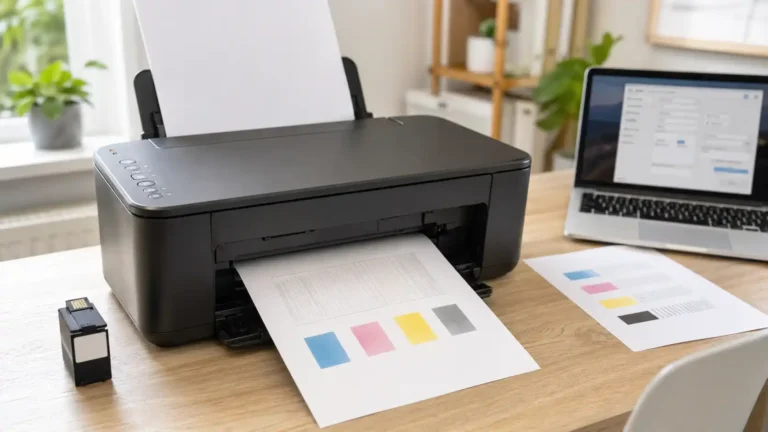
- Print a test page from the printer menu, if your printer has that option.
- Print a network status page if it is a Wi-Fi printer.
- Make a copy from the printer scanner, if it is an all-in-one printer.
If the printer can print its own page or make a copy, the printer is probably not fully broken. The issue is more likely with the print queue, selected printer, app, driver, or connection path.
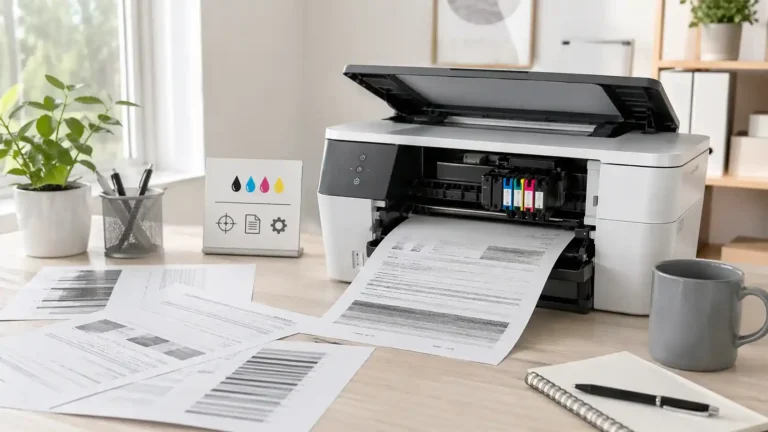
If the printer cannot print anything by itself, focus on the printer first. Check for paper, ink, toner, jam warnings, open covers, tray problems, or messages on the printer screen.
Make Sure You Selected the Correct Printer
This is one of the easiest things to miss.
Your computer may have more than one version of the same printer saved. This can happen after a driver update, router change, USB reconnect, printer reinstall, or operating system update.
Look for printer names such as:
- The same printer name with “Copy” or “Copy 1”
- An old version of the printer
- A fax version instead of the printer version
- A generic printer entry
- A printer entry that shows offline
- A printer from an old network or previous setup
Open the print window in the app you are using and check the selected printer before pressing Print. Do not assume the app picked the right one.
If you find multiple similar printer names, try sending one simple page to the printer entry that looks current and available. Once you know which one works, set that printer as the default if your device allows it.
Check the Print Queue Before Reinstalling Anything
A connected printer may not print because an old job is blocking the queue.
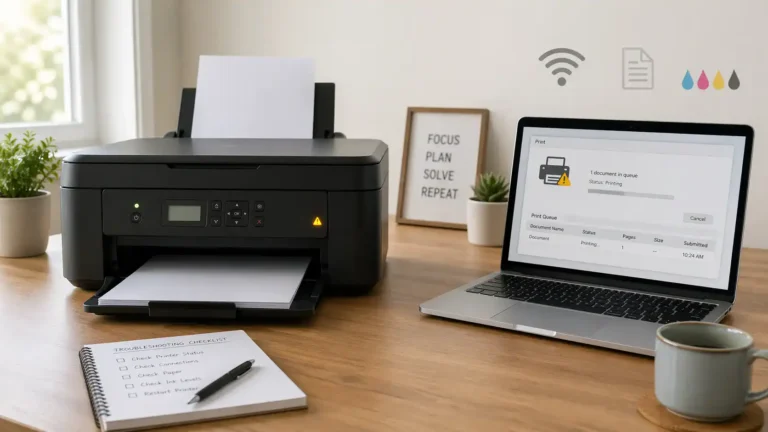
The print queue is the waiting area where print jobs sit before they reach the printer. If one job fails, pauses, or gets stuck deleting, newer jobs may sit behind it and never print.
Open the printer queue and look for signs such as:
- A job marked paused
- A job marked error
- A job stuck on deleting
- Several old jobs are waiting
- A large file that never finishes sending
- The same document appears more than once
Cancel the old or failed jobs. Then close the app, restart the printer, and try printing one simple page. If jobs keep getting stuck, disappearing, or staying in the queue without printing, use the print queue and spooler problems guide before changing ink, paper, or Wi-Fi settings.
Use a basic document for testing. Avoid using a large PDF, photo, label file, spreadsheet, or complicated web page until the printer prints a simple page successfully.
Try Printing From Another App or File
Sometimes the printer is not the problem. The file or app may be the problem.
Try printing something simple from another app. For example:
- If a PDF will not print, try a plain text document.
- If a browser page will not print, try a different browser or a simple document.
- If a photo will not print, try a normal one-page document first.
- If a spreadsheet will not print, try a short document with no special formatting.
If the printer works from another app, the issue may be with the original file, print settings, page size, permissions, or the app’s print dialog.
On a Mac, Apple’s Mac printing problem guidance also recommends checking whether the issue happens in more than one app before moving to deeper printer setup steps.
Check the original file for unusual page sizes, password protection, damaged formatting, very large images, or special print settings. You may also try saving the file again or printing it as a simpler document.
Check the Printer Screen, Lights, and Paper Path
A printer can stay connected while refusing to print because it needs attention.
Look directly at the printer, not only at the computer screen. Many printers show the real issue on the printer display or through blinking lights.
Check for:
- Empty paper tray
- Paper loaded incorrectly
- Wrong paper size selected
- Paper stuck inside the printer
- Small torn paper pieces near the rollers
- Low or empty ink or toner
- Cartridge not seated properly
- Access cover not fully closed
- Output tray not extended
- Printer waiting for confirmation on its screen
This is especially important if the print job seems to arrive at the printer, but nothing comes out.
If the printer makes noise but does not feed paper, check the paper tray and rollers. If the paper feeds but comes out blank, the issue may be ink, toner, printhead, cartridge, or printer-side maintenance rather than the connection.
If It Is a Wi-Fi Printer, Check the Network Path
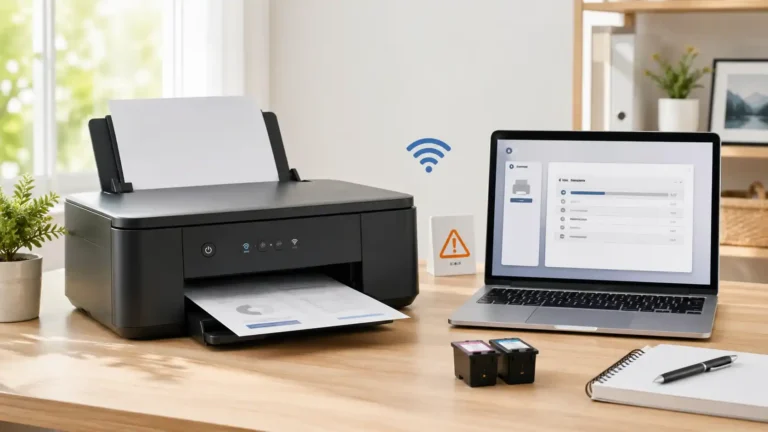
A Wi-Fi printer may show connected but still fail to print if the network path is unstable or mismatched.
This can happen when:
- The printer is on a guest network.
- The computer is on a different Wi-Fi network.
- A mesh system or extender separates devices.
- The printer is far from the router.
- The router was recently replaced.
- The Wi-Fi password or network name changed.
- The printer is connected to Wi-Fi, but the computer cannot reach it reliably.
Restart the printer and router, then try printing again. Keep the printer closer to the router while testing, if possible.
Also, try printing from another device on the same network. If the printer works from a phone but not from a computer, the computer settings, driver, app, or queue may be the problem. If it does not print from any device, the issue is more likely with the printer or network setup.
If your printer supports USB or Ethernet, a temporary wired test can help separate a wireless problem from a printer problem.
Check the Driver After the Basic Checks
Do not start by reinstalling the driver unless there is a clear driver message. Many connected-but-not-printing problems are caused by the wrong printer selection, stuck jobs, app issues, or printer-side warnings.
A driver problem is more likely when:
- The printer appears connected, but every job fails.
- Printing stopped after a computer update.
- The printer works from another device, but not this computer.
- The wrong printer model appears in settings.
- Print options look incorrect or are missing.
- The printer can copy but cannot print from the computer.
- The device shows a driver-related warning.
If the problem seems limited to one computer, try restarting the computer and printer first. Then, remove duplicate printer entries if needed and add the printer again.
For Windows, Microsoft’s printer connection and printing help is a safer reference than random driver download sites because it covers basic connection checks, printer removal, and reinstall steps from an official source.
If your printer model requires manufacturer software, download it only from the official manufacturer website or your device’s trusted app store. Avoid random driver download sites.
If your computer says “driver unavailable,” treat that as a separate driver issue instead of a normal connected-but-not-printing problem.
When It Is Probably a Print Queue or Spooler Problem
The issue is likely related to the queue or spooler when print jobs appear but do not move.
Common signs include:
- Jobs stay in the queue and never print.
- Jobs say paused, error, or are being deleted.
- Old jobs keep blocking new jobs.
- Restarting the printer does not clear the queue.
- A job disappears from the app, but nothing prints.
- The printer works after clearing the queue, then fails again later.
In that case, focus on clearing the queue and fixing the print service rather than changing ink, paper, or Wi-Fi settings.
When It Is Probably a Printer-Side Problem
The issue is more likely inside the printer when the printer cannot print anything by itself.
Signs include:
- The printer cannot make a copy.
- The printer cannot print its own test page.
- The printer screen shows a jam, tray, ink, toner, cover, or service warning.
- The paper does not feed correctly.
- Paper feeds, but comes out blank.
- The printer makes unusual grinding or clicking sounds.
- No device can print to the printer.
For printer-side issues, check the paper path, cartridges, trays, and display messages. If the same warning returns or the printer cannot print its own test page, use the official manual or manufacturer support for that exact model.
Best Troubleshooting Order
Follow this order to avoid wasting time:
- Try a printer test page or copy.
- Confirm the correct printer is selected.
- Check the print queue for stuck, paused, or failed jobs.
- Cancel old jobs and try one simple page.
- Try printing from another app or file.
- Restart the printer and computer.
- If wireless, restart the router and check the network path.
- Check paper, ink, toner, tray, cover, and jam warnings.
- Try another device or a temporary wired connection if possible.
- Re-add the printer or update the driver if the issue seems limited to one computer.
- Contact official support if the printer cannot print by itself or shows a hardware warning.
This order helps you separate a queue problem from a driver problem, an app problem from a printer problem, and a wireless issue from a hardware issue.
When to Get Model-Specific Help
Stop general troubleshooting and look for model-specific help if:
- The printer cannot print a test page.
- The printer cannot make a copy.
- The printer repeatedly jams.
- The printer shows a service or hardware error.
- The printer makes unusual mechanical noises.
- The printer requires a firmware update, and the update fails.
- The printer is used in an office with PINs, user codes, or print permissions.
- The computer shows a clear driver unavailable message.
At that point, the safest next step is to use the official manual or support page for your exact printer model. General steps can help with common causes, but model-specific errors often need model-specific instructions.
FAQ section
Why is my printer connected but not printing?
Your printer may be connected but not printing because the wrong printer is selected, the print queue is stuck, the job is paused, the app or file is not sending correctly, the driver is not working, the Wi-Fi path is unstable, or the printer is waiting for paper, ink, toner, or a jam to be cleared.
Why does my printer show connected, but nothing comes out?
If your printer shows connected but nothing comes out, check the queue and printer screen first. A failed old job, paused queue, wrong printer entry, empty tray, paper jam, low ink or toner, or printer warning can stop printing even when the connection looks fine.
Why does my printer print a test page but not my document?
If the printer prints a test page but not your document, the printer hardware is probably able to print. The issue may be the app, file, print settings, queue, driver, or selected printer. Try printing a simple document from another app.
Why does my printer work from my phone but not my computer?
If the printer works from your phone but not your computer, the problem is likely on the computer side. Check the selected printer, print queue, driver, app settings, and whether the computer is on the same usable network path as the printer.
Should I reinstall my printer if it is connected but not printing?
Reinstalling the printer may help, but it should not be the first step. First, check the selected printer, queue, test page, app, file, and printer display. Re-add or reinstall the printer if the issue stays limited to one computer or started after a system change.
Is a connected printer the same as a ready printer?
No. A connected printer may be visible to your device, but it may still not be ready to print. The queue, app, driver, network route, paper tray, cartridges, or printer screen may still block the job.
Is this the same as a stuck print queue?
Not always. A stuck print queue is one common reason a connected printer will not print, but the issue can also be the wrong printer, a bad file, app settings, driver trouble, Wi-Fi routing, or a printer-side warning.
When should I contact official printer support?
Contact official support if the printer cannot print its own test page, cannot make a copy, shows a hardware or service error, keeps jamming, makes unusual noises, or still fails after you check the queue, connection, driver, and printer-side warnings.
Short excerpt
Your printer may be connected but still not print if the wrong printer is selected, the queue is stuck, the app or file has a problem, the driver is failing, or the printer is waiting for paper, ink, toner, or a jam to be cleared. Start with these checks before reinstalling anything.