
Printer Connected But Not Printing: What to Check First
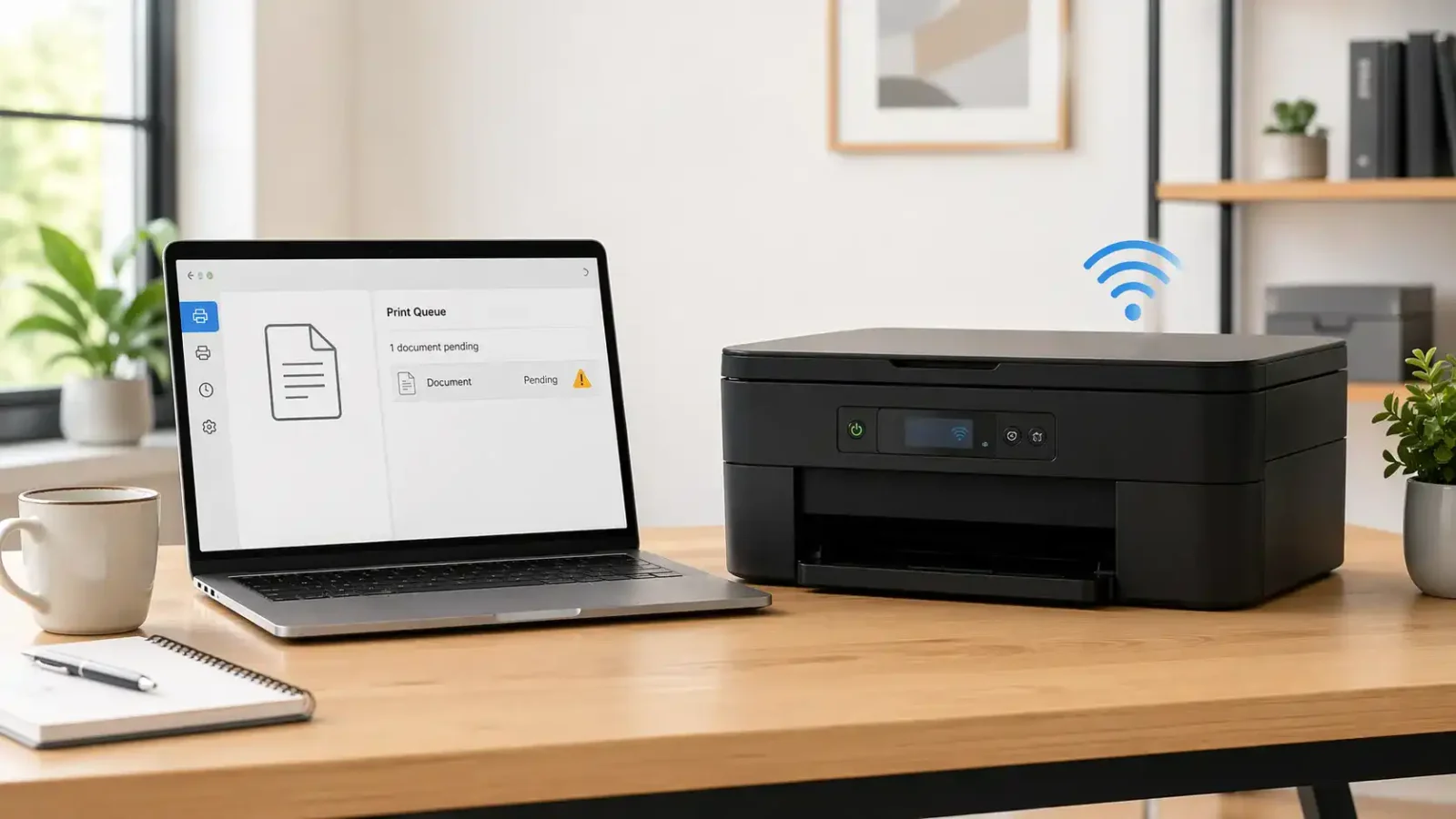
A printer can be connected but still not print because the connection is only one part of the printing process. Your computer may be able to detect the printer, but the print job can still be blocked by the wrong printer selection, a stuck print queue, a paused job, a driver problem, an app issue, a Wi-Fi mismatch, or a warning on the printer itself.
So if you are asking, “Why is my printer connected but not printing?”, start with the simple checks before reinstalling drivers or assuming the printer is broken.
Table of Contents
Why a Printer Can Be Connected But Not Print
“Connected” usually means your computer, phone, or tablet can see the printer. It does not always mean the printer is ready to receive and finish the print job.
A print job normally has to move through several steps:
1. The app sends the document.
2. The correct printer is selected.
3. The job enters the print queue.
4. The driver or print service processes the job.
5. The computer sends it over USB, Wi-Fi, or the network.
6. The printer accepts the job and prints the page.
If one part of that path fails, the printer may still look connected, but nothing comes out.
Common causes include:
- The wrong printer is selected
- The print job is stuck in the queue
- The printer is paused
- The printer is set to offline mode
- The printer driver is not working correctly
- The computer and printer are not on the same Wi-Fi network
- The document or app has a print setting problem
- The printer has low paper, low ink, a jam, or another warning
Quick Checks Before Changing Settings
Before you remove the printer, reinstall anything, or reset your network, check these basics first.
Make sure you selected the right printer
Many printing problems happen because the document was sent to the wrong destination.
Check the print window before sending the job, and make sure you did not choose:
- An old printer name
- a duplicate printer copy
- a printer from another location
- Print to PDF
- Save as PDF
- a paused printer
- a printer listed as offline
This is especially common after a computer update, router change, new printer setup, or office/home network change.
Check whether the print job is stuck
Open the printer queue and look at the current jobs. If a job says “printing” but nothing happens, or if several jobs are waiting behind one failed job, the printer may be connected but blocked by the queue.
Cancel old, failed, duplicate, or paused jobs. Then try printing one simple page again.
If the job will not delete, keeps coming back, or the queue freezes, this is more likely a print queue and spooler problem.
Look at the printer screen or lights
A connected printer may refuse to print if the printer itself needs attention. Check for:
- empty paper tray
- paper loaded incorrectly
- open cover
- visible paper jam
- low or empty ink or toner
- wrong paper size
- Wrong tray selection
- sleep mode
- warning light or message
If the printer has a display screen, read the message before changing computer settings. A simple printer-side warning can stop every job, even when the connection is fine.
Restart the Printer, Computer, and Router
A restart can clear temporary communication problems, especially if the printer was working recently and suddenly stopped.
Use this order:
1. Cancel the current print job.
2. Turn the printer off.
3. Restart your computer.
4. If it is a wireless printer, restart the router.
5. Turn the printer back on.
6. Wait until the printer is fully ready.
7. Try printing one basic test page.
Do not send the same large document again right away. Test with a simple one-page file first so you can tell whether the printer itself is responding.
For Windows-specific connection checks, Microsoft Support’s printer troubleshooting help can be useful when the basic restart does not help.
Clear the Print Queue
A stuck print queue is one of the most common reasons a printer is connected but not printing.
When one failed job fails, newer jobs may wait behind it. The printer may look ready, but the queue is not moving.
What to do
Open your printer queue and cancel:
- old jobs
- duplicate jobs
- paused jobs
- failed jobs
- Jobs sent to the wrong printer
After clearing the queue, restart the printer and try again.
What does it mean if the queue keeps freezing
If jobs will not delete or the queue keeps getting stuck, the issue may be with the print spooler or print service on the computer. In that case, use the print queue and spooler problems guide instead of repeating the same print command.
On a Mac, Apple Support’s printing problem steps can help you check whether a job is paused, waiting behind another job, or sent to a different printer.
Set the Correct Printer as Default
Your printer may be connected, but your computer may still be sending the document somewhere else.
This can happen when:
- A previous printer is still saved
- A PDF printer is selected
- The printer was re-added and now appears twice
- The computer changed the default printer automatically
- The app remembers a different printer from last time
Check your printer settings and make sure the correct printer is selected as the default. Then open the document again and confirm the same printer is selected in the app’s print window.
If you see two similar printer names, try the one that matches your current connection. For example, one entry may be for USB, and another may be for wireless printing.
Make Sure the Printer Is Not Paused or Set Offline
This article is not mainly about offline printer problems, but one quick setting is worth checking.
In your printer settings or queue window, look for options such as:
- Pause Printing
- Use Printer Offline
- Resume
- Start Printer
- Open Queue
The exact wording depends on your computer and printer setup. If the printer is paused, resume it. If “use printer offline” is enabled, turn it off.
Then send one small test page.
Try Printing From Another App or File
Sometimes the printer is fine, but one document or app will not print correctly.
Try printing from a different app, such as a simple text document, browser page, or basic PDF.
If only one file will not print
The problem may be the document, not the printer.
Possible causes include:
- corrupted file
- unsupported paper size
- unusual margins
- large image-heavy document
- font problem
- App print setting conflict
- wrong page range
- password-protected or restricted file
Try saving a new copy of the file, printing fewer pages, or exporting the document to PDF before printing again.
If nothing prints from any app
If no app can print, the issue is more likely related to the selected printer, queue, driver, network, or printer hardware.
Check the Printer Driver
A printer can appear connected even when the driver is not working properly.
The driver helps your computer communicate with the printer. If it is outdated, damaged, missing, or mismatched, the printer may show as available but fail when a job is sent.
Signs the driver may be the issue
The driver may be the problem if:
- The printer appears connected, but test pages fail
- The issue started after a computer update
- The printer works from another device, but not this computer
- The printer name appears more than once
- Print jobs error immediately
- A new computer can detect the printer, but cannot print
- advanced printer features are missing or wrong
What to do safely
Try these steps:
1. Remove the printer from your computer’s printer list.
2. Restart the computer.
3. Add the printer again.
4. If needed, download the current driver from the printer manufacturer’s official support website.
5. Avoid random third-party driver download sites.
6. Restart again before testing.
Do this after simpler checks like the queue, the default printer, and app testing. Reinstalling the driver too early can waste time if the real problem is just a stuck job or wrong printer selection.
Check Wi-Fi and Network Printing Issues
A wireless printer can be connected to Wi-Fi, but still fail to print from your computer.
This usually happens when the printer and computer are not communicating on the same local network.
Check the same Wi-Fi network
Make sure your computer and printer are on the same Wi-Fi network.
Watch for:
- guest Wi-Fi networks
- separate 2.4 GHz and 5 GHz network names
- Wi-Fi extenders with different names
- VPN apps are blocking local printer access
- Router changes after a power outage
- weak signal near the printer
If your computer is on a guest network, it may have internet access but still be blocked from seeing local devices like printers.
If the printer works from one device but not another
If the printer works from your phone but not your computer, the printer itself is probably not the main problem.
Focus on the computer:
- selected printer
- print queue
- driver
- app settings
- local network permissions
- VPN or security software
If the printer does not work from any device, look more closely at the printer, router, Wi-Fi connection, or printer-side warning.
Check the USB Cable or Port
For a wired printer, a loose or unreliable USB connection can make the printer appear connected sometimes but fail when printing.
Try this:
1. Push the cable firmly into the printer and computer.
2. Try a different USB port.
3. Avoid USB hubs if possible.
4. Try another cable if you have one.
5. Restart the printer after reconnecting.
6. Remove duplicate printer entries if they appear after reconnecting.
If the printer only works when the cable is held at a certain angle, the cable or port may be damaged.
Check Printer-Side Problems
A connected printer may not print because the printer itself is not ready.
Check the printer directly, not just the computer screen. Look for:
- paper jam
- low paper
- empty ink or toner
- open cover
- blocked tray
- wrong tray selected
- paper size mismatch
- maintenance message
- sleep or power-saving mode
- hardware error message
If your printer can copy a page from its own control panel, the print hardware is probably working. In that case, the issue is more likely with the computer, queue, driver, app, or network connection.
If the printer cannot copy or print a built-in test page, the issue may be inside the printer itself.
How to Tell Where the Problem Is
Use what happens after you click Print to narrow down the cause.
| The wireless printer is visible, but fails | Most likely area to check |
| Job stays in the queue | Print queue or spooler |
| Job says printing but nothing happens | Queue, connection, or printer status |
| Job disappears but no page prints | Wrong printer, driver, or printer-side issue |
| Printer works from phone but not computer | Computer, driver, queue, or app issue |
| Printer works from one app but not another | App or document problem |
| Printer screen shows a warning | Printer-side issue |
| Printer appears twice | Wrong printer entry or driver setup |
| Wireless printer is visible but fails | Wi-Fi, router, network, or driver issue |
This step is important because it stops you from trying random fixes. The best fix depends on where the print job is getting blocked.
What to Check Before Reinstalling the Printer
Before removing and reinstalling the printer, check:
- The correct printer is selected
- The printer is not paused
- The printer is not set to offline mode
- The print queue is clear
- The printer has paper
- The printer has no warning message
- The computer and printer are on the same Wi-Fi network
- Another app or file has been tested
- Another device has been tested if available
If all of these look fine and the printer still will not print, reinstalling the printer or driver becomes a more reasonable next step.
When to Use the Broader Printer Not Printing Guide
Use the broader printer not printing guide when the problem is not limited to a connected printer.
That guide is a better fit if:
- The printer may not be connected at all
- The printer is completely unresponsive
- No lights or display appear
- The printer is offline
- printed pages come out blank
- The printer prints poorly
- The issue is not clearly tied to connection, queue, driver, or app behavior
This page is focused on the specific case where the printer appears connected but does not complete the print job.
When to Get Official Support
Contact the printer manufacturer’s official support if:
- The printer shows a hardware error code
- The printer cannot print its own test page
- The printer cannot copy from its control panel
- The printer repeatedly drops Wi-Fi after setup
- firmware updates fail
- There is a suspected mechanical fault
- The printer is under warranty
TamerlanKg is an independent informational blog, not official manufacturer support or a repair center. For hardware faults, warranty questions, or model-specific error codes, the official support channel is the safest next step.
Final Takeaway
If your printer is connected but not printing, do not start by assuming the printer is broken. A connected printer can still be blocked by the wrong printer selection, a stuck print queue, a paused job, a driver issue, an app problem, a Wi-Fi mismatch, or a printer-side warning.
Start with the print queue, selected printer, and printer screen. Then test another app, check the driver, and confirm the network or cable connection. This order usually finds the problem faster than reinstalling everything first.
FAQ section
Why is my printer connected but not printing?
Your printer may be connected but not printing because the print job is blocked somewhere after the connection step. Common causes include a stuck print queue, wrong printer selection, a paused printer, a driver issue, an app problem, Wi-Fi mismatch, or a warning on the printer.
Why does my printer say connected, but the job stays in the queue?
This usually points to a print queue or spooler problem. Cancel old or failed jobs first. If jobs will not delete, keep coming back, or freeze the queue, troubleshoot the print queue and spooler.
Why is my wireless printer connected but not printing?
A wireless printer may be connected to Wi-Fi but still unable to communicate with your computer. Check that both devices are on the same Wi-Fi network, avoid guest Wi-Fi, restart the router and printer, and test a simple one-page document.
Why does my printer work from my phone but not my computer?
If the printer works from your phone but not your computer, the printer itself is probably working. The issue is more likely on the computer, such as the selected printer, print queue, driver, app settings, VPN, or network permissions.
Why does my printer show online, but nothing comes out?
Check the print queue first. If the job is stuck, cancel it and try again. If the job disappears but nothing prints, check the selected printer, driver, and printer screen for paper, ink, tray, cover, or jam warnings.
Can a printer be connected and still have a driver problem?
Yes. Your computer may detect the printer even if the driver is outdated, damaged, or does not match the printer correctly. Driver problems are more likely if the printer works from another device but not from one computer.
Should I reinstall my printer if it is connected but not printing?
Reinstall the printer only after simpler checks. First, clear the queue, confirm the correct printer, restart the printer and computer, test another file, and check the printer screen. Reinstalling is more useful when the issue started after an update or the printer appears multiple times.
Is this the same as a printer offline problem?
No. A printer offline problem usually means the computer cannot treat the printer as available. A connected-but-not-printing problem means the printer appears available, but the print job still does not finish.
Short excerpt
Printer connected but not printing? Learn why a printer can appear connected but still fail to print, and check the queue, selected printer, driver, Wi-Fi, app, and printer status in the right order.