Printer Not Responding: What to Check First

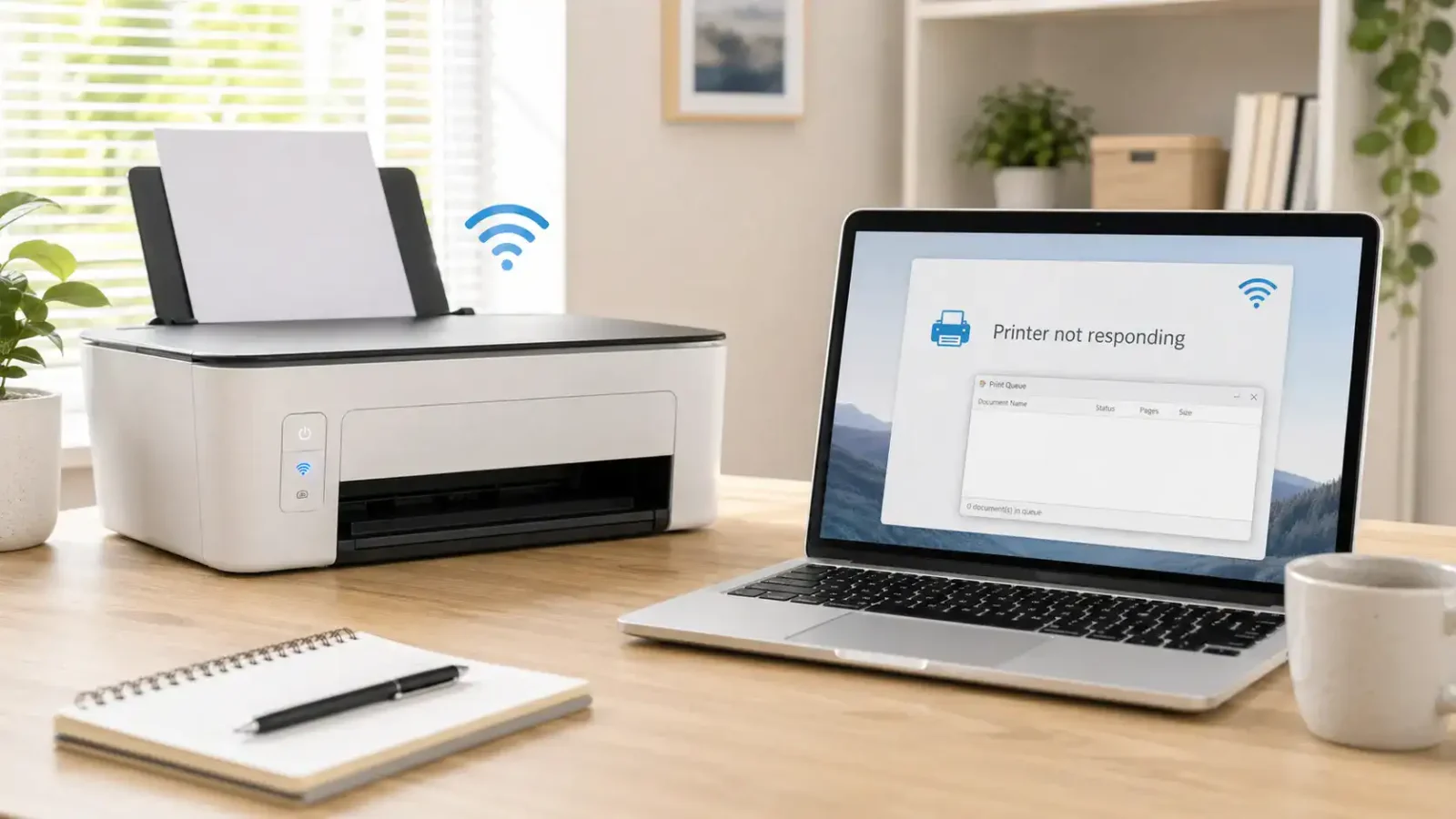
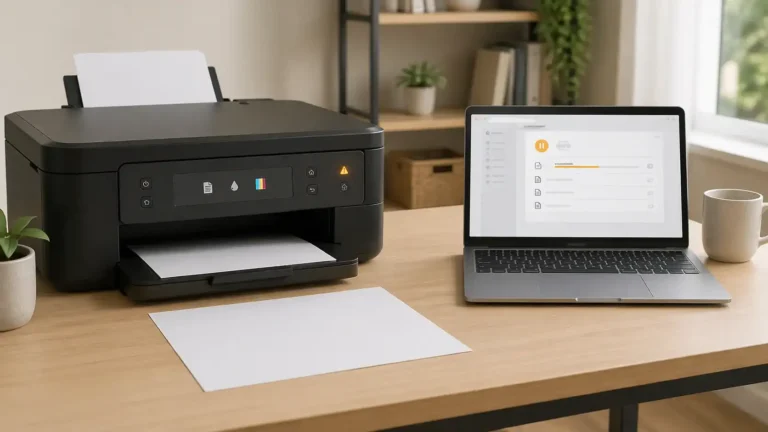
When a printer is not responding, it usually means your computer, phone, or app is trying to send a command, but the printer is not replying in a normal way. The printer may be powered on, installed, or even visible in your device list, but it still does nothing when you try to print.
Start with the printer itself. If the printer screen, buttons, lights, or basic copy function do not respond, the issue may be with the printer’s power, firmware, or hardware. If the printer responds locally but not from your computer or phone, the issue is more likely a connection, queue, driver, or device setup problem.
This guide focuses on printer response problems. For broader no-print situations, use the main printer not printing guide.
Table of Contents
What “Printer Not Responding” Means
“Printer not responding” does not always mean the printer is broken. It means the printer is not reacting to a command, or your device is not getting a proper response back.
You may see this problem when:
- You click Print, and nothing happens
- The printer does not wake up after a print command
- Your computer says the printer is not responding
- A wireless printer appears installed, but ignores print jobs
- The printer works from one device but not another
- The printer is connected, but the app cannot send the job
This is different from a printer that prints blank pages, prints badly, has a paper jam, or shows a clear driver unavailable message. Those are related problems, but they need a different diagnosis.
First Check: Is the Printer Itself Responding?
Before changing drivers or reinstalling anything, check whether the printer responds on its own.
Look at the printer screen, lights, and buttons. Try waking it from sleep mode. If your printer has a control panel, open a menu or press a basic button. If it has a copy function, try making a simple copy without using the computer.
If the printer does not respond at all, focus on power, sleep mode, frozen firmware, or hardware alerts. If the printer responds from its own panel but not from your computer or phone, the problem is probably in the connection between the printer and the device sending the job.
Common Reasons a Printer Is Not Responding
The Printer Is Asleep, Frozen, or Not Fully Powered On
Some printers enter a deep sleep mode and do not wake properly when a print job is sent. Others may freeze after a power interruption, failed update, or long idle period.
Turn the printer off, unplug it from power for a short time, plug it back in, and turn it on again. Wait until it finishes starting up before sending another print job.
Do not press several print commands while the printer is restarting. That can create extra stuck jobs in the queue.
The Computer and Printer Are Not Communicating
If the printer responds locally but not from your computer, the communication path may be broken.
For a USB printer, the cable may be loose, damaged, plugged into a weak port, or connected through a hub that is causing problems.
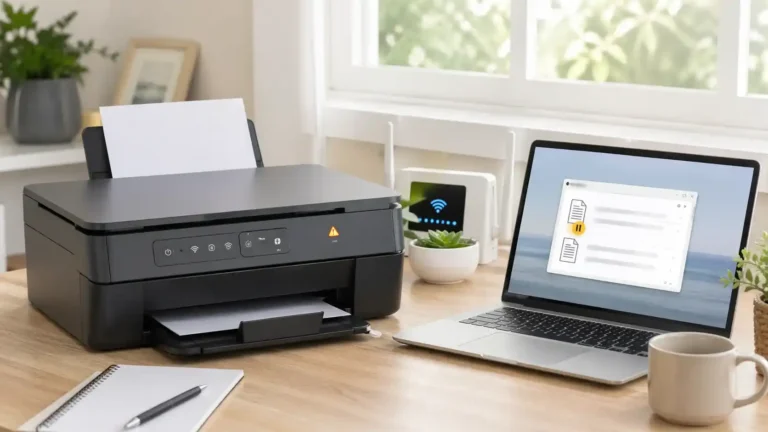
For a wireless printer, the printer may be on a different Wi-Fi network, too far from the router, disconnected from Wi-Fi, or affected by a router issue.
For an Ethernet printer, the network cable may be loose, or the printer may not be getting a proper network connection.
The Wrong Printer Is Selected
Many computers keep old printer entries. You may have duplicate printer names, offline copies, fax entries, PDF printers, or old versions from a previous setup.
Before assuming the printer is not responding, check that the selected printer is the real printer you want to use. Choose the entry with the correct model name and avoid entries that say PDF, XPS, OneNote, fax, old copy, or offline unless that is what you intended.
A Print Job Is Stuck Before It Reaches the Printer
Sometimes the printer is not the first problem. A stuck print job can block new jobs from moving forward. The printer may look like it is ignoring commands because the computer is still trying to process an older job.
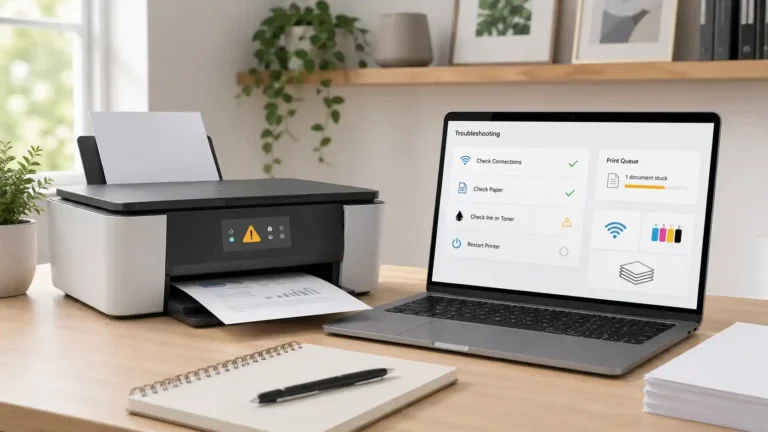
Open the print queue, cancel stuck jobs, then send one simple test print. If the queue keeps freezing or jobs will not clear, use the print queue and spooler guide next.
The Printer Driver or Software Is Not Working Correctly
The printer driver helps your computer talk to the printer. If the driver is outdated, damaged, missing, or not compatible with your current system, the printer may stop responding even though it appears installed.
Do not start with driver reinstalling unless basic power, connection, printer selection, and queue checks fail. Reinstalling too early can make troubleshooting harder if the real issue is Wi-Fi, USB, or a stuck job.
The Printer Is Showing Another Blocking State
A printer may not respond because it is waiting for another issue to be fixed. Check the printer screen or computer status for messages such as:
- Offline
- Paused
- Error
- Paper jam
- Out of paper
- Door open
- Low ink or toner
- Cartridge problem
- Hardware alert
If you see a clear message, handle that message first. “Printer not responding” may only be a symptom of that blocked state.
How to Fix a Printer Not Responding
Follow these steps in order. The goal is to find where the response is failing: the printer, the connection, the computer, the queue, the driver, or the app.
1. Restart the Printer Properly
Turn the printer off. Unplug the power cable from the printer or wall outlet. Wait briefly, then plug it back in and turn the printer on.
Let the printer fully start before trying again. Watch the screen or the lights. If the printer shows an error, do not ignore it. Fix the displayed issue first.
This step helps when the printer is asleep, frozen, or stuck after a failed command.
2. Restart the Device, Sending the Print Job
Restart the computer, phone, or tablet you are printing from. A device can hold an old printer connection even after the printer itself is working again.
After restarting, open a simple document and send one test print. Avoid testing with a large PDF, photo, web page, or complex file at first.
3. Check the USB, Ethernet, or Wi-Fi Connection
For a USB printer, unplug and reconnect the cable at both ends. Try another USB port if one is available. Avoid using a USB hub during testing. If you have another cable, test with it.
For an Ethernet printer, check the cable at the printer and router. Make sure the cable is firmly connected.
For a wireless printer, check that the printer is still connected to Wi-Fi. Make sure your computer or phone is on the same network. If your router has separate network names, such as 2.4 GHz and 5 GHz, confirm that both devices can see each other on the network.
If the wireless signal is weak, move the printer closer to the router for testing.
For Windows computers, Microsoft’s official printer troubleshooting page is a useful next step when the printer still cannot communicate with the PC after basic connection checks.
4. Make Sure the Correct Printer Is Selected
Open the print screen and check the selected printer before clicking Print.
Choose the current printer with the correct model name. Do not choose an old copy, an unavailable printer, a virtual printer, a fax option, or a PDF option by mistake.
If there are several similar printer entries, try the one that shows as available or ready. If only one entry works, remove the old duplicates later to avoid selecting the wrong one again.
5. Send a Simple Test Print
Use a basic text document or system test page. This helps you avoid confusing a printer response problem with a file problem.
If a simple document prints, the printer is responding. The original file, app, browser page, or PDF may be the issue.
If the simple test also fails, continue with the queue and device checks.
6. Check the Print Queue
Open the printer queue and look for stuck, paused, or failed jobs. Cancel old jobs and wait for the queue to clear. Then send only one new test job.
If jobs keep getting stuck, the issue may be with the queue, spooler, or printer communication. For deeper help, go to the print queue and spooler guide.
Keep this step simple on this page. The goal here is only to check whether a blocked job is stopping the printer from responding.
7. Check the Printer Status
Look for status labels on your computer or printer screen. If the printer says offline, paused, in error, or blocked by a paper or cartridge issue, that status needs to be fixed before the printer will respond normally.
A printer can be installed correctly but still refuse commands because it is waiting for paper, a closed cover, a cleared jam, or user action on the printer panel.
8. Remove and Re-Add the Printer
If the printer responds locally and the connection seems correct, remove the printer from your computer’s printer list and add it again.
This can refresh a broken printer entry, old queue, or stale network path.
After adding it again, choose the new printer entry and send a simple test print. If the new entry works, remove old duplicate entries to avoid selecting the wrong one later.
9. Update or Reinstall the Printer Driver
Try this after the basic response checks. A driver issue can stop the computer from sending commands correctly.
Use the printer maker’s official website or the driver options provided by your operating system. Avoid random driver download sites. Install the correct driver for your printer model and operating system.
After updating or reinstalling, restart the computer and printer before testing again.
10. Test from Another App or Device
This step helps you find where the issue really is.
If the printer responds from another phone, laptop, or computer, the printer itself is probably working. The problem is likely on the first device, app, printer entry, or driver setup.
If the printer does not respond from any device, the issue is more likely with the printer, Wi-Fi, router, network setup, or hardware.
If the printer responds from one app but not another, the app or file may be the issue. Apple Support’s Mac printing help also recommends trying another app when a printing issue may be app-specific.
How to Tell This Apart From Similar Printer Problems
Printer problems can look similar, but they are not always the same. Separating them helps you avoid the wrong fix.
Printer Not Responding vs Printer Not Printing
A printer not responding means the printer is not reacting to a command, or your device is not communicating with it properly.
A printer not printing problem is broader. The printer may receive the job but still fail to produce output for many reasons, such as paper, ink, toner, queue, driver, or hardware problems.
Printer Not Responding vs Printer Connected but Not Printing
A connected printer may still fail to print even when the computer can detect it. In that case, the printer may be visible, but something is blocking output.
That is close to this problem, but not always the same. “Not responding” is more about the printer ignoring or failing to answer commands.
Printer Not Responding vs Printer Offline
Offline is a specific status shown by the computer. It usually means the system believes the printer is unavailable.
Not responding is broader. The printer may be online, installed, or visible, but still fail to react because of a connection, queue, driver, app, or printer state issue.
Printer Not Responding vs Queue Stuck
A stuck queue means print jobs are trapped before they complete. The printer may be fine, but the computer is not sending jobs properly.
If jobs are frozen, piling up, or refusing to cancel, move to the print queue and spooler guide.
Printer Not Responding vs Driver Unavailable
Driver unavailable is a more specific software problem. It means the computer does not have a working driver for the printer.
A printer may not be responding for driver reasons, but it can also happen because of Wi-Fi, USB, power, wrong printer selection, stuck jobs, or a blocked printer state.
Printer Not Responding vs Printer in Error State
A printer in error state usually means the printer or computer has detected a blocking problem. This may be a jam, open cover, paper issue, cartridge problem, or hardware alert.
If the printer shows a clear error, solve that first. The response problem may disappear once the error is cleared.
What to Do If the Printer Still Does Not Respond
If the printer still does not respond after the steps above, isolate the problem before replacing anything.
Try the printer from another device. Try a different connection if possible, such as USB instead of Wi-Fi. Try a simple test page instead of a large document. Check whether the printer can print or copy without the computer.
Contact official printer support if the printer does not power on, the control panel is frozen, the printer fails its own test page, the same hardware message remains, or the printer makes unusual noises. In those cases, the issue may be beyond normal home troubleshooting.
Bottom Line
A printer not responding is usually a communication or device-state problem. Start by checking whether the printer itself responds, then move through power, connection, selected printer, simple test print, queue, status messages, and driver setup.
Do not assume the printer is broken right away. In many cases, the issue is a stale connection, wrong printer entry, stuck queue, or blocked printer status.
FAQ section
Why is my printer not responding when I click Print?
Your printer may not be receiving the command, or your computer may not be getting a proper reply from the printer. Restart the printer, check the cable or Wi-Fi connection, confirm the correct printer is selected, and send one simple test print.
What should I check first if my printer is not responding?
Check whether the printer itself responds. Look at the screen, lights, and buttons. If your printer has a copy or status page option, try that without using the computer. If the printer works locally, the issue is more likely connection, queue, driver, or device setup.
Why is my wireless printer not responding?
A wireless printer may stop responding if it is disconnected from Wi-Fi, connected to a different network, too far from the router, blocked by a router issue, or listed under an old printer entry on your computer.
Why is my printer connected but not responding?
The printer may be detected but still unable to receive or process the print command. This can happen because of a stuck queue, wrong printer selection, weak connection, paused status, driver issue, or app-specific problem.
Can a stuck print queue make a printer not respond?
Yes. A stuck job can block new print commands from reaching the printer. Cancel old jobs, clear the queue, and send one simple test print. If jobs keep freezing, use the print queue and spooler guide.
Is the printer not responding the same as being offline?
Not always. Offline is a specific printer status. Not responding is broader and can happen because of power, Wi-Fi, USB, queue, driver, app, or printer state issues.
Should I reinstall the printer driver if the printer is not responding?
Try basic checks first. Restart the printer and computer, check the connection, select the correct printer, and clear stuck jobs. If the printer still does not respond, updating or reinstalling the driver can help.
Why does my printer respond from one device but not another?
That usually means the printer is working, but one device has a setup, app, driver, queue, or printer entry problem. Remove and re-add the printer on the device that fails, then test with a simple document.
When should I contact official printer support?
Contact official support if the printer will not power on, the control panel is frozen, the printer fails its own local test, a hardware error stays on screen, or the same problem continues after connection and software checks.
Short excerpt
Printer not responding? Learn what it means, what to check first, and how to fix common power, connection, queue, driver, and device communication problems.