
Printer Not Printing Black: Fix Guide
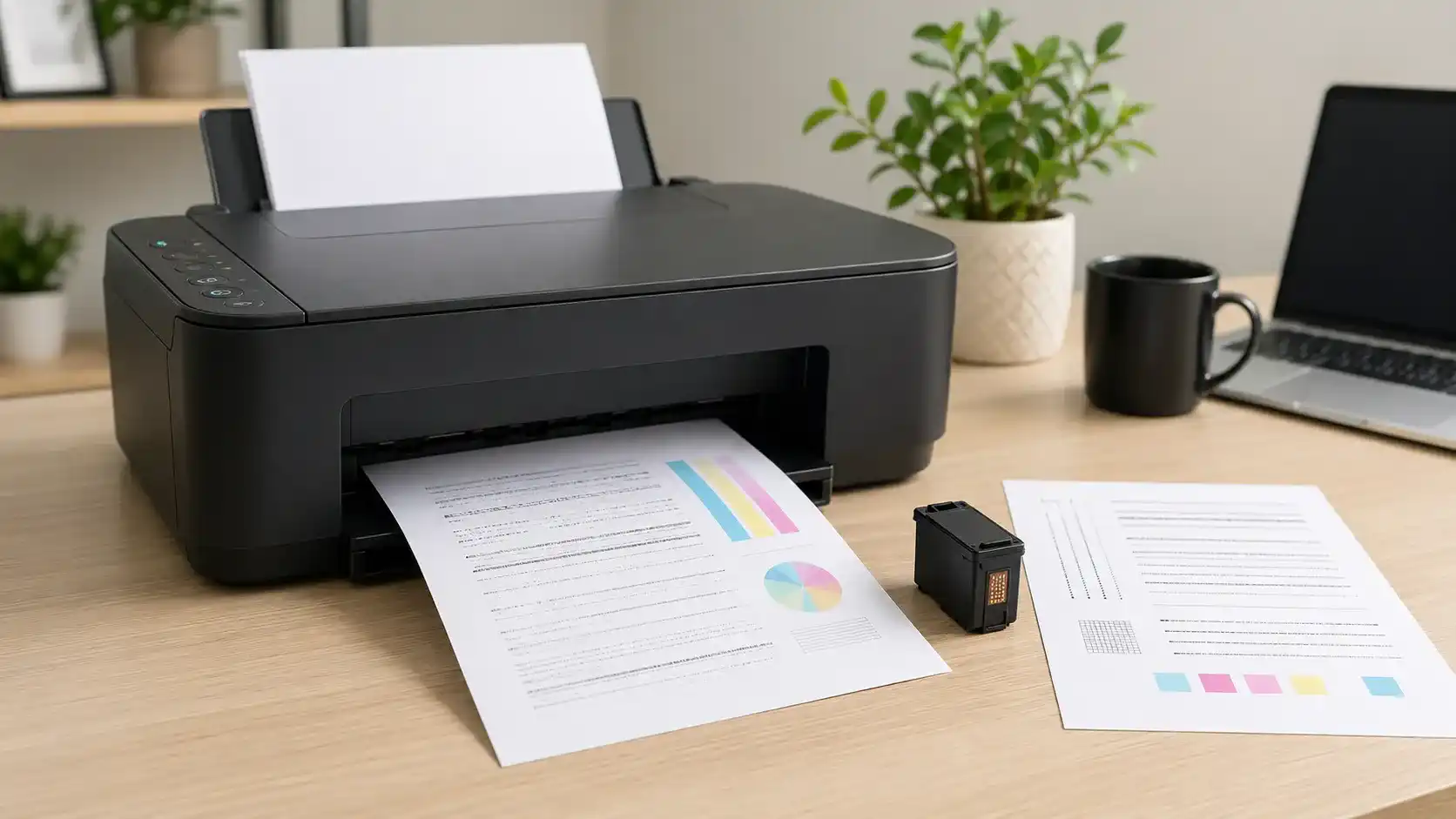
If you are asking, “Why is my printer not printing black?”, the most likely reasons are a low or blocked black cartridge, dried ink in the black printhead, incorrect print settings, a driver or app issue, or a maintenance problem inside the printer.
This issue is different from a printer that does not print anything at all. If the printer prints colors but black is missing, faint, streaky, or blank, focus first on the black ink or black toner path. If no pages print at all, the problem may be connection, queue, spooler, driver, or printer status related instead.
Table of Contents
Quick answer: why black ink may not print
A printer may stop printing black because:
- The black ink or toner is empty or too low.
- The black cartridge is not seated correctly.
- A new cartridge still has protective tape or a seal attached.
- The black printhead or nozzle is clogged.
- The printer is set to draft, photo, grayscale, or a paper type that changes how black is printed.
- The document or app is sending the wrong print settings.
- The printer driver is causing bad output from the computer.
- The printer needs a nozzle check, cleaning cycle, alignment, or other maintenance.
- A laser printer has a toner, drum, transfer, or fuser-related issue.
Start with a test page before replacing parts. A test page helps you see whether the black problem is coming from the printer itself or only from one document, app, or computer.
First check: Is this really a black-only problem?
Before changing cartridges or running cleaning cycles, check what the printer is actually doing.
Try printing a printer test page, print quality report, or nozzle check from the printer menu or printer software. The exact name depends on your printer model.
Look for these signs:
| What you see | What it usually means | What to check first |
| Colors print, but black is missing | Black ink, toner, printhead, or setting issue | Black cartridge and test page |
| Black text is faint or gray | Draft mode, low ink, partial clog, or toner issue | Quality setting and ink level |
| Black lines are broken or streaky | Clogged nozzle or printhead issue | Nozzle check or cleaning cycle |
| Test page prints black, but your document does not | App, file, or driver setting issue | Try another app or document |
| Nothing prints at all | Not a black-only issue | General printer not printing checks |
| Jobs stay stuck and never print | Queue or spooler issue | The general printer is not printing checks |
This page is for black output problems. If the printer is not printing anything, treat that as a broader printing problem.
Check the black ink or toner level
The first simple check is the black cartridge or black toner level.
Use the printer screen, printer app, or computer utility to check supplies. Ink level estimates are not always perfect, but they are useful for spotting an obviously low or empty cartridge.
If you recently installed a new cartridge, check that:
- It is the correct cartridge for the printer.
- It is clicked fully into place.
- Any orange tape, plastic tab, vent seal, or protective strip has been removed.
- The cartridge is not leaking, damaged, or dried out.
- The printer recognizes the cartridge without an error message.
A full cartridge can still fail to print if ink is not flowing from it or if the printer cannot recognize it properly.
Remove and reinstall the black cartridge
If black ink is missing or the printer says the cartridge is installed but nothing prints, reseat the cartridge.
Turn the printer on if your model requires power for cartridge access. Open the cartridge door, remove the black cartridge, and inspect it carefully. Do not touch the copper contacts or nozzle area unless your printer’s official instructions say to clean them.
Check for tape, plastic, dried ink, or anything blocking the cartridge. Reinstall it firmly, close the printer, and print another test page.
If the cartridge was not seated correctly, this may restore black printing without any deeper cleaning.
Run a print quality report or nozzle check
A print quality report or nozzle check is one of the most useful tests for black ink problems.
If the black section is missing, broken, or streaky on the test pattern, the issue is likely inside the printer’s black ink path. This can mean a clogged nozzle, dried printhead, cartridge issue, or ink flow problem.
If the black section looks normal on the printer’s own test page but your document still does not print black, the printer itself may be working. In that case, check the document, app, driver, or computer print settings.
Clean the black printhead or nozzle
For inkjet printers, a clogged black printhead is a common reason black ink stops printing. This can happen after the printer sits unused, after a cartridge runs completely dry, or when dried ink blocks the tiny nozzle that sends black ink to the page.
Use the printer’s built-in cleaning or maintenance option first. It may be called:
- Printhead cleaning
- Head cleaning
- Cartridge cleaning
- Nozzle cleaning
- Print quality maintenance
Run one cleaning cycle, then print another nozzle check or test page.
For HP models, HP’s official print quality guidance shows this as a built-in maintenance process, not something to force manually.
If the black pattern improves but still has gaps, you may run another cleaning cycle. Do not keep running cleaning cycles endlessly. Cleaning uses ink, and repeated cleaning may not help if the cartridge, printhead, or internal ink system is damaged.
Stop and move to the next check if there is no improvement after a few attempts.
Check the paper type and print quality settings
Print settings can affect how black is used.
Open the print dialog or printer preferences and check:
- Paper type
- Print quality
- Draft or economy mode
- Grayscale setting
- Black and white setting
- Color management
- Photo paper setting
- Plain paper setting
For testing, use plain paper of normal quality. Turn off draft mode because it can make black text look light or faded.
Some inkjet printers handle black differently depending on the paper type or print mode. A photo paper setting, for example, may not behave the same way as plain paper text printing. You do not need to know the technical details. Just match the paper setting to the paper you are actually using and test again.
Try another document or app
Sometimes the printer is not the real problem. One PDF, browser page, image file, or app may send print data in a way that affects black output.
Try printing:
- A simple text document
- A printer test page
- A different PDF
- A page from another app
- A black text sample from a word processor
If black prints from one app but not another, the issue is likely in that app’s print settings or the file itself.
Check whether the app has its own print options for grayscale, color, background graphics, rich black, image printing, or high-quality output.
Check whether the driver is involved
A driver issue is more likely when the printer’s own test page prints black correctly, but documents from the computer do not.
In that case, try these checks:
1. Make sure the correct printer is selected.
2. Remove duplicate printer entries you no longer use.
3. Check printer preferences for paper type and quality.
4. Try printing from another computer or phone if available.
5. Update or reinstall the printer driver if the problem only happens with one device.
For Windows, Microsoft’s printer troubleshooting steps are useful when the printer can print a test page, but the computer still sends bad output.
For Mac, Apple’s printing problems guide is a better next step than repeating ink cleaning when black prints from the printer itself.
Do not make driver troubleshooting the first step if the nozzle check itself is missing black. A missing black test pattern usually points more toward ink, toner, cartridge, printhead, or printer maintenance.
Why is my printer not printing black when the cartridge is full?
A full black cartridge does not always mean black ink is reaching the page.
This can happen when:
- The cartridge is not seated correctly.
- The protective tape or vent seal is still attached.
- The printer does not recognize the cartridge chip.
- The cartridge is old, dried, or defective.
- The ink has dried at the nozzle.
- The black printhead is clogged.
- Air has entered the ink line on some ink tank printers.
- The printer settings are using a mode that affects black output.
If the cartridge is new, remove it and check the packaging seals first. If the cartridge is full but the black section is missing from the nozzle check, run the printer’s built-in cleaning cycle and test again.
Why is black printing faint, gray, or streaky?
Faint or streaky black usually means black is printing, but not cleanly.
Common causes include:
- Low black ink or toner
- Draft or economy mode
- Wrong paper type setting
- Partial nozzle clog
- Dirty or blocked printhead
- Old or dried ink
- Toner cartridge issue on laser printers
- Drum or transfer issue on laser printers
For inkjet printers, run a nozzle check. If the black pattern has gaps, use printhead cleaning. For laser printers, check the toner cartridge, drum unit, and printer manual for print quality maintenance steps.
Inkjet printer vs laser printer: the black problem is different
Inkjet and laser printers do not fail in the same way.
An inkjet printer uses liquid ink. If black is missing, the issue may be the black cartridge, ink tank, printhead, nozzle, or dried ink path.
A laser printer uses toner powder. It does not have liquid black ink or inkjet nozzles. If a laser printer is not printing black properly, check the black toner cartridge, toner seal, drum unit, transfer parts, or fuser-related defects.
Do not run inkjet-style printhead advice on a laser printer. Use the maintenance steps meant for your printer type.
What to do if black still does not print
Use this order before replacing the printer:
1. Restart the printer.
2. Print a test page or nozzle check.
3. Check black ink or toner level.
4. Remove and reinstall the black cartridge or toner.
5. Check for protective tape or cartridge errors.
6. Use plain paper and normal print quality.
7. Try a different document or app.
8. Run printhead cleaning if the nozzle check shows missing black.
9. Update or reinstall the driver if black prints from the printer but not from the computer.
10. Try a new black cartridge or toner if the current one may be empty, dried, damaged, or not recognized.
If a new cartridge does not help and cleaning does not improve the test page, the printhead or internal hardware may need service.
When to stop troubleshooting
Stop repeated cleaning and resets if nothing improves.
You should consider official support or a repair technician when:
- Black is still missing after a new cartridge.
- The nozzle check does not improve after cleaning.
- The printer shows a hardware or cartridge error.
- The printhead is not removable.
- The printer is under warranty.
- A laser printer has repeated drum, toner, or fuser defects.
- Repair costs may be close to the price of replacement.
Do not force parts, scrape nozzles, or use liquid cleaners inside the printer unless your printer’s official instructions specifically allow it. Built-in maintenance tools are safer for beginners.
Is this different from a general printer not printing problem?
Yes. This page is for black ink or black toner problems.
Use this page when:
- Black text is missing.
- Black ink is faint.
- Black output is streaky.
- Colors print, but black does not.
- The black cartridge is full but not printing.
- The nozzle check shows missing black.
Use the printer not printing guide when the printer does not print anything at all.
Use the print queue or spooler problem guide when jobs are stuck, paused, or never reach the printer.
FAQ section
Why is my printer not printing black?
Your printer may not be printing black because the black cartridge is empty, blocked, not seated correctly, or not recognized. It may also be caused by a clogged printhead, wrong print settings, a driver issue, or a maintenance problem.
Why does my printer print color but not black?
If colors print but black does not, the problem is usually limited to the black ink or black toner path. Check the black cartridge, black toner, nozzle check, printhead cleaning option, and black-and-white print settings.
Why is my black ink not printing even though the cartridge is full?
A full cartridge can still fail if the protective seal is still attached, the cartridge is not clicked into place, the nozzle is blocked, the printer does not recognize the cartridge, or the black printhead is clogged.
Why is my printer printing faint black?
Faint black can be caused by low ink or toner, draft mode, wrong paper settings, a partial clog, old ink, or a toner/drum issue on laser printers.
Should I clean the printhead if black is missing?
Yes, but only if the printer is an inkjet and the test page or nozzle check shows missing or broken black lines. Run one cleaning cycle, test again, and avoid repeating cleaning endlessly.
Can printer settings stop black from printing?
Yes. Draft mode, paper type, grayscale, black-and-white, color management, and app-level print settings can affect black output. For testing, use plain paper of normal quality.
Can a driver problem cause black ink not to print?
It can, especially if the printer’s own test page prints black but documents from the computer do not. In that case, check printer preferences, try another app, and update or reinstall the printer driver if needed.
Is black ink not printing the same as the printer not printing in color?
No. Black ink problems involve black text, black output, black toner, or the black printhead/nozzle. Color printing problems usually involve cyan, magenta, and yellow color cartridges, or color settings.
When should I replace the black cartridge?
Replace the black cartridge if it is empty, old, dried, damaged, leaking, not recognized, or still fails after reseating and running the correct maintenance checks.
When should I contact official printer support?
Contact official support if the printer is under warranty, shows a hardware error, does not improve after a new cartridge and cleaning, or may have a damaged printhead or laser printer hardware issue.
Short excerpt
Printer not printing black? Learn why black ink may be missing, faint, streaky, or blank, and what to check first before replacing the cartridge or running deeper maintenance.