
Brother Printer Not Printing: Why It Happens and How to Fix It
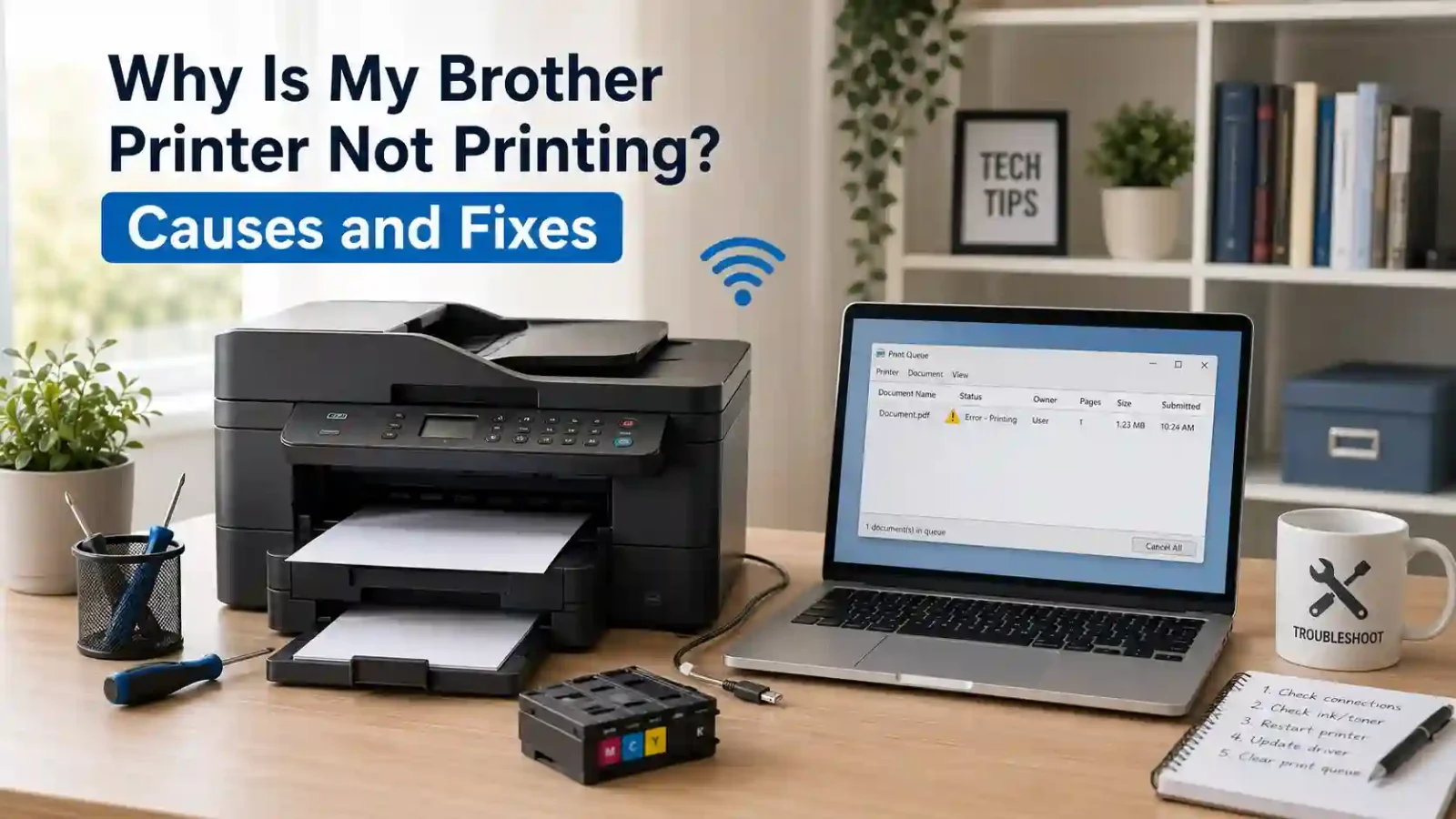
If your Brother printer is not printing, the problem is usually caused by one of a few things: the printer is not ready, the wrong printer is selected, the connection is broken, a print job is stuck, the driver is not working, ink or toner needs attention, or the printer is showing a paper or hardware error.
Start with the simple checks first. Do not reset the printer or reinstall everything right away. Most Brother printing problems are easier to narrow down when you check the printer screen, the selected printer, the queue, and the connection in order. For broader brand-neutral troubleshooting, use our printer not printing guide.
Table of Contents
Why is my Brother printer not printing?
A Brother printer may stop printing because the print job is not reaching the machine, the machine is not ready to print, or the printer can receive the job but cannot complete it.
Common causes include:
- The Brother printer is turned off, asleep, or not fully ready
- The printer screen shows an error message
- The wrong printer is selected on the computer or phone
- The printer is offline, paused, or disconnected
- A print job is stuck in the queue
- The printer driver is missing, outdated, or damaged
- The computer and printer are not on the same Wi-Fi network
- The USB cable or port is not working properly
- Paper is jammed, missing, or loaded incorrectly
- Ink, toner, drum, or cartridge detection needs attention
- The document or app you are printing from has a problem
- The printer has a model-specific hardware issue
The best fix depends on what you see. A printer that does nothing after you click Print needs different checks than a printer that feeds paper but prints blank pages.
Check these first before changing settings
Before changing drivers or resetting the printer, go through this quick checklist:
1. Make sure the Brother printer is turned on.
2. Wake the printer if the screen is blank or it may be in sleep mode.
3. Look for any message on the printer display.
4. Confirm paper is loaded correctly.
5. Check whether ink or toner is empty, low, or not detected.
6. Make sure the correct Brother printer is selected when printing.
7. Cancel any stuck print jobs.
8. Restart the printer and your computer or phone.
9. Try printing one simple document.
If the printer starts printing after one of these checks, the issue was likely a readiness, queue, or connection problem rather than a serious printer fault.
Match the symptom to the likely cause
Use this table to narrow the problem before choosing a fix.
| What you see | Most likely cause | What to check first |
| Nothing happens after clicking Print | Wrong printer, offline status, connection issue, or stuck queue | Selected printer and print queue |
| Job says printing but no page comes out | Stuck queue, paused printer, or communication problem | Cancel jobs and restart printing |
| Brother printer is connected but not printing | Wi-Fi, USB, IP address, or driver problem | Connection and selected printer |
| Printer screen shows an error | Paper jam, no paper, cover open, ink/toner, or tray issue | Clear the displayed error |
| Printer moves but page is blank | Ink, toner, printhead, drum, or cartridge issue | Ink/toner and print quality checks |
| It prints from phone but not computer | Computer driver, queue, or app setting | Computer print settings |
| It prints from one app but not another | File or app issue | Try a different document |
| Only black or only color is missing | Ink, toner, printhead, or cartridge issue | Treat it as a print quality issue |
1. Check the Brother printer screen or lights
Look at the printer before checking the computer.
If the screen is blank, the printer may be off or asleep. Press a button on the printer to wake it. If it does not respond, check the power cable and wall outlet.
If the screen shows an error, clear that first. A Brother printer may not print while it is showing a message such as:
- Paper Jam
- No Paper
- Cover Open
- Ink Empty
- Toner Empty
- Replace Toner
- Drum Error
- Cannot Print
- Offline or connection-related message
The exact wording depends on the model. If the printer shows a specific code or message that does not clear, check Brother Support for your exact model before forcing parts open or changing deeper settings.
2. Make sure the correct Brother printer is selected
Your computer may be sending the job to the wrong printer. This is common if you have used another printer before, installed the printer more than once, or have options like “Print to PDF” in the printer list.
Open the print window and check the selected printer. Make sure it is the Brother printer you want to use.
Also watch for duplicate printer names. For example, you may see the main Brother printer and another copy with a similar name. If one does not work, try selecting the other Brother entry and print a simple test document.
If the Brother printer is the one you use most, you can set it as the default printer. This helps prevent your computer from sending jobs to the wrong place.
3. Check if the printer is offline, paused, or disconnected
A Brother printer can be connected to power but still unavailable to the computer. It may show as offline, paused, or not responding.
For a USB Brother printer
- Make sure both ends of the USB cable are firmly connected.
- Try a different USB port on the computer.
- Avoid using a USB hub if the printer is not responding.
- Use a direct connection between the printer and computer when testing.
For a wireless Brother printer
- Make sure the printer and computer or phone are on the same Wi-Fi network.
- Check whether the Wi-Fi name or router was changed recently.
- Restart the printer and router if the connection seems unstable.
- If the printer was moved far from the router, bring it closer and try again.
If your main issue is that the Brother printer says offline, treat that as an offline problem first. Offline status is related to not printing, but it usually needs its own connection-focused troubleshooting path.
4. Clear stuck print jobs
A stuck print job can stop new jobs from printing. This can make the Brother printer look broken even when the printer itself is fine.
Open the print queue for your Brother printer and look for waiting, paused, or failed jobs. Cancel old jobs, especially large PDFs or jobs that keep showing an error.
After clearing the queue:
1. Turn the Brother printer off.
2. Restart your computer or phone.
3. Turn the printer back on.
4. Try printing one small document.
Do not send several jobs at once while testing. Send one simple page first.
If print jobs keep getting stuck again and again, the problem may be with the queue or spooler rather than the Brother printer itself. Use our print queue and spooler problems guide for that specific issue.
5. Try a simple test print
A test print helps you tell whether the problem is the printer, the computer, the file, or the app.
Try printing a simple one-page document with plain text. If that works, the Brother printer can print, and the issue may be with the original file or app.
For example:
- If a PDF will not print but a text document prints, the PDF or PDF app may be the issue.
- If a web page will not print but a document prints, the browser print settings may be the issue.
- If nothing prints from any app, keep checking connection, queue, and driver settings.
This step is useful because not every printing problem is caused by the printer.
6. Restart the printer, computer, and router
A restart can clear temporary communication problems.
Use this order:
1. Turn off the Brother printer.
2. Restart the computer or phone.
3. Restart the router if this is a wireless printer.
4. Turn the Brother printer back on.
5. Wait for it to reconnect.
6. Try printing one simple page.
For wireless printers, give the printer a little time to reconnect to Wi-Fi before printing again.
7. Check the Brother printer driver
The driver helps your computer communicate with the printer. If the driver is missing, outdated, corrupted, or linked to the wrong printer entry, the Brother printer may not print.
Driver issues are more likely if:
- The problem started after a Windows or macOS update
- You recently added the printer to a new computer
- The printer was removed and installed again
- The printer appears multiple times in the printer list
- The computer says the driver is unavailable
- The printer works from another device but not this computer
Start by checking whether the Brother printer appears in your printer list. If it does not appear, the driver or printer setup may not be installed correctly.
If the driver looks wrong or the printer still will not print, download the correct driver or full software package from Brother’s official downloads page for your exact model. Avoid random third-party driver installers, because they may install the wrong software or unnecessary tools.
For Windows-specific printer connection or setup issues, Microsoft’s printer troubleshooting page can help with the operating system side of the problem.
8. Check ink, toner, drum, and cartridge messages
If the printer receives the job but prints blank, faded, or incomplete pages, the issue may be related to ink, toner, printhead, drum, or cartridge detection.
For Brother inkjet printers
- Check ink levels.
- Look for cartridge detection messages.
- Watch for blank pages, missing colors, or faded output.
- Consider printhead cleaning only if the issue looks like a print quality problem.
For Brother laser printers
- Check toner level.
- Look for replace toner messages.
- Check for drum messages.
- Watch for blank, very light, or uneven pages.
This section should stay broad. If the only problem is that black ink will not print, that is a more specific black-printing issue. If only color will not print, that is a color-printing issue. Those problems are related, but they are not the same as a Brother printer that will not print anything at all.
9. Check paper, tray, and jam messages
A Brother printer may stop printing if it cannot feed paper correctly.
Check these items:
- Paper is loaded in the correct tray.
- The tray is pushed in fully.
- The paper guides are not too tight or too loose.
- The paper is not curled, damp, or overloaded.
- The document paper size matches the paper in the tray.
- There is no small torn paper inside the printer.
If the printer shows a paper jam message, clear it carefully. Do not pull hard if paper is stuck. Open only the areas recommended for your printer model and check for small pieces of torn paper.
If paper jams keep returning, there may be a tray, roller, paper type, or hardware issue.
10. Check whether the issue is only from one device
If the Brother printer will not print from your computer, try another device if one is available.
For example:
- Try printing from another computer.
- Try printing from a phone.
- Try printing from a different app.
- Try printing a different file.
If the printer works from another device, the printer itself is probably not the main problem. The issue may be the first computer’s driver, queue, printer selection, app settings, or network connection.
If the problem only happens on a Mac, Apple’s Mac printing help is a useful official reference for app-specific printing checks and printer status issues.
If the printer does not print from any device, focus on the printer screen, connection, paper, ink/toner, and hardware status.
11. Check phone or mobile printing issues
If your Brother printer is not printing from a phone, the issue is often network-related.
Check that:
- The phone is connected to Wi-Fi, not only mobile data.
- The phone and Brother printer are on the same Wi-Fi network.
- The printer is awake and not showing an error.
- The mobile printing app can detect the printer.
- The router was not recently changed or replaced.
If the printer appears sometimes but disappears later, restart the printer, phone, and router. Then try printing again when all devices are connected to the same network.
12. When it is probably not a Brother printer problem
Sometimes the Brother printer is not the real cause.
The issue may be outside the printer if:
- One file will not print but other files print normally.
- One app will not print but other apps work.
- The printer works from another computer.
- The printer works from a phone but not from a laptop.
- The computer is connected to a guest Wi-Fi network.
- A VPN or security tool is blocking local network printing.
- The print job never reaches the printer queue.
In these cases, focus on the device, app, file, or network before changing printer settings.
13. Should you reset the Brother printer?
A reset should not be the first fix.
Try the safer checks first:
- Printer screen and error messages
- Correct printer selection
- Offline or paused status
- Connection
- Print queue
- Restart
- Simple test print
- Driver check
- Ink, toner, and paper checks
A reset may remove network settings or custom settings depending on the model and reset type. Only consider it after easier troubleshooting fails, and use model-specific instructions from Brother’s official support resources.
14. When to contact Brother support or a repair professional
Contact official Brother support or a qualified repair professional if:
- The printer shows a hardware error that will not clear.
- The printer will not power on.
- The same error returns after restarting.
- Paper jams happen repeatedly after careful clearing.
- The printer makes unusual grinding or clicking sounds.
- The printer does not detect ink, toner, or drum parts correctly.
- The model needs firmware, service, or part-specific instructions.
This site is an independent troubleshooting blog, not official Brother support. For model-specific codes, warranty questions, firmware instructions, or hardware repairs, official Brother support is the safer next step.
FAQs
Why is my Brother printer not printing even though it is connected?
Your Brother printer may be connected but still blocked by a stuck print job, wrong selected printer, paused queue, driver issue, or printer display error. Check the printer screen, selected printer, print queue, and connection before reinstalling anything.
Why does my Brother printer say printing but nothing comes out?
The job may be stuck in the queue, the printer may be paused, or the computer may not be communicating with the printer correctly. Cancel the job, restart the printer and computer, then try printing one simple page.
Why is my Brother printer not printing from my computer?
If the Brother printer works from another device, the issue is likely on the computer. Check that the correct Brother printer is selected, clear the queue, restart the computer, and reinstall the correct Brother driver if needed.
Why is my Brother printer not printing after changing Wi-Fi?
The printer may still be connected to the old Wi-Fi network. Reconnect the Brother printer to the current Wi-Fi network, then make sure your computer or phone is using the same network.
Why is my Brother printer not printing even with ink or toner?
If the printer has ink or toner but prints blank or faded pages, the issue may be a clogged printhead, cartridge detection problem, toner issue, drum issue, or print quality setting. If the printer does not move at all, check connection, queue, and driver issues first.
Why is my Brother printer not printing black?
This is usually a more specific ink, toner, printhead, or drum problem. Check black ink or toner level, cartridge detection, and print quality settings. If only black is missing, treat it as a black-printing issue rather than a full printer-not-printing issue.
Why is my Brother printer not printing from my phone?
The phone and printer may not be on the same Wi-Fi network, the printer may be asleep or showing an error, or the mobile print app may not be detecting the printer. Check Wi-Fi first, then restart the printer and phone.
Why is my Brother printer not printing a PDF?
If other documents print but the PDF does not, the issue may be the PDF file or the app used to open it. Try printing a simple document first, then try opening the PDF in another app or saving it again.
Should I reinstall the Brother printer driver?
Reinstall the driver if the printer is missing from the computer, the driver shows an error, the problem started after a system update, or the printer works from other devices but not this computer. Use Brother’s official support area for the correct model.
Should I reset my Brother printer if it will not print?
Do not reset it first. Start with printer errors, selected printer, connection, queue, restart, driver, ink/toner, and paper checks. A reset can remove settings, so it should be a later step and should follow model-specific instructions.
Short excerpt
Brother printer not printing? Learn why it happens and what to check first, including printer errors, connection problems, stuck print jobs, drivers, ink or toner, and paper issues.