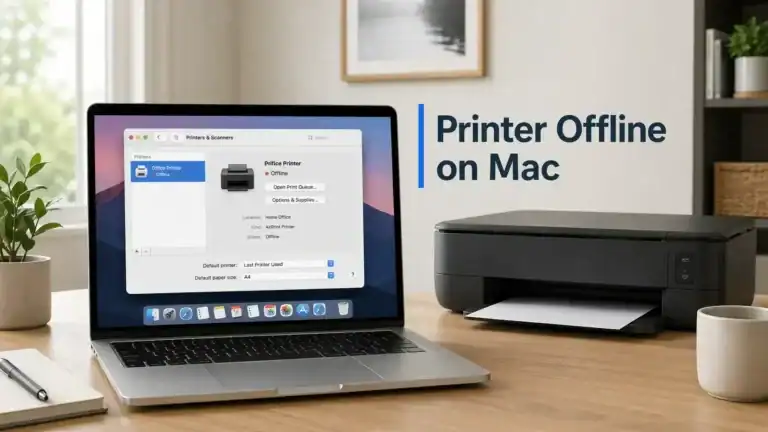
Printer Offline Fix: 9 Steps to Get It Back Online

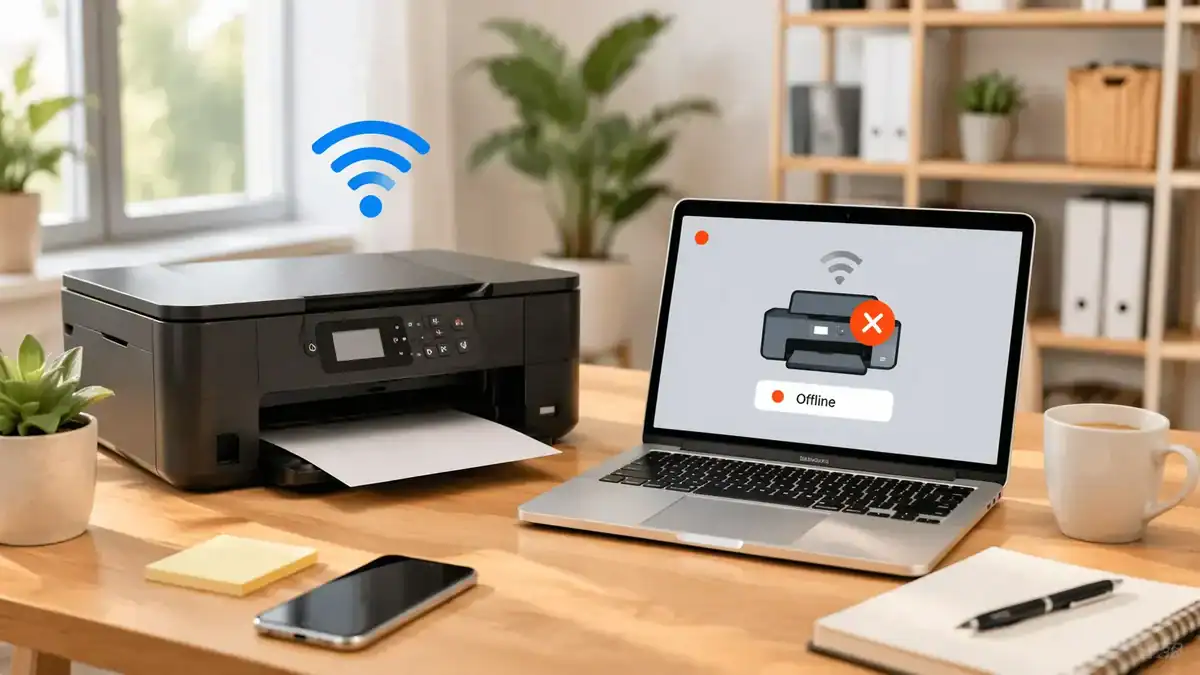
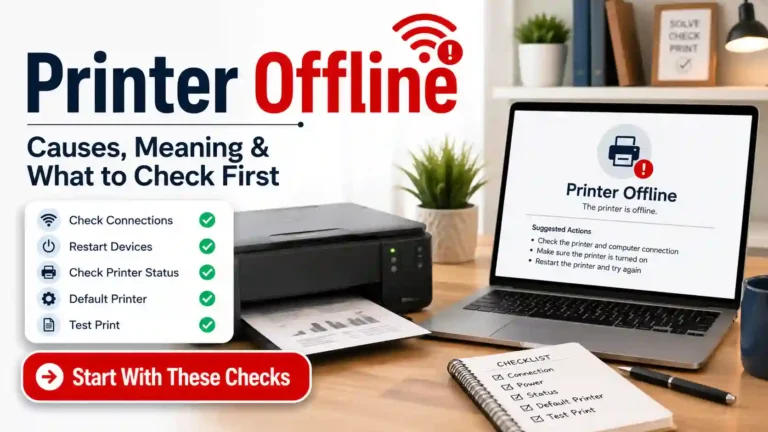
If your printer says offline, the goal is simple: get it talking to your computer again.
This guide is built for that one job. It is not a long explanation of what “offline” means. It is a practical, beginner-friendly printer offline fix you can work through in order.
Start at Step 1 and move down. The early steps are the fastest. The latter steps are for printers that stay offline after the basics.
Table of Contents
Before you start: make sure this is really an offline problem
A printer can fail in a few different ways, and the fix depends on which one you have.
You are in the right place if your printer shows Offline, Unavailable, Paused, or seems connected but will not come back to a ready state.
This may be a different issue if:
• The printer looks online, but nothing prints
• you see a driver unavailable message
• The printer screen shows a paper jam or another hardware error
• only one app cannot print, but other apps can
A quick test helps. Try printing from a different app. If one app fails but another works, the problem may not be the printer status itself.
Step 1: Restart the printer and your device
This is the fastest fix, and it solves more offline issues than most people expect.
Turn off the printer. If possible, unplug it from power for about 30 seconds. Then plug it back in and turn it on again.
After that, restart the device you are printing from.
If you use a wireless printer, it also helps to restart your router if the printer has recently disappeared from the network or started showing offline after a connection drop.
After everything powers back up, check the printer status again. If it still says offline, move to the next step.
Step 2: Check the connection
An offline printer often comes down to a broken connection, even when the printer itself looks fine.
For USB printers
Check that the USB cable is firmly connected at both ends. If it feels loose, reconnect it. If possible, try a different USB port on your computer.
If the printer was moved recently, the cable may be plugged in but not seated properly.
For Wi-Fi printers
Make sure the printer is connected to the same Wi-Fi network as the device you are printing from.
This matters more than many people realize. A printer can be powered on and still look offline if it is connected to a different network, such as a guest network, an old router, or a weak saved signal.
If your printer has a screen, open its wireless or network menu and confirm the network name. If it does not have a screen, use the printer’s normal wireless status check if your model supports it.
If the connection looks correct but the printer still stays offline, continue.
Step 3: Turn off “Use Printer Offline” and clear the paused status
Sometimes the printer is not truly disconnected. Windows may simply be set to treat it as offline, or the queue may be paused.
On Windows
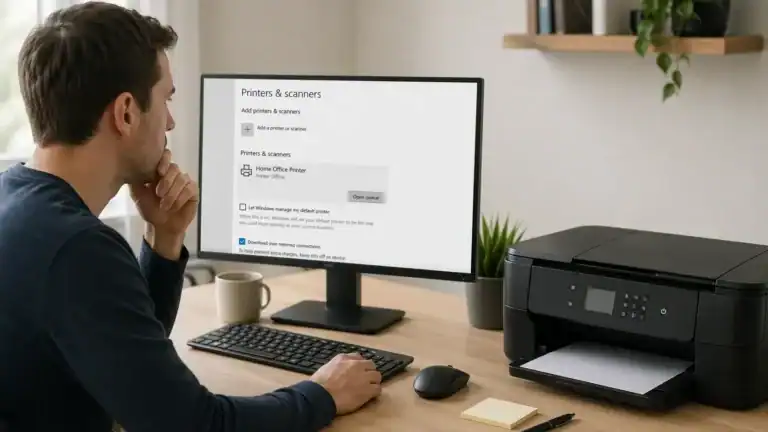
Open your printer settings, open the print queue for the correct printer, then look for the Printer menu. If Use Printer Offline is checked, turn it off. If Pause Printing is checked, turn that off too. Microsoft’s printer troubleshooting guide can help if the exact screens look a little different on your version of Windows.
On Mac
Open the printer queue and check whether the printer or the current job is paused. If you see a Resume button, use it.
A paused queue can make the printer look unavailable even when the printer is turned on and connected.
If the status changes to Ready or Idle, you are back in business. If not, go on.
Step 4: Clear stuck print jobs from the queue
A single broken print job can hold up the whole queue and make it seem like the printer is offline.
Open the queue for the printer and cancel any pending jobs. If you see several old jobs stuck there, clear all of them rather than testing one by one. After the queue is empty, wait a few seconds and send one fresh test page or one simple document.
If the queue does not clear
Do not keep sending more print jobs. That usually makes the problem worse. On Mac, Apple’s Print Center help shows where to pause, resume, or delete jobs. If the queue keeps freezing, move to Step 7.
Step 5: Make sure you are using the right printer
This sounds obvious, but it catches a lot of people.
Your computer may be trying to print to:
• an old copy of the printer
• a printer with the same name but a dead connection
• a virtual printer such as Save as PDF
• a printer Windows switched away from automatically
Set the working printer as your default printer.
Also, look for duplicate entries with similar names. You do not need to clean them all up right away, but you do need to send your test print to the correct one.
A common example is seeing two versions of the same printer, where one stays offline, and the other actually works.
Step 6: Re-add the printer if the connection looks broken
If the printer is on, connected, and still showing offline, your computer may be holding onto a bad printer queue or stale connection.
This step is especially helpful when:
• The printer is offline on one device but not another
• The issue started after a router change
• The printer came back online once and then disappeared again
• the printer says offline but looks connected
First, try adding it again normally
Open your printer settings and look for the option to add a printer.
For wireless printers, wait a minute or two if the device is searching the network. Some printers take longer than expected to appear.
If the printer shows up and installs cleanly, test it before removing anything else.
If you already have an old queue
You may need to remove the old printer entry and add it again as a fresh printer. This often helps when the saved queue is damaged or tied to an outdated network address.
After re-adding the printer, send one simple test job.
Step 7: Restart the print service if jobs keep getting stuck
If the queue keeps freezing, the printer keeps flipping between statuses, or nothing changes after clearing jobs, the print service itself may be stuck.
On Windows
Open the Services tool, find Print Spooler, and restart it. Then go back to the printer queue and check whether the printer status updates correctly.
This step is most useful when print jobs stay stuck, the queue will not refresh, or Windows seems to stop talking to the printer.
On Mac
Mac handles this differently. If the queue seems corrupted and simpler steps did not help, use Apple’s reset printing system steps only as a later option rather than a first fix.
Step 8: Update or reinstall the printer driver
Driver problems can make a printer appear offline, especially after system updates, network changes, or failed reinstall attempts.
You do not need to overcomplicate this.
Start with the safe option:
• check for updated printer drivers or software from the manufacturer or through your normal system update path
• install the update
• restart the computer
• test the printer again
This step matters more when:
• the printer was working before an update
• the printer disappears during setup
• The printer installs but still behaves strangely
• You see repeated queue or connection problems after basic fixes
If your printer comes online after a driver update but still will not print properly, that usually moves into a not-printing issue rather than a pure offline issue.
Step 9: Remove and reinstall the printer completely
If you made it this far, the fastest remaining fix is often a clean reinstall.
Remove the printer from your device, restart your computer, then add the printer again.
For many users, this clears out a damaged queue, a stale network connection, or a broken software setup in one go.
Take your time here. A clean reinstall is better than repeatedly retrying the same broken printer entry.
After reinstalling, print a test page if available, then one simple document, then one real file you actually need. If all three work, the printer is back online and stable.
If your printer is online now but still not printing
That is progress, but it is a different problem.
At that point, the issue is usually no longer offline. It may be:
• a stuck document type
• a paper or ink issue
• an app-specific printing problem
• a driver or queue problem that affects output instead of status
Use your not-printing troubleshooting path next, rather than trying to force every symptom into the offline category.
If your printer keeps going offline
If the printer comes back online and then drops offline again later, the usual causes are slightly different.
• weak or unstable Wi-Fi
• the printer reconnecting to the wrong network
• sleep mode behavior
• router restarts
• duplicate printer queues on the same device
That recurring pattern needs a separate troubleshooting path because the fix is not always the same as for a one-time offline issue.
When to contact official printer support
It is time to stop general troubleshooting and contact the printer manufacturer or your IT admin when:
• The printer shows a specific error code on its screen
• The printer will not connect to Wi-Fi at all
• The printer fails on every device after reinstalling
• The printer is on a managed office network
• The problem started after a hardware fault, jam, or power issue
That is especially true if the printer can no longer stay connected, even after you remove and re-add it.
Final takeaway
The best printer offline fix is usually not one big repair. It is a simple troubleshooting order.
Start with restart and connection checks. Then clear the offline settings and stuck jobs. After that, re-add the printer, restart the print service if needed, update the driver, and use a full reinstall only when simpler steps fail.
If you are trying to figure out how to fix a printer that is offline, this order gives you the best chance of solving it quickly without making the problem messier.
FAQ section
How do I get my printer back online?
Start with the simplest path: restart the printer, check the connection, turn off any offline or paused status, and clear stuck jobs. If that does not work, re-add the printer, then update drivers or reinstall it.
Why does my printer say offline, but it is connected?
That usually means the problem is not power. It is often a queue issue, a saved offline setting, a wrong default printer, or a broken connection between your device and the printer.
Should I turn off “Use Printer Offline”?
Yes, if it is checked by mistake. That setting can stop Windows from treating the printer as ready even when the printer itself is available.
Can a stuck print job make a printer look offline?
Yes. One stuck job can block the queue and make the printer appear unavailable or unresponsive until the job is cleared.
Do I need to reinstall the printer right away?
No. Reinstalling is better as a later step. It helps when restarting, connection checks, queue clearing, and basic settings changes do not solve the problem.
What if my printer is online now but still will not print?
That usually means the issue has moved beyond offline status. Follow your printer-not-printing troubleshooting path next.
What if my printer keeps going offline?
That points to a recurring connection or setup problem rather than a one-time glitch. Common causes include weak Wi-Fi, router changes, sleep mode, or duplicate printer entries.
Short excerpt
A printer that shows offline is not always broken. In many cases, you can bring it back online by restarting it, checking the connection, clearing the queue, and fixing a few simple settings. This guide walks through 9 practical steps in the right order so beginners can solve the issue faster without jumping straight to complicated fixes.