Printer Says Driver Is Unavailable

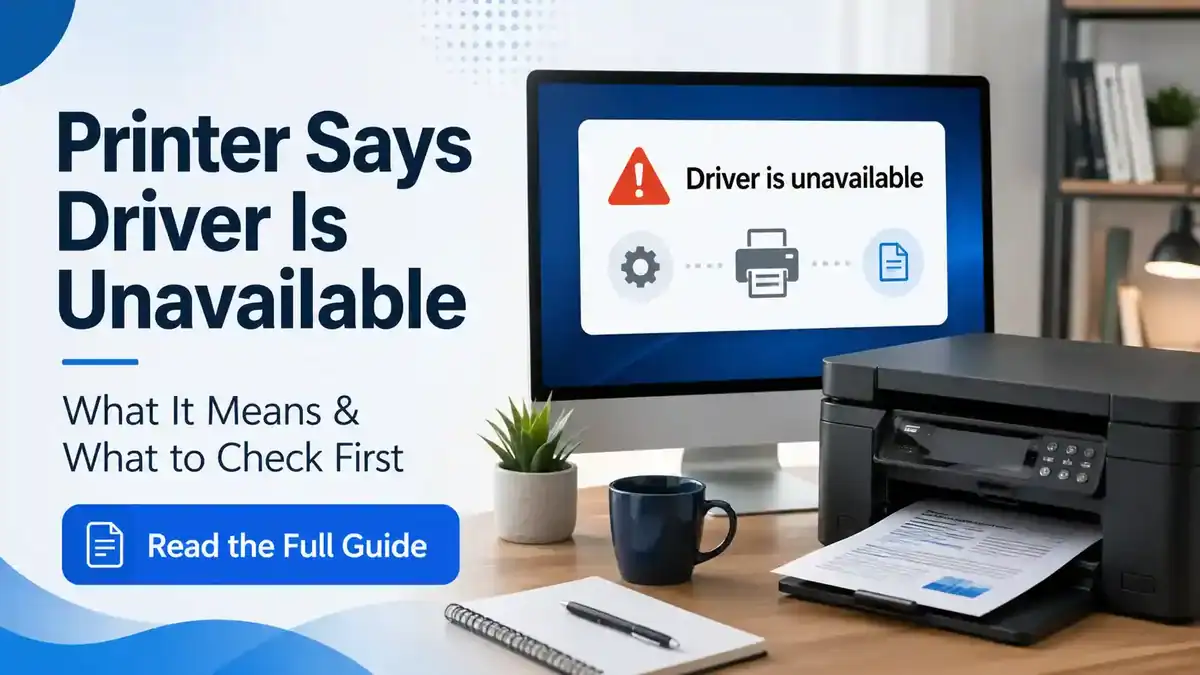
If your printer says “driver is unavailable,” your computer can see a printer entry, but cannot use the correct driver needed to print properly. This usually points to a driver setup problem, not a confirmed printer hardware failure.
The safest first step is not to delete everything immediately. Start with simple checks: restart the printer and computer, confirm the connection, check whether the printer appears more than once, and use trusted driver sources only.
This article focuses on the exact “printer says driver is unavailable” message and what to check first. For deeper repair steps after these quick checks, use the printer driver unavailable fix guide.
Table of Contents
What “Driver Is Unavailable” Means on a Printer
A printer driver is the software that helps your computer communicate with your printer. When Windows or your computer says the printer driver is unavailable, it usually means the driver is missing, damaged, outdated, incomplete, or not suitable for that printer setup.
The printer itself may still be turned on. It may still be connected by USB or Wi-Fi. The problem is usually that the computer cannot use the right software instructions to send the print job correctly.
What This Message Does Not Always Mean
The “driver is unavailable” message can look serious, but it does not prove that everything is broken.
It does not always mean:
- The printer is damaged
- The printer is offline
- The print queue is stuck
- The paper is jammed
- The printer must be replaced
- You need a third-party driver updater
- You must uninstall the printer right away
Sometimes the fix is simple. Other times, the driver needs to be updated or reinstalled. The goal is to check the low-risk causes first.
Why Your Printer Says Driver Is Unavailable
The Printer Driver Is Missing
This can happen when the printer is added to the computer, but the correct driver is not installed. The printer may appear in your printer list, but it cannot print because the required driver is not installed.
The Driver Is Outdated
A driver that worked before may stop working correctly after a Windows update, printer software update, or system change. Older printers may also need updated or manufacturer-provided software to work properly.
The Driver Installation Did Not Finish
If the printer setup was interrupted, the driver may be only partly installed. This can happen if the printer was disconnected, the computer restarted, the Wi-Fi dropped, or the setup program closed before finishing.
Windows Picked the Wrong Driver
Sometimes Windows may detect the printer but use a generic or incorrect driver. The printer may appear in settings, but printing may fail, or the driver unavailable message may remain.
The Printer Was Added Before It Was Ready
If the printer was not fully connected, powered on, or connected to the same Wi-Fi network during setup, the computer may add an incomplete printer entry.
First Checks Before Installing or Removing Drivers
1. Restart the Printer and Computer
Start with a full restart because temporary communication problems can make the driver look unavailable.
Turn off the printer. Unplug it from power for about 30 seconds. Plug it back in and turn it on. Then restart the computer and check the printer message again.
This does not remove anything, so it is a safe first step. Official Windows printer troubleshooting help also starts with basic checks, such as restarting the printer and checking the cable or wireless connection, before moving into bigger changes.
2. Check the Printer Connection
A connection problem can sometimes appear alongside a driver message, especially if the printer was added while the connection was unstable.
For a USB printer, make sure the cable is firmly connected at both ends. Try a different USB port if one is available. Avoid loose USB hubs during setup if the printer is not being detected reliably.
For a wireless printer, confirm that the printer and computer are on the same Wi-Fi network. If your Wi-Fi name or router recently changed, reconnect the printer to the current network before changing drivers.
3. Check Whether the Printer Appears More Than Once
Many users see more than one version of the same printer in Windows. One entry may be old, offline, incomplete, or using the wrong driver.
Look for duplicate printer names. If you see more than one, do not remove them all immediately. Try selecting the entry that matches your exact printer model and check whether it allows printing.
Duplicate printer entries are common after reinstalling software, switching from USB to Wi-Fi, or adding the same printer more than once.
4. Check for Windows Updates
Windows can sometimes install a compatible printer driver through updates. This is usually safer than downloading drivers from random websites.
On many Windows computers, you can check for updates from the Windows Settings app. The exact wording may vary by Windows version. If optional driver updates are shown, review them carefully and only install the driver that clearly matches your printer or device.
After updates finish, restart the computer and check the printer again.
5. Use the Manufacturer’s Official Driver Page
If Windows does not find a working driver, use the official support page for your printer brand.
Use the exact model number printed on the printer or shown on the printer label. Download only from the manufacturer’s official website. When asked, choose the correct Windows version for your computer.
Microsoft’s latest printer driver guidance also points users toward Windows and trusted printer manufacturer sources for drivers. Avoid pop-ups, unknown download sites, and tools that claim they can automatically fix every driver problem.
When You Should Not Reinstall the Driver Yet
Do not rush into removing the printer driver if the problem just appeared and you have not checked the basics.
Wait before reinstalling if:
- The printer was working a few minutes ago
- The printer or computer has not been restarted yet
- The USB cable or Wi-Fi connection has not been checked
- There are duplicate printer entries you have not reviewed
- You are not sure which printer entry is the active one
- The message appeared after the printer was temporarily disconnected
Reinstalling can help, but it is better as a next step after simple checks fail.
When to Continue to the Main Driver Unavailable Fix Guide
Move on to deeper driver troubleshooting if the message still appears after the first checks.
Use the main guide if:
- The printer still says driver is unavailable after a restart
- Windows cannot find a suitable driver
- The printer appears with a warning icon
- The printer was recently added, but has never printed
- The problem started after a Windows update
- The driver installation fails or repeats
- The printer software opens, but the printer still cannot print
For those situations, continue with the printer driver unavailable fix guide, which is a better place for complete driver update, removal, and reinstall steps.
If You Only Want the Meaning of the Message
If you are not ready to troubleshoot yet and only want a plain-English explanation, read what printer driver unavailable means. That page is better for understanding the wording before trying fixes.
Quick Decision Guide
- If the printer appears but says driver unavailable, check the driver, Windows updates, and official printer software.
- If the printer does not appear at all, check the USB or Wi-Fi connection first.
- If the printer appears more than once, test the correct printer entry before deleting anything.
- If the printer also says offline, handle the offline status separately.
- If the printer shows a paper jam, low ink, open cover, or error state message, fix that printer message first.
- If the driver installation keeps failing, continue to the main printer driver unavailable troubleshooting guide.
Summary
When your printer says driver is unavailable, the computer usually cannot use the correct printer driver at that moment. The printer may not be broken, and you may not need to remove everything right away.
Start with safe checks: restart the printer and computer, confirm the USB or Wi-Fi connection, look for duplicate printer entries, check Windows updates, and use the official printer manufacturer’s driver page if needed.
If the message does not clear after those steps, move to deeper printer driver-unavailable troubleshooting.
FAQs
What does it mean when my printer says the driver is unavailable?
It usually means your computer cannot use the correct driver needed to communicate with the printer. The driver may be missing, outdated, corrupted, incomplete, or not compatible with the current setup.
Is my printer broken if it says the driver is unavailable?
Not necessarily. This message usually points to a driver or computer setup issue, not a confirmed printer hardware failure. Check the connection, restart both devices, and then check trusted driver update options.
Should I uninstall the printer driver right away?
No, not as the first step. Start with safer checks such as restarting, checking the cable or Wi-Fi, reviewing duplicate printer entries, and checking for Windows updates. Remove or reinstall the driver only if the message remains.
Why does my printer show up but still say driver is unavailable?
The computer may have detected the printer, but the correct driver may not be installed or working. This can happen after an incomplete setup, Windows update, wrong driver selection, or corrupted driver installation.
Is a driver unavailable the same as a printer offline?
No. “Driver unavailable” usually points to a driver problem. “Printer offline” usually points to a connection or printer status problem. They can appear together, but they are not the same issue.
Can a Windows update cause the driver unavailable message?
Yes, it can happen after a Windows update if the old printer driver no longer works correctly or needs to be reinstalled. Checking Windows updates and the manufacturer’s official driver page can help.
Should I download a printer driver from any website?
No. Use Windows Update or the official support page for your printer manufacturer. Avoid random driver download sites, pop-ups, and tools that claim to fix all driver problems automatically.
What should I do if the message does not go away?
After the first checks, continue with the main printer driver-unavailable fix guide. That is the better place for deeper steps, such as updating, removing, and reinstalling the printer driver.
Short excerpt
Seeing “driver is unavailable” on your printer? Learn what the message usually means, what to check first, and when to move on to deeper driver troubleshooting.