
Why Is My HP Printer Not Printing: How to Fix It
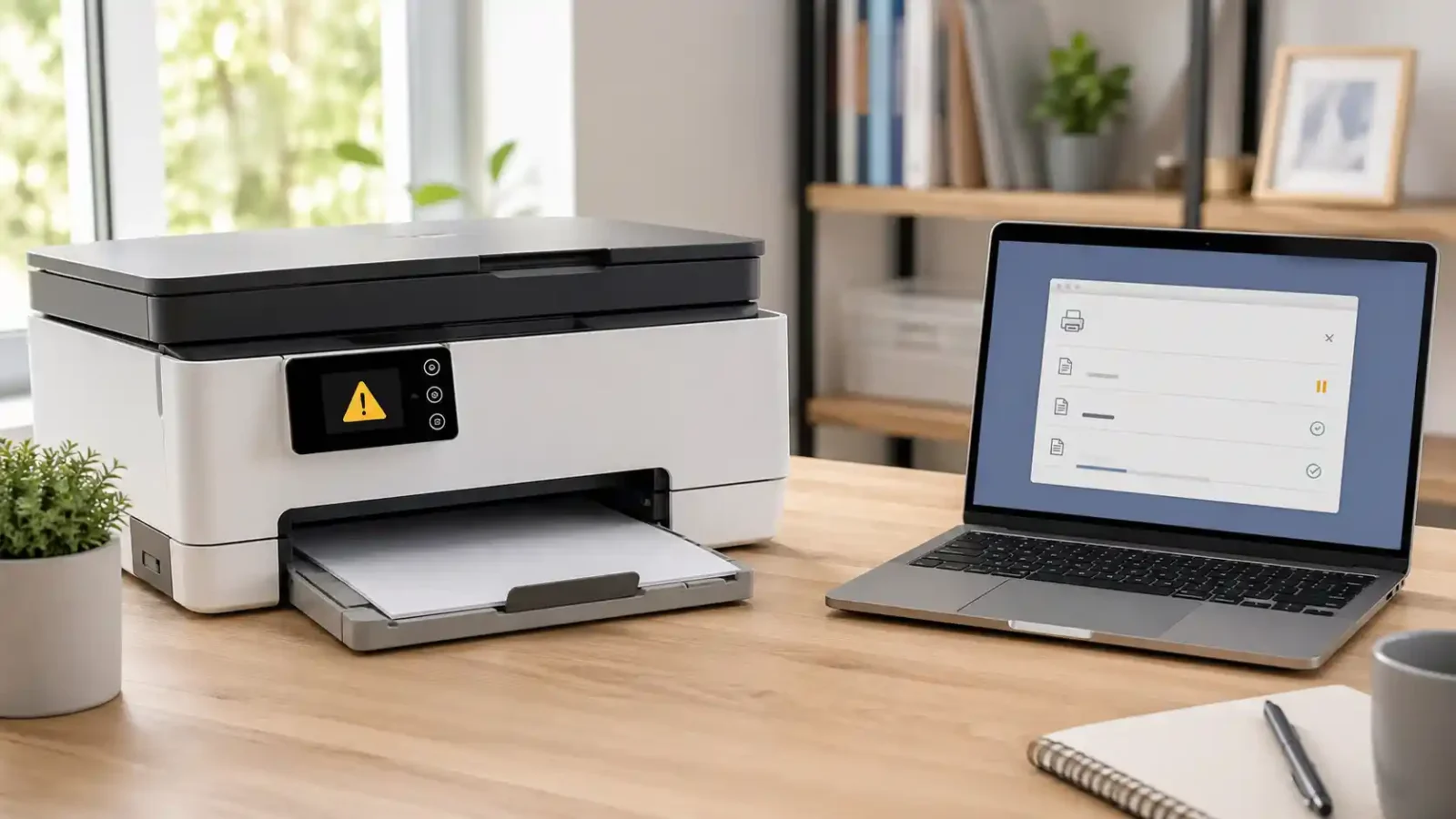
If your HP printer is not printing, the problem is usually caused by one of these things: a connection issue, a stuck print job, low or unrecognized ink or toner, a paper or tray alert, the wrong printer being selected, or a driver/software problem.
The best first step is not to reinstall everything. Start by checking whether the HP printer itself is ready, then check the connection, queue, ink or toner, and driver, only if the basic checks do not solve it.
This guide is for HP printers that turn on but will not print from a computer, phone, or tablet. For a wider non-brand checklist, use our general printer not printing guide.
TamerlanKg is an independent informational blog. This article is not official HP support and does not replace HP’s own support for warranty, hardware, cartridge, account, or model-specific error problems.
Table of Contents
Why is my HP printer not printing?
Your HP printer may not be printing because something is stopping the print job before it reaches the paper. The printer may look connected, but a small issue can still block printing.
Common causes include:
- The printer is paused, offline, or not selected as the active printer
- The print queue has a stuck job
- The HP printer is connected to the wrong Wi-Fi network
- The USB cable or port is not working properly
- Ink, toner, or cartridge errors are stopping the printer
- The printer has a paper jam, empty tray, or wrong paper size alert
- The HP app or printer driver is not working correctly
- Windows has a print spooler problem
- The printer has a hardware or firmware issue
Do not skip the printer screen or warning lights. Many HP printers will not print until a message, light, or alert is cleared.
Check the HP printer screen or warning lights first
Before changing computer settings, look at the printer itself.
Check for:
- Low ink or toner
- Empty cartridge
- Cartridge not recognized
- Paper jam
- Out of paper
- Cover open
- Wrong paper size
- Attention light
- Blinking Wi-Fi light
- Error code on the printer screen
If the HP printer has a visible alert, fix that first. A computer may still send the print job, but the printer may refuse to print until the alert is cleared.
For example, an HP printer may stop printing if the cartridge is not seated correctly, the paper tray is empty, or the printer thinks there is a jam.
Try printing a printer report or test page
A printer report helps you separate a printer problem from a computer or phone problem.
If your HP printer can print its own report, the printer hardware is likely able to print. The issue is more likely with the connection, print queue, app, driver, or device settings.
If the HP printer cannot print its own report, the issue may be inside the printer. Common causes include ink or toner problems, cartridge errors, paper feed issues, jams, or hardware faults.
The exact menu name depends on the HP model, but many HP printers have a report, test page, printer status, or network report option in the printer menu or HP app.
Restart the printer, device, and router
A restart can clear temporary connection and queue issues.
Use this order:
- Turn off the HP printer.
- Restart your computer, phone, or tablet.
- Restart the router if the printer uses Wi-Fi.
- Turn the printer back on.
- Wait until the printer is ready.
- Send one small test print.
Do not send several documents at once. If the first test print fails, sending more jobs can make the queue harder to clear.
Check whether the HP printer is connected correctly
An HP printer can appear connected but still fail to print if the connection is weak, blocked, or pointing to the wrong network.
For Wi-Fi HP printers
Check these points:
- The printer and your computer or phone should be on the same Wi-Fi network.
- Avoid using a guest Wi-Fi network because it may block printer discovery.
- Check whether the printer Wi-Fi light is solid or blinking.
- Move the printer closer to the router for testing.
- Restart the router if the printer keeps disappearing.
- Reconnect the printer if the Wi-Fi name or password has recently changed.
- Turn off a VPN temporarily if it blocks local devices.
If the printer is connected to a Wi-Fi extender, mesh network, or a different band, your device may not find it properly. Try printing while both devices are on the same main network.
For USB HP printers
If you use a USB cable:
- Make sure the cable is firmly connected at both ends.
- Try a different USB port.
- Avoid loose USB hubs during troubleshooting.
- Try another cable if the printer keeps disconnecting.
- Check whether the printer appears in your computer’s printer list.
If the printer works with one USB port but not another, the issue is probably the port, cable, or device connection rather than the printer itself.
For mobile printing
If your HP printer is not printing from a phone:
- Make sure the phone and printer are on the same Wi-Fi network.
- Check whether the printer appears as available in the HP app or print menu.
- Try printing from a different app.
- Disable VPN temporarily if the printer cannot be found.
- Restart the phone and printer.
If mobile printing fails but the printer works from a computer, the issue may be with the phone, app, network discovery, or mobile print settings.
Make sure the correct HP printer is selected
This is a common reason an HP printer says ready but does not print.
Your computer may show more than one similar HP printer name, especially if the printer was installed more than once.
You may see:
- An old HP printer entry
- A duplicate printer with “Copy” in the name
- A printer linked to a previous Wi-Fi connection
- A printer that shows offline
- A printer using a different driver
Open the print window and make sure the selected printer is the HP printer that is currently online and ready.
If you are not sure which one is correct, send one test print to each active HP printer entry. Once you find the working one, set it as the default printer.
Do not delete printer entries too quickly. First, confirm which entry works.
Clear stuck print jobs
A stuck job can stop later jobs from printing. This can make the printer look ready while nothing comes out.
Signs of a stuck queue include:
- The job says “printing,” but nothing happens
- Several documents are waiting
- The queue shows an old failed job
- The job will not be canceled
- The printer starts and stops without printing
Try this:
- Open the printer queue on your computer.
- Cancel paused, failed, or old print jobs.
- Turn the HP printer off.
- Restart the computer.
- Turn the printer back on.
- Send one short test page.
If the same job gets stuck again, try printing a different document. A damaged file or app-specific setting can sometimes block printing.
If jobs keep getting stuck, the issue may be with the queue or spooler rather than the HP printer itself. For a deeper walkthrough, use our print queue and spooler problems guide.
Check ink, toner, and cartridge problems
Ink and toner issues are common with HP printers, especially if the printer has not been used for a while or a cartridge was recently changed.
Check for:
- Low ink or toner
- Empty cartridge
- Cartridge not installed correctly
- Protective tape left on a new cartridge
- Cartridge not recognized
- Dried ink
- Clogged printhead
- Toner cartridge not seated properly
- Alignment or calibration needed
If the printer screen shows a cartridge error, follow the printer’s message carefully. Do not force cartridges or open parts that are not meant to be opened.
HP printer not printing black
If your HP printer is not printing black, the cause may be:
- Empty black ink or toner
- Dried black ink
- Clogged printhead or nozzle
- Cartridge not seated correctly
- Print setting using color or grayscale incorrectly
- Cartridge recognition problem
Try checking the ink or toner level first. Then print a quality report if your model offers one. If the black section is missing or faded, use the printer’s cleaning or maintenance option.
If the printer still does not print black after cleaning, the cartridge, printhead, or toner system may need model-specific support.
HP printer is not printing color
If your HP printer is not printing color, check whether:
- The color cartridge is empty
- Color printing is disabled in the print settings
- The document is set to black and white
- The printer is using grayscale mode
- The color nozzles are clogged
- The color cartridge is not recognized
Try printing a different color document. If color works in one app but not another, the problem may be the app or print setting.
HP printer is printing blank pages
If your HP printer prints blank pages, the issue is usually related to ink, toner, cartridge seating, clogged nozzles, or document settings.
Check these first:
- Is the ink or toner empty?
- Was a new cartridge installed recently?
- Was the protective strip removed?
- Is the cartridge seated fully?
- Does the printer print a quality report?
- Is the document actually blank or set to print blank pages?
If the printer prints blank pages from every app and from its own report, the issue is likely inside the printer or cartridge system.
Check paper, tray, and jam alerts
An HP printer may stop printing if it detects a paper problem.
Check:
- The tray has paper
- The paper is not curled, damp, or stuck together
- The tray is not overloaded
- The paper guides are not too tight
- The correct paper size is selected
- The rear or output area is clear
- There is no small torn paper inside
Turn off and unplug the printer before checking inside. Remove paper gently and avoid pulling internal parts forcefully.
Sometimes, an HP printer may continue to show a jam message even after the main paper is removed. A small torn piece of paper, a blocked sensor, or a roller issue may still be causing the alert.
Use the HP app or HP troubleshooting tools carefully
The HP app can help with some common printing problems, especially connection, queue, and device detection issues. HP also provides Diagnose & Fix in the HP app for common printer problems.
It may help when:
- The printer appears, but will not print
- The printer is not found on Wi-Fi
- Jobs are stuck
- The computer cannot communicate with the printer
- The HP printer works from one device but not another
But HP tools may not fix every problem.
They may not solve:
- Broken rollers
- Physical paper jams
- Cartridge hardware errors
- Printer-specific error codes
- Firmware update failures
- Account, HP+, or Instant Ink issues
- Unsupported or very old printer models
Only download HP software from official HP sources or trusted app stores. Avoid random driver download websites because they may bundle unwanted software or the wrong driver.
Update or reinstall the HP printer driver only when needed
A driver problem is possible, but it should not be the first thing you try.
A driver issue is more likely if:
- The HP printer works from your phone but not your computer
- The printer disappeared after a Windows or macOS update
- The computer shows “driver unavailable.”
- The printer appears more than once in the printer list
- Jobs leave the computer but never print
- The printer works on another computer
Start with a normal driver update through your operating system or official HP driver downloads. If that fails, remove the old printer entry, restart the computer, then add the printer again.
Be careful with duplicate printer entries. Make sure you are removing the old or broken entry, not the one that still works.
If you use Windows and the printer still does not respond, Microsoft’s printer connection and printing problems guide can help with operating-system-side checks.
If you use a Mac, Apple’s printing problems on Mac guide can help confirm whether the issue is the printer, app, or Mac print setup.
If the main error says “driver unavailable,” that is a more specific driver problem. Do not treat it exactly the same as a general HP printer not printing issue.
Check for print spooler problems on Windows
The print spooler is the Windows service that manages print jobs. If it stops working, your HP printer may not print even when the printer itself is fine.
Signs of a spooler issue include:
- Jobs stay stuck in the queue
- Jobs disappear without printing
- The queue freezes
- The printer says printing, but nothing happens
- More than one printer fails on the same computer
- Canceling jobs does not work
If the problem affects only one document, the file may be the issue. If every print job gets stuck, the queue or spooler may need attention.
For a deeper fix, use the dedicated print queue and spooler problems guide.
What if the HP printer is connected but still not printing?
If your HP printer is connected but not printing, the connection may not be the real problem. The printer can be on Wi-Fi and still be blocked by the queue, wrong printer selection, ink, paper, or software.
Check in this order:
- Make sure the printer screen shows no alerts.
- Confirm the correct HP printer is selected.
- Cancel stuck print jobs.
- Restart the printer and device.
- Check ink, toner, and paper.
- Try printing a test page or printer report.
- Try printing from another device.
- Update or reinstall the driver only if the printer still will not print.
If the printer works from one device but not another, focus on the device that fails. If it does not print from any device and cannot print its own report, the printer itself needs closer attention.
What if the HP printer says printing, but nothing happens?
When an HP printer says printing, but nothing happens, the job may be stuck between the device and the printer.
Common causes include:
- Stuck print queue
- Paused printer
- Wrong printer selected
- Printer set to offline
- Spooler issue
- Weak Wi-Fi connection
- Driver problem
- Document or app error
Cancel the queue first. Then restart the printer and computer. Send one simple test page, not the same large document again.
If the printer prints a test page but not your document, try saving the document as a new file or printing from another app.
What if the HP printer is not responding?
If the HP printer is not responding, your computer or phone may not be communicating with the printer.
Check:
- Is the printer powered on?
- Is the printer awake and ready?
- Is it on the same Wi-Fi network?
- Is the correct printer selected?
- Is the printer showing offline?
- Is a VPN blocking local printer access?
- Does the printer appear in the HP app?
- Does another device print successfully?
If another device prints normally, the HP printer is probably working. The issue is likely with the first device’s connection, app, queue, or driver.
What if the HP printer stopped printing after changing ink or toner?
If your HP printer stopped printing after a cartridge change, focus on the cartridge area first.
Check whether:
- The cartridge is installed in the correct slot
- The cartridge is fully seated
- The protective tape or seal was removed
- The cartridge matches the printer model
- The printer asks for alignment
- The printer shows a cartridge error
- The printer is rejecting or not recognizing the cartridge
Do not force the cartridge into place. If it does not fit easily, it may be the wrong cartridge or positioned incorrectly.
If the printer shows a cartridge error that will not clear, use official HP support or your printer documentation. Cartridge recognition and account-related issues can be model-specific.
When to contact official HP support
Some HP printer not printing problems need official support, especially when the issue involves hardware, warranty, firmware, or HP account services.
Contact official HP support when:
- The printer shows a model-specific error code
- The HP printer cannot print its own report
- A cartridge error will not clear
- A firmware update fails
- The printer is under warranty
- Paper jams keep returning
- Rollers or internal parts appear damaged
- HP+, Instant Ink, or account status appears to block printing
- The printer makes unusual noises or will not feed paper
A general troubleshooting guide can help with common causes, but official HP Support is the better next step for warranty, hardware, account, or model-specific problems.
Best order to fix an HP printer that is not printing
Use this order before doing anything more advanced:
- Check the HP printer screen, lights, ink, toner, paper, and jam alerts.
- Try printing a printer report or test page.
- Restart the printer, device, and router.
- Confirm Wi-Fi or USB connection.
- Make sure the correct HP printer is selected.
- Clear stuck print jobs.
- Check ink, toner, cartridge, and print quality problems.
- Use the HP app or HP troubleshooting tool if available.
- Update or reinstall the HP driver only when needed.
- Contact official HP support for hardware, cartridge, warranty, account, or firmware issues.
Most HP printer not printing problems become easier to solve once you know whether the issue is inside the printer, in the connection, or in the computer’s print system.
FAQ section
Why is my HP printer not printing even though it is connected?
Your HP printer may be connected to Wi-Fi but still blocked by a stuck queue, wrong printer selection, ink or toner issue, cartridge alert, paper problem, or driver error. Check the printer screen first, then clear the queue and confirm the correct HP printer is selected.
Why does my HP printer say printing, but nothing happens?
This usually means the job is stuck in the queue, the printer is paused, the wrong printer entry is selected, or the print spooler is not working correctly. Cancel the print jobs, restart the printer and computer, then send one small test print.
Why is my HP printer not printing black?
Your HP printer may not print black because the black ink or toner is empty, dried, clogged, not seated correctly, or not recognized. Check the ink or toner level, print a quality report, and use the printer’s cleaning or maintenance option if available.
Why is my HP printer not printing color?
Color printing may fail if the color cartridge is empty, grayscale mode is enabled, color printing is turned off in settings, or the color nozzles are clogged. Try a different color document and check the print settings before replacing cartridges.
Why is my HP printer printing blank pages?
Blank pages can happen when the ink is empty, dried, blocked, or not reaching the paper. It can also happen after installing a new cartridge if the protective tape was not removed or the cartridge is not seated correctly.
Why did my HP printer stop printing after I changed ink?
The cartridge may not be installed correctly, the protective strip may still be attached, the cartridge may not match the printer, or the printer may need alignment. If the printer shows a cartridge error that will not clear, use official HP support.
Should I reinstall my HP printer driver?
Reinstall the driver only after basic checks. First, confirm that the printer is powered on, connected, selected correctly, and not blocked by a stuck queue, ink issue, or paper alert. A driver reinstall is more useful when the printer works from one device but not another.
Can the HP app fix my printer?
The HP app may help with connection, printer detection, queue, and software issues. It may not fix physical paper jams, cartridge hardware errors, broken rollers, failed firmware updates, or account-related problems.
What should I do if my HP printer is not responding?
Check that the printer is powered on, awake, connected to the same network, and selected correctly. Restart the printer and device, then try printing from another phone or computer to see whether the issue is with the printer or one device.
When should I contact HP support?
Contact official HP support if the printer has a hardware error, firmware problem, warranty issue, cartridge recognition error, HP+ or Instant Ink issue, or if the printer cannot print its own internal report.
Short excerpt
HP printer not printing? Learn what to check first, including printer alerts, Wi-Fi or USB connection, stuck print jobs, ink or toner problems, driver issues, and when official HP support is the next step.