Printer Driver Is Unavailable: What It Means and How to Fix It

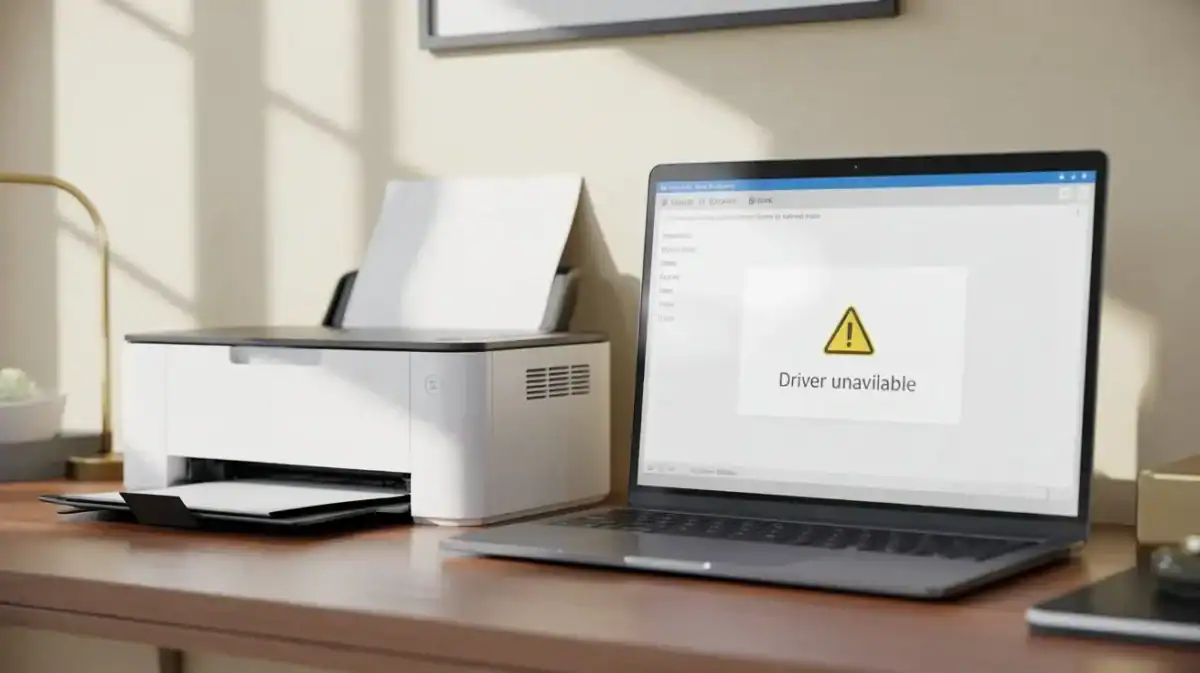
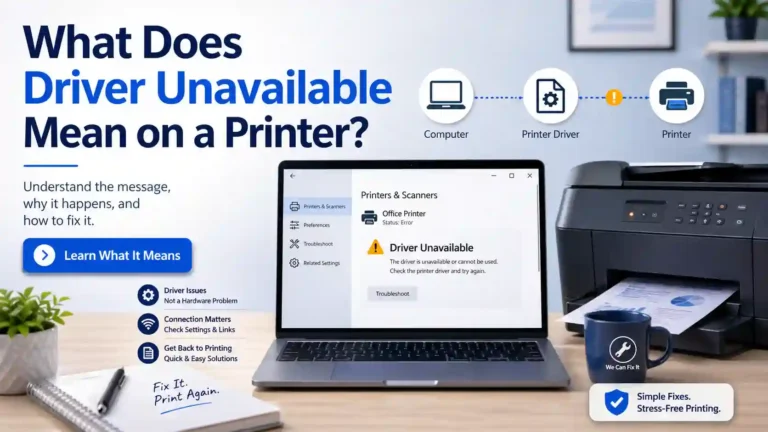
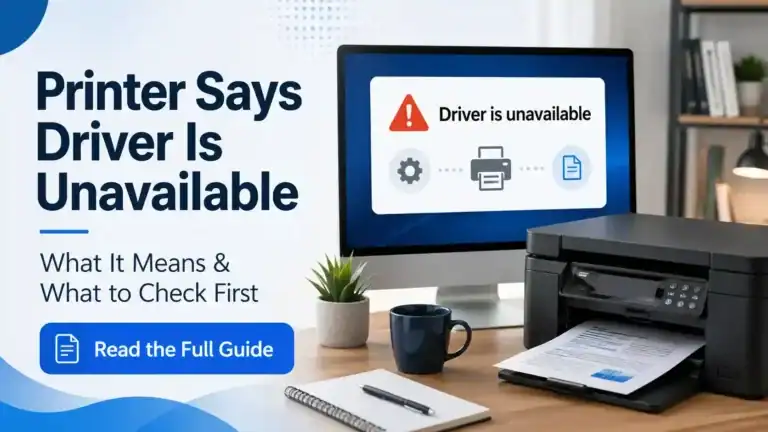
If you see the message ” Printer driver is unavailable, Windows can usually see your printer, but it cannot use a working driver for it.
A printer driver is the software that helps your computer communicate with the printer. If that driver is missing, damaged, outdated, or not compatible with your version of Windows, the printer may appear in your settings but still refuse to work.
If you want the official Windows walkthrough, Microsoft Support has a guide for fixing printer driver compatibility issues in Windows.
You may also see close variants of the same message, such as driver unavailable printer, driver unavailable for printer, printer driver unavailable, or printer says driver unavailable. In most cases, these point to the same core problem.
Table of Contents
What does “printer driver is unavailable” mean
This message does not always mean your printer is broken.
Most of the time, it means one of these things is happening:
- Windows cannot find a suitable driver for the printer
- The installed driver is corrupted or incomplete
- The driver does not match your version of Windows
- A recent update changed how the printer driver works
- The printer was added, but Windows attached the wrong driver
A simple way to think about it is this: the printer may still be connected, powered on, and visible on the computer, but Windows does not fully trust or understand the driver that should control it.
Check these basics before you change anything
Before you start reinstalling software, take a minute to confirm a few basics.
Check where the message appears
Look for the error in Settings, Printers & scanners, Control Panel, the printer status area, or the print dialog box. This helps you confirm that you are dealing with a driver issue and not a paper jam or an offline warning.
Check how the printer is connected
Ask yourself whether the printer is connected by USB, over Wi-Fi, or as a shared printer on a network. A USB printer and a wireless printer can fail for different reasons, and that matters later if you need to remove and add the printer again.
Confirm the exact printer model
Do not guess the model number. Check the label on the printer itself or your old setup paperwork. Installing a driver for a similar model can cause this exact problem.
Check your Windows version
A printer that worked on one version of Windows can show a printer driver is unavailable after a system update, a fresh PC setup, or a move to Windows 11.
The most common causes
The driver does not match your version of Windows
This is one of the most common reasons for the error. A driver made for an older version of Windows may install badly, partly work, or fail completely on a newer system.
The driver is missing or corrupted
Sometimes the printer was added, but the driver installation did not finish properly. This can happen after an interrupted setup, a failed update, moving the printer to a new computer, or uninstalling printer software halfway through.
Windows selected the wrong driver automatically
Windows often tries to help by installing a driver on its own. Sometimes that works well. Sometimes it installs a generic or incorrect driver that lets the printer appear, but not work properly.
The printer software is incomplete
Many printers rely on more than one small driver file. They may also need supporting software, setup tools, or a full feature package from the manufacturer. If only part of that package is installed, the printer may show as available but still report a driver problem.
A Windows update changed compatibility
A printer can work for months and then suddenly start showing Printer Driver is unavailable after a system update. That does not always mean the update is bad. It can also mean the older driver no longer matches the updated system the same way it did before.
The printer is older, and support is limited
Some older printers simply do not have good driver support for newer versions of Windows. In that case, the real problem may be compatibility rather than a broken printer.
How is this different from other printer problems
Printer driver is unavailable vs printer offline
If the printer is offline, the computer usually cannot reach it properly. If the driver is unavailable, Windows usually sees the printer but cannot use the driver correctly.
Printer driver is unavailable vs printer not printing
A printer can fail to print for many reasons, including low ink, stuck jobs, wrong paper settings, or connection issues. A driver error is only one possible cause.
Printer driver is unavailable vs printer in error state
An error state often points to a broader hardware, communication, or device-status problem. A driver unavailable message is more specific and usually points first to software compatibility or installation.
Printer driver is unavailable, vs print queue or spooler problems
Queue and spooler issues usually show up as jobs that are stuck, paused, or never leave the queue. A driver problem starts earlier, at the point where Windows cannot properly use the printer driver.
Printer driver is unavailable vs paper jam
A paper jam is a physical printer problem. A driver unavailable message is a software or compatibility problem.
How to fix “printer driver is unavailable” in the right order
The biggest mistake beginners make is trying random fixes in random order. Use this order instead.
Step 1: Restart the printer and the computer
Turn off the printer fully. Restart the computer. Then turn the printer back on and check the status again. This may clear a temporary setup failure, especially if the error started right after an installation or update.
Step 2: Check the physical or wireless connection
If the problem started after moving the printer, changing Wi-Fi, or switching USB ports, confirm the connection before changing software.
- For USB printers, unplug and reconnect the cable, try a different USB port, and avoid USB hubs if possible.
- For wireless printers, make sure the printer is on the correct Wi-Fi network and that the computer is on the same network.
If you need an official walkthrough for this part, Microsoft also has step-by-step help for fixing printer connection and printing problems in Windows.
Step 3: Confirm the exact printer model and your Windows system type
Before downloading anything, confirm the full printer model name, whether your PC is running Windows 10 or Windows 11, and the system type. This helps you avoid installing the wrong driver package.
Step 4: Let Windows try to update the driver first
Open your printer settings and check whether Windows can find or update a compatible driver automatically. This is a good early step because it is simple and low risk. If Windows finds a suitable driver and the message disappears, print a test page and stop there.
Step 5: Download the correct driver from the printer manufacturer
If Windows cannot find a driver, download the correct package from the official support page for your exact printer model. Use the right Windows version, choose the correct system type, and avoid random driver-download sites.
- Use the exact model, not a similar one.
- Choose the correct Windows version.
- Prefer the full manufacturer package if the printer needs more than a basic driver.
If you use the wrong package, the printer may still appear in Windows while continuing to show driver unavailable for printer.
Step 6: Remove the printer and add it again
If the correct driver is ready but the error remains, remove the printer from Windows and add it again. This gives Windows a fresh chance to pair the device with the correct driver.
This step is especially useful when the printer was installed before the right driver was available, Windows attached a generic driver, or the same printer was installed more than once.
Step 7: Reinstall the printer software cleanly
If removing and re-adding the printer does not help, do a cleaner reinstall. That usually means removing the printer from Windows, uninstalling old printer software, restarting the PC, installing the correct driver package again, and then adding the printer back.
Step 8: Roll back if the problem started after an update
If the printer worked before and the error started right after a driver update or Windows update, rolling back can help. This is not the first fix to try, but it is worth checking when the timing is obvious.
Step 9: Print a simple test page
Do not test with a large or unusual document first. Use a basic test page or a one-page text file so it is easier to confirm that the driver issue is gone.
If the printer now shows as ready but still does not print, the problem may no longer be the driver. At that point, the issue may belong under general printing problems instead.
What to do if the error appears during setup
New printer on a new PC
This often means Windows did not install the right driver automatically. Start with the exact manufacturer driver instead of repeating the same auto-detect process several times.
Existing printer on a different computer
A printer that worked fine on one PC can still fail on another if that second computer has a different Windows version or no matching driver installed.
Shared printer on a network
If the printer is shared through another computer or office setup, the driver problem may involve both the local PC and the shared printer source. In that case, basic home-user steps may not be enough.
Older printer model
If the printer is older, check whether the manufacturer still offers a driver for your version of Windows. If not, repeated reinstalls may not solve the issue because the real problem is limited support.
Windows 11 note: why some cases feel different
If you searched for Windows 11 printer driver is unavailable, you are not imagining it. Some Windows 11 setups can be more sensitive to driver compatibility than older systems, especially with older printers or more specialized driver packages.
For most home users, the right starting point is still the same: check the exact Windows version, use the correct manufacturer package, and then remove and re-add the printer if needed. Do not jump straight into advanced policy or security changes unless you already know the printer is being blocked by a Windows-specific feature.
When brand-specific help makes more sense
This page is meant to solve the main head term. But some brand-specific issues need their own instructions because the software packages and setup tools are different. That is especially true for HP, Epson, Brother, and Canon printers.
HP printer driver is unavailable.
When to stop and contact official support
It is time to go to the printer manufacturer’s official support team if no driver is offered for your version of Windows, the printer installs but always returns to the same error, the driver package refuses to install, or the printer works on one PC but not another after repeated clean reinstall attempts.
At that point, the issue may go beyond a simple home reinstall and may involve firmware, hardware, or account and admin-policy restrictions.
Final takeaway
If your printer driver is unavailable, the problem is usually not the printer itself. It is usually the link between Windows and the printer.
The fastest way to deal with it is to work in the right order: first confirm the exact printer model and Windows version, then let Windows try a compatible driver, then install the correct manufacturer package, and then remove and re-add the printer if needed.
That path is simpler and more reliable than trying random fixes. And if the message disappears but the printer still will not print, the next issue may no longer be the driver at all.
FAQs
What does “printer driver is unavailable” mean?
It usually means Windows can see the printer, but does not have a working, compatible driver it can use correctly.
Why does my printer say the driver is unavailable?
The most common reasons are a missing driver, a corrupted driver, the wrong driver, or a driver that no longer matches your version of Windows.
Is “printer driver is unavailable” the same as printer offline?
No. Offline usually means the computer cannot properly reach the printer. Driver unavailable usually means Windows can see the printer, but cannot use the driver correctly.
Can my printer show a driver unavailable even if it is connected?
Yes. A printer can be plugged in or connected to Wi-Fi and still fail because the driver is missing, damaged, or incompatible.
Should I use Windows Update or the printer manufacturer’s driver?
Start with Windows detection or update because it is simple. If that does not work, use the correct driver from the printer manufacturer for your exact model and Windows version.
Why did this happen after a Windows update?
A Windows update can expose an older or incompatible printer driver that was only partly working before. It can also cause Windows to prefer a different driver than the one you were using.
Do I need to remove the printer before reinstalling the driver?
Not always. But if the error does not clear after updating the driver, removing the printer and adding it again is often the next useful step.
What if my printer is old and there is no new driver?
If the manufacturer does not provide a compatible driver for your version of Windows, the printer may have limited support on that system. In that case, official support is the best next step.
Is this a spooler or print queue problem?
Not usually. A spooler problem normally shows up as jobs that get stuck or never leave the queue. A driver-unavailable message usually points first to a driver or compatibility issue.
What should I do if the message is gone but the printer still will not print?
Then the main driver issue may already be fixed. The next problem may be a connection, a queue, ink, paper, or general print failure