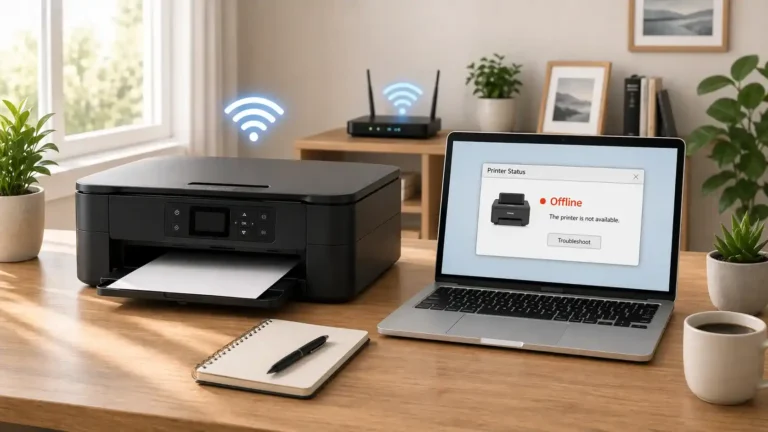
Printer Showing Offline? What It Means and What to Check First

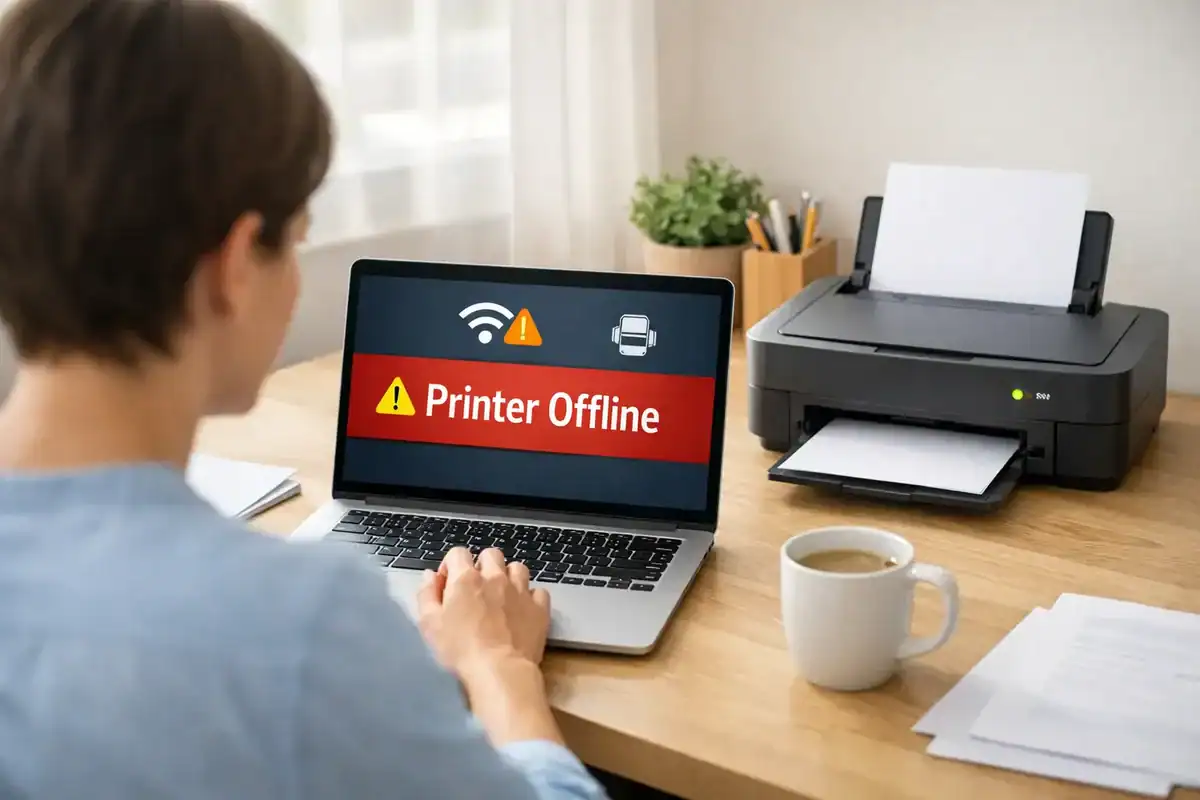
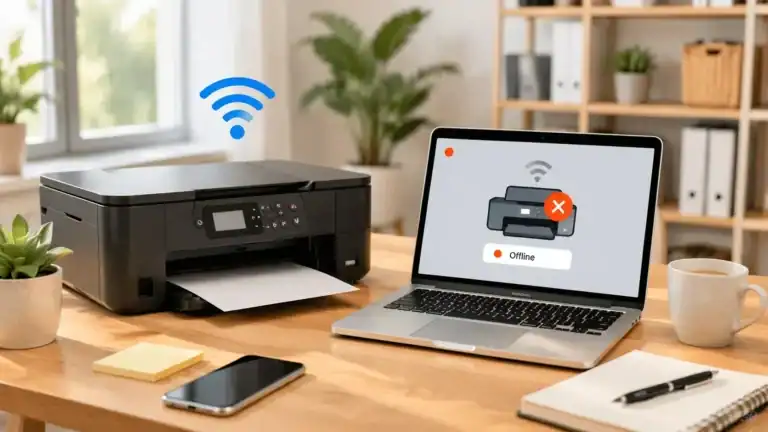
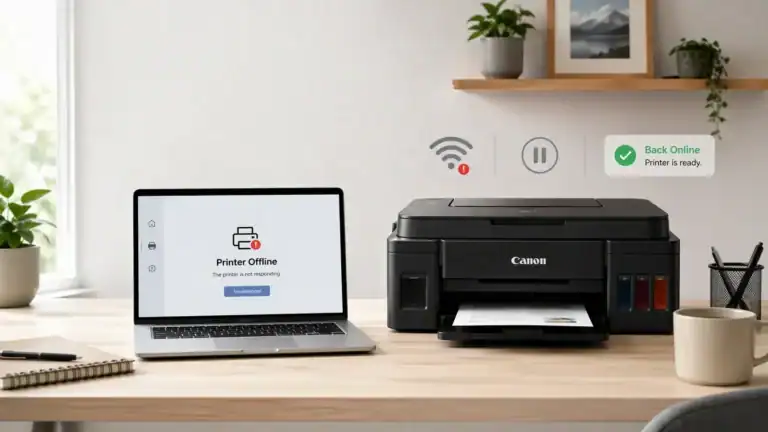
If your printer is showing offline, the problem is usually not that the printer is completely dead. In many cases, it means your computer cannot communicate with the printer properly at that moment. That can happen because of a dropped Wi‑Fi connection, a loose cable, the wrong printer being selected, a stuck print queue, an offline setting, or a driver or port mismatch.
Table of Contents
What does “printer showing offline” mean?
A printer offline message is a status problem first. Your computer is basically saying, “I cannot reach this printer right now” or “I do not believe this printer is ready to accept the job.”
That is why a printer can show offline even when it is turned on, has paper loaded, and looks normal on its screen. The printer may be ready, but the connection between the printer and your computer may not be working the way it should. Windows users can compare the signs on their device with Microsoft’s offline printer troubleshooting guide.
This is also why “printer showing offline” is not exactly the same as “printer not printing.” A printer that is not printing could be out of ink, jammed, paused, or stuck on a bad print job. An offline printer is more about communication and status detection.
What this symptom usually signals
When a printer is showing offline, it usually points to one of a few common cause groups:
• The printer is not fully connected.
• The computer is talking to the wrong printer.
• The print queue is stuck.
• The printer has been set to offline or paused.
• The driver, port, or saved printer setup is no longer matching the real printer.
• The printer has a separate hardware or error-state problem that is being reported badly on the computer side.
For beginner users, this matters because the best next step depends on which cause group you are in. Restarting everything can help, but it is better to check the basics in the right order before moving into deeper fixes.
Start with these quick checks
1) Make sure the printer is really on and awake
If the display is blank, the printer may be sleeping, powered off, or not getting power at all. If the screen shows a paper jam, empty ink, cover open, or another hardware message, that issue may need to be cleared before the offline status changes.
2) Check the connection type
If it is a USB printer, make sure the cable is firmly connected at both ends. If it is a wireless printer, make sure the printer is actually connected to Wi‑Fi. If you recently changed your router, network name, or password, the printer may still be trying to use the old connection.
On Windows, Microsoft’s guide for fixing printer connection problems is useful when you need to check cables, wireless settings, or reinstall a printer connection.
3) Make sure you are sending the job to the correct printer
Many people have more than one saved printer on a computer, including old copies of the same device, PDF printers, or previous wireless entries. If the wrong one is set as the default, your real printer may look offline simply because the job is going somewhere else.
4) Open the print queue
A stuck print job can keep the printer from refreshing properly. Open the queue and look for pending jobs that are frozen or repeated. If needed, cancel them and try again.
If you are not sure where to find it, Microsoft shows how to open and manage the print queue in Windows, and Apple explains how to check print jobs in Print Center on Mac.
The most likely causes when your printer is showing offline
Connection dropped or changed
This is one of the most common reasons. The printer may have lost Wi‑Fi, the router may have restarted, the USB connection may be unstable, or the printer may be connected to a different network than your computer.
Wrong printer selected
This happens often after reinstalling a printer, switching networks, or using multiple printers. Your computer may be trying to print to an older saved version of the device instead of the one you actually use.
Print queue problem
A stalled job can cause the queue to jam up and leave the printer stuck in a bad status state. Even when the printer itself is fine, the computer may keep reporting it as offline until the queue is cleared or the spooler refreshes.
Printer set to offline or paused
In some cases, the printer is available, but Windows has the queue marked as paused or offline. This is easy to miss because the printer may still be powered on and connected.
Driver, port, or saved setup mismatch
This is more likely if the problem started after an update, reinstall, Wi‑Fi change, or new router setup. A saved printer entry can remain on the computer even when it no longer points to the correct device path. Removing and re-adding the printer can help when this is the real cause.
How to tell which cause is most likely
You do not need to diagnose this perfectly. You just need to notice the pattern.
If the printer worked yesterday and suddenly shows offline today, start with power, connection, and queue checks.
If the issue started after changing Wi‑Fi, replacing the router, or moving the printer, suspect a network mismatch first.
If the printer only shows offline on one computer, but works from another device, the issue is more likely on that computer’s saved printer setup, queue, or driver.
If the printer comes back after a restart but keeps going offline again, look more closely at unstable Wi‑Fi, network path issues, or a recurring queue or spooler problem.
If the printer says offline but is connected, that usually means the connection exists at some level, but the computer still cannot use the printer correctly. That often points to the wrong saved printer entry, a stuck queue, offline mode, or a driver or port mismatch rather than a simple power issue.
Best troubleshooting order for beginners
Step 1: Check the printer itself
Look for power, screen messages, paper jams, low supplies, or a sleeping device. If the printer is not truly ready, fix that first.
Step 2: Check the connection path
Confirm the USB cable is secure or that the printer is on the same Wi‑Fi as your computer. If it is a network printer, a quick restart of the printer and router can clear temporary communication issues.
Step 3: Check the printer status on the computer
Open the printer queue. Make sure the correct printer is selected. Check that it is not paused and that “Use Printer Offline” is not turned on. Set it as the default printer if needed.
Step 4: Clear stuck jobs
If old print jobs are sitting in the queue, cancel them and try a fresh test page or a small document. A stuck queue is a very common reason a printer appears unavailable.
Step 5: Restart the printer and computer
A full restart can refresh the services that allow your device to communicate with the printer.
Step 6: Move to driver or re-add steps only if needed
If the offline status is still there after the simpler checks, remove and reinstall the printer or update the driver. On Windows, Microsoft also has a guide on how to download and install the latest printer drivers.
If your printer says offline but looks connected
This is one of the most confusing versions of the problem.
A printer can appear connected because it is powered on, joined to Wi‑Fi, or visible in the printer list. But that still does not guarantee your computer can send jobs to it correctly. The saved printer entry may be old, the queue may be stuck, the wrong default printer may be selected, or the connection may exist on the wrong network path.
That is why it helps to treat “showing offline” as a diagnosis problem first. Do not jump straight to advanced fixes until you have checked whether the problem is power, connection, queue, settings, or setup mismatch.
When it is not really an offline problem
Sometimes the offline label is only part of what you are seeing.
If the printer is online but not printing, the next issue may be ink, toner, paper feed, permissions, or a document-specific failure.
If the printer shows a direct error on its screen, clear that first.
If the printer accepts jobs but nothing comes out, you may be closer to a print queue, spooler, or print quality problem than a true offline problem.
When to use a full fix guide or official support
Use a full fix guide when you already know the printer is offline and you are ready to work through the longer repair steps.
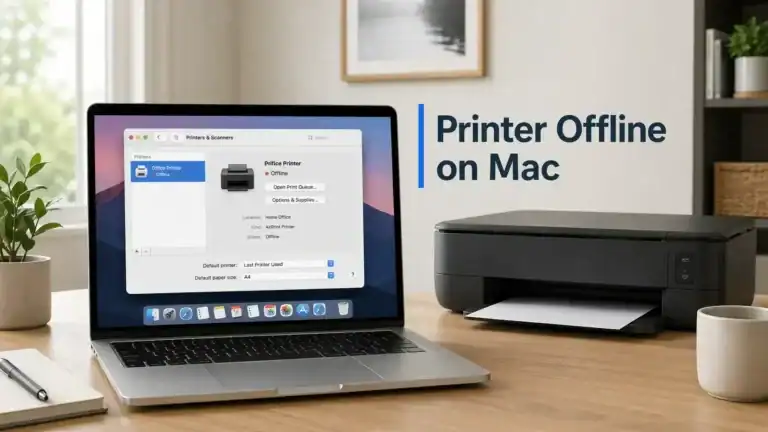
Use official manufacturer support when the printer will not reconnect after being removed and re-added, the printer keeps going offline after every restart, the printer screen shows a hardware or network error you cannot clear, or the issue started after a firmware, router, or device change, and basic checks do not help. Mac users can also review Apple’s official printing problems guide if the issue appears to be tied to macOS settings or printing services.
For most people, the best first move is simple: treat the offline label as a clue. Check the printer, check the connection, check the queue, and then move on to bigger fixes only when the basics are ruled out.
FAQ section
What does it mean when a printer is showing offline?
It usually means your computer cannot communicate with the printer properly at that moment. The problem may be the connection, queue, settings, driver, or printer status rather than a total hardware failure.
Why is my printer showing offline when it is turned on?
Because being powered on is only one part of the process. The printer can still show offline if the computer is using the wrong printer entry, the queue is stuck, the printer is paused, or the connection path is broken.
Can a printer show offline and still be connected to Wi‑Fi?
Yes. A printer can be connected to Wi‑Fi but still appear offline if it is on the wrong network path, if the saved printer entry is outdated, or if the computer cannot send jobs correctly.
Is a printer offline the same as a printer not printing?
No. Offline usually points to a communication or status problem. Not printing is broader and can include paper jams, supply issues, queue problems, or printer errors.
Why does my printer keep going offline?
Recurring offline problems often point to unstable Wi‑Fi, a saved printer setup problem, repeated queue issues, or a driver or port mismatch.
What should I check first when my printer says offline?
Start with power, screen messages, connection type, the correct default printer, and the print queue.
Should I clear the print queue if my printer is showing offline?
Yes, especially if there are old or stuck jobs waiting. A jammed queue can keep the printer from returning to normal status.
When should I remove and reinstall the printer?
Try that after the basic checks fail. It makes more sense when the printer was recently moved, the network changed, or the saved printer entry seems wrong.
Short excerpt
If your printer is showing offline, it usually means your computer cannot communicate with it properly. This guide explains what that status usually signals, the most likely causes, and the best next troubleshooting order for beginners.