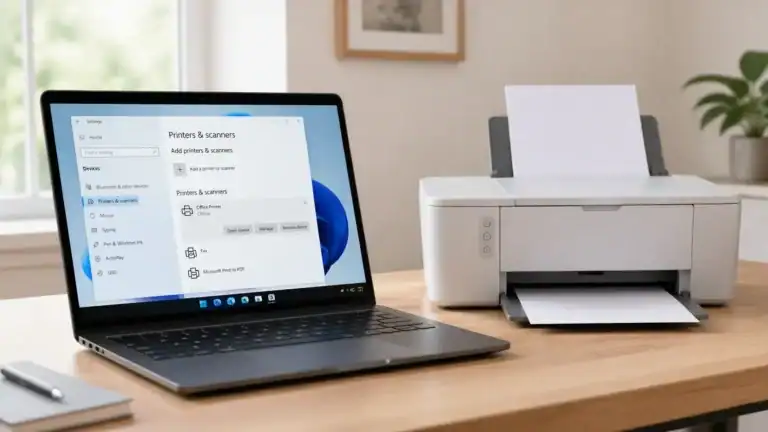
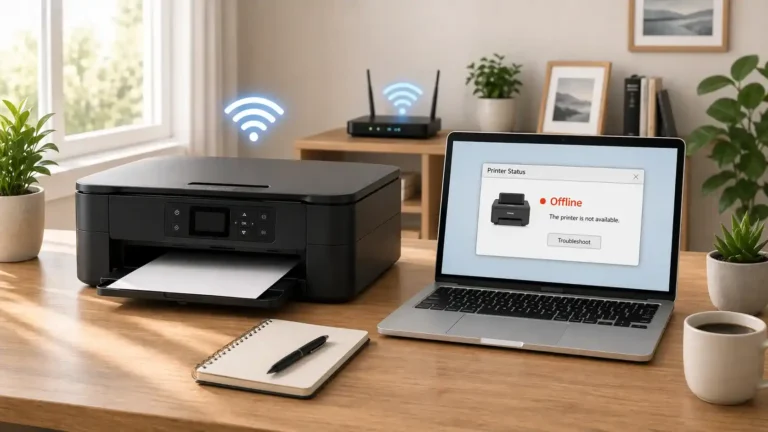
Printer Says Offline But Is Connected: Fix Guide 2026

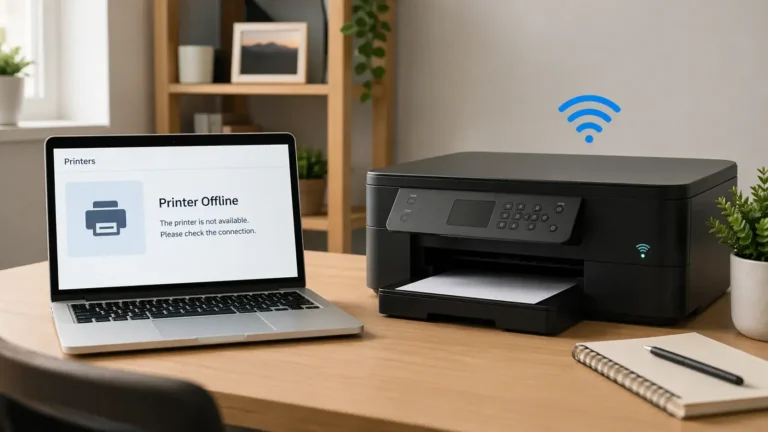
Your printer can be turned on, connected to Wi‑Fi, or plugged in by USB and still show as offline on your computer.
That usually means the printer itself is not completely disconnected. The real problem is that your computer is failing to talk to it the right way. In many cases, the issue is a stuck print queue, a saved printer entry that is out of date, the wrong default printer, an old IP address, or a driver problem.
This guide is for that exact situation: the printer looks connected, but your device still says it is offline.
It is not a broad “printer offline” guide, and it is not mainly about paper, ink, or print quality problems. The goal here is to help you find out why the printer looks available but still appears offline, and what to check before you jump into deeper fixes.
Table of Contents
What “Connected but Offline” Usually Means (Printer Says Offline But Is Connected)
When a printer says offline but is connected, one of two things is usually happening:
- The printer is available, but your computer is pointing to the wrong saved connection.
- The printer and computer can see each other, but a queue, setting, or driver problem is blocking normal communication.
That is why this issue feels confusing. The printer may show a wireless signal, appear in your device list, or even respond on its screen, but your computer still treats it as if it is unavailable.
A useful way to think about it is this:
- Connected means the printer has power and some kind of link to your network or computer.
- Online means your computer can actively send jobs to the correct printer entry without errors.
Those are not always the same thing.
Start Here: Find Out Where the Problem Is
Before changing settings, check whether this is a one-device issue or a printer-wide issue.
If only one computer shows the printer as offline
The problem is usually with that computer, not the printer.
- a duplicate printer entry
- The wrong default printer
- “Use Printer Offline” is enabled
- a stuck local queue
- a saved IP address or port that no longer matches the printer
If every device shows the printer as offline
The problem is more likely with the printer or the network.
- The printer dropped off Wi‑Fi
- The printer is connected to the wrong network
- The router changed something after a restart
- The printer is sleeping, frozen, or stuck in an error state
If the printer appears offline only when you try to print
That often points to a queue or communication mismatch rather than a true loss of connection. The printer may look fine until a print job exposes the problem.
Why a Connected Printer Can Still Show Offline
A stuck print queue is blocking new jobs
One failed print job can leave the queue hanging. After that, every new job may fail behind it, and the printer may start showing as offline even though it is still available.
Your computer is using an old printer entry
This happens a lot after you reconnect the printer, switch from USB to Wi‑Fi, reinstall printer software, move to a new router, rename the printer, or add the same printer more than once. Your computer may still be sending jobs to an older saved version of the printer instead of the one that is actually connected now.
The printer’s IP address changed
On many home networks, the router assigns local IP addresses automatically. If that address changes, the computer may still be looking for the printer at the old address. The printer looks connected because it is on the network, but your device is trying to reach it through stale connection information.
“Use Printer Offline” is turned on
This setting can make a working printer appear unavailable from the computer side. It is easy to miss because the printer itself may seem normal.
The wrong default printer is selected
If your system keeps switching to another printer, PDF printer, old network entry, or previously installed device, your current printer may look offline simply because jobs are being sent to the wrong place.
The driver or software is out of sync
If Windows or macOS updates, printer software changes, or an installation becomes corrupted, the printer may still appear connected while the actual communication path stops working properly.
The printer is awake enough to look connected, but not ready enough to respond
Some printers take time to wake from sleep. Others reconnect poorly after sleep, power saving, or a brief network interruption. That can create an offline message even though the printer is still technically on and connected.
What to Check First Before Deeper Fixes
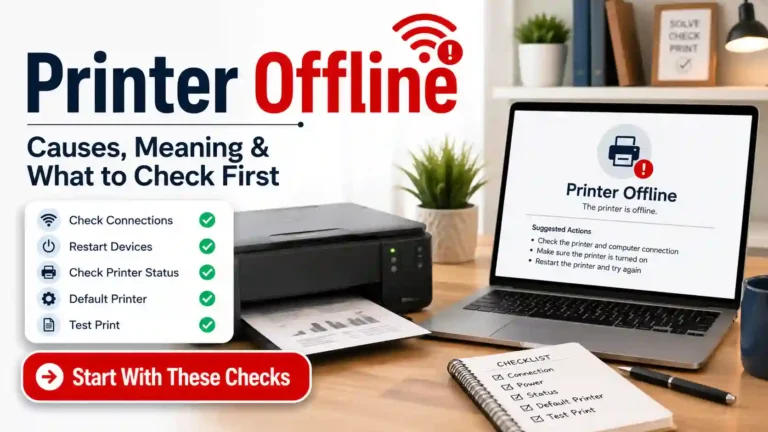
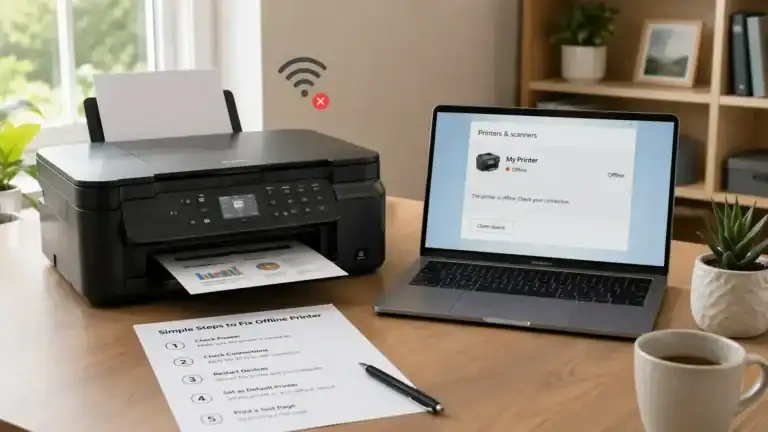
Go through these steps in order. That matters. If you skip straight to reinstalling the driver, you may miss a simpler problem, such as a paused queue or a duplicate printer.
1. Make sure the printer is fully awake and ready
Check the printer itself first.
Look for a ready screen instead of an error screen, no blinking warning lights, no paper jam or cover-open message, and no prompt that is waiting for input on the printer screen.
If the printer looks stuck, restart it once and let it fully reconnect before testing again.
2. Confirm the printer is on the same connection you expect
For Wi‑Fi printers, make sure the printer is still on the same network as your computer.
This matters more than many people realize. A printer can be connected to Wi‑Fi and still be on the wrong network, a guest network, or a different node than the computer expects.
For USB printers, check that the cable is firmly connected and not going through a problematic hub or adapter. A loose or unstable USB connection can also create an offline message.
3. Try printing from another device
This is one of the fastest ways to narrow down the cause.
- If another device prints normally, the printer is probably fine, and the issue is on your computer.
- If no device can print, the issue is more likely with the printer or the network.
This quick test helps you avoid changing the wrong thing.
4. Clear the print queue
Open the printer queue and cancel anything that is stuck, paused, or showing an error.
Then wait a moment and try again with one simple test page.
If multiple failed jobs are sitting in the queue, do not keep sending more. That usually makes the problem harder to untangle.
5. Check that “Use Printer Offline” is not enabled
If your system has a setting that lets the printer run in offline mode, make sure it is turned off.
Also, check whether the queue is paused. A paused queue can look like an offline problem even when the real issue is just that jobs are being held.
6. Set the correct printer as the default
Look carefully at the printer name. You may see several versions of what looks like the same printer, such as the real active printer, a copy entry, an older Wi‑Fi entry, a previous USB version, or a virtual printer.
Set the printer you actually use as the default, then test again.
If the wrong one keeps becoming the default, remove old entries you no longer need.
7. Remove duplicate or stale printer entries
This is a big one for connected-but-offline problems.
If the same printer appears more than once, your computer may be talking to the wrong saved record. Removing extra entries often clears up the confusion.
Keep the printer entry that matches how you currently use the printer, and remove the ones that are outdated or obviously duplicated.
8. Re-add the printer if the saved connection looks wrong
If the printer is clearly online but your computer still insists it is offline, remove the printer from your device and add it again.
This is often the best fix when the printer is reconnected after a long gap, the router is changed, the printer gets a new IP address, or you change from USB to Wi‑Fi.
Re-adding the printer forces the system to build a fresh connection path instead of relying on stale settings.
On Mac, Apple’s guide to solving printing problems on Mac is useful when the printer appears available, but jobs still fail.
9. Restart the printing system on your computer
If the queue keeps freezing or the printer status does not refresh correctly, restart the printing system on your device.
If you use Windows, Microsoft’s Windows printer troubleshooting steps can help you confirm the queue, offline mode, and same-network checks.
On Mac, Apple’s reset printing system instructions can help when the printer list or queue seems broken.
10. Update or reinstall the driver only after the checks above
Driver problems do cause offline errors, but they are not always the first cause.
Try this step after you have already checked the queue, offline mode, default printer, duplicate entries, network match, and re-adding the printer.
For Windows, Microsoft’s guide to installing the latest printer drivers is a good reference before you download anything manually.
When This Starts After a Router Restart or Wi‑Fi Change
If the problem started right after the internet or router changes, focus on network identity first.
The printer may still be connected, but the local IP address, saved network information, or the route your computer uses to find the printer may have changed in the background.
In that case, re-adding the printer is often more useful than repeating basic restarts over and over.
Connected but Offline vs Connected but Not Printing
These two problems are close, but they are not the same.
This page fits your issue if
- The computer literally says the printer is offline
- The printer appears in the device list, but looks unavailable
- The printer is on Wi‑Fi or USB, yet the computer cannot reach it properly
- The issue feels like a mismatch between the printer and the saved connection
A different guide may fit better if
- The printer is online, but prints blank pages
- The job goes through, but nothing comes out
- The printer makes noise but does not print
- The issue is clearly about ink, toner, paper, or hardware
If that sounds closer to your situation, move to a broader not-printing guide after you rule out the offline status problem.
How to Stop This Issue From Coming Back
Keep only the printer entries you actually use
Old entries create confusion. A clean printer list is easier for both you and your computer.
Recheck the printer after router or Wi‑Fi changes
Many connected-but-offline problems begin right after a network change.
Avoid switching between connection methods unless needed
If you mainly use Wi‑Fi, keep using Wi‑Fi. If you mainly use USB, keep that setup simple. Mixed setups can leave behind duplicate entries.
Update printer software before it gets too old
You do not need to chase every update, but very old software can create communication problems after operating system changes.
When Official Support Is the Right Next Step
It makes sense to contact the printer brand’s official support when:
- The printer keeps going offline after you remove and re-add it
- The printer shows hardware, firmware, or connection errors on its own screen
- The problem is clearly tied to a model-specific app or setup method
- The printer disappears from the network repeatedly, no matter what device you use
At that point, you may need model-specific steps that depend on the exact printer.
Final Thought
If your printer says offline but is connected, the best fix is usually not the deepest fix. It is usually the right fix in the right order.
Start by checking whether the problem is limited to one computer or affects every device. Then clear the queue, turn off offline mode, confirm the correct default printer, remove duplicate entries, and re-add the printer if the saved connection is stale.
That approach is usually faster than guessing, and it keeps this issue separate from broader printer offline or printer not printing problems.
Frequently Asked Questions
Why does my printer say offline even though it is connected?
Usually, because the computer is not talking to the printer through the correct saved connection. The printer may still have power and network access, but the queue, default printer, printer entry, driver, or local connection path may be wrong.
Can a printer be connected to Wi‑Fi and still be offline?
Yes. A printer can be connected to Wi‑Fi but still appear offline if it joined the wrong network, got a new local IP address, or your computer is still using an old saved printer entry.
Why does my printer show offline on one computer but not another?
That usually means the printer is fine and the problem is on the affected computer. Common causes include a stuck queue, a duplicate printer entry, a wrong default printer, or an outdated driver.
Should I clear the print queue first?
Yes. It is one of the safest first checks because a stuck or paused queue can make a connected printer appear offline.
Do I need to reinstall the driver right away?
Not usually. It is better to check the queue, offline mode, default printer, duplicate entries, and network match first. Driver reinstall is more useful after those steps fail.
Why did this start after I restarted my router?
The printer may have reconnected with a different local IP address, or your computer may still be trying to reach the printer through older saved network information.
What is the difference between a printer being offline and a printer not printing?
Printer offline usually means the computer cannot communicate with the printer correctly. Printer not printing is broader and can include ink, paper, job, driver, or hardware problems, even when the printer still shows online.
When should I remove and re-add the printer?
Do that when the printer looks connected but keeps showing offline, especially after a network change, setup change, software reinstall, or duplicate-printer problem.
Short excerpt
A printer can be connected to Wi‑Fi or USB and still show offline on your computer. This guide explains why that happens and what to check first before trying deeper fixes.