Windows Printer Offline: How to Fix It

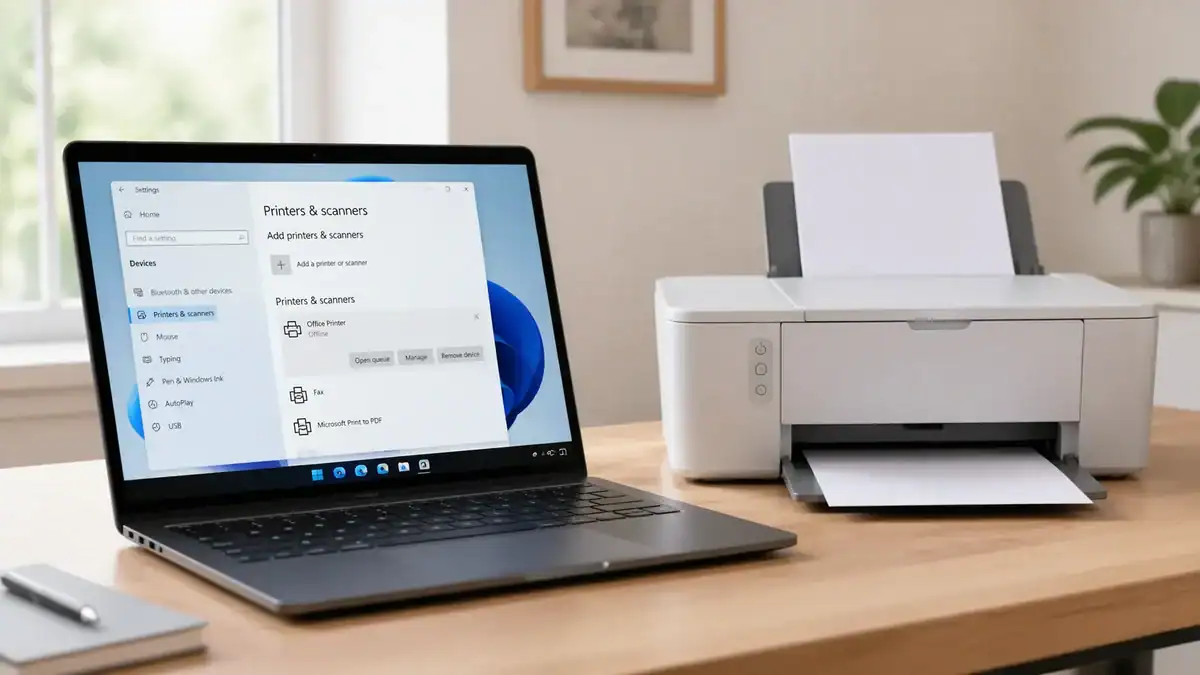
If your printer shows offline in Windows, the problem is usually not the printer itself. In many cases, Windows is pointing to the wrong printer, keeping the printer in offline mode, or holding a stuck print job in the queue.
This guide is for Windows printer offline troubleshooting. It focuses on the most useful fixes in the right order, so you do not waste time jumping straight to driver reinstall steps when the problem is really a queue, spooler, or default-printer setting.
It works best for beginners using Windows 11 or Windows 10. The menu names may look slightly different depending on your version, but the fix order is usually the same.
Table of Contents
Why a Printer Shows Offline in Windows
When a Windows printer is offline, it usually means your computer cannot send print jobs to that printer correctly right now. That can happen for a few common reasons:
• Windows is trying to print to the wrong printer.
• Use Printer Offline is turned on.
• Pause Printing is enabled.
• A stuck job is blocking the queue.
• The Print Spooler service is stuck.
• The printer connection dropped over Wi-Fi or USB.
• The driver is damaged or outdated.
• A shared network printer is not set up correctly.
The goal is not to guess which one it is. The best approach is to move through the checks in order.
Start with the Fastest Checks First (Windows Printer Offline)
Restart the printer and your PC
Turn the printer off, wait a few seconds, and turn it back on. Then restart your computer. This clears temporary connection issues and can bring the printer back online without any bigger changes.
Check the connection
If you use a USB printer, make sure the cable is connected firmly at both ends. Try a different USB port if needed.
If you use a Wi-Fi printer, make sure the printer is connected to the same network as your Windows PC. A printer that moved to a guest network or a different band can appear offline even though it is powered on.
Make sure you are using the right printer.
Open the document you want to print and check the selected printer in the print window. If the wrong device is selected, Windows may look like the printer is offline when it is really sending the job somewhere else.
Change the Printer From Offline to Online in Windows
Open your printer in Windows.
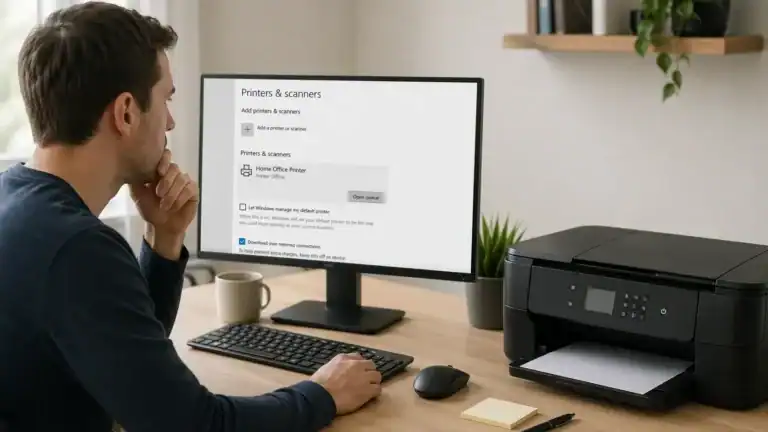
In Windows 11, go to Start > Settings > Bluetooth & devices > Printers & scanners.
In Windows 10, go to Start > Settings > Devices > Printers & scanners.
Select your printer, then open its queue or management page.
Turn off Use Printer Offline
When the print queue opens, look for the Printer menu. If Use Printer Offline is checked, uncheck it. This setting can force Windows to keep the printer offline even when the printer is actually available.
Turn off Pause Printing
In the same area, check whether Pause Printing is enabled. If it is checked, clear it. A paused queue can make it look like the printer is unavailable when Windows is really just holding all jobs.
Set the Printer as the Default Printer
Why the default printer matters
Windows sometimes switches to another printer automatically. That creates a lot of confusion, especially if you have a printer with a similar name, a Save as PDF printer, or an old copy of the same printer still installed.
Set your printer as the default.
Go back to Printers & scanners, select the printer you actually use, and set it as the default printer. After that, try printing again.
Turn off automatic default-printer switching if needed
If Windows keeps choosing a different printer, turn off the option that lets Windows manage your default printer automatically. This helps when your printer keeps showing offline because Windows keeps switching the active printer behind the scenes.
Clear the Print Queue
How to clear the queue
Open the printer queue again and look for any jobs that say things like Error, Deleting, Paused, or Printing for too long without moving. Cancel all pending jobs, wait a moment, and then send one small test page.
Why this step matters
If the queue is blocked, even the correct printer settings may not help. Windows may keep reporting the device as offline because it cannot complete the current job and does not move on to the next one.
Restart the Print Spooler Service
Restart Print Spooler
• Press Windows + R.
• Type services.msc.
• Press Enter.
• Find Print Spooler.
• Right-click it.
• Choose Restart.
After that, go back to the printer and try another test print.
If restarting does not help.p
If the queue still looks stuck or the printer still shows offline, you may need to clear the spooler files manually.
Clear the Spool Folder Manually
How to clear spool files
• Press Windows + R.
• Type services.msc and press Enter.
• Right-click Print Spooler and choose Stop.
• Open File Explorer.
• Go to C:\Windows\System32\spool\PRINTERS.
• Delete the files in that folder.
• Go back to Services.
• Right-click Print Spooler and choose Start.
Now reopen the printer queue and test the printer again.
Important note
Do not delete random Windows folders. Only clear the files inside the PRINTERS spool folder after stopping the spooler service first.
Remove and Re-Add the Printer in Windows
When this step makes sense
If Windows still says the printer is offline after the queue and spooler steps, remove the printer and add it again. This is often the cleanest fix when Windows saved a broken printer entry or an old port configuration.
Remove the printer
Go to Printers & scanners, select the printer, and choose Remove.
Add the printer again.
After removing it, choose Add device or Add a printer or scanner and let Windows search. If it is a Wi-Fi printer, make sure the printer is powered on and connected to the same network first. If it is a USB printer, reconnect it after removing it and let Windows detect it again.
Check the Printer Driver
Update the driver first.
Try updating the driver through Windows first. If that does not help, follow Microsoft’s official guidance for printer driver compatibility issues or download the correct driver from the printer manufacturer’s support page for your exact model.
Reinstall the driver if needed
If updating does not work, remove the printer and reinstall it with the correct driver. This is especially useful when the printer starts showing offline after a Windows update, appears twice in Windows, or works on one PC but not another.
Keep this part simple.
Do not install random third-party driver tools. Use Windows or the printer manufacturer’s official support page.
If It Is a Shared Printer on Your Network
Check sharing settings
On the host PC, make sure print sharing is enabled, nd the computer is turned on. On the Windows PC that cannot print, make sure Network Discovery and File and Printer Sharing are enabled.
Re-add the shared print. er
If the shared printer still shows offline, remove it and add it again using the shared printer name. Microsoft also has a clear guide for shared printer connection problems in Windows if the issue appears on only one PC.
Run Windows Tools Before You Give Up
Use the Windows printer troubleshooter.r
You can run the Windows printer troubleshooter in Get Help to scan for common printing problems and apply Windows-recommended fixes.
Check Microsoft’s offline-printer st.eps
If you want a second reference while working through the same issue, you can compare your progress with Microsoft’s official offline printer steps for Windows.
Test from a simple app
After the main fixes, test from a simple Windows app such as Notepad. If a basic test page prints but your usual app does not, the issue may be tied to that app rather than the printer itself.
What to Do if Your Windows Printer Keeps Going Offline
If the printer comes back online and then goes offline again later, look at the pattern. Common reasons include unstable Wi-Fi, Windows switching to another default printer, an old printer entry still installed, spooler crashes, or a driver problem that returns after a restart.
In that case, these steps usually help most:
• Set the correct printer as the default.
• Turn off the option that lets Windows manage your default printer.
• Remove duplicate printer entries.
• Restart the spooler.
• Reinstall the printer with the correct driver.
When to Contact Support
You have done enough on your own. If the printer stays offline after re-adding it, Windows cannot find it at all, the driver will not install correctly, or the problem keeps returning after every restart. At that point, the next step may depend on the printer model, firmware, or network setup, so official manufacturer support may be the better option.
Quick Recap
If your Windows printer is offline, follow this order:
1. Restart the printer and PC.
2. Check the USB or Wi-Fi connection.
3. Make sure you selected the correct printer.
4. Uncheck Use Printer Offline.
5. Clear Pause Printing.
6. Set the printer as the default.
7. Turn off automatic default-printer switching if needed.
8. Clear the print queue.
9. Restart Print Spooler.
10. Clear the spool folder if jobs are stuck.
11. Remove and re-add the printer.
12. Update or reinstall the driver.
That order solves the problem more often than jumping straight to the advanced related fix guide.
FAQ section
Why does my printer say offline in Windows when it is turned on?
Usually, Windows does not communicate with the printer correctly. The most common reasons are a wrong default printer, Use Printer Offline being enabled, a stuck print queue, a spooler issue, or a weak USB or Wi-Fi connection.
How do I change a printer from offline to online in Windows 11?
Open Settings > Bluetooth & devices > Printers & scanners, select your printer, open the queue, and uncheck Use Printer Offline. Also, make sure Pause Printing is not enabled, and the printer is set as the default.
How do I change a printer from offline to online in Windows 10?
Open Settings > Devices > Printers & scanners, select the printer, open the queue, and clear Use Printer Offline if it is checked. Then confirm the printer is set as the default printer.
Should I clear the print queue or restart Print Spooler first?
Start by clearing the print queue normally. If jobs will not cancel or the queue stays stuck, restart Print Spooler next. If that still does not work, clear the spool folder manually.
Why does Windows keep changing my default printer?
Windows can automatically manage your default printer and switch it to the last printer you used. If that causes problems, turn off the setting that lets Windows manage your default printer.
Do I need to remove and reinstall the printer if it says offline?
Not always. It is better to check offline mode, default-printer settings, and the print queue first. Reinstall the printer after those steps if the problem remains.
What should I do if a shared printer shows offline on only one PC?
Check that the host PC is on, sharing is enabled, and both PCs are on the same network. Then remove and re-add the shared printer on the affected PC.
Can a bad driver make a printer show offline in Windows?
Yes. A damaged or outdated driver can stop Windows from communicating with the printer correctly. Updating or reinstalling the driver can fix that.
Short excerpt
Windows printer offline? This beginner-friendly guide shows how to bring a printer back online in Windows 11 or 10 by checking default-printer settings, disabling offline mode, clearing the queue, restarting Print Spooler, and re-adding the printer in the right order.