
Why Is My HP Printer Offline?
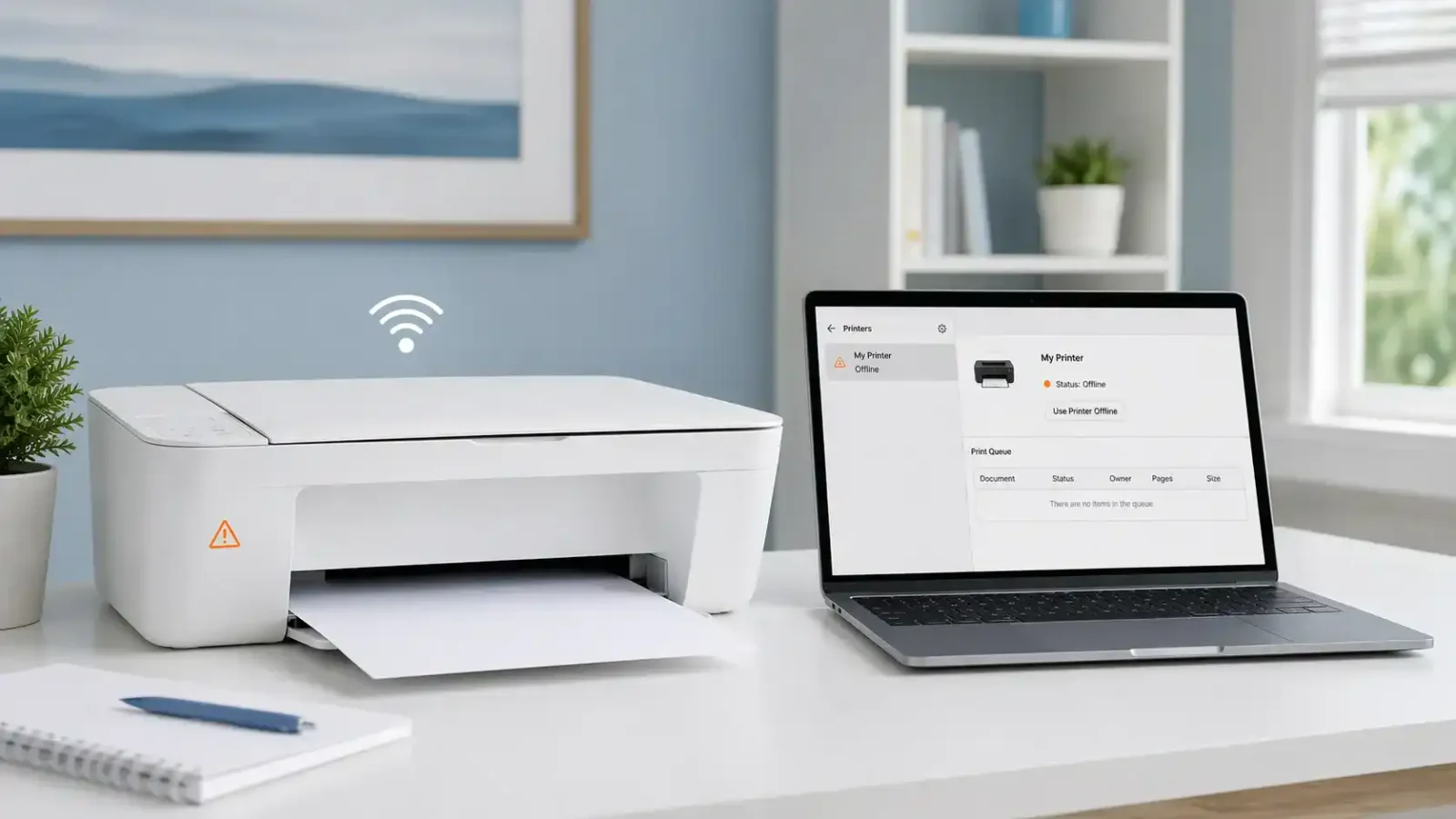
If your HP printer is offline, it usually means your computer, phone, or tablet cannot communicate with the printer right now. In most cases, the printer is not broken. The problem is usually one of these: the printer lost its connection, your device is using the wrong printer entry, the print queue is stuck, or the printer needs to be reconnected.
The best way to fix it is to check the simple things first, then move to the bigger fixes only if needed.
What does “offline” mean on an HP printer
When an HP printer shows offline, your device is treating it as unavailable. That can happen with Wi‑Fi printers, USB printers, and Ethernet printers.
Offline is not always the same as not printing. A printer can be offline because the connection is lost, online but not printing because of a queue problem, or online but still blocked by a driver or spooler issue. That is why it helps to diagnose the cause before trying random fixes.
Table of Contents
What to check first
Make sure the printer is on and not showing another error
Check the power light or screen. If the printer is asleep, waking it up may be enough. If the screen shows paper jam, no paper, low ink, cartridge error, or another warning, fix that first. A printer with another active error can appear offline as a side effect.
Check whether the issue happens on one device or every device
This matters more than many people realize. If the printer is offline on every device, the problem is usually with the printer or the network connection. If it is offline on only one computer, the problem is often with that computer’s printer settings, queue, or saved printer entry.
Confirm how your HP printer is connected
Make sure you know whether your printer is using Wi‑Fi, USB, or Ethernet. The best fix path depends on the connection type.
- Wi‑Fi problems usually point to network loss, wrong network details, or a printer that needs to be reconnected.
- USB problems usually point to the cable, the port, or the printer entry saved on the computer.
- Ethernet problems usually point to the network connection or the printer being assigned the wrong status on the device.
Make sure the printer and device are on the same network
This is one of the most common reasons an HP printer goes offline. Your computer may be on one Wi‑Fi network while the printer is connected to another, especially after a router change, password change, or network reset.
The most likely reasons your HP printer is offline
The printer lost its network connection
This is common on wireless HP printers. The printer may have dropped off Wi‑Fi, lost the saved network, or failed to reconnect after the router restarted.
Your computer is using the wrong HP printer entry
Sometimes Windows stores more than one version of the same printer. One may be active while another shows offline. If your device sends the print job to the wrong entry, the printer appears offline even though it is nearby and turned on.
The print queue is stuck
One failed print job can block the queue and make the printer look unavailable.
The Print Spooler is not working properly
The spooler is the service that manages print jobs. If it freezes or stops, your HP printer may show offline even when the connection itself is fine.
The driver or printer app is not communicating correctly
A damaged driver, an incomplete setup, or an outdated printer entry can stop your computer from talking to the printer normally.
Your router or Wi‑Fi details have changed
If you changed the router, network name, or password, the printer may still be trying to use old Wi‑Fi details.
There is a cable or port problem
For USB or Ethernet printers, a loose or faulty cable can make the printer appear offline.
The best diagnosis order for beginners
Step 1: Restart the printer, computer, and router
This is the best first move for most HP offline problems. Turn off the printer, restart your computer, and, if the printer uses Wi‑Fi, restart the router too. Then turn the printer back on and wait a minute before checking its status again.
Step 2: Check the printer’s wireless or network status
If your HP printer has a screen, open its wireless or network menu and check whether it still shows as connected. If your printer has only lights, look at the wireless light. A steady light usually means connected, while a blinking light often means it is trying to connect or has lost connection.
Step 3: Use the HP app first
If your printer appears in the HP app, run HP’s Diagnose & Fix tool before changing bigger settings. It can often spot offline status, queue problems, and connection issues more quickly than manual trial and error.
Step 4: Check the printer list and the default printer
Open your printer settings and look closely at the printer list. Check for duplicate HP printer entries, the wrong printer set as default, or a paused printer. If you are on Windows, Microsoft’s offline printer troubleshooting guide follows a similar order and is useful when the problem seems device-specific.
Step 5: Clear the print queue
A stuck queue is a very common reason an HP printer shows offline or stops responding. Open the printer queue, remove any pending jobs, and then send one small test page only. Do not send several jobs at once while testing.
Step 6: Restart the Print Spooler
If the queue will not clear or the printer still shows offline on one computer, restart the Print Spooler service. This is especially useful when print jobs stay stuck, the printer switches between offline and online, or the problem affects one Windows PC more than the printer itself.
Step 7: Remove and re-add the printer
If nothing else has worked, remove the printer from your device and add it again. This gives your computer a fresh connection to the printer and often fixes bad saved printer entries, old network details, driver problems, or setup issues after system or router changes.
If your HP printer is not found at all
If the HP app or your computer cannot find the printer, the problem is usually not just an offline label. It usually means the printer is no longer properly connected.
Restore Wi‑Fi setup mode if needed
Some HP printers need to be put back into setup mode before they can reconnect to the network again. If the printer is not available during setup, HP’s guide to restore Wi‑Fi setup mode can help you put it back into pairing mode.
Reconnect the printer from scratch
Use the HP app to add the printer again and complete setup as a new network connection. For many users, this is the step that finally clears the offline status.
Think about recent network changes
This problem often starts after a new router, a new Wi‑Fi name, a new Wi‑Fi password, moving the printer farther from the router, or connecting the printer to a guest network instead of the main network.
If your HP printer is offline on only one computer
That usually points to a device-specific problem rather than a printer problem. The most common causes are the wrong saved printer entry, a stuck queue on that computer, spooler issues, or a driver problem on that device only. A simple test is to print from another device on the same network. If printing works there, focus on the problem computer instead of the printer.
If your HP printer is connected but still says offline
This is a narrower problem than the main topic of this page. If your HP printer is clearly connected to Wi‑Fi but still shows offline, the issue may be related to a duplicate printer entry, a Windows status problem, the wrong default printer, or a stale network printer record. Keep this separate from a printer that has fully lost its connection.
When this is actually a different problem
Offline vs. printer not printing
Offline usually means the device cannot communicate with the printer. Not printing can happen even when the printer is online, which is why the fix path can be different.
Offline vs. printer keeps going offline
A printer that keeps dropping offline usually points to a repeating network stability problem rather than a one-time status error.
Offline vs. offline but connected to Wi‑Fi
If the printer is clearly connected to Wi‑Fi but the computer still marks it offline, you are dealing with a narrower child intent. That topic deserves its own dedicated troubleshooting page so it does not get mixed into a broader HP offline diagnosis.
When to contact HP support
It may be time to use HP’s offline printer support page or your model’s support page if the printer is never found during setup, drops off Wi‑Fi again right after reconnecting, shows a hardware or network error you cannot clear, or still appears offline on every device after a full re-setup.
Final thoughts
If you are asking why your HP printer is offline, the answer is usually simple: the printer and your device have stopped communicating properly. Start with the easy checks first: power and error messages, connection type, same Wi‑Fi network, HP app detection, the printer queue, a spooler restart, and removing and re-adding the printer. That diagnosis order gives you the best chance of finding the real cause without wasting time on fixes that do not match the problem.
FAQ section
Why is my HP printer offline even though it is turned on?
Because being turned on is only part of the connection. Your HP printer can still show offline if it loses Wi‑Fi, the queue is stuck, the wrong printer entry is selected, or your computer cannot communicate with it properly.
Why is my HP printer offline on one computer but not another?
That usually means the printer itself is fine. The problem is more likely on that one computer, such as a stuck queue, the wrong default printer, a duplicate printer entry, or a spooler issue.
Why did my HP printer go offline after I changed my router?
Your printer may still be trying to use the old Wi‑Fi details. After a router, password, or network-name change, many HP printers need to be reconnected to the network.
How do I get my HP printer back online without reinstalling it?
Try this order first: restart the printer and computer, check the connection status, confirm both devices are on the same network, use the HP app’s diagnostic tool, and clear the print queue.
Is a printer offline the same as a printer not printing?
No. Offline usually means the device cannot communicate with the printer. Not printing can happen even when the printer is online.
Should I clear the print queue if my HP printer is offline?
Yes. A stuck print job can sometimes make the printer appear offline or keep it from responding normally.
Do I need the HP app to fix an offline HP printer?
Not always, but it can make diagnosis easier, especially for wireless HP printers. It helps confirm whether the printer is detected and can guide you through reconnecting it.
When should I remove and re-add my HP printer?
Do it after the basic checks fail, especially if the printer is still offline, the driver seems damaged, or the issue started after a network or system change.
Short excerpt
If your HP printer is offline, the problem is usually a lost connection, a stuck queue, or the wrong printer setup on your device. This guide explains what to check first and how to diagnose the issue in the right order.