
Canon Printer Offline: How to Fix It
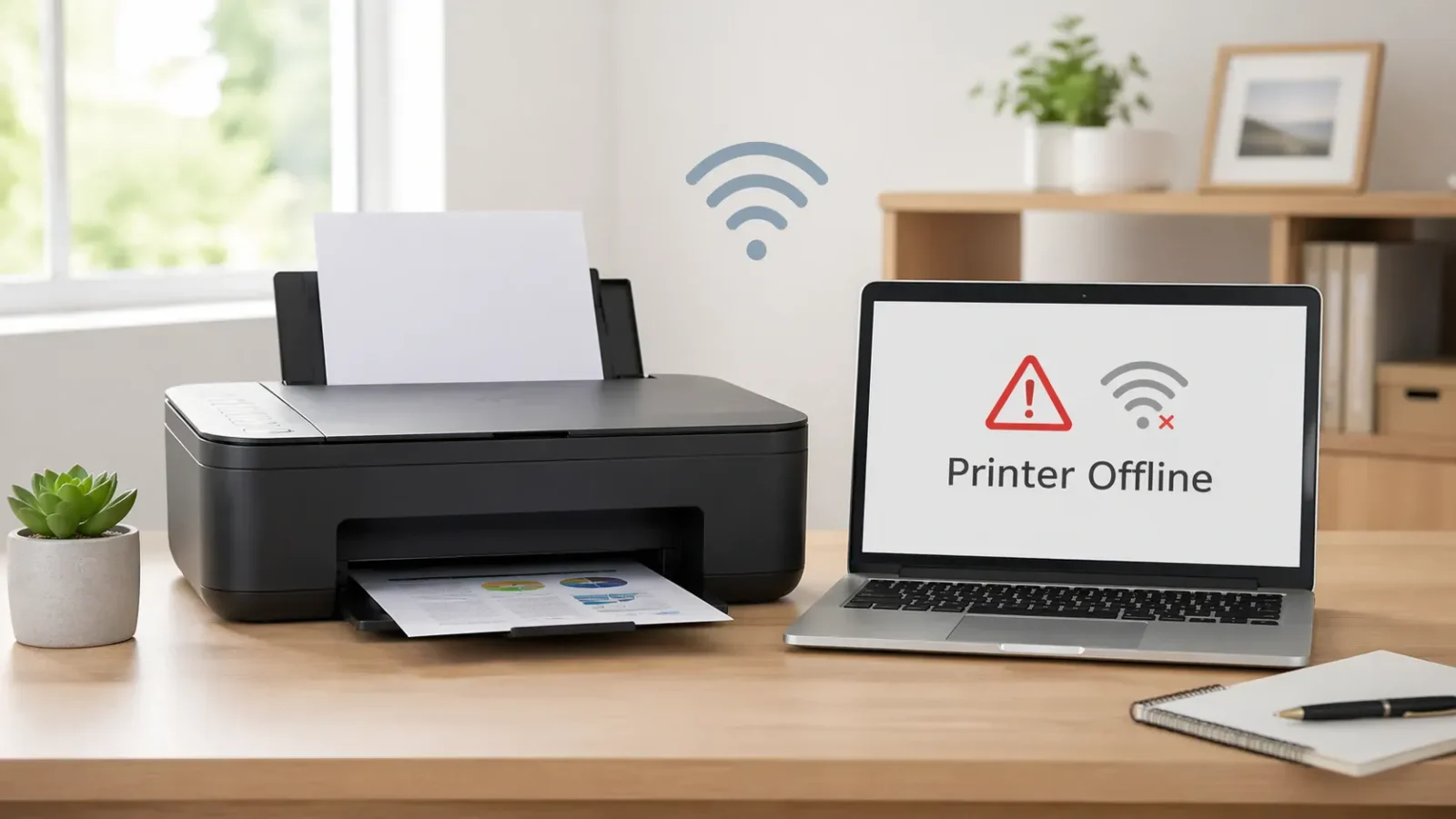
Your Canon printer usually shows offline because your computer cannot communicate with it. The printer may still be turned on, connected to power, and ready on its own screen, but Windows, macOS, or your device cannot reach it through Wi-Fi, USB, the print queue, or the printer driver.
Start with the simple checks first: look at the printer screen, confirm the connection, make sure you selected the correct Canon printer, turn off offline mode, clear stuck print jobs, and then check the Canon driver if the problem continues.
Why Is My Canon Printer Offline?
Table of Contents
Why Is My Canon Printer Offline?
A Canon printer can show offline when the connection between the printer and your device breaks. This does not always mean the printer is damaged.
The most common reasons are:
- The Canon printer lost its Wi-Fi connection
- The printer and computer are on different networks
- The USB cable or port is not working correctly
- The wrong Canon printer entry is selected
- “Use Printer Offline” is turned on
- A stuck print job is blocking the queue
- The Canon printer driver is missing, old, or mismatched
- The printer screen shows an error, warning, paper issue, or ink alert
The best way to fix the issue is not to change every setting at once. Diagnose the cause in order so you do not create a new problem while trying to solve the first one.
What “Offline” Means on a Canon Printer
When your Canon printer says offline, your computer sees the printer as unavailable. The printer may be powered on, but the computer cannot send a print job to it successfully.
This can happen with both wireless and USB Canon printers.
For a wireless Canon printer, offline usually points to Wi-Fi, router, network, or printer discovery problems.
For a USB Canon printer, offline usually points to a loose cable, a bad USB port, a wrong printer entry, or a driver issue.
Check the Printer Screen First
Before changing computer settings, check the Canon printer itself.
Look for:
- Paper jam warnings
- Empty paper tray
- Open cover message
- Ink or cartridge warning
- Flashing lights
- Error codes
- Sleep mode
- Wi-Fi disconnected symbol, if your model shows one
If the printer screen shows an error, deal with that first. A computer-side offline fix may not work while the printer is waiting for attention.
If the printer looks ready and has no warning, move to the connection checks.
Check Whether This Is a Wi-Fi or USB Problem
The next step depends on how your Canon printer connects.
If Your Canon Printer Uses Wi-Fi
Check that the printer is still connected to your Wi-Fi network. Wireless Canon printers may go offline after a router restart, Wi-Fi password change, weak signal, network change, or setup interruption.
Check these points:
- Is the printer still connected to Wi-Fi?
- Is your computer on the same Wi-Fi network?
- Are you using a guest network?
- Is your computer connected through a VPN?
- Is the printer too far from the router?
- Did you recently change the router, Wi-Fi name, or Wi-Fi password?
A common cause is that the printer and computer are not on the same usable network. For example, your laptop may be on one network while the printer is connected to another. In some homes and offices, guest networks may also block devices from seeing each other.
If every device shows the Canon printer offline, the issue is likely with the printer’s network connection or router.
If only one computer shows it offline, the issue is more likely on that computer.
Mac users can also check Apple’s printing problems on Mac guide if the printer is selected, but macOS still cannot reach it.
If Your Canon Printer Uses USB
For a USB Canon printer, check the physical connection before reinstalling anything.
Try this:
- Make sure the USB cable is firmly connected at both ends
- Try another USB port on the computer
- Avoid USB hubs if possible
- Restart the printer after reconnecting the cable
- Check whether the computer detects the printer
If the printer appears and disappears when you touch the cable, the cable or port may be unreliable.
Make Sure You Selected the Correct Canon Printer
Canon printers can appear more than once on the same computer. You may see an old wireless entry, a USB entry, a copy of the same printer, or a printer name that looks almost identical.
This can make the printer look offline even when the actual printer is available.
Open your printer list and look for duplicate Canon entries. Choose the printer that matches your current connection. If one entry is greyed out or always offline, it may be an old saved version.
Do not delete every printer entry immediately. First, identify which one responds. After that, you can remove old entries if you are sure they are no longer needed.
Check Whether “Use Printer Offline” Is Turned On
Windows has a setting called “Use Printer Offline.” If this is turned on, your Canon printer may stay offline even when the printer is connected.
To check it on Windows:
1. Open your printer settings.
2. Choose your Canon printer.
3. Open the print queue.
4. Open the printer menu.
5. Make sure “Use Printer Offline” is not selected.
The exact path can look different depending on your Windows version, but the setting is usually inside the printer queue or printer management area.
If the option was selected, turn it off and try printing again.
If the setting is difficult to find, Microsoft’s printer offline troubleshooting page is a useful official reference for Windows users.
Clear Stuck Canon Print Jobs
A stuck print job can block later jobs and make the printer look unavailable. This often happens when a document fails while the printer is disconnected, out of paper, asleep, or switching networks.
Open the Canon printer queue and cancel any stuck jobs. Then restart the printer and try a simple test print.
If the queue refuses to clear, the problem may be related to the print spooler or queue system rather than the Canon printer itself.
Restart the Printer, Computer, and Router
Restarting is basic, but it is useful when the offline status is caused by a temporary communication problem.
Use this order:
1. Turn off the Canon printer.
2. Restart the computer.
3. Restart the router if the printer is wireless.
4. Turn the Canon printer back on.
5. Wait for it to reconnect.
6. Try printing again.
This can refresh the connection between the printer, router, and computer.
Reconnect the Canon Printer to Wi-Fi
If your Canon printer loses Wi-Fi connection, you may need to reconnect it.
Use the setup method available for your model. Depending on the printer, this may be done through the printer screen, Canon setup software, or a Canon mobile app.
Before reconnecting, confirm:
- The Wi-Fi name is correct
- The Wi-Fi password is correct
- The printer is close enough to the router
- The router is working
- Your computer is on the same network
If you recently changed your router or Wi-Fi password, the printer may still be trying to connect to the old network.
Check the Canon Printer Driver
If the printer connection looks correct but your Canon printer still says offline, the driver may be the problem.
A driver issue is more likely if:
- The problem started after a Windows or macOS update
- The printer was recently added again
- You see multiple Canon printer copies
- The printer appears but does not respond
- The computer says the driver is unavailable
- Printing stopped after installing or removing printer software
Use the driver for your exact Canon model and operating system. Avoid installing a driver for a similar-looking model because it may not communicate correctly with your printer.
If needed, remove the incorrect printer entry and reinstall the correct driver from Canon’s official product support page for your region and printer model.
Canon Printer Offline but Connected to Wi-Fi
A Canon printer can be connected to Wi-Fi and still show offline on your computer. Wi-Fi connection only means the printer is connected to the network. It does not always mean your computer can communicate with it.
This can happen when:
- The computer is on a different network
- A guest network blocks device communication
- The printer has a weak signal
- The router changed network details
- The printer was added using an old network address
- Security software or VPN settings affect printer discovery
- The wrong printer entry is selected
If the Canon printer shows as offline but appears connected to Wi-Fi, check the computer side next: selected printer, queue, offline mode, driver, and network match.
Canon Printer Offline but Turned On
If your Canon printer is turned on but still offline, the computer may not be able to reach it.
Power only confirms that the printer is on. It does not confirm that the printer is connected correctly to your computer.
Check these in order:
1. Printer screen warnings
2. Wi-Fi or USB connection
3. Correct Canon printer selected
4. Offline mode setting
5. Print queue
6. Canon driver
This order keeps the troubleshooting simple and avoids jumping straight to reinstalling software.
Canon Printer Offline on Only One Computer
If your Canon printer works from one device but shows offline on another, the printer itself is probably not the main problem.
The issue may be with the computer that shows offline.
Check:
- Is that computer on the same network?
- Is the correct printer selected?
- Is offline mode turned on?
- Are there stuck jobs in the queue?
- Is the Canon driver installed correctly?
- Was that computer recently updated?
In this case, avoid resetting the entire printer unless other devices also cannot print.
Canon Printer Offline on Every Device
If every computer, phone, or tablet shows the Canon printer offline, the issue is more likely with the printer connection or the network.
Check:
- Printer Wi-Fi connection
- Router status
- Wi-Fi password changes
- Printer screen warnings
- Printer distance from router
- Whether the printer needs to be reconnected to Wi-Fi
Restart the router and printer, then reconnect the Canon printer to Wi-Fi if needed.
Canon Printer Offline vs Not Printing
Canon printer offline and Canon printer not printing are related, but they are not the same problem.
Offline means the computer cannot communicate with the printer.
Not printing is broader. A printer can be online and still not print because of ink, paper, settings, queue problems, driver issues, or document problems.
If your Canon printer is online but still does not print, move to the next troubleshooting step for a printer not printing.
Canon Printer Offline vs Printer in Error State
A printer in an error state usually means the printer or operating system is reporting a fault. That may involve a paper jam, open cover, driver conflict, failed job, or hardware warning.
Offline is usually about communication between the printer and the computer.
If your Canon printer screen shows a warning or error code, handle that before focusing on offline settings.
Canon Printer Offline vs Driver Unavailable
An unavailable message means your computer does not have a working driver for the printer. This can make the printer appear offline or prevent it from responding.
If you see a driver unavailable message, focus on the driver problem instead of only checking Wi-Fi.
Best Troubleshooting Order for a Canon Printer Offline Issue
Use this order:
1. Check the Canon printer screen for warnings.
2. Confirm the printer is powered on and awake.
3. Check Wi-Fi or USB connection.
4. Make sure the computer and printer are on the same network.
5. Select the correct Canon printer.
6. Turn off “Use Printer Offline” if enabled.
7. Clear stuck print jobs.
8. Restart the printer, computer, and router.
9. Reconnect the printer to Wi-Fi if needed.
10. Reinstall the correct Canon driver if the issue continues.
This order starts with the most common and least disruptive causes before moving to driver changes.
When to Use Canon Official Support
Use Canon official support or your printer manual if:
- Your model needs exact setup steps
- The printer will not reconnect to Wi-Fi
- The printer is not detected by any device
- You see a hardware error code
- Driver installation fails
- The printer is under warranty
- The printer has a repeated mechanical or power issue
TamerlanKg is an independent troubleshooting blog. It is not Canon support, a repair center, or a software provider.
Final Check
Before trying to print again, confirm:
- The Canon printer is powered on
- The printer screen shows no active warning
- The printer is connected by USB or Wi-Fi
- The computer and printer are on the same network
- The correct Canon printer is selected
- Offline mode is not enabled
- The print queue is clear
- The correct Canon driver is installed
If all of these look correct and your Canon printer still shows offline, the next step is usually a deeper connection, queue, or driver fix.
FAQ section
Why is my Canon printer offline when it is connected to Wi-Fi?
Your Canon printer may be connected to Wi-Fi, but still unavailable to your computer. This can happen if the computer is on a different network, the printer has a weak signal, a guest network is blocking communication, or the wrong Canon printer entry is selected.
Why does my Canon printer say offline, but it is turned on?
Being turned on only means the printer has power. Offline means your computer cannot communicate with the printer through Wi-Fi, USB, the print queue, or the printer driver.
How do I know if my Canon printer’s offline problem is caused by Wi-Fi?
Check whether other devices can print to the same Canon printer. If every device shows it is offline, the printer may have lost Wi-Fi connection. If only one computer shows offline, the issue is probably on that computer.
Can a stuck print job make my Canon printer show offline?
Yes. A stuck or failed print job can block the queue and make the printer appear unavailable. Clear the queue, restart the printer, and try a simple test print.
Should I reinstall the Canon driver if my printer is offline?
Try basic checks first: power, printer screen warnings, Wi-Fi or USB connection, correct printer selection, offline mode, and print queue. Reinstall the Canon driver if the printer still shows offline or if the issue started after a system update.
Why does my Canon printer keep going offline?
Recurring offline problems often point to unstable Wi-Fi, router changes, weak signal, duplicate printer entries, old drivers, or a printer that keeps reconnecting incorrectly after sleep mode.
Is a Canon printer offline the same as a Canon printer not printing?
No. Offline means your computer cannot communicate with the printer. Not printing is broader and can happen even when the printer is online.
Do I need Canon support for an offline printer?
Not always. Many offline issues are caused by connection, queue, or settings problems. Use Canon official support if your printer shows a hardware error, will not reconnect, is under warranty, or needs exact model-specific setup steps.
Short excerpt
Wondering why your Canon printer is offline? Learn the most likely causes, what to check first, and how to diagnose Wi-Fi, USB, queue, driver, and offline-mode problems in the right order.