
Epson Printer Offline: Why It Happens and What to Check First
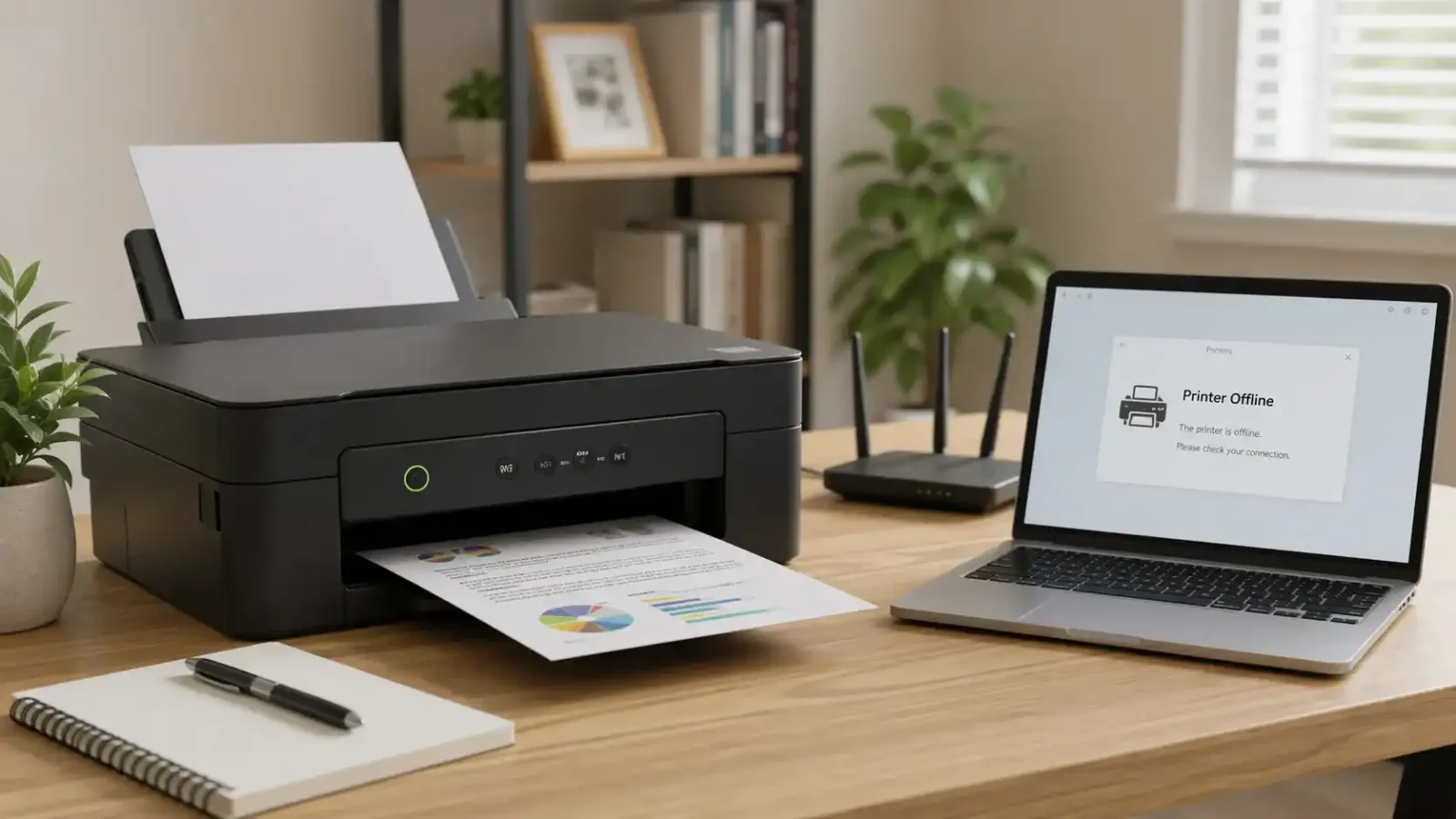
If your Epson printer says offline, your computer is usually not communicating with the printer properly. This can happen because of a Wi-Fi issue, a loose USB cable, a paused print queue, the wrong Epson printer entry, a driver problem, or a printer status setting that tells the computer to treat the printer as offline.
The printer is not always broken. In many cases, the Epson printer is powered on, but Windows or macOS cannot reach it through the current connection.
Start with the simple checks first. Do not reinstall the printer driver before checking the printer screen, Wi-Fi connection, selected printer, and print queue.
Table of Contents
Why Is My Epson Printer Offline?
An Epson printer may show offline when the computer cannot send print jobs to it. The cause can be on the printer, the computer, the router, or the connection between them.
Common reasons include:
- The Epson printer is connected to a different Wi-Fi network.
- The printer lost its wireless connection.
- The computer is using an old or duplicate Epson printer entry.
- The print queue is paused or stuck.
- “Use Printer Offline” is enabled on Windows.
- The printer was changed from USB to Wi-Fi, but the computer still uses the old setup.
- The Epson driver or printer port no longer matches the current connection.
- The printer has an error message, paper issue, or maintenance warning.
The best way to fix it is to diagnose the cause in order. That saves time and avoids changing settings that may not be related to the problem.
What to Check First
Before changing advanced settings, check the basics. These simple checks often explain why the Epson printer is offline.
Check the Epson Printer Screen or Lights
Look at the printer itself first.
Check whether:
- The printer is powered on.
- The screen shows an error message.
- The Wi-Fi light or network icon looks normal.
- There is a paper, ink, cover, or maintenance warning.
- The printer is asleep and needs to be woken up.
- The printer is still starting up.
If the Epson printer screen shows an error, fix that first. A printer with a paper issue, open cover, ink warning, or maintenance message may not respond normally to print jobs.
Check the Wi-Fi or USB Connection
If your Epson printer is wireless, make sure it is connected to the same Wi-Fi network as your computer. This is a common reason an Epson printer appears offline even when it is turned on.
Check for these problems:
- The printer is connected to a guest network.
- The computer is on a different Wi-Fi network.
- The Wi-Fi password was changed.
- The router was replaced or reset.
- The printer was moved too far from the router.
- The printer is connected to the old network settings.
If you use a USB, check the cable at both ends. Try connecting the cable directly to the computer instead of using a USB hub. A loose or damaged cable can make the printer appear offline.
Check That the Correct Epson Printer Is Selected
Many Epson printer offline problems happen because the computer is trying to print to the wrong printer entry.
This can happen after:
- Reinstalling the printer.
- Changing from USB to Wi-Fi.
- Updating Windows or macOS.
- Adding the printer more than once.
- Reconnecting the printer after a router change.
You may see more than one Epson printer with a similar name. One entry may be old, offline, or linked to a previous connection.
When you print, choose the Epson printer entry that shows ready or online. If one entry always stays offline and another works, the offline one may be an old duplicate.
Common Reasons an Epson Printer Says Offline
The Printer Is Set to Use Printer Offline
On Windows, a printer can be marked as offline even when the printer itself is powered on. This setting tells Windows not to send jobs to the printer.
Open the Epson printer queue and check the printer menu. If “Use Printer Offline” is selected, turn it off. Microsoft’s official Windows printer offline guide is useful if you need help finding that setting.
This is one of the first settings to check because it can make a working printer look unavailable.
The Print Queue Is Stuck
A stuck print job can block new jobs and make the printer seem offline or unresponsive.
This can happen when:
- A print job failed.
- The printer lost connection during printing.
- The computer was restarted during a print job.
- A large document did not send properly.
- The printer was turned off while jobs were waiting.
Open the Epson print queue and cancel old jobs. Then try printing a small test page. If the queue does not clear, the print spooler may need to be restarted.
The Epson Printer Lost Wi-Fi Connection
Wireless Epson printers depend on a stable connection between the printer, router, and computer. If any part of that connection changes, the printer may show offline.
This is more likely if:
- The router was restarted.
- The Wi-Fi password changed.
- The printer was moved.
- The signal is weak.
- The printer is far from the router.
- The printer connects sometimes, but drops offline again.
Restart the printer and router. Then check whether the printer reconnects to the correct Wi-Fi network. If the printer still does not connect, use the printer’s network setup option or Epson’s model-specific instructions.
The Computer Is Using an Old Printer Address
Some wireless printer setups use a network address to find the printer. If your router gives the Epson printer a new address, your computer may still try to send print jobs to the old one.
This can make the printer appear offline even when it is connected to Wi-Fi.
Signs of this problem include:
- The printer worked before, but stopped after a router restart.
- The printer shows connected on its screen.
- The computer still says the Epson printer is offline.
- Removing and adding the printer again temporarily fixes the problem.
For beginners, the safest step is often to remove the old Epson printer entry and add the printer again using the current connection. Avoid changing advanced network settings unless you are comfortable with printer ports and IP addresses.
The Epson Driver Does Not Match the Printer
A driver helps the computer communicate with the printer. If the driver is missing, outdated, corrupted, or not made for your exact Epson model, the printer may not respond correctly.
Driver issues are more likely after:
- A Windows or macOS update.
- Adding the printer with a generic driver.
- Moving the printer to a new computer.
- Installing the wrong Epson model.
- Removing printer software by mistake.
Do not start with driver reinstalling unless the basic checks fail. First, check the connection, selected printer, offline setting, and queue. If those look correct, reinstall the correct Epson driver for your exact model.
The Printer Was Changed From USB to Wi-Fi
If your Epson printer was once connected by USB and is now being used over Wi-Fi, the computer may still send jobs to the old USB printer entry.
You may need to:
- Select the wireless Epson printer entry.
- Remove old duplicate entries.
- Add the printer again using the current connection.
- Set the working Epson entry as the default if needed.
This is a common cause when the printer appears in the list but never prints.
The Epson Printer Has a Local Error
Sometimes the computer says the Epson printer is offline because the printer is not ready.
Check the printer for:
- Paper jam messages.
- Empty or unrecognized ink warnings.
- Open cover alerts.
- Maintenance box warnings.
- Scanner or hardware errors.
- A frozen display.
If the printer has a visible error, fix that issue before troubleshooting the computer. An offline status can disappear once the printer returns to a ready state.
Epson Printer Offline Diagnosis Checklist
Use this quick order before changing advanced settings:
- Is the Epson printer turned on?
- Does the screen show an error message?
- Is the Wi-Fi light or network icon normal?
- Is the computer on the same Wi-Fi network?
- Are you selecting the correct Epson printer?
- Are there duplicate Epson printer entries?
- Is “Use Printer Offline” turned off?
- Is “Pause Printing” turned off?
- Are old print jobs stuck in the queue?
- Did the router, Wi-Fi password, or printer location recently change?
- Was the printer changed from USB to Wi-Fi?
- Was there a recent Windows or macOS update?
- Is the correct Epson driver installed?
This order helps you find the cause instead of guessing.
What to Do Based on What You Find
If the Epson Printer Is Not Connected to Wi-Fi
Reconnect the printer to the same Wi-Fi network as your computer. If the printer is far from the router, move it closer if possible.
Also, check whether your computer is on a guest network or a different router band. Some setups show separate Wi-Fi names, and the printer may be connected to one while the computer uses another.
After reconnecting, restart the printer and try a small test print.
If Windows Says the Epson Printer Is Offline
Open the printer queue and check whether Windows has marked the printer as offline or paused.
Turn off:
- Use Printer Offline
- Pause Printing
Then cancel old jobs and try printing again. If there are multiple Epson printer entries, test the one that shows ready or online.
If the Print Queue Is Stuck
Cancel old jobs from the queue. Start with the oldest failed job first.
If jobs will not clear, restart the printer and computer. On Windows, restarting the Print Spooler can also help when the queue is frozen.
After the queue is clear, print a simple one-page document instead of a large file.
If You Use a Mac
Open Printers & Scanners and check whether the Epson printer queue is paused or using an old entry. Apple’s Mac printing help can help if the printer queue needs to be resumed, removed, or added again.
If the printer appears more than once, try the entry that shows ready. If the old queue stays offline, remove it after confirming the newer entry works.
If the Printer Was Recently Changed From USB to Wi-Fi
Check the printer list for duplicate Epson entries. The old USB entry may stay offline because the printer is no longer using that connection.
Use the Epson printer entry that matches the current Wi-Fi setup. If you are not sure which one is correct, remove old duplicate entries and add the printer again.
If the Epson Printer Shows Connected but Still Says Offline
This usually points to a computer-side issue rather than a basic Wi-Fi problem.
Check:
- Wrong Epson printer entry.
- Stuck queue.
- Offline or paused setting.
- Old printer port.
- Driver mismatch.
- Network address change.
If the printer is definitely connected to Wi-Fi but the computer still cannot reach it, removing and re-adding the printer may be easier than editing advanced settings.
If Nothing Works
If the printer still shows offline after the basic checks, use Epson Support for your exact printer model. Model-specific instructions may be needed for network setup, driver installation, firmware updates, or printer-panel errors.
You may also need help from Epson support or a local technician if the printer cannot connect to Wi-Fi, shows hardware errors, or repeatedly drops offline after setup.
Epson Printer Offline vs Other Printer Problems
It helps to separate offline status from nearby printer issues.
Epson Printer Offline vs Printer Not Printing
“Offline” usually means the computer cannot communicate with the printer or has marked it unavailable.
“Not printing” is broader. A printer may be online but still not print because of ink, paper, quality settings, a stuck queue, a driver issue, or a document problem.
If your Epson printer is online but does not print, troubleshoot it as a non-printing problem instead of an offline problem.
Epson Printer Offline vs Printer in Error State
A printer in an error state usually means the printer or computer is reporting a fault. This may involve paper, ink, hardware, spooler, or driver errors.
Offline status is more about communication or printer availability. The two can overlap, but they are not the same.
Epson Printer Offline vs Printer Offline but Connected
An Epson printer can be connected to Wi-Fi, but still shows offline on the computer. In that case, the likely problem is the selected printer entry, queue, driver, port, or network address.
Do not assume the Wi-Fi connection is the only issue. Check the computer’s printer settings too.
Final Advice
When your Epson printer says offline, start with diagnosis. Check the printer screen, Wi-Fi or USB connection, selected printer, offline setting, and print queue before reinstalling anything.
Most Epson offline issues come from a communication problem, a queue setting, a duplicate printer entry, or a changed network connection. If the printer still stays offline after these checks, use Epson’s official model support or get help for a possible driver, network, or hardware issue.
FAQ section
Why is my Epson printer offline even though it is connected to Wi-Fi?
Your Epson printer may be connected to Wi-Fi, but the computer may still be unable to reach it. This can happen when the computer is on a different network, the wrong Epson printer entry is selected, the queue is paused, or the printer address has changed.
Why does my Epson printer keep going offline?
An Epson printer may keep going offline because of weak Wi-Fi, router changes, duplicate printer entries, a changing network address, stuck print jobs, or a driver problem. If it happens repeatedly, check the connection and printer entry before reinstalling the driver.
How do I get my Epson printer back online?
Start by checking that the printer is powered on, connected to the same Wi-Fi network, and free from error messages. Then check the print queue, turn off “Use Printer Offline” if selected, cancel stuck jobs, and make sure you are using the correct Epson printer entry.
Why is my Epson printer offline after changing Wi-Fi?
The printer may still be connected to the old network, or your computer may be using an old printer entry. Reconnect the Epson printer to the new Wi-Fi network and add it again to the computer if needed.
Should I reinstall my Epson printer driver?
Reinstall the driver only after checking the simpler causes first. If the connection, queue, selected printer, and offline setting look correct, reinstalling the correct Epson driver for your exact model may help.
Is an Epson printer offline the same as an Epson printer not printing?
No. Offline means the computer cannot communicate with the printer or has marked it unavailable. Not printing can also happen when the printer is online but blocked by ink, paper, the queue, the driver, or document issues.
Why does my computer show two Epson printers?
This can happen after reinstalling the printer, changing from USB to Wi-Fi, or adding the printer more than once. One Epson entry may be old or offline. Choose the entry that shows ready or online.
Can a paper jam make my Epson printer show offline?
It can. If the printer has a paper jam, open cover, ink warning, or maintenance error, it may not respond normally. Fix any printer-screen error before troubleshooting computer settings.
Short excerpt
Wondering why your Epson printer is offline? Learn the most likely causes, what to check first, and how to diagnose Wi-Fi, queue, driver, and printer status problems in the right order.