Printer Not Printing: Causes and Fixes

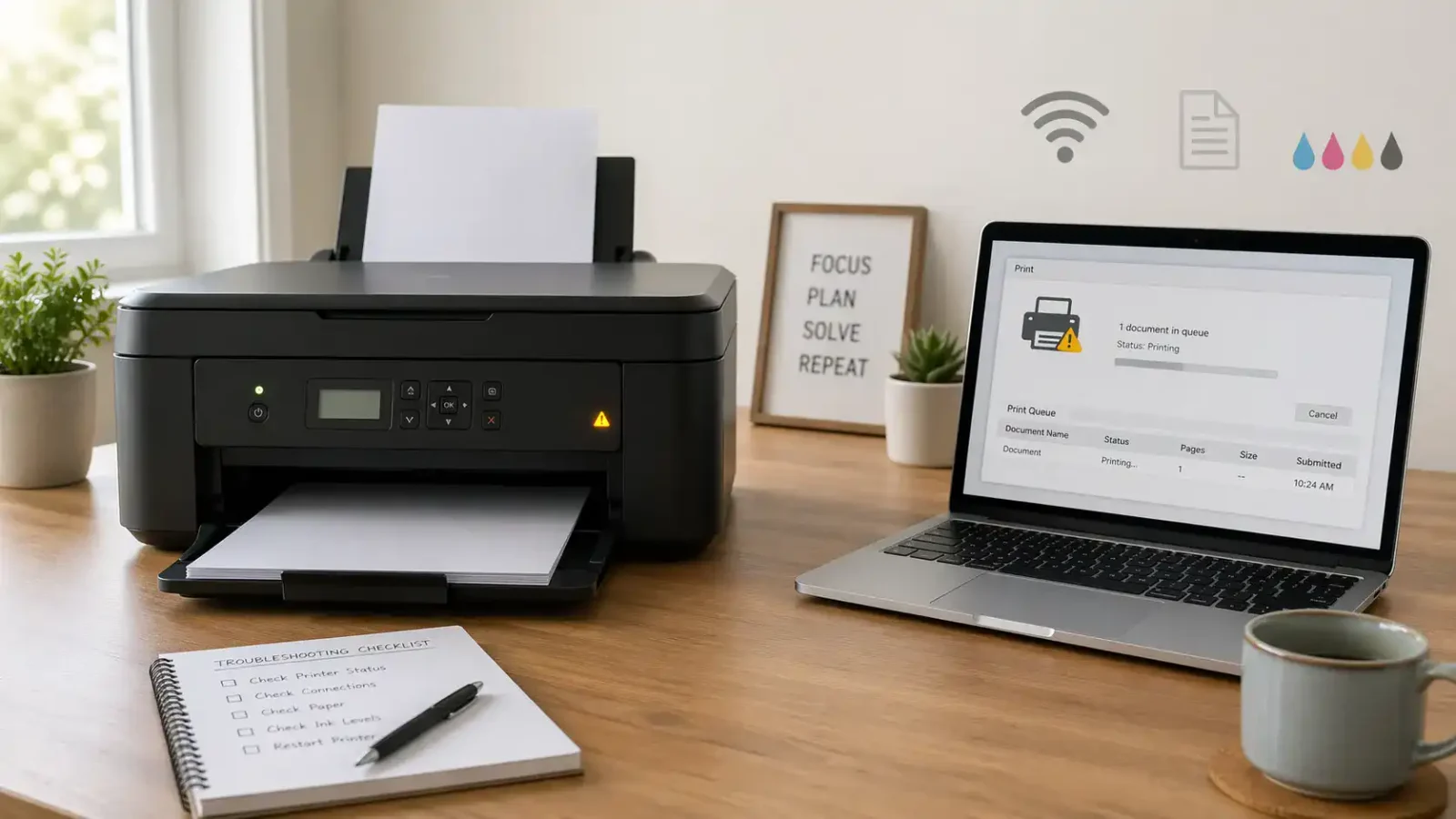
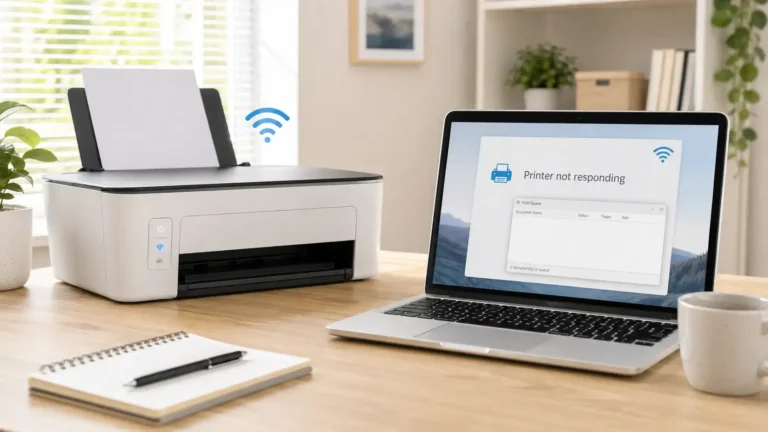
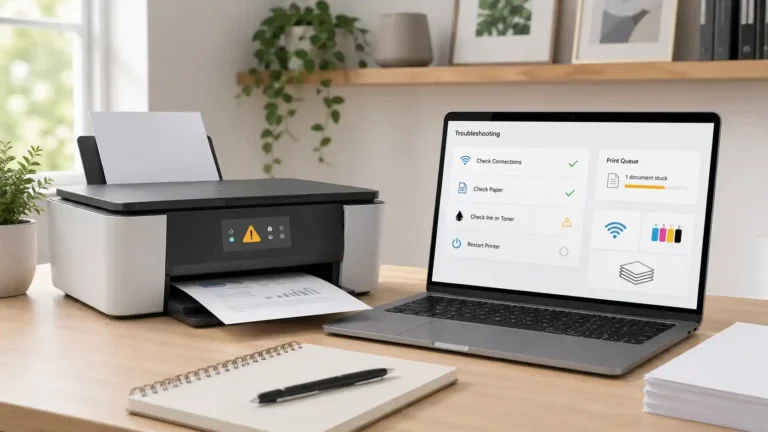
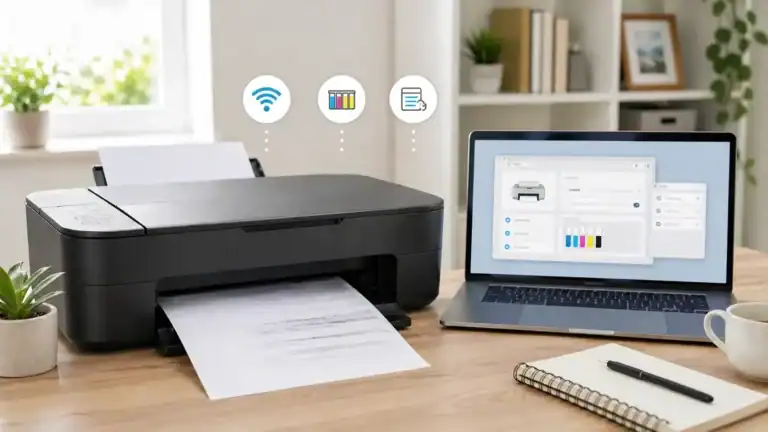
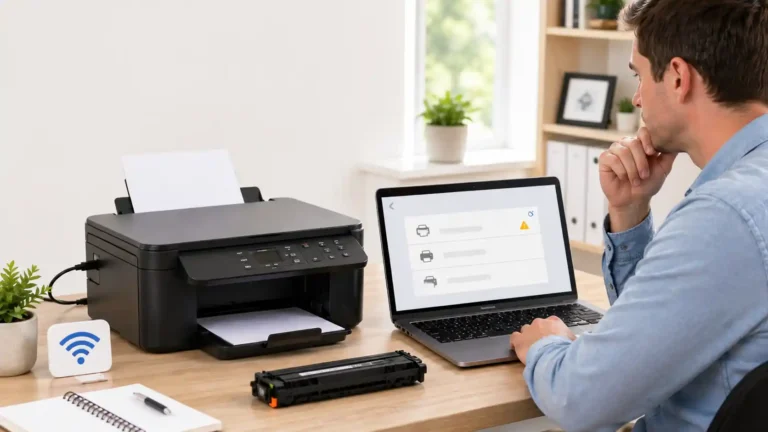
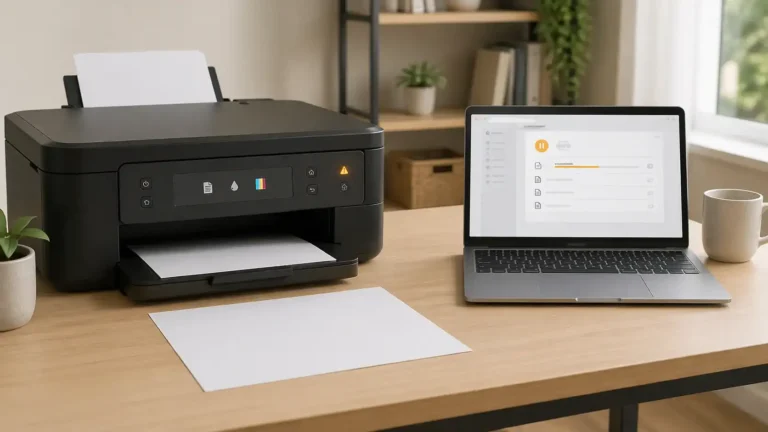
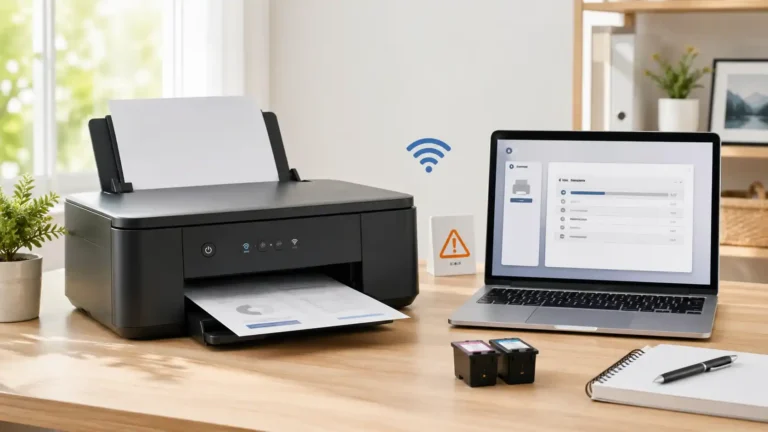
If your printer is not printing, the cause is usually one of a few common problems: the printer is not ready, the connection is weak, the wrong printer is selected, a print job is stuck, paper or ink is low, the driver is not working correctly, or the printer is showing an error that needs attention first.
Start with the simple checks before reinstalling anything. Many printer problems look serious but come from a paused queue, a loose cable, a wrong Wi-Fi network, an empty tray, or an old print job blocking the next one.
Table of Contents
Why Is My Printer Not Printing?
Your printer may not print because something is stopping the print job before it reaches the printer, or because the printer receives the job but cannot finish it.
A good way to diagnose the issue is to ask what is actually happening:
| The paper will not feed | Most likely area to check |
| Nothing happens after clicking Print | Selected printer, connection, queue, or driver |
| Job appears but does not print | Print queue or spooler issue |
| Printer is connected but not printing | Connection, default printer, queue, or driver |
| Printer starts but blank pages come out | Ink, toner, cartridge, or printhead |
| Printer prints faded or missing colors | Ink, toner, color settings, or print quality issue |
| Printer screen shows a warning | Printer error, paper, ink, cover, or jam message |
| Paper will not feed | Paper tray, paper size, jam, or feed issue |
Do not start with advanced settings. First, confirm the printer is ready, connected, and receiving the correct print job.
What to Check First When Your Printer Is Not Printing
1. Make sure the printer is turned on and ready
Check that the printer has power and is not asleep. Look for a power light, display message, or any blinking warning light.
If the printer has a screen, read the message before changing settings on your computer. A printer may stop printing because the cover is open, the paper tray is empty, a cartridge is missing, or the printer needs user action.
Try this first:
- Turn the printer off.
- Wait a short moment.
- Turn it back on.
- Wait until it finishes starting up.
- Try printing one simple page again.
Restarting will not fix every printer problem, but it can clear a temporary communication issue.
2. Check paper, ink, and toner
A printer can appear connected but still refuse to print if it cannot finish the job physically.
Check:
- Paper is loaded correctly.
- The paper tray is not empty.
- The paper guides are not too tight.
- Ink or toner is not empty.
- Cartridges are seated properly.
- No protective tape is left on a new cartridge.
- The printer door or scanner lid is fully closed.
If the printer is trying to print but pages come out blank, the issue is more likely ink, toner, cartridge, printhead, or print settings rather than a connection problem.
3. Look for a message on the printer
Before checking the computer, check the printer itself.
A printer may show messages such as low ink, no paper, paper jam, cover open, cartridge problem, or maintenance required. If the printer is showing one of these warnings, fix that message first.
If the printer says there is a jam, treat it as a paper jam issue. If it says the driver is unavailable, treat it as a driver issue. If your computer says the printer is offline, follow the offline troubleshooting path instead of the general not-printing steps.
Check the Printer Connection
If the printer is ready but still not printing, the next step is the connection.
For a USB printer
Check both ends of the USB cable. Make sure the cable is firmly connected to the printer and the computer.
Then try:
- Use another USB port on the computer.
- Avoid using a loose USB hub while testing.
- Disconnect and reconnect the cable.
- Restart the printer after reconnecting it.
If the printer disappeared from your computer after unplugging it, you may need to add it again after the basic checks.
For a Wi-Fi printer
A wireless printer may stop printing even when it still looks connected.
Check:
- The printer is connected to Wi-Fi.
- Your computer or phone is on the same network.
- You are not using a guest network.
- The printer is not connected to an old router named.
- The Wi-Fi signal near the printer is strong enough.
This is a common reason for a printer connected but not printing. The printer may be connected to the network, but the computer may not be able to reach it.
If your router has separate network names, make sure both devices are on the correct one. Some printers also reconnect slowly after a router restart, so give the printer time to come back online.
For an Ethernet printer
If your printer uses a network cable, check both ends of the Ethernet cable.
Look for:
- A loose cable at the printer.
- A loose cable at the router.
- A damaged cable.
- A router port that is not working.
Try another router port if one is available.
Make Sure You Are Printing to the Right Printer
Sometimes the printer is not the problem. The print job may be going to the wrong place.
Before changing drivers or reinstalling software, check the printer selected in the print window.
Common wrong selections include:
- An old printer you no longer use.
- A duplicate copy of the same printer.
- A printer is marked offline.
- A PDF printer.
- A virtual printer.
- A shared printer that is not available.
If your printer is not printing anything, open the print window and confirm the exact printer name before pressing Print.
Check the default printer
If your computer sends jobs to the wrong printer by default, it can look like nothing is happening.
This can happen after:
- Installing a new printer.
- Using a work or school printer.
- Printing to PDF.
- A system update.
- Sharing a computer with other users.
Choose the correct printer before printing again.
Check the Print Queue
A stuck print job can stop every new job behind it.
This is one of the most common reasons a printer is not responding, even though it is turned on and connected. One failed document may sit in the queue and block everything else.
Check the print queue for:
- Old jobs waiting.
- A job stuck on deleting.
- A paused queue.
- A failed document.
- Multiple copies of the same job.
Cancel old jobs, close the queue, restart the printer, and try printing one simple page again.
If jobs keep getting stuck, the issue may be deeper than a normal not-printing problem. It may involve the print queue or spooler.
Check for Driver or Software Problems
A printer driver helps your computer communicate with the printer. If the driver is missing, outdated, damaged, or no longer compatible, the printer may not print correctly.
Driver problems are more likely if:
- The printer stopped printing after a system update.
- The printer appears but does not respond.
- The computer says driver unavailable.
- The printer was recently installed.
- The printer disappeared from the printer list.
- The printer works from another device, but not this one.
Try basic checks first. If the printer is ready, connected, selected correctly, and the queue is clear, then driver troubleshooting makes more sense.
On Windows, Microsoft’s official printer troubleshooting guide can help if the printer still does not print after the basic checks.
On a Mac, Apple’s guide to solving printing problems on Mac can help with app, queue, and printer-list issues.
Use the printer manufacturer’s official website or official app for driver downloads. Avoid random driver download websites because they may provide outdated, incorrect, or unsafe files.
Check the File, App, and Print Settings
If only one document will not print, the printer may not be the real problem.
Try printing from another app or a simple test file. For example, try a plain text document or a basic one-page file. If that prints, the original file or app may be causing the issue.
Check these settings:
- Paper size
- Page range
- Selected tray
- Color or black-and-white mode
- Orientation
- Manual feed setting
- Copies selected
- Print to file option
A wrong paper size or tray setting can make the printer wait instead of printing. A selected page range with no printable page can also make it seem like the printer did nothing.
If the Printer Prints Blank Pages or Poor Output
If the printer runs but the page is blank, faded, streaky, or missing colors, the problem is different from a printer that does not respond at all.
Possible causes include:
- Empty ink or toner.
- Dried ink.
- Clogged printhead.
- Loose cartridge.
- Wrong print setting.
- Grayscale or draft mode.
- Color cartridge issue.
- Black ink cartridge issue.
If your printer is not printing in color, focus on color settings, color ink, and printhead cleaning options for your model.
If your printer is not printing black ink, check the black cartridge, toner, printhead, and any setting that forces color-only or grayscale output.
Keep these problems separate from connection issues. A printer that feeds paper but prints badly is not the same as a printer that does not receive the job.
When This Is Really a Different Printer Problem
Not every printer not printing issue should be solved the same way. The right fix depends on the message or symptom.
If the printer says offline
This is mainly a connection or status problem. The printer may be powered on, but the computer cannot communicate with it properly.
If the computer says driver unavailable
This points to a driver recognition or compatibility problem. Focus on removing, reinstalling, or updating the correct driver from the official source.
If the printer is in an error state
This means the printer or computer has detected a problem that must be cleared first. Check the printer screen, warning lights, paper tray, cartridges, and connection.
If there is a paper jam
Do not keep sending print jobs. Turn the printer off and remove jammed paper carefully according to your printer model’s guidance.
If jobs are stuck in the queue
This points to a print queue or spooler problem. Clear old jobs before trying more documents.
What to Do If Your Printer Still Is Not Printing
If your printer is still not printing after the basic checks, narrow the problem down with one question:
Can the printer print a test page by itself?
If the printer can print a test page from its own control panel, the printer hardware may be working. The issue is more likely with the computer, app, connection, driver, queue, or settings.
If the printer cannot print its own test page, check the printer screen, paper, ink, toner, cartridges, and possible hardware warnings.
For repeated errors, model-specific warning codes, firmware problems, or hardware messages, use the official support page for your exact printer model. Printer menus and reset steps can vary, so exact model guidance matters.
Quick Diagnosis Checklist
Use this order before reinstalling the printer:
- Confirm the printer is on and ready.
- Check the printer screen for messages.
- Check paper, ink, toner, and cartridges.
- Confirm the USB, Wi-Fi, or Ethernet connection.
- Make sure you selected the right printer.
- Check the print queue for stuck jobs.
- Try printing from another file or app.
- Check printer driver or software issues.
- Try a printer test page.
- Use official model support if the problem continues.
This order helps avoid wasting time. A printer not printing can be caused by many things, but checking them in the right sequence makes the problem easier to find.
FAQ section
Why is my printer not printing even though it is connected?
Your printer may be connected but still blocked by the wrong selected printer, a stuck print job, a paused queue, low ink or toner, a paper issue, a driver problem, or a message on the printer screen. Check the printer status and print queue before reinstalling anything.
Why is my printer not printing anything?
If your printer is not printing anything, start with power, paper, ink or toner, connection, selected printer, and the print queue. If the print job stays stuck, the issue may be with the queue or spooler.
Why is my printer connected but not printing?
A connected printer may not print if the computer is using the wrong printer, the printer is on a different Wi-Fi network, the queue is stuck, the driver is not working, or the printer is waiting for paper, ink, or user action.
Why is my wireless printer not printing?
A wireless printer may stop printing if it loses Wi-Fi, connects to a different network, has a weak signal, or is not reachable from the computer or phone. Make sure the printer and device are on the same network.
Why is my printer not responding?
A printer may not respond because it is offline, asleep, disconnected, blocked by a print queue problem, using a bad driver, or showing an error message. Check the printer screen and queue first.
Why is my printer not printing after I changed the ink?
The cartridge may not be seated correctly, the protective tape may still be attached, the printer may not recognize the cartridge yet, or the printhead may need cleaning, depending on the model.
Why is my printer not printing black ink?
This usually points to the black cartridge, toner, printhead, ink level, or print settings. If other colors print but black does not, treat it as a black ink or toner issue rather than a general connection problem.
Why is my printer not printing in color?
The printer may be set to grayscale or black-and-white mode, the color cartridge may be low, the printhead may be clogged, or the driver settings may be wrong.
Should I reinstall my printer if it is not printing?
Reinstall only after basic checks. First, confirm the printer is powered on, connected, selected correctly, loaded with paper, not showing an error, and not blocked by a stuck print job.
When should I contact official printer support?
Contact official support if the printer shows repeated hardware errors, cannot print its own test page, has a model-specific warning code, or keeps failing after basic troubleshooting.
Short excerpt
Find out why your printer is not printing and what to check first, from connection and queue issues to ink, paper, driver, and printer status problems.