Canon Printer Not Printing: How to Fix It

If your Canon printer is not printing, start with the simple checks first: make sure the printer is powered on, paper is loaded correctly, the right Canon printer is selected, and there are no stuck jobs in the print queue. For broader non-brand troubleshooting, you can also use the printer not printing guide.
A Canon printer may stop printing because of a connection problem, wrong printer selection, paused queue, driver issue, low ink or toner, paper feed problem, Canon app issue, or an error message on the printer itself. The best fix depends on what the printer is doing when you send the job.
This guide keeps the steps Canon-specific and beginner-safe, so you can check the most likely causes in the right order.
Table of Contents
Quick checks before changing settings
Before reinstalling anything, try these quick checks:
- Turn the Canon printer off, wait a few seconds, then turn it back on.
- Restart the computer, phone, or tablet you are printing from.
- Check that the paper is loaded and pushed into the tray correctly.
- Look for any paper jam, open cover, low ink, low toner, or warning light.
- Make sure the printer is not showing an error code.
- Try printing a simple one-page document.
- Try printing from a different app, such as a basic text document.
If the printer starts working after these checks, the problem was likely a temporary printer, queue, or connection issue.
If it still does not print, use the steps below.
Why is my Canon printer not printing?
Your Canon printer may not be printing because the print job is being sent to the wrong printer, the print queue is stuck, the printer is offline or paused, the Wi-Fi or USB connection has dropped, the Canon driver is not working correctly, or the printer has an ink, toner, paper, or hardware error.
Common Canon-related causes include:
- The wrong Canon printer entry is selected.
- An old duplicate Canon printer copy is still installed.
- A previous print job is blocking new jobs.
- The Canon printer is connected to a different Wi-Fi network.
- The Canon PRINT app cannot detect the printer.
- The USB cable or port is not working.
- The Canon driver needs to be updated or reinstalled.
- Ink tanks or toner cartridges are empty or not seated correctly.
- Paper size or paper type does not match the print settings.
- The printer has a model-specific error code.
The next sections help you narrow this down.
Check if the correct Canon printer is selected
This is one of the easiest causes to miss.
If you have installed the printer more than once, changed Wi-Fi networks, used both USB and wireless setup, or replaced an older Canon printer, your computer may show more than one Canon printer entry.
When you click Print, check the printer name carefully.
Choose the Canon printer with the correct model name. Avoid old entries, duplicate copies, offline copies, or printer names you no longer use.
For example, your computer may show:
- Canon printer model name
- Canon printer model name Copy 1
- Canon printer model name is offline
- An older Canon printer you no longer use
- A generic printer entry
If the document is being sent to the wrong entry, the real printer may be working fine but never receives the job.
After selecting the correct Canon printer, try a one-page test print.
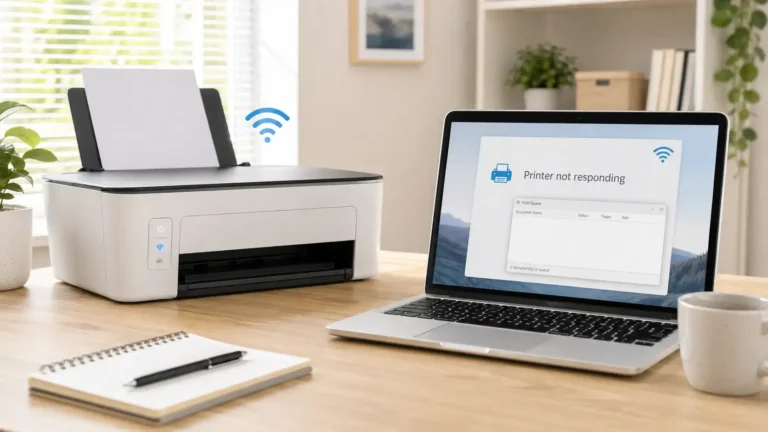
Make sure the Canon printer is not paused or offline
A Canon printer can be connected, but still not print if the computer has paused it or marked it offline.
Check the printer status on your computer. If you see a paused, offline, or stuck message, resume the printer and try again.
This article focuses on Canon printers that are not printing. If your main issue is that the printer says offline, treat that as a separate connection or status problem rather than only a no-print problem.
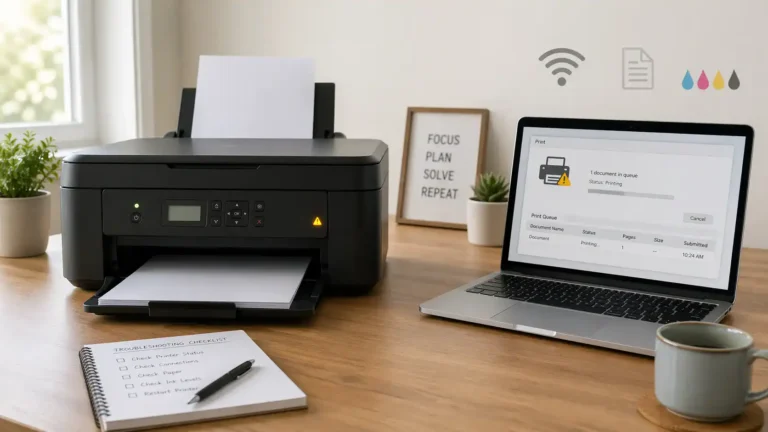
Clear stuck Canon print jobs
A stuck print job can stop every new job behind it.
This is likely if:
- Your Canon printer says printing, but nothing comes out.
- Jobs stay in the queue and do not move.
- One document will not delete.
- New jobs appear behind an older, failed job.
- The printer works only after restarting, then gets stuck again.
Start by opening the print queue and canceling the stuck jobs. On Windows, Microsoft’s print queue instructions can help you find the queue if you are not sure where it is. Then restart the Canon printer and the computer or phone you are printing from.
After the queue is clear, send a small test document instead of the original file.
If the same job gets stuck again, the file, app, driver, or spooler may be the real problem. For deeper steps, see the print queue or spooler problem guide.
Check the Canon printer connection
If the print job never reaches the printer, check how the Canon printer is connected.
If your Canon printer uses Wi-Fi
Make sure the printer and your computer, phone, or tablet are on the same Wi-Fi network.
This matters because a phone may be on mobile data, a guest network, or a different router band while the printer is connected somewhere else. If the devices are not on the same network, the printer may not appear or may not receive the job.
Try these checks:
- Restart the Canon printer.
- Restart the router if other devices are also having network problems.
- Move the printer closer to the router if the signal is weak.
- Check whether the Wi-Fi name or password has recently changed.
- Reconnect the printer to Wi-Fi if the router was replaced.
- Avoid switching between home Wi-Fi, guest Wi-Fi, and Wi-Fi Direct unless you know which one the printer is using.
If the Canon printer used to print wirelessly but stopped after a router change, the printer may still be trying to connect to the old network.
If your Canon printer uses USB
For a USB-connected Canon printer, check the cable before changing the printer software.
Try this:
- Disconnect and reconnect the USB cable.
- Plug the cable directly into the computer instead of a USB hub.
- Try a different USB port.
- Try another USB cable if the printer is not detected.
- Restart the printer and computer after reconnecting.
If the computer does not detect the Canon printer at all, the issue may be the cable, port, driver, or printer hardware.
If your Canon printer is not printing from a phone or Mac
If you are printing from a phone or tablet, check the Canon app or mobile printing setup.
Try these steps:
- Make sure the phone and printer are on the same Wi-Fi network.
- Open the Canon PRINT app and check whether it can see the printer.
- Remove and add the printer again in the app if the router has changed.
- Restart the phone and printer.
- Try printing from another app to rule out an app-specific problem.
If you use a Mac and the printer is missing from the printer list, Apple’s printer setup help explains how to add a printer in macOS.
If the Canon PRINT app cannot find the printer, the problem is usually connection, network, app setup, or printer compatibility rather than ink or paper.
Check ink, toner, paper, and cartridge seating
If the Canon printer receives the job but produces no output, incomplete output, blank pages, or faded pages, check the supplies and paper path.
For Canon PIXMA inkjet printers
Canon PIXMA inkjet printers can fail to print correctly if an ink tank is empty, not seated correctly, blocked, or not recognized.
Check the following:
- Ink tanks are installed in the correct slots.
- Each tank is clicked into place.
- Protective tape was removed from new cartridges.
- Ink levels are not empty.
- The printer is not showing an ink warning.
- The paper tray is loaded correctly.
- Paper size matches the document settings.
If the printer prints blank pages or missing lines, a nozzle check may help. Many Canon inkjet models include nozzle check and cleaning options, but the exact steps depend on the model.
Use cleaning only when needed. Repeated cleaning or deep cleaning can use a lot of ink.
For Canon imageCLASS laser printers
Canon imageCLASS laser printers use toner, not ink.
Check the following:
- The toner cartridge is seated correctly.
- Toner is not empty.
- The printer is not showing a cartridge or drum warning.
- Paper is loaded correctly.
- The paper size setting matches the paper in the tray.
If the printer receives the job but nothing prints, check the printer display for a paper, toner, door, or internal error message.
When it is probably not an ink or toner issue
Ink or toner is probably not the main issue if:
- The Canon printer never receives the job.
- The print queue shows an error.
- The printer does not wake up.
- The printer is not detected by the computer.
- The Canon PRINT app cannot find the printer.
- The printer works from one device but not another.
In those cases, check printer selection, connection, queue, driver, or app settings first.
Update or reinstall the Canon printer driver
A driver problem can stop a Canon printer from printing even when the printer is powered on and connected.
Suspect a Canon driver issue if:
- The problem started after a Windows or macOS update.
- The computer sees the printer but cannot print.
- The Canon printer appears more than once.
- Printing works from one device but not another.
- The printer shows as unavailable on only one computer.
- The driver name does not match the printer model.
Use Canon’s official software and drivers page to download software or drivers for your exact printer model. Avoid random driver download sites.
A beginner-safe approach is:
- Note your Canon printer model number.
- Remove old duplicate Canon printer entries if they are no longer used.
- Download the correct Canon driver or software from Canon’s official support page.
- Install it and restart the computer.
- Add the Canon printer again if needed.
- Try a simple test print.
Do not turn this into guesswork. If you are unsure which driver belongs to your exact Canon model, use the official Canon support page or the printer manual.
Test whether the file, app, or device is the problem
Sometimes the Canon printer is fine, but one file or app cannot print.
Try these tests:
- Print a different document.
- Print from a different app.
- Print a plain one-page text document.
- Print from another computer or phone.
- Save the file as a new copy and try again.
- Shorten a very long file name before printing.
Use the results to narrow the cause:
If other documents print, the original file may be damaged or too complex.
If another app prints, the first app may have a print setting problem.
If another device prints, the first computer or phone may have a queue, driver, app, or connection issue.
If no device can print, the Canon printer, network, ink, toner, paper, or hardware status is more likely.
Check Canon printer error lights and messages
Do not ignore warning lights, blinking lights, or on-screen messages.
Canon printers can show model-specific error codes for paper jams, ink issues, cartridge problems, cover errors, printhead problems, or internal faults. The meaning can vary by model, so avoid guessing.
Check:
- The printer screen, if your model has one.
- The pattern of flashing lights.
- The printer manual for your exact model.
- Canon’s official support documentation for the exact error code.
Do not force paper, cartridges, doors, or internal parts. If something feels stuck, stop and check the manual first.
What to do if your Canon printer is still not printing
If the printer still will not print after the basic checks, use this order:
- Restart the Canon printer, computer, phone, and router.
- Confirm the correct Canon printer is selected.
- Clear stuck jobs from the print queue.
- Check Wi-Fi or USB connection.
- Test from another app.
- Test from another device.
- Check ink, toner, paper, and cartridge seating.
- Reinstall the Canon driver or software from official Canon support.
- Check the exact Canon error code.
- Contact official Canon support if the issue continues.
Contact official Canon support or check official documentation when:
- The printer shows a repeated hardware error.
- The same error returns after restarting.
- The printer will not print from any device.
- The printer is under warranty.
- You suspect a printhead, carriage, roller, or internal hardware issue.
- You are not comfortable opening or cleaning printer parts.
Canon printer not printing vs similar problems
A Canon printer not printing can overlap with other printer issues, but they are not always the same.
Canon printer not printing vs printer offline
Not printing means the printer does not produce the expected output. Offline means the computer cannot communicate with the printer, or marks it unavailable.
If the main message says offline, focus on the connection and printer status first.
Canon printer not printing vs print queue problem
A queue problem means the job is stuck before the printer can process it. This often looks like the printer is doing nothing, even though the document has been sent.
If jobs are stuck, the print queue or spooler should be checked before replacing ink or reinstalling everything.
Canon printer not printing vs driver unavailable
Driver unavailable is a specific computer driver problem. It may stop printing, but not every Canon no-print issue is a driver issue.
If the computer shows a driver-unavailable message, handle that as a driver problem.
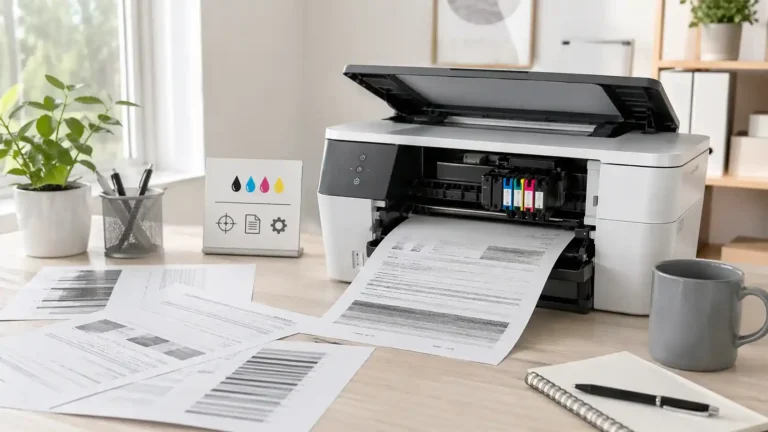
Canon printer not printing black or color
If the Canon printer prints but black ink, color ink, or parts of the page are missing, that is usually an output-quality issue. It may involve ink, toner, nozzles, printhead cleaning, cartridge seating, or print settings.
If the printer does not respond at all, start with printer selection, queue, connection, and driver checks first.
Final takeaway
When a Canon printer is not printing, do not start by reinstalling everything. First check the printer status, select the Canon printer, stuck queue, Wi-Fi or USB connection, paper, ink or toner, and any error message.
If the printer receives the job but produces blank or poor output, focus on ink, toner, paper, nozzle, or cartridge checks. If the printer never receives the job, focus on printer selection, connection, queue, driver, or Canon app setup. 8. FAQ section
FAQ section
Why is my Canon printer not printing even though it is connected?
Your Canon printer may be connected but still blocked by the wrong printer selection, a paused queue, a stuck print job, a driver issue, or a printer error. Start by checking the selected Canon printer, clearing the print queue, and sending a simple test print.
Why is my Canon printer not printing from my computer?
The computer may be sending the job to an old Canon printer entry, using a damaged driver, holding a stuck job in the queue, or failing to communicate over Wi-Fi or USB. Try printing a one-page document, clear the queue, restart both devices, and reinstall the Canon driver if needed.
Why is my Canon printer not printing from my phone?
Your phone and Canon printer may be on different Wi-Fi networks, or the Canon PRINT app may need the printer added again. Make sure both devices are on the same network, restart them, and re-add the printer in the app if necessary.
Why does my Canon printer say printing, but nothing happens?
This often points to a stuck print job, paused queue, driver problem, or communication issue. Cancel the stuck jobs, restart the Canon printer and computer, then try a small test print.
Why is my Canon printer not printing after changing ink?
The ink tank may not be seated correctly, protective tape may still be on the cartridge, or the printer may need a nozzle check. If the printer does not receive the job at all, the issue is probably not the ink.
Why is my Canon printer printing blank pages?
Blank pages usually point to an ink, toner, nozzle, printhead, or cartridge seating issue. Check that the cartridge is installed correctly, run a nozzle check if your model supports it, and avoid repeated deep cleaning unless needed.
Should I reset my Canon printer if it will not print?
Restarting the printer is safe and should be tried early. A full reset should be a later step because it may remove Wi-Fi settings and other saved preferences. Check the manual for your exact Canon model before resetting.
When should I contact Canon support?
Contact official Canon support if the printer shows a repeated error code, will not print from any device, has a possible hardware fault, is under warranty, or if you are unsure about opening or cleaning internal parts.
Short excerpt
Is your Canon printer not printing? Learn what to check first, including printer selection, stuck queue, Wi-Fi or USB connection, Canon driver issues, ink, toner, paper, and error messages.