HP Printer Driver Is Unavailable: How to Fix It

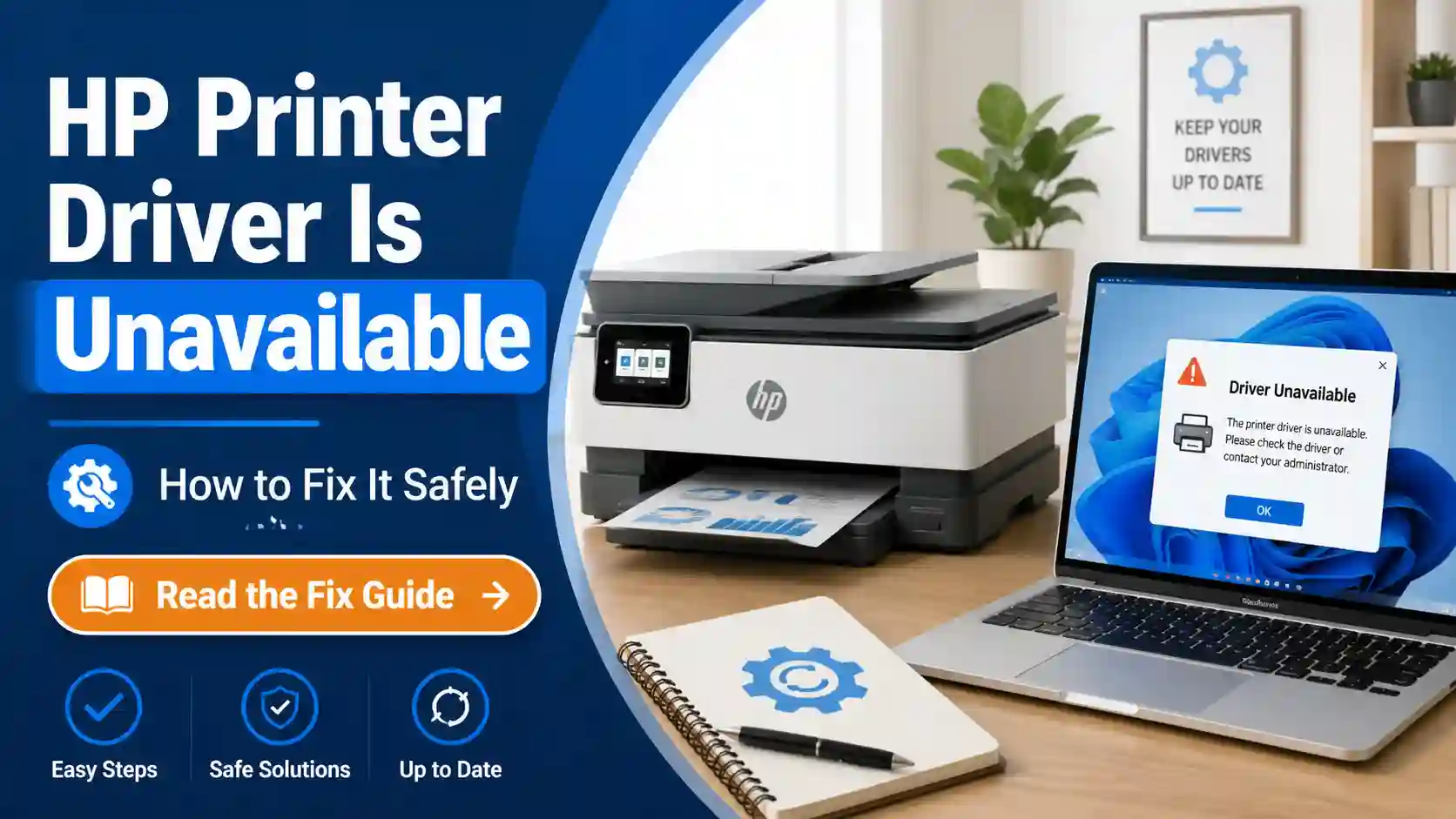
If your HP printer driver is unavailable, Windows cannot use the correct software needed to communicate with your HP printer. The printer may appear in Windows, but printing can fail because the driver is missing, outdated, damaged, matched to the wrong HP model, or not fully installed.
Start with the safe checks first: restart the printer and computer, confirm the exact HP model, check the USB or Wi-Fi connection, run Windows Update, and then reinstall the printer through HP Smart, HP Easy Start, or HP’s official driver source.
This issue is usually fixable without registry edits, random driver tools, or unsafe download sites.
Table of Contents
What does “HP printer driver is unavailable” mean
A printer driver is the software that lets Windows and your HP printer understand each other. When Windows says the HP printer driver is unavailable, it means Windows cannot load a working driver for that printer.
You may see the message in Windows Settings, Printers & scanners, Control Panel, Devices and Printers, Device Manager, HP Smart, or a print dialog where the printer is listed but will not print.
For HP printers, this often happens when Windows installs a basic driver, HP software setup does not finish, the wrong HP model is selected, or an old printer entry is still attached to the printer. For a broader meaning-first explanation, see what driver unavailable means on a printer.
What this message does not mean
The “driver is unavailable” message does not automatically mean your HP printer is broken.
It also does not always mean:
- The printer is offline
- The ink or toner is empty
- The paper is jammed
- The print queue is stuck
- The printer needs to be replaced
- You need a paid driver updater tool
Those problems can stop printing, too, but they are different issues. This page focuses on the HP driver problem specifically.
Quick checks before reinstalling anything
Before removing drivers or downloading software, do these beginner-safe checks.
Restart the HP printer and your computer
Turn the HP printer off, wait about 30 seconds, and turn it back on. Then restart the Windows computer.
This can clear temporary connection or setup problems, especially if the driver unavailable message appeared after a Windows update, a failed print job, or a recent printer setup attempt.
Check the printer connection
If your HP printer uses USB, connect the cable directly to the computer. Avoid using a USB hub while troubleshooting. A loose cable or a weak USB connection can make Windows fail to identify the printer correctly.
If your HP printer uses Wi-Fi, make sure the printer and computer are on the same network. If you recently changed your router, Wi-Fi password, or internet provider, the printer may need to be reconnected before the driver setup can finish.
If your HP printer uses Ethernet, check that the cable is firmly connected to the printer and router.
Confirm the exact HP printer model
Check the model name printed on the HP printer body or shown in the HP Smart / HP app. If you need the correct driver or software, use the exact model on HP Software and Driver Downloads instead of guessing.
This matters because similar HP model names can use different software packages. An HP DeskJet, HP ENVY, HP OfficeJet, HP LaserJet, and HP Smart Tank printer may not use the same driver package.
Do not guess the model number. If you install software for the wrong HP model, Windows may still show the printer, but mark the driver as unavailable.
Why do HP printers show “driver unavailable”
An HP printer may show the driver unavailable message for several reasons.
Windows installed the wrong or basic driver
Windows may detect the HP printer and add it automatically, but the installed driver may not match the printer correctly. If Windows recognizes the printer but cannot load a suitable driver, Microsoft printer troubleshooting guidance can help you understand safe Windows driver update options.
This can happen with USB printers, Wi-Fi printers, older HP models, and printers added through Windows instead of HP setup software.
HP Smart or HP Easy Start did not finish setup
HP Smart, the HP app, or HP Easy Start may detect the printer but fail to complete the driver installation. This can leave the printer partly installed.
The result is confusing: the HP printer appears on the computer, but Windows still says the driver is unavailable.
The old HP driver is damaged
A driver can become damaged after an interrupted installation, failed uninstall, Windows update, or repeated setup attempts.
You may also have old HP printer entries that point to drivers that no longer work.
The wrong HP printer entry is selected
Windows may show more than one version of the same HP printer, such as:
- HP printer name
- HP printer name Copy 1
- HP printer name USB
- HP printer name Network
- HP printer name WSD
One entry may work while another shows driver unavailable. This is common when the printer was added more than once.
The HP printer is older
Some older HP printers may not have a full current driver package for the newest Windows version. In that case, a Windows built-in driver may provide basic printing, but some HP-specific features may not be available.
Fix 1: Restart and reconnect the HP printer
Use this fix first if the message appeared suddenly or after a failed print attempt.
- Turn off the HP printer.
- Shut down or restart the Windows computer.
- Turn the printer back on.
- Wait until the printer is fully ready.
- Reconnect the USB cable or confirm the printer is connected to Wi-Fi.
- Open Windows Settings.
- Go to Printers & scanners.
- Check whether the HP printer still says driver unavailable.
If the message disappears, print a test page. If it remains, continue with the next step.
Fix 2: Check the exact HP printer model before installing drivers
Use this step before downloading or reinstalling anything.
- Look at the front, top, back, or inside panel of the HP printer.
- Find the full model name and number.
- Compare it with the printer name shown in Windows.
- If Windows shows a similar but incorrect printer model, remove that printer entry and add the correct model again.
- Use the exact model when searching HP’s official support page.
This is especially important for HP printer families with many similar names. A small difference in model number can matter.
Fix 3: run Windows Update
Use this fix if Windows added the HP printer automatically or if the issue started after a Windows update.
- Open Windows Settings.
- Go to Windows Update.
- Select Check for updates.
- Install available updates.
- Check Optional updates if Windows shows driver updates.
- Restart the computer.
- Go back to Printers & scanners and check the HP printer again.
Windows often uses Windows Update to find printer drivers. This may be enough for many HP printers, especially if the printer only needs a basic driver.
Fix 4: remove and re-add the HP printer
Use this fix if the HP printer is listed in Windows but still says driver unavailable.
- Open Windows Settings.
- Go to Bluetooth & devices.
- Select Printers & scanners.
- Choose the affected HP printer.
- Select Remove.
- Restart the computer.
- Turn the HP printer off and on.
- Go back to Printers & scanners.
- Select Add device.
- Let Windows find the printer again.
- Follow the setup prompts.
After adding the printer again, print a test page.
Do not remove every printer on the computer unless you are sure what each entry is. Some users have work printers, PDF printers, label printers, or shared office printers installed.
Fix 5: Use HP Smart or the HP app
Use this fix if your HP printer is newer, wireless, or was originally set up through HP Smart.
- Open HP Smart or the HP app.
- Make sure the HP printer is powered on.
- Make sure the computer and printer are on the same Wi-Fi network.
- Add the printer again if it is missing.
- Follow the setup steps until they are fully complete.
- Use Diagnose & Fix if the app offers it.
- Restart Windows.
- Check Printers & scanners again.
HP Smart or the HP app can help complete setup, reconnect the printer, and repair common HP printer problems. However, it may not fix every driver issue. Some HP models still need a model-specific driver from HP Support.
Fix 6: Install the correct HP driver from official HP Support
Use this fix if Windows Update and HP Smart do not clear the driver-unavailable message.
Only use official HP sources for HP printer software. Avoid random “free driver” websites, pop-up driver repair tools, and third-party driver updater apps.
- Find the exact HP printer model.
- Open HP Software and Driver Downloads and enter the exact printer model.
- Choose your Windows version if asked.
- Download the recommended HP driver, HP Easy Start, or full software package.
- Run the installer.
- Follow the prompts carefully.
- If using a USB, connect the printer only when the installer asks.
- Restart the computer after installation.
- Print a test page.
If HP offers both a full software package and a basic driver, beginners should usually try the recommended HP setup option first. A basic driver can be useful when you only need printing or when the full package fails.
Fix 7: Try the Windows built-in driver
Use this fix if your HP printer is older or if HP does not list a full driver package for your Windows version.
A Windows built-in driver can let many HP printers print without installing the full HP software package. The tradeoff is that some features may be limited.
You may lose access to features such as:
- advanced scan tools
- ink or toner utilities
- special paper handling options
- HP-specific maintenance tools
- advanced print settings
For basic printing, this fallback can still be useful.
General steps:
- Open Printers & scanners in Windows.
- Remove the broken HP printer entry if needed.
- Select Add device.
- If Windows does not find the printer, choose the manual add option.
- Let Windows search for available drivers.
- Choose HP as the manufacturer if Windows shows a manufacturer list.
- Select the closest exact model match.
- Finish setup and test printing.
If your exact printer model does not appear, do not randomly choose a very different model. Use HP Support or contact HP for the safest next step.
Fix 8: Use Device Manager only if needed
Device Manager can update or remove device drivers, but it is not the best first step for beginners.
Use it only after trying:
- Restart and reconnect
- Windows Update
- remove and re-add printer
- HP Smart or the HP app
- official HP driver installation
If you use Device Manager, be careful not to remove unrelated devices.
- Right-click the Start button.
- Open Device Manager.
- Look for the HP printer under Printers, Print queues, or Other devices.
- If you see a warning icon, right-click the HP printer.
- Choose Update driver.
- Let Windows search automatically.
- Restart the computer.
If you recently downloaded the correct driver from official HP Support, Windows may also let you browse to that driver location. Only do this if you are sure the driver came from HP’s official support page.
Avoid registry edits, command-line driver deletion, and manual driver store cleanup unless you are following official support instructions for your exact situation.
Should you uninstall HP Smart?
Do not uninstall HP Smart or the HP app as the first step.
First, try completing setup, adding the printer again, or using Diagnose & Fix. If the app is damaged, outdated, or cannot complete setup, reinstall HP software from official HP sources.
After reinstalling, restart Windows before checking the printer again.
What if there are multiple HP printer entries?
If Windows shows several versions of your HP printer, one may be old or broken.
Before removing anything, check which entry you normally use. If one entry says driver unavailable and another entry prints correctly, set the working one as the default printer.
If none of the entries work, remove the broken HP entries, restart the computer, and add the printer again using HP Smart, HP Easy Start, HP Support, or Windows Add device.
When to use the main driver unavailable guide
Use this HP-specific page when the problem is clearly tied to an HP printer, HP software, HP Smart, HP Easy Start, or an HP model-specific driver. Use the broader printer driver unavailable guide when you need general troubleshooting that applies to all printer brands.
That broader guide is better when:
- You are not sure whether the issue is HP-specific
- You use more than one printer brand
- Windows shows the same error for different printers
- You need general driver unavailable troubleshooting
- You want a wider explanation of Windows printer driver problems
When this is not really a driver problem
Sometimes the message appears alongside another printer issue. Keep these problems separate.
If the HP printer is offline
Printer offline usually means Windows cannot communicate with the printer. That may be caused by Wi-Fi, USB, Ethernet, router, or printer status problems. A driver may still be installed correctly.
If the HP printer is not printing
A printer can fail to print even when the driver is available. Common causes include paused printing, wrong default printer, empty paper tray, ink or toner problems, or a printer-side error.
If the print queue is stuck
A stuck job can block new jobs from printing. That is more related to the print queue or spooler than the HP driver itself.
If the printer has a hardware error
If the HP printer screen shows a hardware error, cartridge error, paper jam, or firmware-related warning, fix that printer-side message first. Reinstalling the driver may not solve a physical printer problem.
How to avoid this problem again
To reduce the chance of seeing the HP printer driver unavailable message again:
- Keep Windows updated
- Use the official HP driver and setup sources
- Save the exact HP printer model name
- Avoid random driver download websites
- Avoid automatic driver updater tools
- Remove old duplicate printer entries when you are sure they are unused
- Reconnect the printer properly after router or Wi-Fi changes
When to contact HP support
Contact HP support if:
- Your exact HP printer model is not listed
- The official HP installer fails repeatedly
- Windows cannot find a compatible driver
- The printer is older, and support options are unclear
- The printer shows hardware errors as well as driver errors
- You need scan, fax, or advanced HP features that a basic driver does not provide
The safest next step is official HP support when the issue depends on a specific HP model, warranty status, firmware, or driver package.
Final takeaway
The HP printer driver unavailable message usually means Windows cannot use the right driver for your HP printer. Start with the safe basics: restart the printer and computer, check the exact HP model, confirm the connection, run Windows Update, and remove and re-add the printer.
If that does not work, use HP Smart, HP Easy Start, or HP’s official driver page. For older HP printers, a Windows built-in driver may be enough for basic printing.
Avoid unknown driver download sites, registry edits, and third-party driver updater tools. They can make a simple HP driver issue harder to fix.
FAQ section
Why does my HP printer say driver is unavailable?
Your HP printer says driver is unavailable when Windows cannot use a working driver for that printer. The driver may be missing, outdated, damaged, incomplete, or matched to the wrong HP model.
How do I fix the HP printer driver unavailable on Windows?
Start by restarting the printer and computer, checking the connection, confirming the exact HP model, and running Windows Update. Then remove and re-add the printer. If needed, use HP Smart, HP Easy Start, or HP’s official driver download page.
Is an HP printer driver unavailable the same as a printer offline?
No. Driver unavailable means Windows cannot use the printer driver correctly. Printer offline usually means Windows cannot communicate with the printer over USB, Wi-Fi, Ethernet, or the network.
Should I download HP drivers from a third-party website?
No. Use official HP Support, HP Smart, HP Easy Start, or Windows Update. Unknown driver websites may provide the wrong driver or include unwanted software.
Can HP Smart fix the driver unavailable message?
HP Smart or the HP app can help if the printer setup did not finish or the printer needs to be added again. It may not solve every case, especially for older models or model-specific driver problems.
What if HP Smart does not fix the issue?
Use the exact HP printer model to download the correct driver from official HP Support. You can also try removing and re-adding the printer through Windows after restarting the computer.
Can I use a Windows built-in driver for my HP printer?
Yes, in many cases. A Windows built-in driver may allow basic printing, especially for older HP printers. Some HP-specific features, scan tools, or advanced settings may not be available.
Why did my HP printer driver become unavailable after a Windows update?
A Windows update may change printer settings, replace a driver, expose an old driver problem, or break the link between the printer entry and the driver. Reinstalling the printer or installing the correct HP driver often helps.
Do I need to uninstall all HP software?
Not usually. Try simpler fixes first. If HP software is damaged or the setup keeps failing, reinstall the official HP software for your exact printer model.
When should I contact HP support?
Contact HP support if the official installer fails, your model is not listed, Windows cannot find a compatible driver, or the printer shows hardware errors along with the driver unavailable message.
Short excerpt
Seeing “HP printer driver is unavailable” on Windows? Learn what the message means, why it happens on HP printers, and how to fix it safely with Windows Update, HP Smart, HP Easy Start, official HP drivers, and built-in Windows driver options.