Printer Paper Jam: Causes and Fixes

A printer paper jam means paper is not moving through the printer the way it should. The paper may be visibly stuck, torn inside the printer, feeding at an angle, blocked near the output tray, caught in the duplex path, or not visible at all.
A paper jam in the printer messages should be handled carefully. Do not yank the paper, force trays, use sharp tools, or keep sending print jobs while the printer is grinding or making unusual noises. Start with the simple checks first, then move to model-specific instructions if the paper path is unclear.
Short Answer
If your printer says paper jam, stop the print job, turn the printer off if you need to open it, remove loose paper from the tray, and look for visible jammed paper in normal access areas such as the tray, rear door, output slot, cartridge area, or duplexer. Pull any visible paper slowly and evenly. If the paper tears, will not move, or the printer still says paper is jammed after you check the obvious areas, use the manual or manufacturer support for your exact printer model.
Table of Contents
What Does a Printer Paper Jam Message Mean?
A printer paper jam message means the printer expected the paper to move through a certain part of the machine, but the paper did not move correctly.
That does not always mean a full sheet is crumpled inside. A paper-jammed printer may have:
- A sheet stuck near the input tray
- A sheet caught near the output slot
- Paper trapped in the rear path
- Paper stuck in the duplex printing path
- A torn scrap is blocking a sensor
- A tray, cover, or cartridge door is not seated correctly
- A false jam warning after a misfeed
The main goal is to find where the paper path is blocked without damaging the printer. Most home and small-office printers have user-accessible areas for clearing jams, but the exact path depends on the model.
Common Types of Printer Paper Jams
Visible Paper Jam
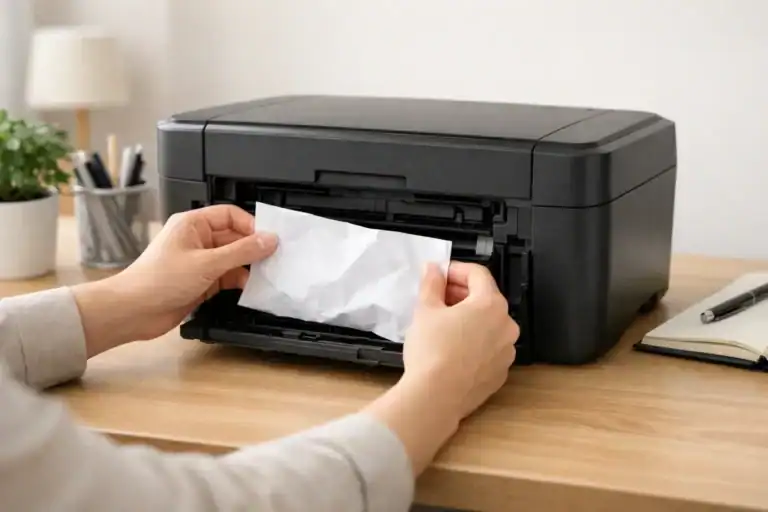
A visible paper jam is the easiest to understand. You can see the paper sticking out of the tray, output slot, rear area, or inside an access door.
Even if the paper is visible, do not pull hard. Pull slowly with both hands if possible. If the paper starts to tear, stop and check whether there is another access point that gives you a straighter path.
Hidden Paper Jam
A hidden jam happens when the printer says paper is jammed, but you cannot see a full sheet. This can happen when a small torn piece remains inside, paper is caught behind a tray, or the jam is in a rear or duplex path.
Use a flashlight and check only normal access areas. Do not open sealed parts or remove screws.
Feed Jam
A feed jam happens near the input tray. The printer may pull paper halfway, grab more than one sheet, or pull the sheet at an angle.
This often points to paper loading, tray guides, paper condition, dirty rollers, or mixed paper sizes.
Output-Tray Jam
An output jam happens near the area where printed pages come out. Paper may curl, bunch up, or stop as it exits.
This can happen with curled paper, damp paper, heavy coverage printing, full output trays, or unsupported paper types.
Duplex Jam
A duplex jam happens during two-sided printing. The printer pulls the sheet back through an internal path to print the second side. If the paper curls, is too thick, or the duplexer path is blocked, the printer may stop and show a jam.
If your printer names a duplex area, rear door, or two-sided printing path, follow the model-specific instructions instead of forcing parts open.
False Paper Jam Message
A false paper jam message means the printer reports a jam even though no paper is present. This may happen because a tiny scrap is blocking a sensor, a cover is not fully closed, a tray is not seated correctly, or the printer failed to feed paper at the expected time.
False does not always mean the printer is broken. It means the printer still detects something wrong in the paper path or feed cycle.
What to Check Before Removing Paper
Stop the Print Job
Cancel the print job from the printer screen or computer if you can. Do not keep clicking print while the printer is stuck. Repeated print commands can make the queue confusing and may cause the printer to try feeding paper again before the jam is cleared.
Turn the Printer Off If You Need to Open It
If you need to open covers or reach into the printer, turn the printer off first. If the manual for your printer recommends unplugging it before clearing jams, follow that instruction.
For laser printers, give the printer time to cool if it was recently printing. Some internal areas can be hot.
Read the Printer Screen
Many printers show a clue such as:
- Jam in tray
- Jam inside
- Jam rear
- Jam in the output area
- Jam in the duplexer
- Paper feed error
- Support code or error code
Use that message as the starting point. A printer that says the jam is in the rear area should not be handled the same way as one that shows a tray feed jam.
Remove Loose Paper First
Take loose paper out of the input tray before pulling anything. Check whether the stack is too high, uneven, curled, mixed with another size, or pushed too far into the tray.
Also, check the output tray. If printed pages are blocking the exit area, remove them.
Common Causes of a Printer Paper Jam
Wrong Paper Size or Type
Printers are designed for specific paper sizes and weights. If the printer expects Letter paper but the tray contains a different size, or if the paper setting does not match the paper loaded, the printer may feed badly.
This is common when switching between regular paper, photo paper, labels, envelopes, cardstock, or legal-size paper.
Overloaded Paper Tray
If the tray is too full, the printer may grab multiple sheets or feed at an angle. Most trays have a fill line or paper limit mark. Stay below that mark.
Curled, Damp, or Damaged Paper
Paper that is curled, damp, wrinkled, torn, dusty, or bent at the corners can catch inside the printer. Old paper can also absorb moisture or stick together.
Store paper flat in a dry place and avoid loading sheets with damaged edges.
Paper Loaded Unevenly
If the stack is crooked or the paper guides are too loose, the printer may pull the sheet at an angle. If the guides are too tight, they may stop the sheet from moving freely.
The guides should touch the paper lightly without bending it.
Dirty or Worn Rollers
Feed rollers help pull paper into the printer. Over time, dust, paper fibers, and wear can make rollers slip or grab unevenly.
Some printer manuals include roller-cleaning instructions. Follow the manual for your model. Do not scrape rollers or use harsh tools.
Torn Paper Left Inside
A small torn corner can keep causing a paper jam message. This is one reason a printer may still complain after you remove the main sheet.
Use a flashlight to check visible areas around the tray path, rear door, output slot, and cartridge area. Do not dig into hidden parts with knives, pins, or sharp tools.
Duplexer Path Issues
Two-sided printing uses an extra paper path. A paper that works for one-sided printing may still jam during duplex printing if it curls, is too thick, or does not match the printer’s supported paper type.
Try a simple one-sided test page after clearing the jam. If one-sided printing works but two-sided printing jams, the duplex path or paper type may be the issue.
Humidity and Static
Paper can react to the room environment. Damp paper may curl or stick. Very dry air can increase static, which may cause sheets to cling together.
If jams happen more often in certain weather or seasons, try fresh paper from a sealed ream and store opened paper in a dry place.
Safe First Checks for a Paper-Jammed Printer
1. Turn the Printer Off Before Opening It
Turn the printer off before opening covers or reaching inside. If the printer is a laser model and it was just printing, let it cool.
Do not touch hot parts, warning labels, belts, translucent strips, flat cables, gears, or areas that are not meant for user access.
2. Open Only Normal Access Areas
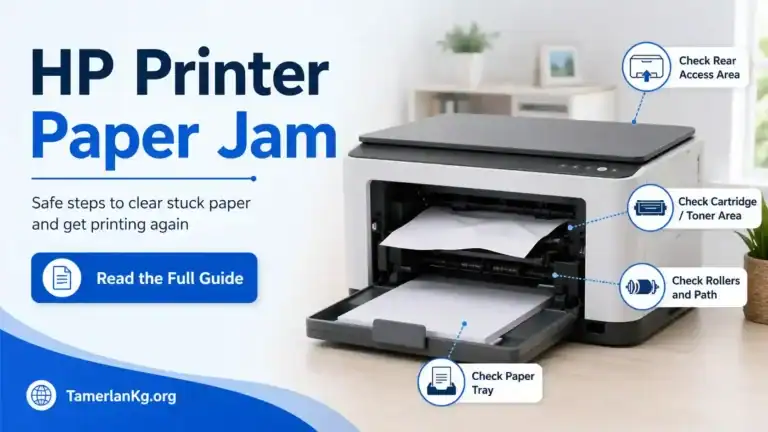
Check the areas your printer is designed for users to open, such as:
- Input tray
- Rear access door
- Cartridge or toner access area
- Output slot
- Duplexer cover if your printer has one
- Automatic document feeder if the jam is related to scanning or copying
Do not remove screws or open sealed panels.
3. Pull Visible Paper Slowly
If you can see the jammed paper, hold it with both hands and pull slowly. Pull in the direction the paper normally travels when possible.
Do not yank the paper. A hard pull can tear the sheet and leave scraps inside.
4. Stop If the Paper Will Not Move
If the paper does not move with gentle pressure, stop. There may be a better access point from the rear, bottom, tray area, or duplex path.
Forcing the sheet can damage rollers, sensors, or internal guides. When the correct access point is unclear, use official paper jam instructions for your printer model or the manual that came with the printer instead of guessing.
5. Check for Small Scraps
After removing the main sheet, look again with a flashlight. Check corners, rollers, and the visible paper path for torn pieces.
A small scrap can be enough to keep the jam message active.
6. Reload Paper Correctly
Before testing again:
- Use a clean, flat stack of supported paper
- Do not exceed the fill line
- Do not mix sizes or types
- Adjust paper guides so they are snug but not tight
- Make sure the tray is fully inserted
- Match the paper size and type in the print settings if needed
7. Print One Simple Test Page
After closing all covers and trays, turn the printer back on and print one simple page. Avoid a large job until the printer feeds normally again.
What If the Printer Says Paper Jam but There Is No Paper?
If the printer says paper is jammed but you cannot see paper, check for hidden causes:
- A tiny torn paper scrap
- Paper behind the input tray
- Paper in the rear path
- Paper in the duplexer path
- A cover or rear door is not fully closed
- A tray not seated correctly
- A blocked sensor
- A failed pickup where the printer expected paper but did not feed it
- A jam in the automatic document feeder, if you were scanning or copying
Turn the printer off, check visible access areas with a flashlight, then reseat the tray and close all covers firmly.
If the message remains and you cannot see anything, do not start taking the printer apart. Use the manual or official support for your exact model.
Why Your Printer Keeps Jamming Paper
A repeated printer paper jam usually means the first jam was not the only problem. The printer may keep jamming because of:
- Reusing curled or damaged paper
- Loading too much paper
- Paper guides are set incorrectly
- Mixing paper sizes in the same tray
- Using paper that is too thick, thin, glossy, or textured for that tray
- Wrong paper size or type selected in settings
- Dirty feed rollers
- Worn rollers
- A small paper scrap is still inside
- Duplex printing with unsuitable paper
- A tray, door, or duplexer is not seated correctly
If the printer jams in the same place every time with fresh paper and correct loading, the issue may be mechanical or model-specific. At that point, use the official support page for your printer model or contact the manufacturer before opening anything that is not meant for normal user access.
How to Prevent Printer Paper Jams
Use these habits to reduce future paper jams:
- Use paper that matches the printer’s supported size and weight.
- Store paper flat in a dry place.
- Do not load curled, damp, wrinkled, torn, or dusty sheets.
- Do not overfill the input tray.
- Keep the paper guides aligned with the paper edges.
- Do not squeeze the paper guides too tightly.
- Do not mix different paper sizes or types in one tray.
- Empty the output tray before it overfills.
- Use the right tray for envelopes, labels, photo paper, or cardstock.
- Match the paper type and size in the print settings.
- Follow the printer manual for roller cleaning or maintenance.
- Avoid printing repeated jobs while a jam message is still active.
When to Use Brand-Specific Paper Jam Guides
Use a brand-specific guide when the general checks are not enough. This is especially important when:
- The printer shows a specific error code
- The screen names a jam area
- The paper tore inside the printer
- The jam is in the duplex path
- The jam is near a cartridge or toner area
- You cannot tell which panel to open
- The printer still says paper jam after the paper is removed
- The printer is making grinding or unusual noises
HP, Canon, Brother, Epson, and other brands often use different paper paths, access doors, and error messages. Start with official model-specific help, such as HP paper jam support, Canon paper jam support, Brother paper jam support, or Epson printer support, when the printer gives a specific location, support code, or model-specific warning.
A broad guide can help you understand the problem, but model-specific steps are safer when the printer gives a specific location or code.
Paper Jam vs Printer Not Printing
A paper jam is a paper-feed or paper-path problem. The printer is stopping because paper is stuck, delayed, misfed, or detected incorrectly.
Printer not printing is broader. It can be caused by a paper jam, but it can also happen because of offline status, connection problems, empty ink or toner, a stuck print queue, driver trouble, or a paused printer.
If the paper jam is cleared but the printer still does not print, the next problem may not be a jam anymore. At that point, use a printer not printing the troubleshooting page.
When to Stop and Get Official Support
Stop troubleshooting and use the printer manual or official manufacturer support if:
- The paper will not move with gentle pressure
- Paper tears, and a piece remains inside
- The printer keeps grinding
- You smell burning or see smoke
- A laser printer’s hot internal area may be involved
- The jam is behind a non-user-accessible panel
- You would need to remove the screws
- The same jam returns again and again
- The printer is under warranty
- The manual gives different instructions for your exact model
Do not disassemble the printer beyond normal user-accessible panels. If the paper path is unclear, model-specific instructions are safer than guessing.
Summary
A printer paper jam can mean more than one thing. Paper may be visibly stuck, hidden in the path, feeding badly, jammed near the output slot, caught in the duplexer, or triggering a false warning.
Start with safe checks: stop the job, turn the printer off before opening it, remove loose paper, inspect visible access areas, pull jammed paper gently, check for scraps, reload good paper, and test one simple page.
If the jam message remains or the printer gives a specific location or code, move to the guide or manual for your exact printer model.
FAQ section
Why does my printer keep saying paper jam?
Your printer may keep saying paper jam because paper is still stuck somewhere, a tiny torn scrap is blocking the paper path, a tray or cover is not seated correctly, the rollers are slipping, or the printer failed to feed paper at the expected time.
What causes a paper jam in a printer?
Common causes include overloaded trays, curled or damp paper, wrong paper size, mixed paper types, uneven loading, dirty rollers, worn feed parts, duplex path issues, and torn scraps left inside the printer.
What should I do first when the paper is jammed in the printer?
Stop the print job, turn the printer off if you need to open it, remove loose paper from the tray, check the normal access areas, and gently remove visible paper without forcing it.
Can I pull jammed paper out of a printer?
Yes, but only if the paper is visible and moves with gentle pressure. Pull slowly and evenly. If it resists, starts tearing, or feels trapped, stop and use model-specific instructions.
Why does my printer say paper jam when there is no paper?
The message may be caused by a hidden paper scrap, blocked sensor, unseated tray, open cover, failed paper pickup, or a jam in a less obvious area, such as the rear path or duplexer.
Is it safe to use tweezers or a knife to remove jammed paper?
Avoid sharp tools. They can scratch rollers, damage sensors, tear paper further, or harm internal parts. Use only safe access areas and follow the printer manual.
Can old paper cause paper jams?
Yes. Old paper can absorb moisture, curl, stick together, or develop damaged edges. Fresh, flat paper from a dry ream usually feeds more reliably.
Can the wrong paper setting cause a jam?
Yes. If the printer settings do not match the loaded paper size or type, the printer may feed paper incorrectly. This is common with envelopes, labels, photo paper, cardstock, and legal-size paper.
What if the paper tears inside the printer?
Stop pulling. Turn the printer off, use a flashlight to check visible areas, and follow the manual for your exact model. If you cannot remove the piece safely, use official support or a qualified repair option.
When should I use a brand-specific paper jam guide?
Use a brand-specific guide when the printer shows a specific code, names a jam location, has paper stuck in a hard-to-see path, or still shows a paper jam after the obvious checks.
Short excerpt
A printer paper jam can mean visible stuck paper, a hidden scrap, a feed problem, a duplex jam, or even a false jam message. Learn what to check first, what not to force, why paper jams happen, and when to use model-specific printer support.