Brother Printer Offline But Connected to WiFi

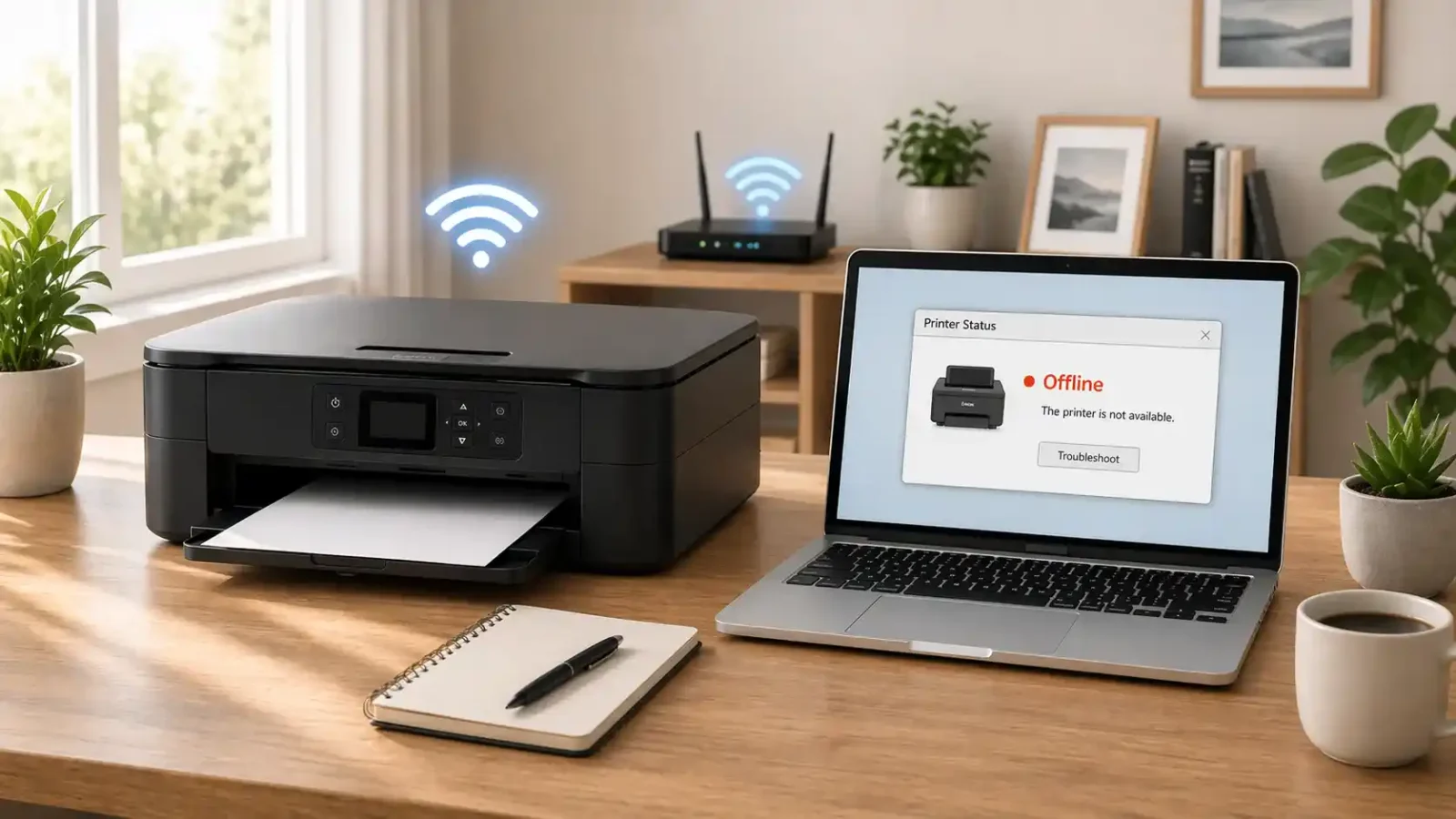
A Brother printer can be connected to WiFi and still show offline when your computer cannot properly communicate with it. The printer may be connected to the router, but Windows or Mac may still be using the wrong printer entry, an old IP address, a paused queue, or a stale driver connection.
Start with the network checks before reinstalling anything. In many cases, the problem is not the WiFi signal itself. It is the connection between your computer, the print queue, and the Brother printer’s current network address.
Brother Printer Offline But Connected To Wifi
Table of Contents
Why Your Brother Printer Says Offline Even Though WiFi Is Connected
“Connected to WiFi” does not always mean “ready to print.”
Your Brother printer may show a WiFi icon or light because it is connected to your router. But your computer still needs to find the printer on the same local network and send the print job to the correct printer entry.
This problem can happen when:
- The printer and computer are on different WiFi networks
- The printer has a new IP address after a router restart
- Windows or Mac is using an old Brother printer entry
- Use Printer Offline, or pause printing is turned on
- A stuck print job is blocking the queue
- The router is using a WiFi band or mesh setup, and the printer does not handle it well
- The driver or printer port is pointing to an old network address
The best fix is to check these in the right order.
What to Check First
1. Wake the Brother Printer and Check the Screen
Before changing settings on your computer, check the printer itself.
Make sure the Brother printer is powered on and not asleep. If the display is blank, press a button or wake the printer using the method your model supports.
Then check for simple printer errors, such as:
- Paper jam
- Cover open
- Low or empty toner
- Low or empty ink
- No paper
- Wireless setup message or offline message on the printer screen
If the Brother printer shows an error on its own screen, fix that first. A printer can appear offline on your computer when the real problem is a local printer error.
2. Confirm the Printer Is on the Same WiFi as Your Computer
This is one of the most common causes of a Brother printer being offline but connected to WiFi.
Check that your computer and printer are using the same home or office network. Be careful with:
- Guest WiFi networks
- Phone hotspots
- WiFi extenders
- Mesh network names
- Old router names
- Separate 2.4 GHz and 5 GHz WiFi names
For example, your laptop may be connected to HomeWiFi-5G while the Brother printer is connected to HomeWiFi-Guest or an older router name. In that case, the printer may look connected, but your computer may not be able to reach it.
3. Check the Brother Printer’s Network Information
If your Brother printer is connected to WiFi, it should have a network address. Many Brother models allow you to view or print a Network Configuration Report from the printer’s menu.
The exact menu name can vary by model, but look for options such as:
- Network
- WLAN
- WiFi
- Reports
- Print Reports
- Network Configuration
Because Brother menus can vary by model, use Brother’s official support website when you need the exact wireless setup or report steps for your printer.
The report may show details such as the WiFi status, SSID, IP address, subnet mask, and MAC address.
The most important item for this issue is the IP address.
A normal home network IP address often looks something like:
- 192.168.1.105
- 192.168.0.48
- 10.0.0.25
If the Brother printer shows an IP address like 0.0.0.0, it may not be properly connected to the network yet. If the IP address looks very different from your computer’s network address, the printer and computer may not be on the same local network.
Compare the Printer IP Address With Your Computer
You do not need to be a network expert. Just compare the general pattern.
If your computer uses an address like 192.168.1.20 and your Brother printer uses 192.168.1.110, they are likely on the same local network.
If your computer is on 192.168.1.20 but the printer is on 192.168.50.110, a guest network, extender, VPN, or router setting may be keeping them apart.
This matters because your computer may show the printer as offline when it cannot reach the printer’s current network address.
Fix Brother Printer Offline But Connected to WiFi on Windows
Check the Correct Brother Printer Entry
On Windows, the same Brother printer may appear more than once. You might see the model name with Copy 1 or a second printer entry created after reinstalling the driver or changing the connection.
Do not assume the first Brother printer entry is the right one.
Open your printer list and look for duplicate Brother entries. If one entry shows idle or ready while another shows offline, choose the working one when printing.
If you are not sure which entry is correct, turn on only the Brother printer you want to use, then check which printer entry responds.
Turn Off Use Printer Offline
Windows may keep a printer in offline mode even after the WiFi connection returns.
Open your Brother printer queue and check the printer menu. If Use Printer Offline is selected, turn it off. Also, check whether printing is paused.
For Windows-specific steps, Microsoft’s offline printer troubleshooting page is a useful reference if the queue still shows offline after the basic checks.
After changing this setting, close the queue and try sending a small test print.
Clear Stuck Print Jobs
A failed print job can keep the queue blocked and make the printer look offline.
Open the Brother printer queue and cancel old jobs. If a job will not cancel, restart the printer and computer, then check the queue again.
Do not keep sending new print jobs while the old ones are stuck. That can make the problem harder to diagnose.
Remove the Stale Brother Printer Entry
If the Brother printer still shows offline after checking WiFi, IP address, queue status, and duplicate entries, the saved printer entry may be stale.
This can happen after:
- Replacing your router
- Changing the WiFi name
- Moving the printer to another network
- Reinstalling the Brother software
- Switching between USB and WiFi setup
Remove only the offline Brother printer entry you are troubleshooting. Then add the printer again while it is powered on and connected to WiFi.
When Windows finds the Brother printer on the network, select the newly detected printer entry instead of an old copy.
Fix Brother Printer Offline But Connected to WiFi on Mac
Check Printers & Scanners
On Mac, open Printers & Scanners and select your Brother printer.
Check whether the print queue is paused. If you see an option to resume the printer, use it and try a test print.
If the printer still shows offline, remove the Brother printer from the list and add it again while the printer is turned on and connected to WiFi.
Apple’s printing problems on Mac guide explains how to resume printing, check the printer, and add the printer again when macOS cannot print.
Do Not Reset the Printing System Too Early
Mac has an option to reset the printing system, but it can remove all printers from your Mac. That may be useful in stubborn cases, but it should not be the first step.
Try these first:
- Check that the Brother printer is on the same WiFi
- Confirm the printer has a valid IP address
- Resume the printer queue
- Remove and re-add only the Brother printer
Use a full printing system reset only if basic checks do not work and you are comfortable adding your printers again.
Check 2.4 GHz, 5 GHz, and Mesh WiFi Issues
Many Brother printers work best on 2.4 GHz WiFi. Some Brother models may not connect to a 5 GHz network.
This can confuse users because modern routers often combine 2.4 GHz and 5 GHz under one WiFi name. Your phone or laptop may handle this without trouble, but the printer may disconnect, fail to wake properly, or appear offline.
Check your router setup if the Brother printer keeps going offline after it connects.
Look for:
- A separate 2.4 GHz WiFi name
- A combined 2.4 GHz and 5 GHz network name
- Mesh WiFi settings
- Guest network settings
- Router band steering settings
For testing, connect the Brother printer to the 2.4 GHz network if your router offers one. If your router uses a single combined name, check your router app or router documentation to see whether the 2.4 GHz band can be separated.
Restart in the Right Order
Restarting everything can help, but the order matters.
Try this:
1. Turn off the Brother printer.
2. Restart the router.
3. Wait for the WiFi network to come back fully.
4. Turn the Brother printer back on.
5. Restart your computer.
6. Check the Brother printer queue again.
After the restart, give the printer a little time to reconnect before sending a new job. Then try a one-page test print.
When to Update or Reinstall the Brother Driver
Do not start with driver reinstall unless the basic WiFi and queue checks fail.
A driver update or reinstall may help when:
- The printer is reachable, but it still cannot print
- The Brother printer entry is missing or broken
- Windows nor Mac can add the printer correctly
- The issue started after an operating system update
- The printer keeps returning as an offline duplicate
Use Brother’s official support area for model-specific driver downloads. Avoid random driver popups, repair tools, or third-party printer fix programs.
When the Problem Is Not Really an Offline Issue
Sometimes the printer is no longer offline, but it still does not print. That is a different problem.
For example, the Brother printer may be online but not printing because of:
- A stuck queue
- Empty toner or ink
- Paper feed trouble
- Wrong tray selection
- App-specific print settings
- A document format problem
If the printer shows ready but nothing prints, move from WiFi-offline troubleshooting to general printer-not-printing checks.
Quick Fix Order for Brother Printer Offline But Connected to WiFi
Use this order before making bigger changes:
1. Wake the Brother printer and check for screen errors.
2. Make sure the printer and computer are on the same WiFi.
3. Check the Brother printer’s network information.
4. Confirm the printer has a valid IP address.
5. Check for duplicate Brother printer entries.
6. Turn off Use Printer Offline or resume the queue.
7. Clear stuck print jobs.
8. Restart the router, printer, and computer.
9. Remove and re-add the Brother printer.
10. Update or reinstall the Brother driver only if needed.
Final Thoughts
A Brother printer offline but connected to WiFi usually means there is a communication mismatch, not that the printer is completely disconnected. The printer may be on WiFi, but your computer may be using the wrong printer entry, an old IP address, a paused queue, or a network path that no longer works.
Start with the Brother printer’s WiFi status and IP address. Then check the print queue, duplicate printer entries, and router band settings. If those look correct, removing and re-adding the printer is often a cleaner next step than repeatedly reinstalling drivers.
If the printer cannot connect to WiFi at all, shows a hardware error, or the network settings vary too much by model, use Brother’s official model-specific support instructions.
FAQ section
Why is my Brother printer offline even though it is connected to WiFi?
Your Brother printer may be connected to the router, but your computer may not be communicating with it correctly. This can happen because of a wrong printer entry, an old IP address, a paused queue, a duplicate printer copy, a guest network, or a router band issue.
How do I know if my Brother printer is really connected to WiFi?
Check the WiFi light or wireless icon on the printer. Then check the printer’s network information or print a Network Configuration Report if your model supports it. A valid IP address is a better sign than the WiFi light alone.
Why does my Brother printer show offline after changing routers?
The printer may still be using the old WiFi setup, or your computer may be trying to print to an old network address. Reconnect the Brother printer to the new WiFi, then remove and re-add the printer on your computer if needed.
Should I reinstall the Brother driver first?
No. First, check the WiFi network, printer IP address, print queue, duplicate printer entries, and offline mode setting. Reinstalling the driver is usually a later step after you confirm the network connection is correct.
Can my Brother printer be connected to WiFi but not to my computer?
Yes. The printer can be connected to the router while your computer is on another network, guest WiFi, VPN, hotspot, or stale printer entry. In that situation, the printer may look connected but still show offline.
Does 5 GHz WiFi cause Brother printer offline problems?
It can, depending on the Brother printer model and router setup. Many Brother printers work best on 2.4 GHz WiFi. If your router uses a combined or mesh network, try connecting the printer to a clear 2.4 GHz network when possible.
Why does my Brother printer keep going offline after sleep mode?
The printer may be losing network communication after sleep, the router may be assigning a new address, or the computer may not refresh the printer status correctly. Check the IP address, printer queue, router setup, and duplicate printer entries.
What should I do if the Brother printer has no IP address?
If the printer shows no valid IP address or shows 0.0.0.0, reconnect it to WiFi first. Check the WiFi name and password, move the printer closer to the router for testing, and use your model’s wireless setup instructions if needed.
When should I contact Brother support?
Contact Brother support if the printer cannot connect to WiFi at all, shows a persistent hardware or network error, has no valid IP address after setup, or needs model-specific wireless setup steps that are not clear from the printer menu.
Short excerpt
Brother printer connected to WiFi but still showing offline? Learn what to check first, including the WiFi network, IP address, print queue, duplicate printer entries, router bands, and driver settings.