
Why Is My Brother Printer Offline?
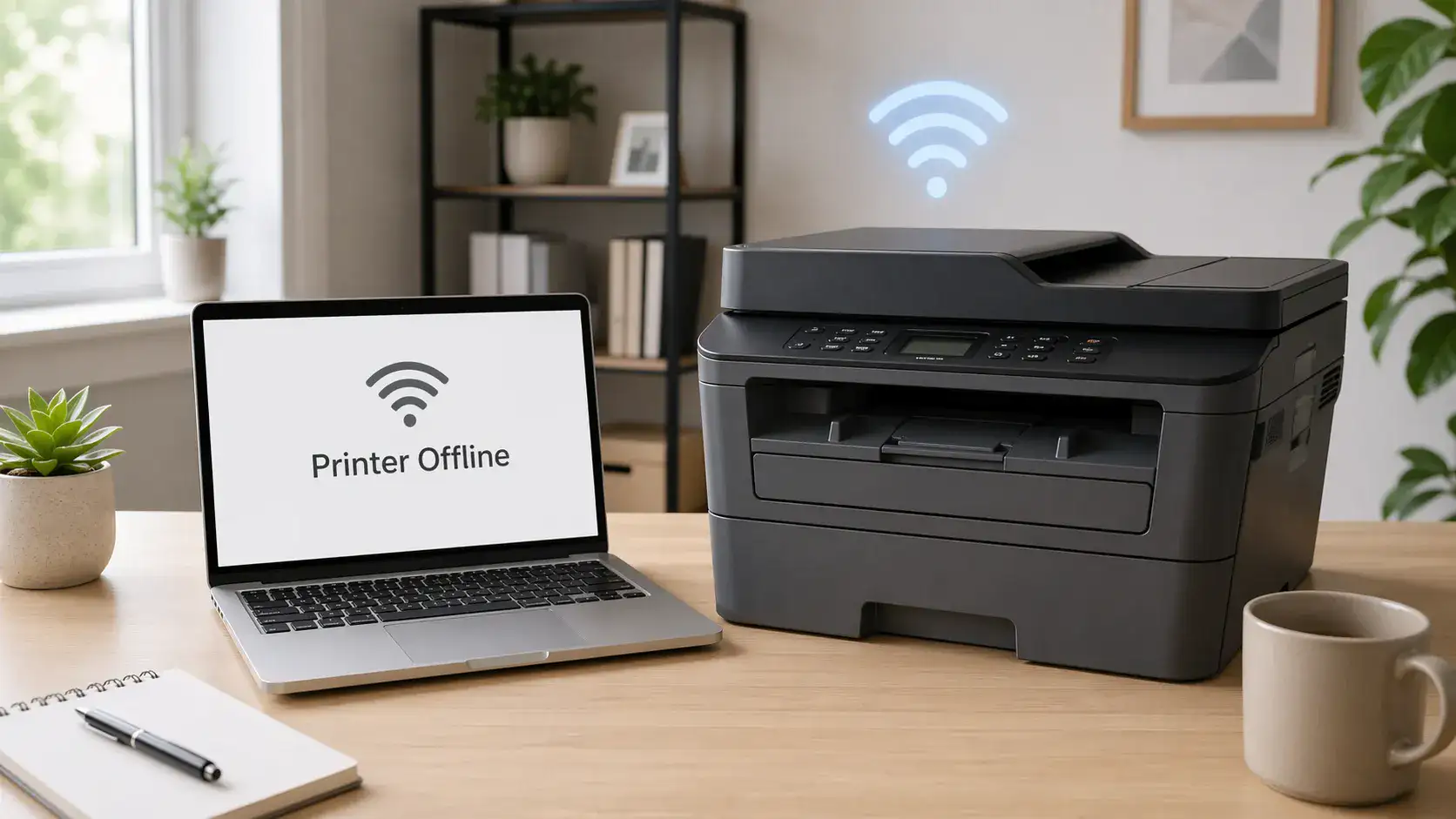
Your Brother printer usually says offline when your computer cannot communicate with the printer, or when Windows or macOS has marked the printer as unavailable.
This does not always mean the Brother printer is broken. It may be asleep, disconnected, paused, using the wrong printer copy, blocked by a stuck print job, or connected to Wi-Fi in a way your computer cannot reach.
Start with the printer itself, then check the connection, then check the computer settings. That order helps you avoid reinstalling drivers too early.
Table of Contents
Quick answer: Why is your Brother printer offline
A Brother printer may show offline because of one of these common causes:
- The printer is off, asleep, or in deep sleep mode
- The printer screen or LED shows an error
- The USB, Ethernet, or Wi-Fi connection is not working correctly
- The computer and printer are not on the same network path
- Windows has the printer set to offline or paused
- A stuck print job is blocking the queue
- The wrong Brother printer copy is selected
- The driver or printer port is damaged or outdated
Check the printer screen first. If the printer itself shows an error, fix that before changing settings on your computer. Brother also has an official guide for offline or paused printer status if you need model-specific support after the basic checks.
Check the Brother printer first
Before opening printer settings, look at the Brother printer.
If the screen is blank or the lights are off
The printer may be powered off, asleep, unplugged, or not waking correctly.
Try this first:
1. Press the power button or wake button if your model has one.
2. Check that the power cable is firmly connected.
3. Plug the printer into a working wall outlet.
4. Turn the printer off, wait a short moment, then turn it back on.
If the printer will not power on at all, this is not just an offline status problem. It may need model-specific Brother support or a hardware check.
If the Brother printer shows an error
An offline message on the computer can happen when the printer itself is blocked by another issue.
Look for messages or lights related to:
- Paper jam
- Cover open
- Toner empty
- Ink empty
- No paper
- Drum or cartridge warning
- General error light
Clear the printer’s own error first. A driver update will not fix a paper jam, open cover, or empty cartridge warning.
Check how the Brother printer is connected
The right diagnosis depends on whether your Brother printer uses USB, Ethernet, or Wi-Fi.
If your Brother printer uses a USB
A USB Brother printer can show offline when the cable is loose, the port changes, or Windows creates another copy of the printer.
Check this:
1. Make sure the USB cable is firmly connected to the printer and computer.
2. Plug the cable directly into the computer, not through a USB hub.
3. Try another USB port only if the first one does not respond.
4. After changing ports, check your printer list for duplicate Brother entries.
If you see more than one Brother printer name, one copy may be offline while another copy works.
If your Brother printer uses Ethernet
For a wired network printer, check the Ethernet cable before changing drivers.
Check this:
1. Make sure the Ethernet cable is connected to the Brother printer.
2. Make sure the other end is connected to the router, switch, or access point.
3. Look for network lights near the Ethernet port if your model has them.
4. Print a network configuration page if your model allows it.
If the printer has no network connection, your computer may show it offline even though the printer is powered on.
If your Brother printer uses Wi-Fi
A Brother printer can be connected to Wi-Fi and still show offline on your computer.
That can happen when:
- The printer is on a different Wi-Fi network
- The computer is connected to a guest network
- The router changed the printer’s IP address
- A VPN is blocking local printer discovery
- A mesh router or extender routes devices differently
- The wrong Brother printer entry is selected
Wi-Fi connected does not always mean ready to print. It only means the printer has joined a wireless network. Your computer still needs to find and send jobs to the correct printer.
Check whether the computer is using the right Brother printer
This is a common Brother offline cause, especially on Windows.
Your computer may show more than one Brother printer, such as:
- Brother MFC model name
- Brother HL model name
- Brother printer name Copy 1
- Brother printer name Copy 2
- Old Brother driver entry
This can happen after a driver reinstall, USB port change, or repeated setup attempt.
Open your printer list and look for duplicate Brother entries. If one Brother printer shows offline but another shows ready or idle, choose the ready one when printing.
If you always print from the same Brother printer, set the working entry as the default printer.
Check if the Brother printer is paused or set to offline
Sometimes the printer is not physically offline. The computer has simply marked it as offline or paused.
On Windows, check the print queue for your Brother printer. Look for options such as:
- Use Printer Offline
- Pause Printing
- Cancel all documents
- Set as default printer
The exact wording may differ by Windows version, but the idea is the same. The printer should not be paused, and it should not be forced into offline mode. Microsoft also explains this in its Windows offline printer troubleshooting guide.
If you are on macOS, check Printers & Scanners and make sure the Brother printer is still added correctly. If it is not responding, remove and re-add it only after checking power, connection, and printer errors first. Apple’s guide to adding a printer on Mac can help if the printer needs to be added again.
Clear stuck print jobs
A stuck print job can make a Brother printer look offline or unavailable.
This often happens when a job fails halfway, the printer loses connection, or the queue keeps trying to send an old document.
Try this:
1. Open the Brother printer queue on your computer.
2. Cancel failed or stuck jobs.
3. Restart the Brother printer.
4. Restart the computer if the queue does not clear.
5. Print a simple one-page test document.
Do not test with a large PDF, photo, shipping label, or complex file first. Use a small document so you know whether the printer connection is working.
Check if sleep or deep sleep mode is causing confusion
Some Brother printers use sleep or deep sleep mode to save power. In many cases, the printer should wake when a job is sent. But if the network, router, driver, or wake behavior does not respond correctly, the printer may appear offline.
Try this:
- Wake the printer manually from the control panel
- Wait a few seconds before sending the print job again
- Restart the printer if it does not wake
- Check whether the issue happens only after the printer has been idle for a long time
If the Brother printer only goes offline after sitting unused, the cause may be related to sleep mode, network wake behavior, or the router connection.
Check whether the printer’s IP address has changed
For Wi-Fi and Ethernet Brother printers, the computer often communicates with the printer through a network address.
If your router restarts, updates, or changes network assignments, the Brother printer may receive a different IP address. Your computer may still be trying to reach the old one.
Signs this may be the problem:
- The printer was working yesterday
- The issue started after a router restart
- Other devices can use the internet, but the printer is offline
- The printer shows connected on its own screen
- Re-adding the printer temporarily fixes the problem
If your Brother model can print a network configuration page, compare the current network details with the printer entry on your computer. For beginners, the simpler step is often to remove the old printer entry and add the Brother printer again after confirming it is connected to the correct network.
Check the Brother driver only after basic checks
Do not reinstall the Brother driver as the first step.
Driver problems can cause offline status, but many Brother offline issues are caused by simpler things: power, sleep mode, connection, queue problems, duplicate printer copies, or a changed network path.
Check the driver if:
- The Brother printer is powered on and ready
- The connection looks correct
- The queue is clear
- The correct printer entry is selected
- The printer still shows offline
- The issue started after a Windows or macOS update
- The printer was installed more than once
When updating or reinstalling the driver, use the official Brother downloads page for your model. Avoid random driver download pages.
What to check based on what you see
The Brother printer screen is blank
Most likely causes:
- The printer is asleep
- The printer is powered off
- The power cable is loose
- The outlet is not working
- The printer has a hardware issue
What to do next:
Wake the printer, check power, and restart it. If it will not turn on, treat it as a power or hardware problem rather than an offline status problem.
The Brother printer shows an error
Most likely causes:
- Paper jam
- Empty toner or ink
- Cover open
- No paper
- Cartridge or drum issue
- Model-specific error
What to do next:
Clear the error shown on the printer. Then check the computer again.
The Brother printer looks ready, but the computer says offline
Most likely causes:
- Wrong printer copy selected
- The printer is paused
- Use Printer Offline is enabled
- Stuck print job
- Driver or port issue
What to do next:
Check the printer list, choose the correct Brother entry, clear the queue, and make sure the printer is not paused or forced offline.
The Brother printer is connected to Wi-Fi, but offline
Most likely causes:
- The computer and printer are on different networks
- Guest Wi-Fi is being used
- Printer IP address changed
- The router or mesh network is blocking discovery
- VPN is interfering
- The old printer entry is selected
What to do next:
Confirm the printer and computer are on the same network. Then check for duplicate printer entries and re-add the printer only if needed.
The Brother printer was working yesterday
Most likely causes:
- Router restarted
- Printer IP address changed
- The computer update changed the printer settings
- The printer entered sleep or deep sleep mode
- A failed job stayed in the queue
What to do next:
Restart the printer, clear the queue, confirm the connection, and test with a simple one-page document.
Brother printer offline vs not printing
A Brother printer offline message means your computer thinks the printer is unavailable or cannot communicate with it.
A printer not printing problem is broader. The printer may be online but still fail to print because of ink, toner, paper, document, queue, or application issues.
If your Brother printer is online but still does not print, move to the next troubleshooting step instead of staying focused on the offline status.
Brother printer is offline vs connected to Wi-Fi but offline
These two problems sound similar, but they are not the same.
A Brother printer connected to Wi-Fi has joined a wireless network. A Brother printer showing offline means your computer still cannot send print jobs to it correctly.
That difference matters because the fix may not be “connect to Wi-Fi again.” The real problem may be the wrong network, a changed IP address, a VPN, a guest network, or the wrong Brother printer copy.
Brother printer offline vs printer in error state
A printer in an error state usually means the printer or computer is reporting a specific fault.
A Brother printer offline message is more about communication or availability.
Sometimes both appear together. For example, a paper jam or empty toner warning on the printer may make the computer show the Brother printer as offline or unavailable. In that case, fix the printer’s visible error first.
Best troubleshooting order
Use this order before making bigger changes:
1. Check the Brother printer screen or lights.
2. Wake or restart the printer.
3. Clear any visible printer error.
4. Check USB, Ethernet, or Wi-Fi connection.
5. Make sure the computer is using the correct Brother printer.
6. Clear stuck print jobs.
7. Turn off paused or offline status if enabled.
8. Restart the printer and computer.
9. Check for duplicate Brother printer copies.
10. Update or reinstall the Brother driver only if the simpler checks fail.
This order keeps the fix practical. It also reduces the chance of creating extra printer copies or making the setup more confusing.
When to contact Brother support
Contact official Brother support or a qualified technician if:
- The printer will not power on
- The printer shows a hardware-related error
- The LCD or LED warning does not clear
- The printer cannot reconnect to the network after basic checks
- Your model’s menu options do not match the general instructions
- The printer repeatedly drops offline after driver and network checks
TamerlanKg is an independent informational blog, not an official Brother support or a repair center.
FAQ section
Why is my Brother printer offline even though it is turned on?
Your Brother printer may be turned on but still offline if your computer cannot communicate with it. Common causes include Wi-Fi problems, a loose USB cable, a changed IP address, a stuck print job, offline mode, paused printing, or the wrong Brother printer copy being selected.
Why does my Brother printer keep going offline?
A Brother printer may keep going offline because of unstable Wi-Fi, sleep or deep sleep behavior, router changes, duplicate printer entries, outdated drivers, or a printer port that no longer points to the correct device. Start by checking the printer screen, connection, queue, and selected printer entry.
Why is my Brother printer offline but connected to Wi-Fi?
Wi-Fi connection only means the Brother printer has joined a network. Your computer may still be unable to reach it if it is on a different network, the printer’s IP address has changed, a VPN is blocking discovery, or the wrong printer entry is selected.
How do I get my Brother printer back online?
Start by waking or restarting the printer. Then check the printer screen for errors, confirm the USB or network connection, clear the print queue, make sure the correct Brother printer is selected, and check that the printer is not paused or set to offline.
Should I reinstall the Brother printer driver first?
No. Reinstalling the driver should not be the first step. Check power, printer errors, connection, default printer, offline or paused status, stuck jobs, and duplicate Brother printer copies first. Reinstall the driver only if those checks do not solve the problem.
Can a stuck print job make my Brother printer show offline?
Yes. A failed or stuck print job can block the queue and make the Brother printer appear unavailable. Cancel the stuck jobs, restart the printer, and test again with a simple one-page document.
Why does Windows show more than one Brother printer?
Windows may create duplicate Brother printer entries after a driver reinstall, USB port change, or repeated setup attempt. One entry may show offline while another works. Choose the Brother printer entry that shows ready or idle.
How do I know if the problem is the Brother printer or my computer?
Check the printer screen first. If the printer shows an error or will not wake, start with the printer. If the printer looks ready but only one computer shows it offline, the issue is more likely the computer’s settings, queue, driver, or selected printer copy.
When should I contact Brother support?
Contact Brother support if the printer will not power on, shows a hardware error, cannot reconnect after basic checks, or your model’s menu options do not match general troubleshooting steps.
Short excerpt
Wondering why your Brother printer is offline? Learn the most common causes, what to check first, and how to diagnose power, Wi-Fi, USB, queue, driver, and printer status issues.