Brother Printer Not Printing: How to Fix It

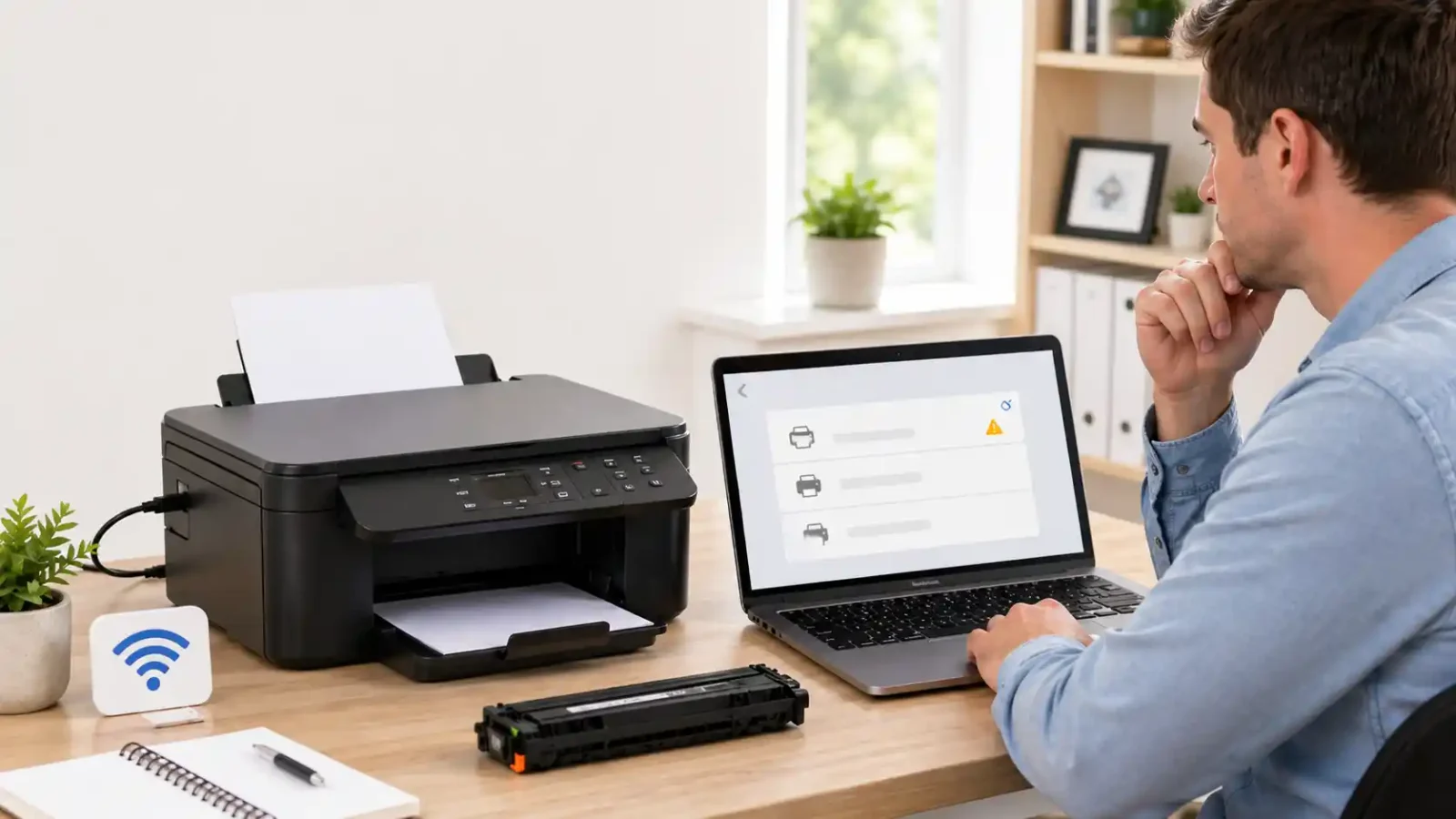
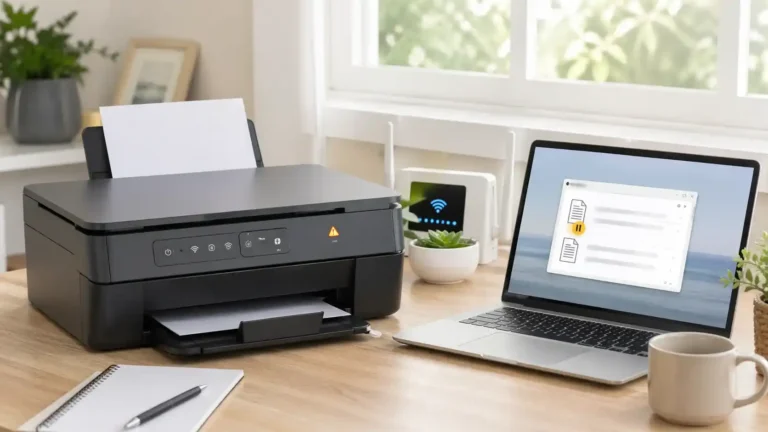
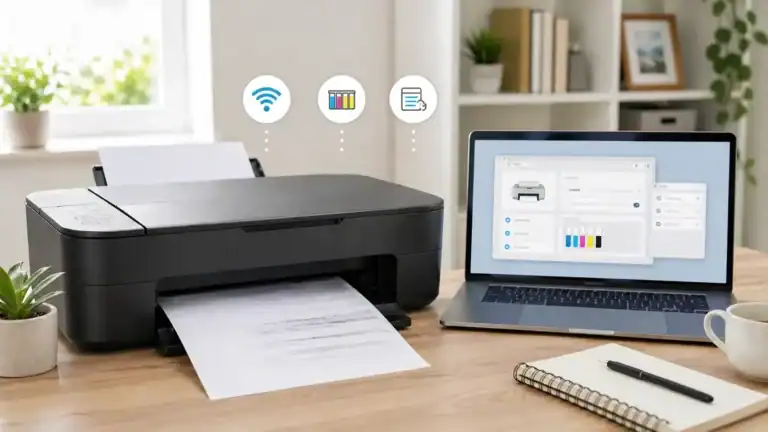
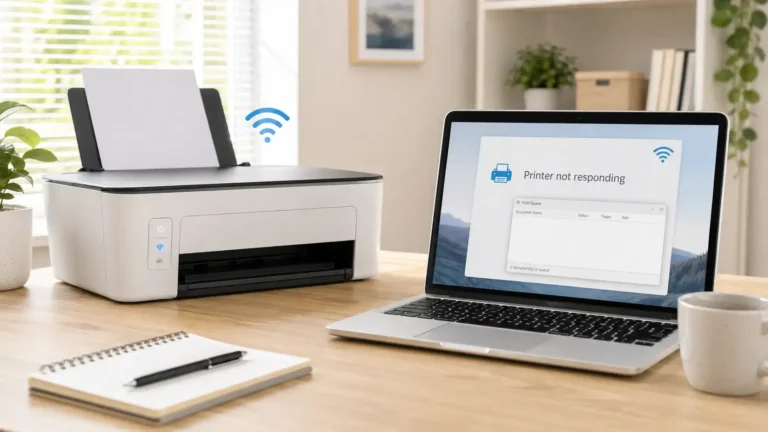
If your Brother printer is not printing, start by checking the printer screen or lights, then confirm that your computer is sending the job to the correct Brother printer. Many Brother printing problems come from a paused queue, the wrong printer icon, a USB or Wi-Fi connection issue, a driver problem, or a paper, ink, or toner message.
This article focuses on Brother-specific checks. For wider, brand-neutral steps, use the main printer not printing guide.
This is independent troubleshooting guidance and is not official Brother support.
Table of Contents
Quick checks before changing settings
Before reinstalling anything, check these simple items first:
- Make sure the Brother printer is powered on.
- Wake the printer if the screen is blank or it appears to be in sleep mode.
- Look for an error message, warning light, or flashing LED.
- Check that the paper is loaded correctly.
- Make sure the toner or ink is not empty.
- Confirm that the correct Brother printer is selected in the print window.
- Check whether old print jobs are stuck in the queue.
- Restart the Brother printer and your computer.
If the printer display shows a clear error, fix that first. A computer setting will not usually solve a paper jam, cover-open warning, toner error, or no-paper message.
First, identify what kind of Brother printing problem you have
A Brother printer can “not print” in several different ways. Matching the symptom helps you avoid wasting time on the wrong fix.
Nothing happens when you click Print
This often points to the wrong printer being selected, a disconnected USB cable, a Wi-Fi communication issue, a paused queue, or a driver problem.
The job appears in the queue, but does not print
This usually means the computer is trying to print, but the job is stuck. The queue may be paused, the Brother printer may be offline, or the print spooler may need attention. For deeper queue-specific steps, use the print queue and spooler guide.
The Brother printer says Offline or Paused
Offline status means the computer is not communicating properly with the selected Brother printer or driver. This article covers the basic checks, but a full offline issue should be handled separately from a general non-printing problem.
The printer feeds paper, but the page is blank
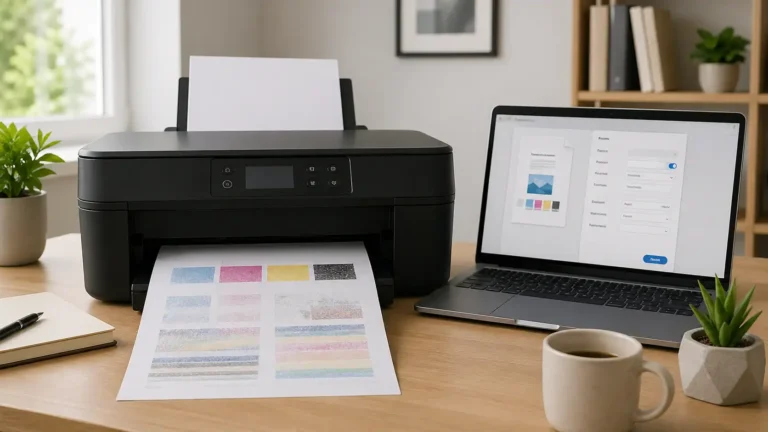
This is different from a connection problem. It may involve ink, toner, printhead cleaning, cartridge detection, drum or toner issues, or print quality settings.
The Brother display shows an error
If the printer screen or lights show Paper Jam, No Paper, Cover Open, Replace Toner, Ink Empty, Size Mismatch, or a similar warning, clear that message first.
If your symptoms are not clearly Brother-specific, follow the general printer not printing troubleshooting page so the broader causes stay separated from this Brother-focused article.
Step 1: Check the Brother printer itself
Go to the printer before changing computer settings.
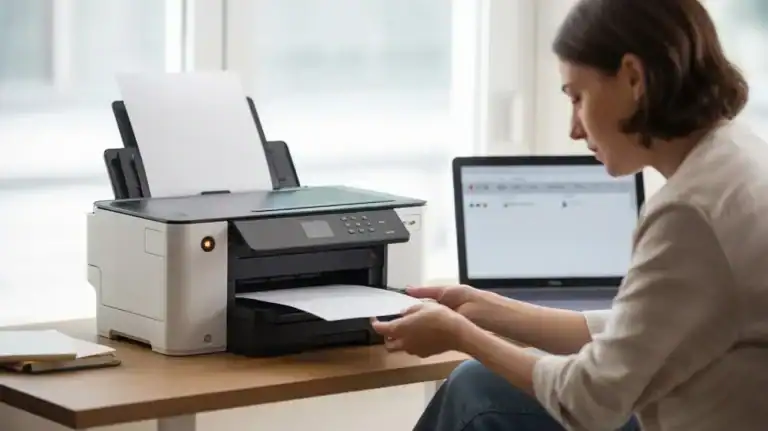
Make sure the machine is turned on, awake, and not showing a hardware or supply warning. If the display is blank, press a button or tap the screen if your model supports touch controls. Some Brother printers enter sleep or deep sleep mode and may look inactive until woken.
Check for:
- Paper jam warnings
- Empty tray warnings
- Cover open warnings
- Ink or toner replacement messages
- Drum or cartridge messages
- Paper size mismatch
- Low memory messages
- Flashing error lights
If your Brother printer shows a model-specific error code, search that exact error on Brother’s official support site using your printer model number.
Step 2: Make sure the correct Brother printer is selected
A very common reason a Brother printer will not print is that the computer is sending the job to the wrong printer.
Open the print window in the app you are using and check the selected printer. This could be Microsoft Word, Chrome, Adobe Reader, your email app, a label program, or another application.
Choose the Brother printer that matches your actual device.
Watch for duplicate Brother printer icons
Brother printers can appear more than once on a computer, especially after a driver reinstall, USB port change, Wi-Fi reconnect, or Windows update.
You might see names like:
- Brother MFC series
- Brother MFC series Copy 1
- Brother printer driver
- Brother printer via network
- Brother printer via USB
If one Brother icon is offline and another is ready, choose the ready one. Printing to the wrong duplicate icon can make it look like the printer is broken when the job is only going to the wrong driver.
Set the Brother printer as the default
If you use this Brother printer often, set it as the default printer in your computer’s printer settings. This helps prevent apps from sending jobs to a virtual printer, an old printer, a PDF printer, or a disconnected Brother copy.
Step 3: Clear stuck Brother print jobs
A stuck print job can block every job behind it.
Open the Brother printer queue on your computer and cancel old jobs. After clearing them, close the queue and try printing one simple page.
Also, check whether printing is paused. If the queue is paused, new jobs may enter the list but never print.
On some Windows systems, you may also see an option called “Use Printer Offline.” If that is selected, turn it off. If the offline status keeps returning, treat the issue as a connection or driver communication problem rather than only a queue problem.
Step 4: Restart in the right order
Restarting helps, but the order matters.
Use this simple order:
- Turn off the Brother printer.
- Restart your computer.
- If using Wi-Fi, restart the router.
- Turn the Brother printer back on.
- Wait for it to fully reconnect.
- Try printing one basic test page.
Do not test with a large PDF, photo, label sheet, or complex document yet. Use a simple one-page document first so you can tell whether the printer itself is responding.
Step 5: If your Brother printer uses USB
If your Brother printer is connected by USB, check the physical connection before reinstalling the driver.
Disconnect the USB cable from both ends, then reconnect it firmly to the printer and computer.
Try these checks:
- Plug the cable directly into the computer, not through a USB hub.
- Try another USB port on the computer.
- Use a different USB cable if available.
- Make sure the cable is connected to the USB port on the Brother printer, not a network, phone, or other port.
- Restart the printer and computer after reconnecting.
If the Brother printer appears only when the cable is connected to one USB port, keep using that port or remove the duplicate printer entries that are no longer active.
Step 6: If your Brother printer uses Wi-Fi
Wireless Brother printers can stop printing even when the Wi-Fi light looks normal. The printer may be connected to Wi-Fi, but the computer may not be communicating with it correctly.
Check these items:
- Make sure the computer and Brother printer are on the same Wi-Fi network.
- Avoid guest Wi-Fi networks when printing.
- Check whether the router, Wi-Fi name, or password has changed recently.
- Move the printer closer to the router while testing.
- Restart the router, printer, and computer.
- Try printing after the Brother printer fully reconnects.
If your Brother model can print a WLAN or network report, use it to confirm whether the printer is actually connected. The exact menu varies by model, so use your printer manual or Brother’s model-specific support page if you are not sure where to find it.
Router or password changes can break printing
If you recently changed internet providers, replaced your router, renamed your Wi-Fi network, or changed the Wi-Fi password, the Brother printer may still be trying to use the old network details.
In that case, reconnect the Brother printer to the current Wi-Fi network using the setup method for your model.
Use Brother network tools carefully
Brother provides network tools for some Windows users, including tools that can help repair printer and scanner network connections. These can be useful if the printer is on the network, but the computer is still using the wrong connection details.
Use Brother’s official website and search by your exact model number. Avoid downloading printer repair tools from random driver websites.
Step 7: Check the Brother driver
If the Brother printer is not listed on your computer, the driver may not be installed correctly.
Driver problems can also happen after:
- A Windows or macOS update
- A driver reinstall
- Changing from USB to Wi-Fi
- Changing from Wi-Fi to USB
- Adding the same printer more than once
- Installing a generic printer driver instead of a Brother driver
Before reinstalling, check the basics first: printer status, queue, selected printer, USB or Wi-Fi connection, and restart. Reinstalling too early can create duplicate Brother printer icons and make the issue more confusing.
If you do reinstall, use Brother’s official downloads page and search for your exact model. Download the recommended driver or software package for your operating system.
Windows users can also compare basic connection and reinstall steps with Microsoft’s printer troubleshooting help. Mac users can check Apple’s printing problems page when the issue appears to be related to macOS printer status, USB detection, or the print queue.
Mac users may see options such as AirPrint, Brother software, or Brother iPrint&Scan depending on the model. Choose the option that matches your printer and setup.
Step 8: Check the app you are printing from
Sometimes the Brother printer is fine, but one app or document will not print.
Try printing from a different app. For example, if a PDF will not print, try printing a short note from a basic text app or browser page.
If another app prints normally, the issue may be related to:
- The original file
- Paper size settings
- Page scaling
- A corrupted PDF
- Label or envelope settings
- App-specific printer settings
- A very large or complex document
Try saving the file again, printing fewer pages, or printing as a simpler document.
Step 9: Check paper, ink, toner, and tray settings
A Brother printer may be connected correctly but still refuse to print because of a supply or paper setting.
Check:
- Paper is loaded in the correct tray.
- The paper guides are not too tight or too loose.
- The selected paper size matches the paper in the tray.
- The printer is not asking for a different tray.
- Ink or toner is installed correctly.
- Cartridges are seated properly.
- The cover is fully closed.
For Brother inkjet printers, blank pages can sometimes point to clogged nozzles, dried ink, cartridge detection issues, or the need for a built-in cleaning cycle.
For Brother laser printers, check toner, drum, and paper path messages. A toner cartridge may be installed but still not seated correctly, or the printer may be warning about the drum or another replaceable part.
Do not run cleaning cycles repeatedly without checking the manual. Inkjet cleaning uses ink, and repeated cleaning may not help if the issue is not actually a clogged printhead.
Step 10: Do not rely only on Brother Status Monitor
Brother Status Monitor can be useful, but it can also add confusion if it is watching the wrong printer or an old duplicate printer entry.
If Status Monitor says the printer is offline, check whether the printer can actually print a test page. If the printer prints, the status display may be out of sync or linked to the wrong Brother device.
If the printer cannot print and the Status Monitor also says offline, go back to the connection, queue, and driver checks.
Also, make sure you are not viewing the status for an old USB version of the printer when you are now using Wi-Fi, or the Wi-Fi version when you are now using USB.
Step 11: Try one simple test print
After each major fix, test with one simple page.
Good test options:
- A short text document
- A one-page browser print
- A printer test page from your computer settings
- A simple black-and-white page
Avoid testing with:
- Large PDFs
- Photos
- Spreadsheets
- Labels
- Envelopes
- Multi-page documents
- Documents with unusual paper sizes
A simple test tells you whether the Brother printer can print at all. After that, you can return to the original file and fix document-specific settings if needed.
When to use official Brother support
Use official Brother support when the issue appears to be model-specific or hardware-related.
This is the better next step if:
- The Brother display shows an error you cannot clear.
- The printer will not power on.
- A paper jam message keeps returning.
- Ink, toner, or drum errors keep coming back.
- The printer is not detected after reinstalling the correct driver.
- The printer is under warranty.
- You need model-specific reset or service instructions.
- The printer makes unusual noises or stops during startup.
Have your Brother model number ready before searching support pages or contacting Brother. The model number matters because menus, lights, tools, cartridges, and reset options vary by printer.
If the Brother-specific checks do not match your situation, return to the general printer not printing troubleshooting page and work through the broader causes.
FAQ section
Why is my Brother printer not printing?
Your Brother printer may not be printing because of an error on the printer, the wrong printer selected on the computer, a stuck print queue, an offline or paused status, a USB or Wi-Fi connection issue, a driver problem, or an ink, toner, paper, or tray warning.
Why is my Brother printer not printing even though it is connected?
Connected does not always mean ready to print. The printer may be on Wi-Fi or plugged in by USB, but your computer may be sending the job to the wrong Brother printer icon, a paused queue, an offline driver, or an old duplicate printer entry.
Why is my Brother printer not printing from my computer?
Common causes include the wrong printer selected, stuck jobs in the print queue, a paused printer, USB cable issues, Wi-Fi communication problems, or a missing or damaged Brother driver.
Why is my Brother printer not printing wirelessly?
Your Brother printer may be on a different Wi-Fi network, disconnected after a router change, using old network details, blocked by a connection issue, or linked to the wrong printer driver on your computer.
Why is my Brother printer not printing with USB?
The USB cable may be loose, damaged, connected through a hub, plugged into the wrong port, or linked to an offline duplicate Brother printer icon. Reconnect both ends, try another port, and choose the correct Brother printer in your print window.
Why does my Brother printer say Ready but not print?
The printer may be ready on its own screen, but the computer may not be sending the job correctly. Check the selected printer, queue, paused/offline status, driver, and USB or Wi-Fi connection.
Why is my Brother printer not printing even though it has ink or toner?
Ink or toner level is only one part of printing. The printer may have a clogged inkjet printhead, cartridge detection issue, toner or drum warning, paper size mismatch, stuck queue, or driver problem.
Should I reinstall the Brother printer driver?
Reinstall the driver only after checking the printer status, selected printer, queue, connection, and restart steps. If you reinstall, use Brother’s official support site and search by your exact model number.
Should I reset my Brother printer?
A reset should not be the first step. Try safer checks first. Use official Brother model-specific instructions if a reset is needed, because reset options vary by model.
Is the Brother printer not printing the same as the Brother printer offline?
Not always. Offline status is one possible reason a Brother printer may not print, but not-printing problems can also come from the queue, driver, app, USB cable, Wi-Fi network, ink, toner, paper, or printer errors.
Short excerpt
Brother printer not printing? Start with the printer screen, select the Brother printer, queue, USB or Wi-Fi connection, driver, ink, toner, and paper checks before reinstalling anything.