Epson Printer Not Printing: How to Fix It

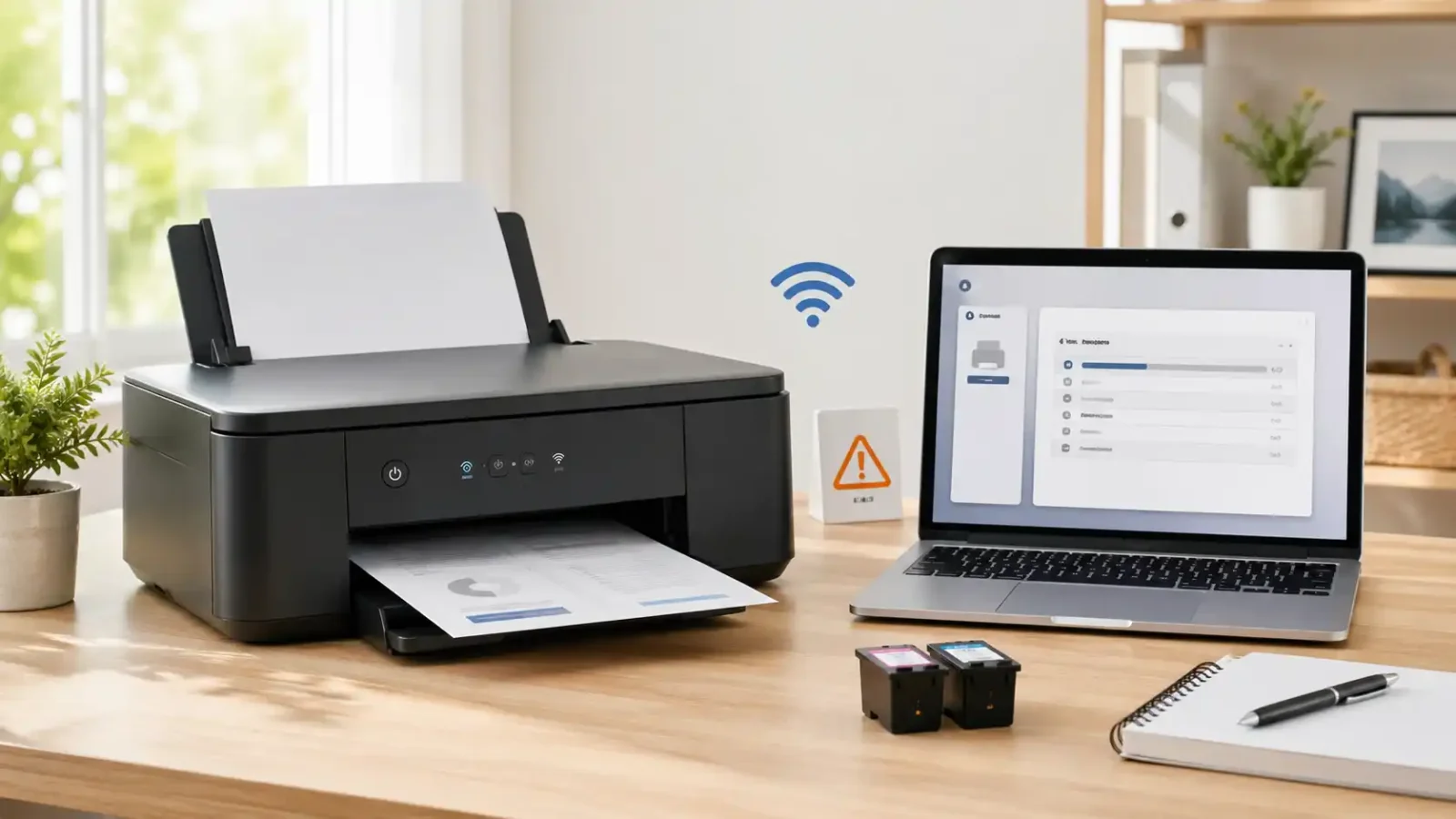
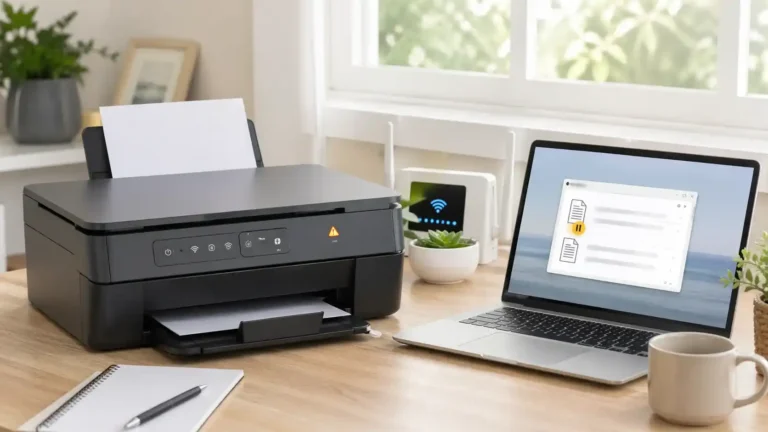
If your Epson printer not printing, start by checking the printer screen or warning lights, then run a nozzle check or test print if your model supports it. This helps you find out whether the problem is inside the Epson printer itself or on the computer, phone, print queue, driver, or connection side.
The most common reasons include low ink, blocked nozzles, a paper or cartridge issue, a stuck print job, the wrong Epson printer selected, an offline or paused status, an outdated driver, or a weak USB/Wi-Fi connection.
This guide focuses on Epson-specific checks. For wider printer issues that are not brand-specific, use the general printer not printing guide.
Table of Contents
First, find out where the problem is
Before changing drivers or resetting anything, check whether your Epson printer can print without depending on the document you are trying to print.
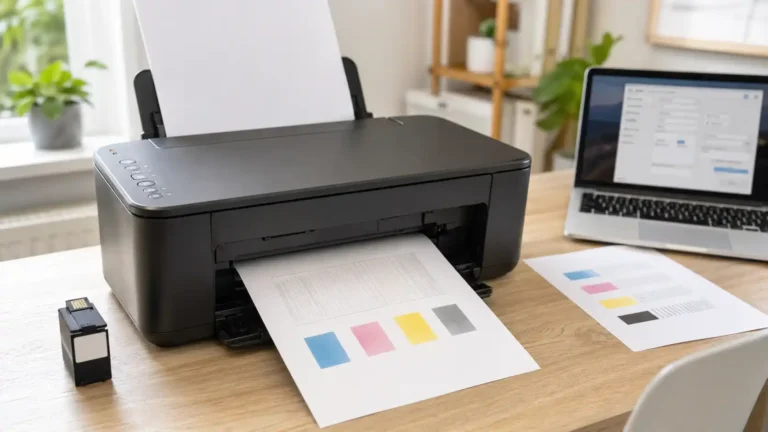
Try an Epson nozzle check or printer test page
A nozzle check is useful because it tests the printer’s ink flow and printhead pattern. Depending on your Epson model, you may find this option in the printer control panel, Epson printer utility, Epson software, or a maintenance menu.
Use this result to decide what to check next:
| Check the ink and printer status before repeating cleaning | What it usually means | What to do next |
| The pattern prints normally | The printer can physically print | Check the queue, selected printer, driver, app, USB, or Wi-Fi |
| The pattern has gaps or missing colors | Ink may not be flowing correctly | Check ink, then use Epson maintenance tools carefully |
| The page is completely blank | Ink flow, cartridge, tank, printhead, or printer-side issue | Check ink and printer status before repeating cleaning |
| The nozzle check will not print | Printer-side issue may be blocking printing | Check screen messages, paper, jams, ink, and support options |
Try copying on all-in-one Epson printers
If your Epson printer has a scanner and copier, try making a simple copy.
If copying works but printing from the computer does not, the printer is probably able to print. The issue is more likely the print queue, driver, selected printer, app settings, USB, or Wi-Fi.
If copying also fails, focus on printer-side checks first, such as ink, paper, jams, warning lights, blocked nozzles, or a service message.
Check Epson status messages, lights, and alerts
Do not skip the printer itself. Many Epson non-printing problems are explained by a message, light pattern, or status alert.
Look at the printer display or warning lights
Check for:
- Paper jam message
- Ink low or ink out warning
- Cartridge not recognized message
- Maintenance box warning
- Printer error message
- Wi-Fi or connection warning
- Blinking paper or ink lights
- Cover open warning
- Paper size or tray mismatch message
If your Epson printer has no display, blinking lights may still point to a specific issue. Check the model manual or the official Epson printer support page for that light pattern.
Check the Epson Status Monitor or the Epson printer utility
Some Epson printers show extra details in Epson Status Monitor, Epson Scan/Print utility, or the printer software on your computer.
It may show:
- Ink level warnings
- Cartridge or tank problems
- Communication errors
- Paused or offline status
- Maintenance warnings
- Paper or jam alerts
- A service-related message
The exact software name and layout can vary by model and operating system, so use the wording that appears on your own screen.
Check ink, cartridges, tanks, and paper
Basic printer-side checks should come before advanced software fixes.
Make sure ink is available
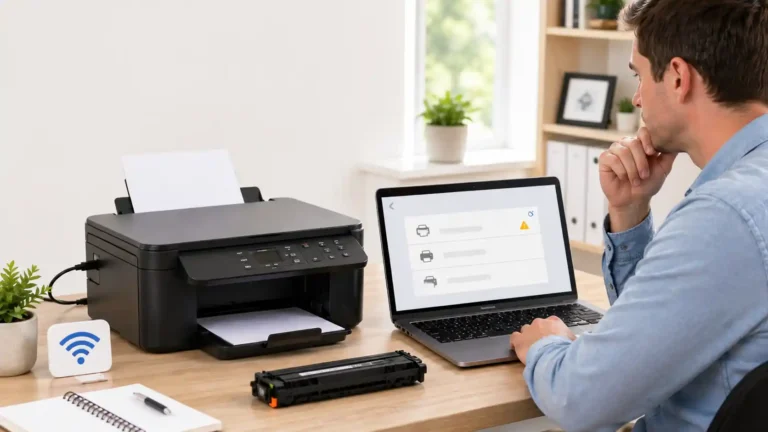
For cartridge Epson printers, check whether any cartridge is empty, loose, not recognized, or recently replaced.
For Epson EcoTank models, visually check the ink tanks if your model allows it. Low ink, air in the ink path, or poor ink flow can cause faded output, missing colors, or blank pages.
A printer may show ink is present but still not print correctly if the nozzles are clogged or the ink is not reaching the printhead.
Reseat cartridges if your Epson printer uses cartridges
If your model uses cartridges, check that each cartridge is seated properly.
A beginner-safe approach:
- Turn the printer on.
- Open the cartridge area using your model’s normal access method.
- Make sure each cartridge is firmly in place.
- Check that new cartridges do not still have protective tape or packaging attached.
- Close the cover fully.
- Try printing again.
Do not force the carriage or pull parts that do not move freely.
Check paper loading and hidden jams
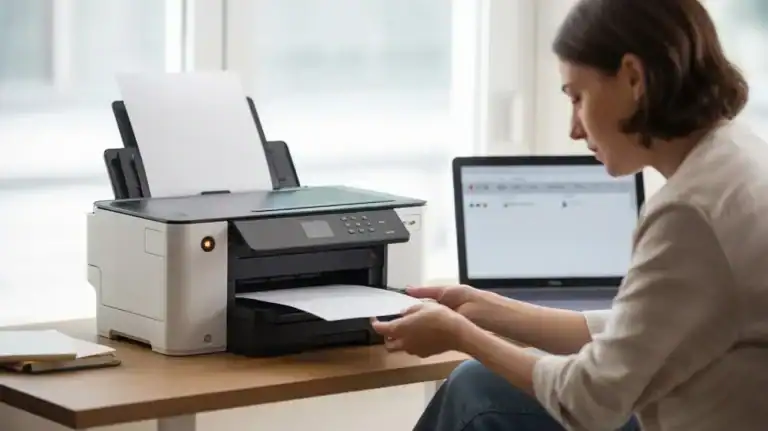
Your Epson printer may refuse to print if the paper is not loaded correctly or if a small piece of torn paper is still inside.
Check:
- Paper tray or cassette position
- Rear feed alignment, if your model has one
- Paper guides
- Paper size selected in the print window
- Torn paper inside the printer
- Jam message that remains after the paper was removed
- Paper loaded in the wrong tray
If the printer pulls paper through but the page comes out blank, move to the nozzle and printhead checks.
If your Epson printer sounds like it prints, but the page is blank
Blank pages are different from a printer that does nothing. If the printer feeds paper and moves like it is printing, the issue may be ink flow, clogged nozzles, printhead maintenance, document settings, or cartridge/tank problems.
Run a nozzle check first
A nozzle check gives you a clearer clue than repeatedly printing the same document.
If the nozzle pattern has gaps, broken lines, or missing colors, the nozzles may be clogged.
If the nozzle check is completely blank, check ink levels, cartridge seating, tank levels, and printer status before assuming the problem is only software.
Use printhead cleaning only when needed
Epson printhead cleaning may help when the nozzle check shows missing lines or missing colors. It is not the right first fix for every non-printing problem.
Use cleaning carefully because it uses ink. After cleaning, run another nozzle check to see whether the pattern improved.
Avoid running cleaning again and again without checking the results. If the pattern does not improve after normal maintenance cycles, stop and check your model manual or official Epson support.
Avoid manual printhead cleaning as an early step
Manual printhead cleaning can damage the printer if done incorrectly. For most beginners, it is safer to use Epson’s built-in maintenance tools first.
Only consider manual cleaning if you understand the risks, have checked the model instructions, and the printer is no longer under a support or warranty situation where Epson should advise you directly.
Clear stuck Epson print jobs
Sometimes the Epson printer is ready, but the computer is holding the print job.
Signs that the print queue may be the problem
The queue may be stuck if:
- Your Epson printer says “Printing,” but nothing happens.
- Old jobs remain in the queue.
- New jobs sit behind a failed job.
- The printer works only after canceling old jobs.
- The same document keeps returning.
- Every print attempt stays pending.
Cancel pending jobs and try one simple print
Open the print queue for your Epson printer and cancel stuck jobs. Then restart the printer and computer.
After restarting, try one simple one-page document. Avoid testing with a large PDF, photo, label file, or high-resolution image until basic printing works again.
If jobs will not delete, keep returning, or the queue affects more than one printer, use the print queue and spooler problems guide.
Make sure the correct Epson printer is selected
A very common cause is sending the job to the wrong printer.
This can happen after a driver reinstall, Wi-Fi change, operating system update, or when the same Epson printer appears more than once.
Check the printer selected in the app
Before clicking Print, look at the printer name in the print window.
Make sure it is your active Epson printer, not:
- Save to PDF
- Microsoft Print to PDF
- An old Epson copy
- A disconnected Epson printer
- A different printer in the home or office
- A fax or scanner entry
- An AirPrint version that is not responding
- A USB version when you are using Wi-Fi, or the reverse
Set the active Epson printer as the default
If you print often from the same Epson printer, set the working version as the default printer in your computer’s printer settings.
If there are duplicate Epson entries, test the one that shows as ready or online. Remove old duplicates only when you are sure they are not the active printer you use.
Check whether the Epson printer is paused or offline
Offline status is not the same as every not-printing problem, but it can stop an Epson printer from printing.
Check the Epson printer queue or printer settings. If it says paused, offline, pending, or not connected, resume the printer if that option is available and try again.
Keep this step simple on this page. If your main issue is that the Epson printer keeps going offline, that belongs in a separate offline troubleshooting path.
Check the USB or Wi-Fi connection
If the Epson printer can print a nozzle check but not from your computer, the connection is one of the next things to check.
For USB Epson printers
Try these checks:
- Make sure the USB cable is firmly connected to the printer and computer.
- Try another USB port.
- Avoid USB hubs while troubleshooting.
- Try another cable if you have one.
- Restart the printer after reconnecting.
- Restart the computer and try one simple page.
If the printer appears and disappears from your computer, the cable, USB port, or driver connection may be unstable.
For wireless Epson printers
For Wi-Fi Epson printers, check:
- The printer is connected to the correct Wi-Fi network.
- The computer or phone is on the same network.
- The Wi-Fi password was not changed recently.
- The printer is still connected to an old router.
- The signal is strong enough near the printer.
- A guest network is not blocking printer discovery.
- A VPN is not interfering with local printing.
- The router has been restarted if the network has recently become unstable.
If the Wi-Fi connection was changed, you may need to reconnect the printer using your model’s wireless setup options.
Update or reinstall the Epson printer software and driver
Driver issues are more likely when the Epson printer can print a nozzle check but cannot print from your computer.
Signs the Epson driver or software may be the issue
Check the driver or software if:
- The printer stopped after a Windows or macOS update.
- The Epson utility cannot communicate with the printer.
- The printer appears as unavailable.
- The wrong or generic driver is selected.
- The printer works from another device, but not this computer.
- The queue clears, but documents still do not print.
- You see duplicate Epson printer entries.
- Printing fails from every app on the computer.
Use the correct Epson driver for your exact model
Use the official Epson support page for your printer model. Search by the exact model name, choose the correct operating system, and install the recommended printer software or driver.
After installation, restart the computer and printer. Then try one simple document before testing photos, PDFs, envelopes, or special paper sizes.
Remove old duplicate printers carefully
After reinstalling, your computer may show more than one Epson printer. Do not delete entries randomly.
First, identify which one is online and working. Print a simple test page from that entry. Once you know the correct printer, you can remove old disconnected copies if you are comfortable doing so.
Windows users can also compare their setup with Microsoft’s printer troubleshooting page, while Mac users can review Apple’s Mac printing help for operating-system-specific checks.
Epson printer not printing: symptom guide
Use this quick table to decide where to start.
| Epson symptom | Check first | What to try |
| Nothing happens after clicking Print | Queue, selected printer, connection | Cancel jobs, choose the correct Epson printer, check USB/Wi-Fi |
| Printer says printing but no paper comes out | Stuck job, paused status, connection | Nozzle check prints normally, but the documents do not |
| Blank pages come out | Ink flow, nozzles, cartridge/tank | Run nozzle check, check ink, use cleaning only if needed |
| Missing colors or faded print | Clogged nozzles or low ink | Run nozzle check, check ink, run maintenance if needed |
| Epson screen shows an error | Printer-side issue | Follow the message, check paper, ink, jam, or maintenance warning |
| Nozzle check prints normally but documents do not | Computer-side issue | Check driver, queue, selected printer, app, USB, or Wi-Fi |
| Nozzle check will not print | Printer-side issue | Check status lights, ink, paper path, jams, and support options |
| Printer works from phone but not computer | Computer settings or driver | Check selected printer, driver, queue, and connection |
| Printer works from computer but not phone | Mobile app or network | Clear the queue, restart the printer, and the computer |
When to contact official Epson support
Some Epson problems should not be forced through repeated cleaning, resets, or disassembly.
Contact official Epson support or check your model’s official support page if:
- The printer shows a service message.
- You see a maintenance box or ink pad warning.
- The same printer error returns after restart and jam checks.
- The nozzle check will not print after basic checks.
- The printer makes grinding or unusual mechanical sounds.
- The carriage appears blocked and will not move normally.
- The printer is under warranty.
- The Epson software says a part needs service.
- You are unsure about internal cleaning or opening the printer.
TamerlanKg is an independent informational blog, not official Epson support or a repair center. For warranty, service, part replacement, or model-specific repair instructions, official Epson support is the safer next step.
Quick recap
If your Epson printer is not printing, start with the printer screen, lights, ink, paper, and nozzle check. If the nozzle check fails, focus on printer-side issues such as ink flow, cartridges, tanks, nozzles, jams, or Epson status messages.
If the nozzle check prints normally, focus on the computer or device: print queue, selected printer, driver, paused/offline status, USB, Wi-Fi, or app settings.
For broader non-brand troubleshooting, use the general printer not printing guide. For stuck jobs that will not clear, use the print queue and spooler problems guide.
FAQ section
Why is my Epson printer not printing?
Your Epson printer may not be printing because of an error message, low ink, clogged nozzles, a cartridge or tank issue, paper loading problem, stuck print queue, wrong printer selection, paused/offline status, driver problem, or USB/Wi-Fi connection issue. Start by checking the Epson display or warning lights, then run a nozzle check if your model supports it.
Why is my Epson printer not printing even though it has ink?
Ink may be present but not flowing correctly. The nozzles may be clogged, a cartridge may not be seated properly, an ink tank may have a flow issue, or the printer may have a status error. Run a nozzle check to see whether ink is reaching the page.
Why does my Epson printer say printing but nothing prints?
This often happens when a print job is stuck, the printer is paused, the wrong Epson printer is selected, the queue is blocked, the driver is not working correctly, or the USB/Wi-Fi connection has dropped. Clear the queue, restart the printer and computer, then try one simple page.
Why is my Epson printer printing blank pages?
Blank pages can happen because of clogged nozzles, poor ink flow, empty or improperly seated cartridges, low ink in an EcoTank model, document settings, or a printer-side issue. Run a nozzle check before repeating printhead cleaning.
How do I know if the problem is my Epson printer or my computer?
Try a nozzle check, test page, or copy function if your Epson model supports it. If that works, the printer can physically print and the issue is more likely with the computer, phone, queue, driver, app, USB, or Wi-Fi. If it does not work, check printer-side issues first.
Should I clean the Epson printhead?
Clean the printhead only when the nozzle check shows missing lines, gaps, faded output, or missing colors. Printhead cleaning uses ink, so avoid running it repeatedly without checking whether the nozzle pattern improves.
Can a stuck print queue stop my Epson printer from printing?
Yes. One stuck print job can block later jobs. Cancel pending jobs in the Epson print queue, restart the printer and computer, then test with a simple one-page document. If jobs will not delete or keep returning, use a print queue and spooler troubleshooting guide.
Should I reinstall my Epson printer driver?
Reinstalling the Epson driver may help if the printer can print a nozzle check but cannot print from your computer, especially after an operating system update, failed setup, or duplicate printer installation. Use the official Epson support/downloads area for your exact model.
When should I contact Epson support?
Contact official Epson support if the printer shows a service message, maintenance box warning, ink pad warning, repeated printer error, mechanical noise, carriage problem, or if it still cannot print a nozzle check after basic checks.
Short excerpt
Is your Epson printer not printing? Learn what to check first, including Epson status messages, ink, nozzle checks, print queue problems, driver issues, USB, Wi-Fi, and when to contact official Epson support.