HP Printer Not Printing: How to Fix It

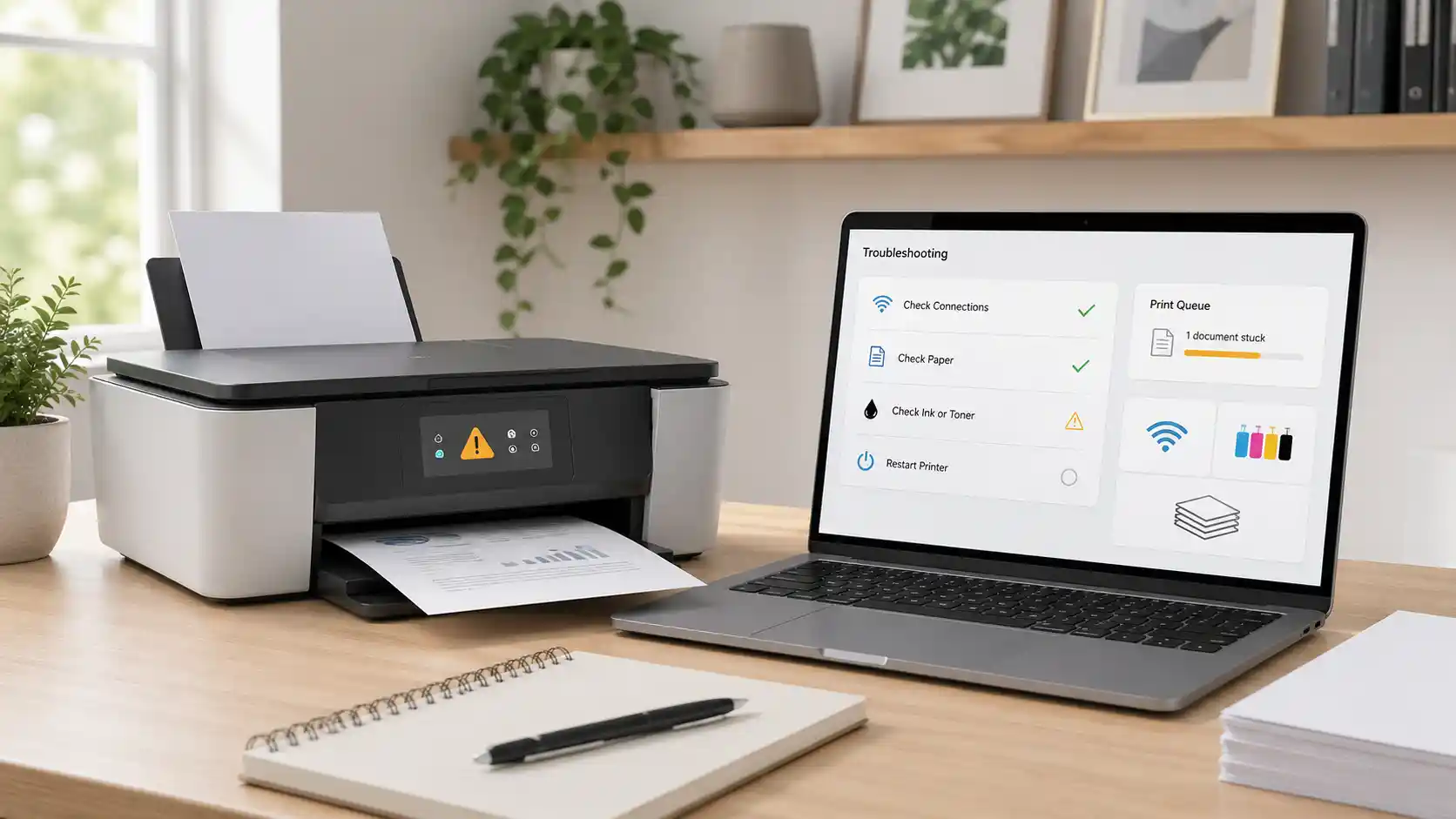
If your HP printer not printing, the problem is usually caused by one of these things: the wrong printer is selected, the print job is stuck, the printer is offline or unavailable, the HP app shows an alert, the driver is not working correctly, the Wi-Fi or USB connection has dropped, or the printer is blocked by paper, ink, toner, or cartridge issues.
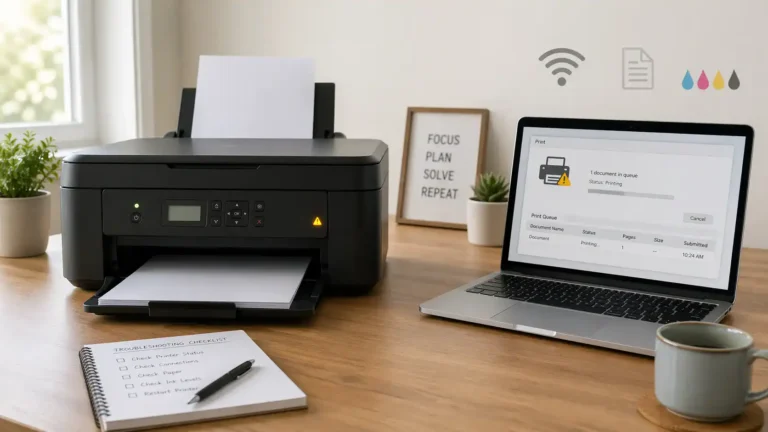
Start with the simple checks first. Make sure the printer is powered on, has paper, has ink or toner, shows no obvious warning lights, and is selected as the printer for the current job. Then check the print queue, HP app status, connection, and driver.
This guide focuses on HP-specific printing problems. For broader brand-neutral troubleshooting, use the printer-not-printing hub.
Table of Contents
First, identify what “not printing” means
“HP printer not printing” can mean a few different things. The right fix depends on what happens after you click Print.
The print job disappears, but nothing prints
This can happen when your computer sends the job to the wrong HP printer entry, an old offline printer, or a printer driver that is not responding correctly.
It can also happen if the HP printer is connected in one place, such as the HP app, but your computer is still using a different saved printer entry.
The print job stays stuck in the queue
If the job sits in the queue and does not move, the problem may be with the print queue, print spooler, paused printing, or a failed old job blocking new jobs.
This is common when a previous print job failed, the printer went offline during printing, or the computer lost connection to the printer.
The HP printer says offline or unavailable
If your HP printer says offline, unavailable, or not connected, treat it as a connection or printer-status issue first. This page covers the quick checks, but the main focus here is HP printers that will not print after setup.
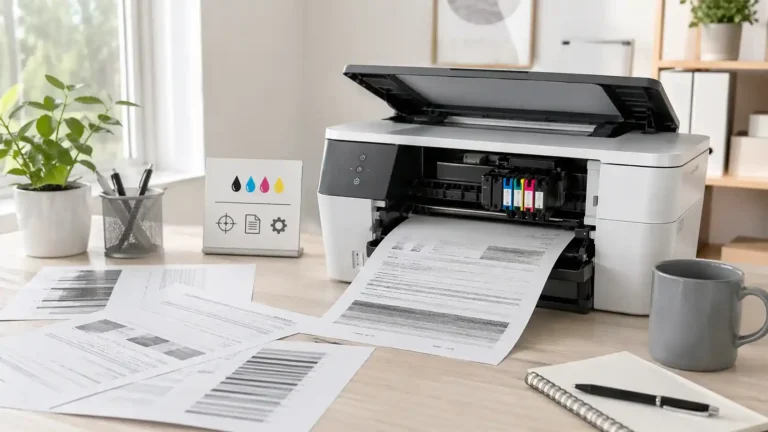
The printer feeds paper, but prints blank or faded pages
If paper comes out but the page is blank, faded, or missing parts, the issue is more likely related to ink, toner, printhead, cartridge seating, or print quality settings.
The printer shows an error, light, or cartridge message
If the printer screen, HP app, or computer shows a message, read that message before changing settings. Paper, cartridge, toner, door-open, jam, or account-related messages can stop some HP printers from printing.
Quick checks before changing printer settings
Do these first because they are safe and often fix simple HP printing issues.
Restart the HP printer and your device
Turn off the HP printer. If it has a power cord, unplug it from the power source for a short time, then plug it back in and turn it on.
Restart the computer, phone, or tablet you are printing from, too. This can clear temporary communication problems between the device and printer.
Check paper, tray position, and printer doors
Make sure the paper is loaded correctly and the tray is pushed in properly. Check that the printer cover, cartridge access door, and paper tray are fully closed.
Look for any visible torn paper or small scraps near the paper path. Do not force anything inside the printer. If the paper is stuck deep inside, check the model’s official HP instructions before pulling parts apart.
Check ink, toner, and cartridge messages
Open the HP app, printer software, or printer screen and look for supply alerts. Low ink or toner does not always stop printing, but cartridge, toner, printhead, or supply system errors can block printing on some models.
If you recently installed a new cartridge, make sure it is seated correctly and that any protective tape or packaging has been removed.
Try a printer status or test page
Many HP printers can print a status, network, or test page from the printer panel, HP app, or printer software. The exact option depends on the model.
If the printer can print its own test page but cannot print from your computer, the printer hardware may be working, and the problem is more likely with the computer, app, driver, queue, or connection.
Make sure the correct HP printer is selected
Check for duplicate HP printer names
Your computer may show more than one version of the same HP printer. For example, you might see one entry from an old Wi-Fi setup, one from USB, and one added by the HP app.
Choose the printer entry that is currently online and connected. Avoid sending the job to an old saved entry that no longer matches your setup.
Avoid printing to an offline HP entry
If your HP printer was reinstalled, moved to a new Wi-Fi network, or connected by a different cable, the old printer entry may still appear. It may accept the job, but never print.
Open your printer list and check the status before printing again. If one HP entry shows offline or unavailable, try the other matching HP entry if it appears.
Set the working HP printer as the default
If you print often from the same HP printer, set the working printer entry as your default printer. This helps prevent jobs from going to another printer, PDF printer, old HP entry, or offline device.
If you are not sure which entry is correct, print a small test page from each available HP entry and keep the one that works.
Check the HP Smart or the HP app status
HP Smart or the HP app can be useful because it may show printer alerts that are not obvious from your computer’s print window.
Look for alerts inside the HP app
Open the HP app and check the printer tile or the printer status area. Look for messages such as offline, unavailable, out of paper, low supply, cartridge problem, setup incomplete, or connection issue.
Do not ignore an alert just because the printer looks ready. Some problems only appear in the app or printer software.
Use Diagnose & Fix if it is available
On supported Windows and Mac setups, the HP app may include Diagnose & Fix for common printing and connection problems.
Use it as an early troubleshooting step, especially if the printer appears in the HP app but will not print from the computer. It may help detect common queue, connection, or software problems.
Re-add the printer in the HP app if it shows unavailable
If the HP app shows the printer as unavailable, remove the printer from the app and add it again if the app gives that option.
This can help when the app is pointing to an old connection or cannot communicate with the printer after a Wi-Fi change, router change, or software update.
Do not rely only on the HP app
The HP app may show useful information, but your computer’s printer list and print queue still matter. A printer can look available in one place but fail because the wrong printer is selected, the queue is paused, or the driver is not working correctly.
Clear a stuck HP print job
A stuck job can stop every new job behind it.
Open the print queue and cancel old jobs
Open the print queue for your HP printer and look for old or failed jobs. Cancel the stuck jobs, then try printing one simple page again.
Avoid sending the same document many times. That can make the queue harder to clear.
Check whether the queue is paused
Some systems allow a printer queue to be paused or set to work offline. If the queue is paused, new jobs may sit there without printing.
Resume the queue if it is paused. If there is an offline option enabled, turn it off only after confirming the printer is powered on and connected.
Restart the printer and computer after clearing the queue
After canceling stuck jobs, restart both the HP printer and the device you print from. Then send one small test job.
If jobs keep returning, freezing, or refusing to clear, use the dedicated print queue and spooler troubleshooting guide. Windows users can also compare the symptoms with Microsoft’s printer troubleshooting guidance.
Check the HP printer connection
A printer can be installed, but still fail to print if the connection is unstable or points to the wrong network.
For Wi-Fi HP printers
Make sure the printer and your computer, phone, or tablet are on the same Wi-Fi network. This is especially important if your router has separate network names, guest Wi-Fi, extenders, or both 2.4 GHz and 5 GHz networks.
If you recently changed your Wi-Fi name or password, reconnect the HP printer to the current network. Then remove and re-add the printer if your device still cannot print.
Also, check that the printer is awake. Some printers appear unavailable if they are asleep, disconnected, or too far from the router.
For USB HP printers
If your HP printer uses USB, check both ends of the cable. Plug the printer directly into the computer if possible, not through an unpowered USB hub.
Try another USB port if the printer is not detected or if print jobs fail immediately. If another cable is available, test with that too.
For mobile printing
If you are printing from a phone or tablet, make sure the mobile device and HP printer are on the same network. Also, check the HP app status and confirm the printer is awake.
Some guest networks or shared building networks may block devices from seeing each other. In that case, the printer may be connected to Wi-Fi but still not available for mobile printing.
If the printer is connected but still not printing
If the HP printer appears connected but does not print, move to the queue, default printer, HP app, and driver checks. A connection status alone does not guarantee the job is reaching the printer correctly.
Update or reinstall the HP printer driver or software
Driver problems are more likely when the printer is visible but does not respond, prints from one device but not another, or stops working after an operating system update.
Signs of an HP driver problem
A driver or printer software issue may be involved if:
- The HP printer appears in the printer list, but does not print.
- The print job fails immediately.
- The computer shows a driver-unavailable message.
- There are several duplicate HP printer entries.
- The printer works from a phone but not from the computer.
- Printing stopped after a Windows or macOS update.
Use official HP software or your operating system’s printer setup
For model-specific HP software, use official HP printer drivers and software. This is especially important for driver downloads, firmware, HP Smart, HP Easy Start, HP+, Instant Ink, or model-specific setup tools.
Avoid downloading printer drivers from random pop-ups, ads, or unofficial driver sites.
Remove and re-add the HP printer
If simple checks do not work, remove the HP printer from your device and add it again. This can refresh the connection and replace an outdated or broken printer entry.
After re-adding it, print one simple test page before trying a large document.
Keep driver-unavailable issues separate
If the exact message says “driver unavailable,” treat that as a driver issue first. This article covers it briefly because it can stop an HP printer from printing, but the fix path is different from ink, toner, connection, or queue problems.
Check the ink, toner, paper, and print quality causes
Not every not-printing problem is a software problem. Some HP printers stop because of supplies, paper handling, or internal printer alerts.
HP inkjet printer is not printing
For HP inkjet printers, check for:
- Empty or very low ink cartridges
- Cartridge not seated correctly
- Protective tape left on a new cartridge
- Cartridge access door not closed
- Printhead or ink system alert
- Blank pages caused by clogged printheads
- Paper loaded incorrectly
If the printer feeds paper but prints blank pages, focus on cartridges, printhead cleaning options, and printer messages before reinstalling drivers.
HP laser printer is not printing
For HP laser printers, check for:
- Toner cartridge not seated correctly
- Empty or low toner
- Door-open message
- Paper tray not seated
- Paper size mismatch
- Printer warming up or processing
- Internal printer error
If the printer screen shows a toner or hardware message, follow that message first.
HP printer prints blank pages
Blank pages usually point to a supply, cartridge, printhead, or print setting issue rather than a Wi-Fi problem.
Try a printer test page if available. If the test page is also blank, focus on the printer’s ink, toner, cartridge, or printhead condition. If the test page prints normally, check the document, app, driver, or print settings.
HP printer is not printing black or color
If only black or only color is missing, do not treat it as a full printer failure. That is usually a print quality or supply issue.
Check the related cartridge or toner, then look for printer maintenance options such as cleaning or alignment if your model offers them.
Check HP account, HP+, or Instant Ink-related messages
Some HP printers and cartridge systems may show account, cartridge, subscription, or internet-connection messages depending on the model and setup.
Read the exact message before buying supplies
Do not replace cartridges or toner just because the printer will not print. First, check the exact message on the printer screen, HP app, or computer.
The issue may be cartridge seating, account status, internet connection, HP+ setup, Instant Ink status, or a model-specific cartridge message.
Check account or service alerts in the HP app
If your printer is connected to an HP account, HP+, or Instant Ink, open the HP app and check for account, cartridge, or service messages.
These issues are different from a normal print queue or Wi-Fi problem, so clearing the queue may not help until the account or cartridge message is resolved.
Use official HP support for account or cartridge lock issues
For HP account, HP+, Instant Ink, warranty, cartridge lock, or model-specific service messages, use official HP printer support. TamerlanKg is an independent informational blog and is not official HP support.
Try another device, file, or app
If your HP printer is still not printing, test where the problem is coming from.
Try printing from another device
Print from another computer, phone, or tablet if one is available.
If the HP printer works from another device, the problem is probably on the original device. Check its printer selection, queue, driver, app, or operating system settings.
If the HP printer does not print from any device, the issue is more likely with the printer, connection, HP app status, supplies, or hardware.
Try a different document
A single file can fail because of formatting, large images, damaged PDF data, missing fonts, or app-specific problems.
Try printing a simple one-page document. If that works, the printer may be fine, and the original file or app may be the issue.
Try a different app
If printing fails from one browser, PDF viewer, or office app, try another app. This helps separate printer problems from software problems.
What to do if your HP printer is still not printing
If none of the basic steps work, do not keep repeating the same print job. Work through the clues in order.
First, check the HP app and printer screen for alerts. Then confirm the correct printer is selected, clear the queue, test the connection, and update or reinstall the HP printer software if needed.
If the printer shows a hardware error, cartridge lock, warranty issue, HP account problem, HP+ issue, Instant Ink message, or model-specific service code, use official HP support.
Summary: Best order to fix an HP printer not printing
Use this order:
- Check power, paper, ink or toner, and visible alerts.
- Make sure the correct HP printer is selected.
- Check HP app status and use Diagnose & Fix if available.
- Clear stuck print jobs.
- Check Wi-Fi or USB connection.
- Update or reinstall the HP printer software or driver.
- Test from another device or app.
- Contact official HP support for account, cartridge, warranty, hardware, or model-specific issues.
Most HP printer not printing problems are caused by a queue, connection, printer selection, driver, HP app alert, or supply message. Start with the easiest checks before changing deeper settings. 8. FAQ section
FAQ section
Why is my HP printer not printing even though it is connected?
Your HP printer may be connected but still blocked by the wrong printer selection, a stuck print job, a paused queue, a driver problem, an HP app alert, or an ink, toner, cartridge, or paper issue.
Why is my HP printer not printing from my computer?
The computer may be sending the job to the wrong HP printer entry, an old offline printer, or a queue with a stuck job. It can also happen after a driver update, Wi-Fi change, USB issue, or printer software problem.
Why does my HP printer say ready but not print?
Ready may only mean the printer is powered on and not showing a basic error. The job can still fail because of the print queue, selected printer, driver, connection, paper tray, or a hidden alert in the HP app or printer software.
Should I use HP Smart or the HP app to fix printing problems?
Yes, it can help because it may show printer status, alerts, and Diagnose & Fix options on supported setups. But also check your computer’s printer list and print queue because some problems happen outside the HP app.
Why is my HP printer not printing after changing the Wi-Fi?
The printer may still be saved under the old network connection. Reconnect the printer to the current Wi-Fi, make sure your device is on the same network, then remove and re-add the printer if needed.
Why is my HP printer printing blank pages?
Blank pages can come from empty or incorrectly seated cartridges, clogged printheads, toner issues, protective tape left on a new cartridge, or print settings. If the paper feeds normally, check supplies and printer maintenance options before changing connection settings.
What should I do if my HP print job is stuck in the queue?
Cancel old jobs first, then restart the HP printer and the device you are printing from. If jobs keep returning or will not clear, use the print queue and spooler troubleshooting guide.
When should I contact official HP support?
Contact official HP support if the printer shows a hardware error, warranty issue, HP account or HP+ problem, Instant Ink or cartridge lock message, repeated cartridge failure, or a model-specific error you cannot clear safely.
Short excerpt
HP printer not printing? Check the right HP printer entry, HP app status, print queue, driver, Wi-Fi or USB connection, ink or toner, paper, and cartridge alerts in the safest order.