Printer Offline on Mac: How to Fix It

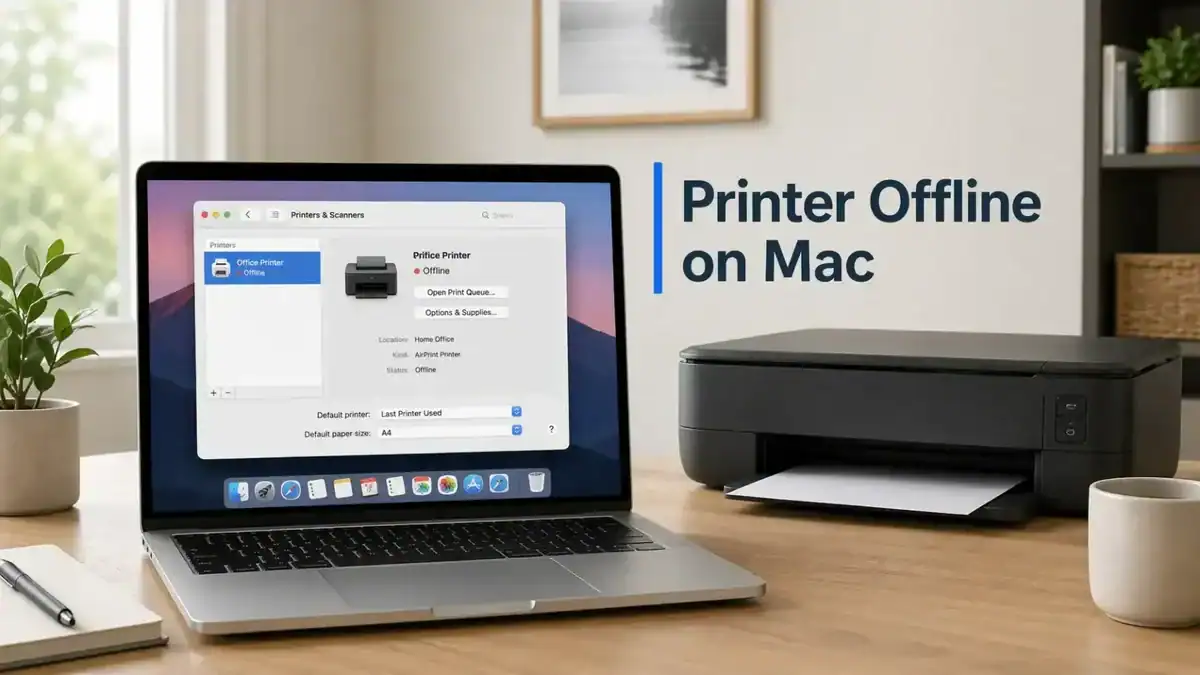
If your printer says printer offline Mac, the problem is usually not random. In many cases, macOS has lost contact with the printer, the print queue is stuck, or your Mac is still trying to use an older printer entry.
This guide is for Mac users only. It stays focused on the offline status problem in macOS and walks through the fixes in the order that usually makes the most sense for beginners.
Table of Contents
Why does your printer show offline on a Mac? (Printer Offline Mac)
When a printer appears offline on a Mac, it usually means your Mac cannot properly communicate with it right now. That can happen for a few common reasons:
- The printer is paused
- A print job is stuck in the queue
- The printer and Mac are on different Wi-Fi networks
- The printer woke up slowly after sleeping
- Your Mac saved an old printer queue that no longer works
- The printer was added with the wrong setup method
- The printer software or driver is outdated
That is why the best fix is not to jump straight to resetting everything. Start with the queue, then the connection, then re-add the printer if needed.
Start with the printer queue on your Mac
Before changing network settings or removing the printer, check the queue first. A paused queue or stuck job can make a printer look offline even when it is nearby and turned on.
Open the printer queue
Open the printer queue from Printers & Scanners or from Print Center. Apple’s guide to manage printers and print jobs with Print Center can help you find the queue and see whether jobs are paused, held, or failing.
Look for signs like:
- paused jobs
- a resume button
- One job that is holding up everything else
- Jobs sent to the wrong printer
Resume the printer if it is paused
If you see that the printer is paused, resume it first. This is one of the simplest Mac-specific fixes, and it is easy to miss.
Delete stuck print jobs
If one print job will not move, delete that job and try again with a small test page. A broken or half-sent job can keep the queue stuck and make the printer status look wrong.
Make sure you choose the correct printer
This matters more than many users expect. Your Mac may still show an older printer entry, a duplicate queue, or a printer with a similar name. If the wrong one is selected, your document may go to a dead queue instead of the printer you actually want to use.
Check the simple connection basics next
If the queue looks normal but the printer still says offline, check the connection itself.
Make sure the printer is on and fully awake
Some printers go into sleep mode and take longer to reconnect than expected. Wake the printer fully and give it a moment before sending another print job.
If the screen shows an error, low paper, paper jam, or a setup message, fix that first. A printer-side problem can cause an offline status on the Mac.
Make sure your Mac and printer are on the same Wi-Fi network
This is one of the most common reasons a printer is offline on a Mac.
Check that:
- Your Mac is on your current Wi-Fi network
- The printer is connected to that same network
- The printer did not reconnect to an older network or guest network
- Your router has not recently changed bands or settings in a way that separates devices
A printer can look connected from its own screen but still be unreachable from your Mac if it is joined to a different network.
If you use a USB, check the cable and adapter
If your printer is connected by cable, try these basics:
- Reconnect the cable firmly
- Avoid loose hubs if possible
- Test another USB port or adapter
- Restart the printer after reconnecting
A weak adapter or unreliable hub can make the Mac lose the printer intermittently.
Check whether the problem is AirPrint or the printer software
Mac printers are often set up in one of two ways:
- with AirPrint
- with printer software or a driver from the manufacturer
Both can work, but the wrong setup can lead to repeated offline problems.
When AirPrint is usually the better option
If your printer supports AirPrint and you only need normal home printing, AirPrint is often the simplest choice. Apple’s AirPrint overview explains the basic requirement: your Mac and printer need to be on the same Wi-Fi network.
When printer software may be needed
Some printers need the manufacturer’s software for full features, better scanning support, or more advanced print options. If your printer was added with a generic method when it really needed its own software, the queue may act strangely, or the printer may keep going offline.
Watch for an old or incorrect queue
This is common after router changes, macOS updates, or printer resets. Your Mac may still be holding onto a printer entry that no longer matches the printer’s current connection.
That is why removing and re-adding is often one of the most effective Mac fixes.
Remove and re-add the printer on the Mac
If the queue is stuck and the printer still appears offline, remove and re-add the printer. This creates a fresh printer entry and often solves stale queue problems.
When to remove and re-add
Use this step when:
- The printer keeps showing offline after basic checks
- You see duplicate printer entries
- The queue looks broken or unresponsive
- The printer was recently reconnected to Wi-Fi
- You suspect your Mac is using an old printer record
How to remove the printer
Open your Mac printer settings, select the printer, and remove it from the list.
Do not worry if this sounds drastic. In many cases, re-adding the printer is faster than guessing through several smaller settings changes.
How to re-add the printer
After removing it, go back to Printers & Scanners and choose Add Printer, Scanner, or Fax. If you want a step-by-step walkthrough of the current menu flow, use Apple’s guide to add a printer to your printer list.
- Open Printers & Scanners.
- Choose Add Printer, Scanner, or Fax.
- Wait for the printer to appear.
- Select it carefully.
- Choose the setup method your Mac suggests, such as AirPrint or the correct printer software.
- Add it back.
- Print a small test page.
If the new queue works, you can delete any older duplicate printer entries that are no longer needed.
If the printer does not appear, add it another way
Sometimes the printer is turned on and on the network, but it still does not appear in the normal list.
Wait a little longer than you think
Network printers do not always show up instantly. Give the printer a minute or two after waking up or reconnecting to Wi-Fi.
Add the printer by IP address
If the printer still does not appear, add it by IP address instead of waiting for auto-discovery.
This can help when:
- The network is not discovering the printer properly
- The printer appears and disappears
- Bonjour or auto-search is unreliable on your network
You will usually need the printer’s current IP address from the printer screen, a network report, or your router’s device list.
A note about IP-based setup
Adding by IP can be useful, but it is best to use the correct protocol and the right software choice when available. If you are not sure which option to use, AirPrint or the recommended printer software is usually safer than guessing.
Printer offline on Mac but connected: what does this usually mean
Many users say the same thing: the printer is connected, but the Mac still says offline.
That usually points to one of these situations:
Your Mac is using an old queue
The printer may be online on the network, but your Mac is still tied to a stale printer entry created before a network change.
The printer’s IP address changed
This can happen after restarting the router, reconnecting the printer, or letting the network assign a new address. Your Mac may still be trying to reach the old address through the old queue.
The printer wakes slowly from sleep
Some printers are slow to reconnect after the power-saving mode. The first print job may fail or show offline, even though the second attempt works after the printer fully wakes.
The connection is fine, but the queue is not
This is the reason many users waste time restarting Wi-Fi when the real problem is just one bad queue. If the printer is on, connected, and reachable, a fresh queue is often the better fix.
When to reset the Mac printing system
Reset Printing System is useful, but it should not be your first step.
Use it only after you have:
- checked the queue
- confirmed the connection
- removed and re-added the printer
- tested again
What the Reset Printing System does
This clears out the current printer setup on your Mac so you can start fresh. After that, you will need to add your printers again.
Good times to use it
A print system reset makes sense when:
- Multiple printers are behaving strangely
- Old printer entries will not go away
- The queue keeps breaking even after re-adding the printer
- Your printer list looks corrupted, or duplicates keep returning
Why should it come later, not first
It is more disruptive than the earlier steps. If a simple queue problem is the cause, a reset is unnecessary. Save it for the point where normal re-adding has already failed.
What to do right after the reset
If you reach this point, follow Apple’s steps to reset the printing system on your Mac, then add the printer again and test with a small document first.
- Restart your Mac if needed.
- Go back to Printers & Scanners.
- Add the printer again.
- Use the most suitable setup option.
- Test with a small document first.
If your printer uses AirPrint, keep this in mind
AirPrint is convenient, but it still depends on your network being stable and your printer being reachable.
If your AirPrint printer keeps showing offline on Mac:
- Confirm both devices are on the same Wi-Fi network
- Restart the printer
- remove and re-add the printer
- Try adding it again, cleanly, instead of using an old saved queue
If AirPrint keeps failing but the manufacturer recommends its own software for your model, that may be worth trying next.
If your printer is still offline after all the Mac steps
If you have already checked the queue, re-added the printer, and tested the connection, move on to these final checks.
Update macOS
A macOS update can fix communication problems, compatibility issues, or print-related bugs that affect how the printer appears.
Check for printer firmware or software updates
If your printer depends on manufacturer software, outdated software can keep the queue from behaving properly. Apple’s printing troubleshooter for Mac also points users to updated printer software when needed.
Test from another app
Try printing from a simple app. If printing fails only in one app, the issue may not be the printer itself.
Test from another device
If your phone or another computer can print to the same printer, the issue is more likely on the Mac side. If nothing can print, the problem is more likely with the printer or the network.
Contact the printer manufacturer when the issue looks model-specific
This is the right step when:
- The printer keeps disconnecting after every sleep cycle
- The manufacturer’s software is clearly failing
- The printer works on one Mac but not another
- The issue started after a firmware update or model-specific setup change
What to do next if the printer is no longer offline but still will not print
Sometimes the offline message disappears, but printing still does not work. That usually means you have moved past the offline problem and into a different one.
At that point, the next issue may be:
- a print job problem
- a paper or ink issue
- a settings conflict
- an app-specific printing problem
That is where a more general printer not printing guide becomes the better next step.
Quick recap
If your printer is offline on a Mac, use this order:
- Check the queue.
- Resume the printer if it is paused.
- Delete stuck jobs.
- Confirm the Mac and printer are on the same network.
- Remove and re-add the printer.
- Add it by IP if it does not appear.
- Reset the Mac printing system only if earlier steps fail.
That order usually saves time and avoids unnecessary resets.
FAQ section
Why does my printer say offline on Mac when it is connected?
Usually, because the queue is stuck, the Mac is using an old printer entry, the printer changed networks, or the printer woke up slowly and did not reconnect properly.
How do I get my printer back online on a Mac?
Start by checking the queue, resuming the printer if it is paused, deleting stuck jobs, and confirming the connection. If that does not work, remove and re-add the printer.
Should I remove and re-add my printer on Mac?
Yes, when the printer keeps showing offline, the queue seems broken, or your Mac may be holding an outdated printer entry. It is often one of the most effective Mac-specific fixes.
What does Reset Printing System do on a Mac?
It clears your current printer setup so you can start over with a clean printer list. After that, you need to add your printers again.
Why is my printer offline on Mac but working from my phone?
That usually means the printer itself is online, but your Mac has a queue or setup problem. A stale printer entry or wrong printer selection is often the cause.
Can AirPrint cause a printer to appear offline on a Mac?
AirPrint itself is not always the problem, but if the printer is not on the same Wi-Fi network or the saved queue is outdated, the printer can appear offline.
Why does my Mac keep showing an old printer queue?
This often happens after Wi-Fi changes, printer resets, router restarts, or reinstallation. Your Mac may still be trying to print through an older saved queue.
What should I do if the printer does not appear in Printers & Scanners?
Wait a minute or two, make sure the printer is on the same network, and try adding it again. If it still does not appear, add it by IP address.
Short excerpt
Printer offline on Mac? This beginner-friendly guide shows how to check the queue, reconnect the printer, re-add it, and reset the Mac printing system only when needed.