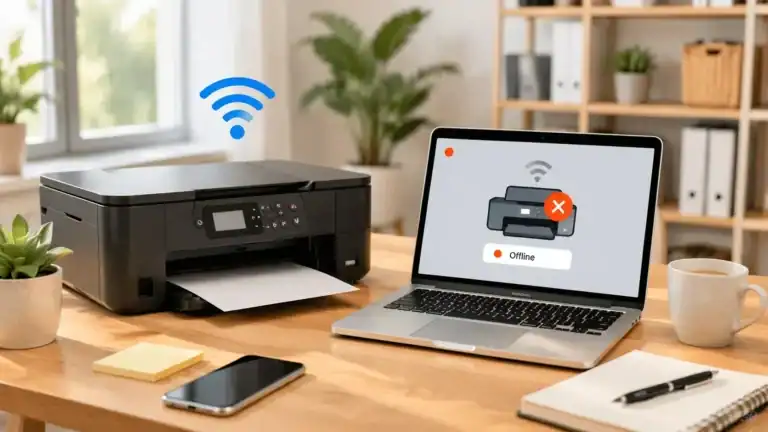
Why Does My Printer Keep Going Offline?

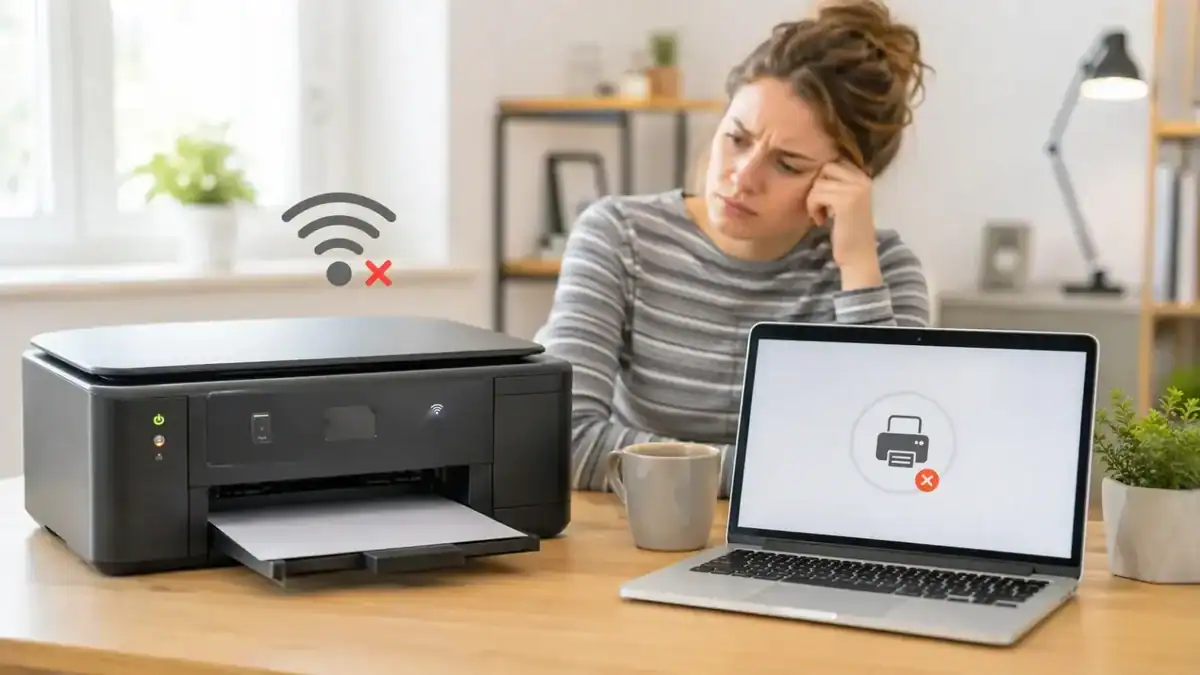
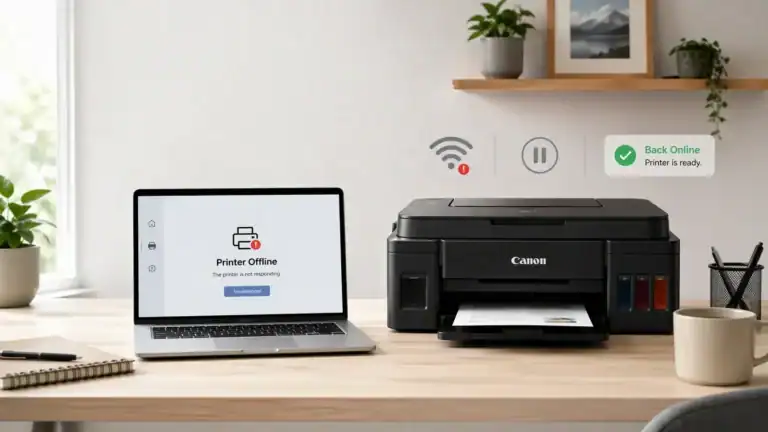
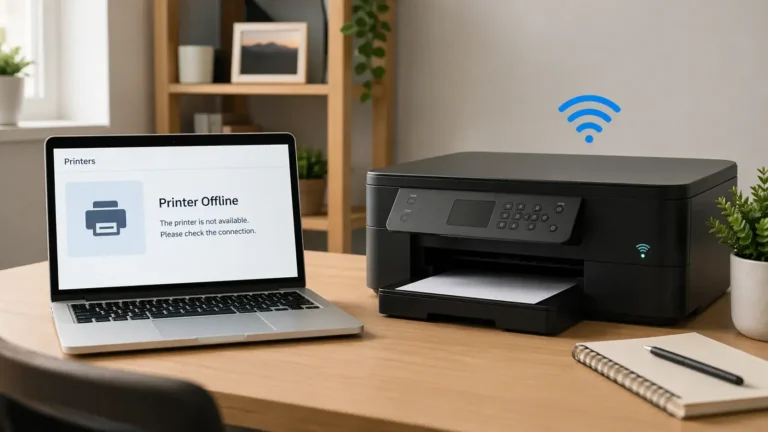
If your printer keeps going offline, the problem is usually not that the printer is broken. In most cases, the printer is losing communication with your computer or network repeatedly.
That is why a quick restart may help once, but the message comes back later.
The best way to fix a printer that keeps going offline is to stop treating it like a one-time error. Instead, look for the repeat trigger. Does it happen after the printer sleeps? After the router restarts? Only on one computer? Only on Wi-Fi? Those patterns usually point to the real cause.
This guide is for that recurring problem. If your printer only went offline once, you may need a broader printer offline fix. But if it keeps dropping offline again and again, start here.
Why Does My Printer Keep Going Offline?
Table of Contents
Why does your printer keep going offline?
A printer showing offline usually means your device cannot talk to it properly. That communication can break for a few different reasons.
1. The Wi-Fi connection is unstable
This is one of the most common reasons. Your printer may connect fine at first, then disappear later because the signal is weak, the network is crowded, or the printer keeps losing its wireless connection.
This often happens when:
• The printer is far from the router
• the signal drops in one part of the house
• The printer reconnects slowly after sleeping
• The router has restarted, and the printer has not rejoined properly
2. The printer is connected to the wrong network
Many people have more than one network name at home, such as a main network and a guest network, or separate 2.4 GHz and 5 GHz bands.
If your computer is on one network and the printer is on another, the printer may look fine on its own screen but still appear offline on your computer.
3. The printer’s IP address keeps changing
This is a major cause of repeat offline problems on network printers.
Your router can assign a different IP address to the printer after a restart, after the printer wakes up, or after the network refreshes. If your computer is still trying to reach the old address, the printer may keep showing offline until it is removed and added again.
That is why some printers work for a while, then suddenly disappear even though nothing looks broken.
4. Sleep mode or power-saving settings cause reconnection issues
Some printers do not wake cleanly from sleep. They may still look powered on, but the network connection does not fully come back. That can make the printer say offline after sitting unused for a while.
If your printer works right after you turn it on, then goes offline after being idle, sleep settings may be involved.
5. A stuck print queue keeps causing problems
A jammed or frozen print job can make the printer appear unavailable. Sometimes the printer is not truly disconnected. Instead, the queue is stuck, and Windows or your print app keeps showing the printer as offline or unavailable.
This is also why a printer can seem fine one minute and fail again the next time you try to print.
6. The print spooler is glitching
The print spooler is the service that manages print jobs on your computer. If it freezes, crashes, or gets stuck, your printer may keep dropping offline until the service is restarted.
This is more likely when:
• Jobs stay stuck in the queue
• the printer disappears and comes back
• printing works after a restart, then fails again later
7. The wrong printer is selected, or duplicate printers exist
Sometimes your computer is not talking to the correct printer entry at all.
You may have:
• an old printer copy saved from a past setup
• a duplicate printer entry
• a virtual or old default printer is selected automatically
• a printer entry tied to an outdated port
This can make it look like the printer keeps going offline when the real issue is that your computer is sending jobs to the wrong device entry.
8. The driver is outdated, corrupted, or mismatched
Printer drivers help your computer talk to the printer correctly. If the driver is damaged, outdated, or not matched properly to your printer and operating system, communication problems can keep returning.
This is especially common after:
• a major system update
• switching computers
• reinstalling the printer with a generic driver
• using an old driver package from years ago
9. USB cable, hub, or port problems
If your printer uses USB instead of Wi-Fi, the issue may still repeat for the same reason: unstable communication.
A loose cable, faulty USB port, or unreliable hub can make the printer disconnect and reconnect, which often shows up as an offline status.
How to tell which cause you probably have
It goes offline after sitting idle
This usually points to sleep mode, power-saving behavior, or a network reconnection problem.
It goes offline after the router or printer restarts
This often points to a changing IP address or the printer reconnecting to the network differently than before.
It is offline on one computer, but works on another
That usually means the issue is on that computer, not the printer itself. Common causes include the wrong default printer, duplicate printer entries, a stuck queue, a spooler issue, or a bad driver installation.
It comes back after a restart, then fails again later
That usually means the restart is only clearing the symptom. The real cause may be an unstable connection, an IP issue, sleep behavior, or a queue problem that keeps returning.
The printer screen looks ready, but the computer says offline
This often means the printer itself is on, but your computer is not reaching it correctly. That can happen with the wrong network selection, outdated printer entries, port problems, or driver issues.
What to do first when your printer keeps going offline
Work through these steps in order. This helps you avoid changing too many things at once.
Restart everything in a clean order
Turn off the printer. Restart your router. Wait until the router is fully back online. Then turn the printer back on. After that, restart your computer.
This simple order helps refresh both the network and the printer connection.
If your printer only goes offline occasionally, this may solve it. If it keeps happening, keep going.
Make sure the printer and computer are on the same network
Check the network name on your computer and compare it with the printer’s network settings or wireless report.
If your printer joined a guest network, an old network, or a different band setup, reconnect it to the same main network your computer uses.
This is one of the most overlooked reasons for a printer showing offline.
Wake the printer and check its screen
Do not rely only on what your computer says. Look at the printer itself.
Check whether:
• the printer is awake
• the display shows any warning or error
• the Wi-Fi icon looks connected
• There are messages about paper, ink, or setup problems
A printer can look offline on your computer when the real issue is that it never woke up properly or is waiting for another error.
Set the printer as the default printer
If your computer keeps switching between printer entries, the wrong one may be selected without you noticing.
Set the printer you actually use as the default. This is especially helpful if you have old printer entries, PDF printers, or multiple copies of the same device installed.
Clear the print queue
Open the printer queue and cancel anything that is stuck.
A frozen print job can keep the printer from responding normally. Once the queue is clear, try printing a simple one-page document.
Restart the print spooler
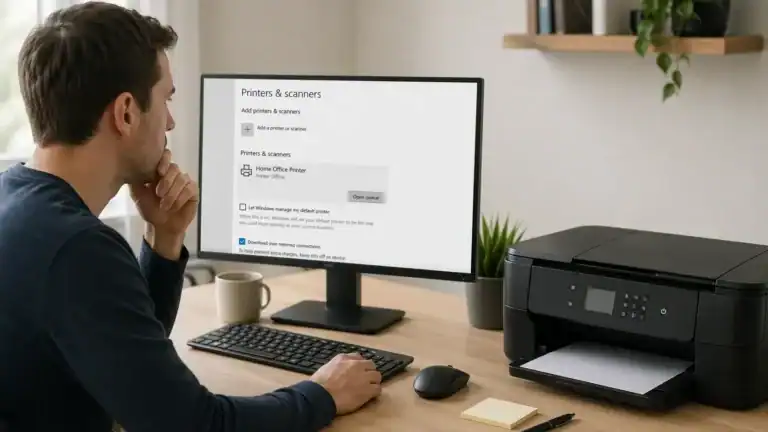
If clearing the queue does not help, restart the print spooler service on your computer. On Windows, Microsoft’s printer troubleshooting steps can help you check offline settings, clear stalled jobs, and work through the usual recovery steps.
This is often the fix when the printer keeps showing offline even though the connection looks normal.
Make sure “Use Printer Offline” is not turned on
This setting can get enabled by mistake or remain active after another issue.
If it is turned on, your computer may keep treating the printer as unavailable even when the printer is actually ready.
Remove duplicate printer entries
If you see multiple copies of the same printer, remove the ones you are not using.
Keep the working printer entry and test with that one only. This reduces confusion and helps your computer connect to the correct device.
Fixes that help stop the problem from coming back
Give the printer a stable IP address
If your printer keeps going offline after router restarts or random reconnects, the IP address may be changing.
A stable IP can help because your computer keeps talking to the same printer address instead of chasing a new one each time the network refreshes.
Depending on your setup, this may be done by reserving the printer’s IP in the router, assigning a manual IP through the printer’s network settings, or re-adding the printer using the correct network address.
You do not need to do this for every home printer. But when the offline problem keeps returning on a network printer, this is one of the most useful long-term fixes.
Re-add the printer
If your computer saved the wrong printer entry, port, or old connection details, remove the printer and add it again.
This is especially helpful when the printer used to work but stopped after a network change, you switched routers, the printer changed IP address, the printer was installed more than once, or the driver setup looks messy or incomplete.
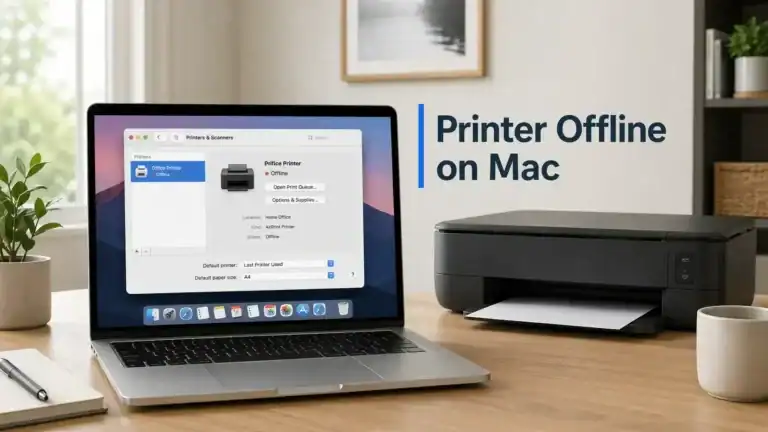
If you use a Mac, Apple’s guide to solve printing problems on Mac can help you re-add the printer cleanly or reset the printing system if needed.
Update or reinstall the driver
If the printer driver is outdated or damaged, the problem can keep coming back no matter how many times you restart the printer.
Download the correct driver from your printer maker’s official support page for your exact model and operating system, then install it cleanly.
If you have already updated the driver and the issue continues, remove the printer completely and reinstall it.
Check sleep and power-saving settings
If the printer goes offline after inactivity, look at sleep, auto-off, or power-saving settings.
Not every printer gives you much control here, and the exact options depend on the model. But when this problem starts after the printer sits unused, it is worth checking whether the device is going into a deeper sleep state than expected.
You do not need to disable every power-saving feature forever. The goal is to see whether sleep behavior is causing the disconnect.
Improve the network connection
If the printer is on Wi-Fi and drops offline regularly, improve the connection before blaming the printer.
Try these changes:
• move the printer closer to the router
• avoid placing it behind thick walls or cabinets
• keep it on the main home network
• reduce interference from crowded wireless spots
• Use Ethernet if your printer supports it
A wired Ethernet connection is often more stable than Wi-Fi for printers that keep disappearing from the network.
Connect USB printers directly
If your printer uses USB, plug it directly into the computer instead of through a hub or docking station.
Also, try a different USB port, a different cable, and reconnecting after restarting the computer.
This helps rule out unstable connections that can make the printer keep showing offline.
How to prevent the problem from coming back
Keep the printer on one main network
Avoid moving it between networks or letting it reconnect to a guest connection.
Do not keep multiple unused printer copies installed
Too many saved printer entries can cause confusion later.
Keep the driver updated
If the manufacturer offers a newer stable driver or firmware update for your model, it may help with repeated communication issues.
Watch for the trigger pattern
If the printer goes offline after sleep, after router restarts, or only on one computer, that pattern matters. It usually tells you where the real problem is.
Use a stable setup when possible
If Wi-Fi has been unreliable for weeks, a wired connection may be the cleaner answer than repeating the same reset steps over and over.
When this is really a different problem
The printer says offline, but is connected
That is a more specific problem where the printer appears connected, but the computer still cannot use it properly. If that is your exact symptom, you may need a more focused connected-but-offline guide.
The printer is online, but not printing
If the printer looks available but nothing comes out, the issue may be the queue, driver, app, file, or printer hardware rather than an offline connection problem.
The printer shows a paper, ink, or hardware error
If the printer screen itself shows an error, deal with that first. Your computer may only be reporting offline because the printer is blocked by another issue.
Final takeaway
If your printer keeps going offline, the fix is usually not just turning it off and on again. The real solution is finding the repeating cause.
For most people, the main suspects are unstable Wi-Fi, the wrong network, a changing IP address, sleep mode reconnection issues, stuck queue or spooler problems, duplicate printer entries, driver issues, or unstable USB connections.
Start with the simple checks, then focus on the pattern. Once you fix the repeat trigger, the offline message usually stops coming back.
FAQ section
Why does my printer keep going offline even when it is connected?
This usually means the printer is powered on, but your computer is losing communication with it. Common causes include unstable Wi-Fi, a changing IP address, duplicate printer entries, stuck print jobs, or driver problems.
Can sleep mode make a printer go offline again and again?
Yes. Some printers do not reconnect cleanly after sitting idle. If the printer works after you wake it up or restart it, and then goes offline later, sleep or power-saving behavior may be part of the problem.
Does a changing IP address cause printer offline problems?
It can. If the printer gets a new IP address from the router, your computer may still be trying to reach the old one. That is why some printers work for a while, then suddenly go offline again.
Why does my printer go offline after I restart my router?
A router restart can force the printer to reconnect to the network and sometimes receive a different IP address. If your computer still has the old connection details saved, the printer may show offline until it is refreshed or re-added.
Why is my printer offline on one computer but not another?
That usually means the printer is fine and the problem is on that one computer. Check the default printer, queue, spooler, printer entry, and driver on the affected device.
Should I give my printer a static IP address?
Not always, but it is worth considering when a network printer keeps going offline repeatedly. A stable IP can help stop random disconnects caused by changing network addresses.
Can a stuck print queue make a printer look offline?
Yes. A stuck job can block normal printing and make the printer seem unavailable. Clearing the queue and restarting the print spooler often helps.
What should I do if my printer keeps going offline after I reinstall it?
Go back to the pattern. If reinstalling helps only for a short time, the root cause is often unstable Wi-Fi, a changing IP address, sleep-related reconnection trouble, or a bad port or cable.
Short excerpt
If your printer keeps going offline, the issue is usually a repeated communication problem, not a one-time glitch. This guide explains the most common recurring causes, how to spot the real trigger, and what to do so the problem stops coming back.