Canon Printer Offline: How to Fix It

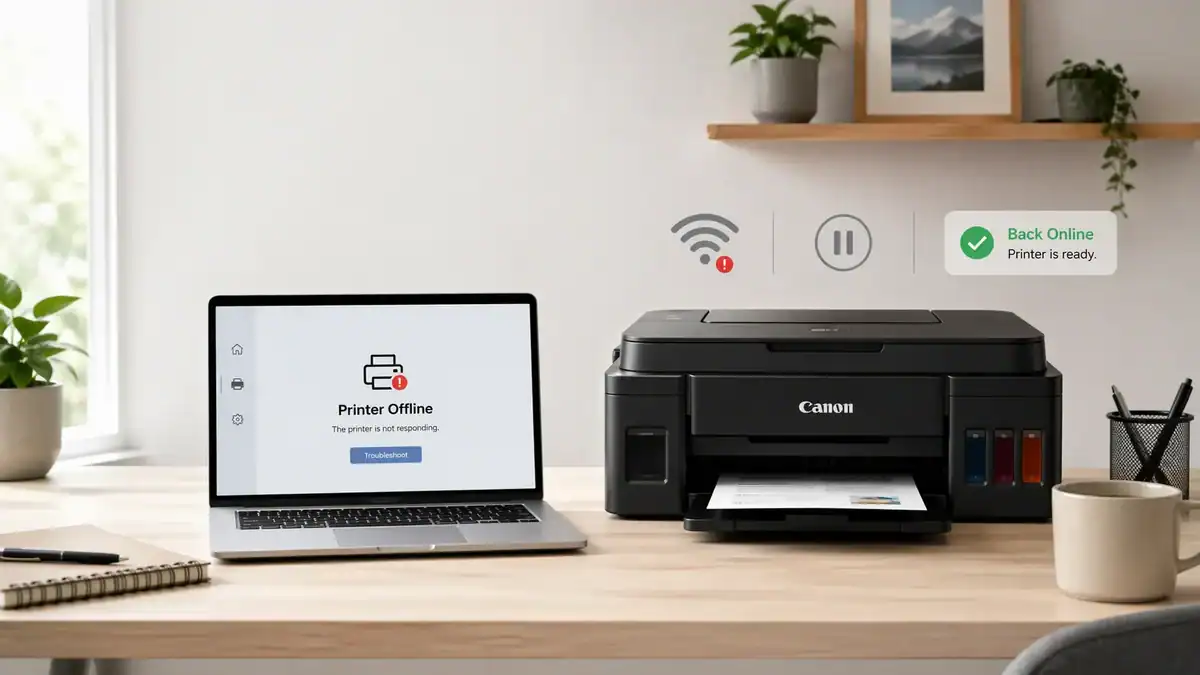
If your Canon printer is offline, the problem is usually not the printer itself. In many cases, the printer has lost its connection, your computer is using the wrong Canon printer entry, or the print queue is stuck.
The fastest way to fix it is to check the connection first, confirm you selected the correct Canon printer, turn off offline mode, and then reconnect the printer if needed.
This guide is focused on Canon-specific offline troubleshooting. It is not a general printer offline guide, and it is not a full Windows or Mac tutorial. The goal is simple: help you get your Canon printer back online with the least amount of guesswork.
Table of Contents
Why is my Canon printer offline?
A Canon printer can appear offline for a few common reasons:
- The printer is turned on, but the USB or Wi-Fi connection has dropped
- Your computer is using the wrong Canon printer entry
- An old Canon printer queue is still saved and set as the default
- The printer is stuck in offline mode
- A print job is frozen in the queue
- The Canon driver is missing, outdated, or mismatched for the printer you are using
- The printer disconnected from your Wi-Fi network after a restart, router change, or password change
This is why random fixes often do not work. You need to check the most likely cause in the right order.
Start here: 3 quick checks before changing settings
Before opening menus or reinstalling anything, do these quick checks.
1) Make sure the printer is actually on and ready
Look at the printer screen or status lights. If the printer shows a paper jam, low ink warning, Wi-Fi warning, or another error, deal with that first. A Canon printer may show offline on your computer when the printer is really blocked by a different issue.
2) Check how your Canon printer is connected
If you use a USB cable:
- Make sure the cable is fully connected at both ends
- Try another USB port on the computer
- Avoid USB hubs if possible
If you use Wi-Fi:
- Make sure the printer is connected to the same network as your computer
- If your router was restarted, replaced, or renamed, the printer may no longer be on the correct network
- If the printer is far from the router, a weak signal can cause it to disappear and show offline
3) Restart the printer, computer, and router
This sounds basic, but it often fixes temporary communication problems.
Use this order:
- Turn off the Canon printer
- Restart your computer
- Restart the router if you use Wi-Fi
- Turn the printer back on
- Wait a minute, then try printing again
If the printer is still offline, move to the next step.
Step 1: Make sure you selected the right Canon printer
This is one of the most common Canon-specific problems.
Many users have more than one Canon printer entry saved on the computer. One may be an old USB setup, another may be a wireless setup, and a third may be a duplicate created during reinstalling. Your computer may be sending jobs to the wrong one.
Set the working Canon printer as the default
Open your printer list and look carefully at the Canon names shown there. If you see more than one Canon printer with similar names, check which one is active now.
A good sign of the correct printer is that it matches the way you currently use it:
- USB setup if the printer is connected by cable
- Wireless setup if the printer is connected by Wi-Fi
Set the correct Canon printer as the default printer, then try a small test print.
Remove old or duplicate Canon printer entries
If you see multiple old Canon printer entries and you know some are not in use anymore, remove the duplicates you do not need.
This matters because offline errors often happen when the computer keeps trying to use an old Canon queue instead of the current one.
Do not remove everything at once unless you are ready to set the printer up again. Start by removing obvious duplicates and old inactive entries.
Check the Canon driver name
Canon printers often work best when the installed Canon printer entry matches the proper Canon driver for that exact setup. If the printer name and driver do not line up, the printer may appear offline even though it is connected.
If you recently changed computers, upgraded the operating system, or re-added the printer after a network change, this becomes more likely.
Step 2: Turn off offline mode and clear the queue
Sometimes the printer is available, but the print queue is stuck in a way that keeps it offline.
Turn off “Use Printer Offline”
Open the print queue for your Canon printer and check whether offline mode is enabled. If it is, turn it off.
If you use Windows and cannot find the queue or offline setting, Microsoft’s troubleshooting guide for offline printers can help.
Clear stuck print jobs
A frozen print job can block the queue and make the Canon printer look offline when the real issue is that the job never finished properly.
Delete any pending jobs, then wait a few seconds and try again.
If you are printing from a Mac, Apple’s Print Center guide shows how to view the queue and remove stuck jobs.
After clearing the queue, send one small test page only. Do not send multiple jobs while testing.
Watch what happens next
After clearing the queue, one of three things usually happens:
- The printer comes back online and prints normally
- The printer comes online, but still does not print
- The printer stays offline
If it comes online but does not print, the problem may be closer to a not-printing issue than a real offline issue.
Step 3: Check the connection based on how your Canon printer is set up
The next fix depends on whether you use USB or Wi-Fi.
For USB-connected Canon printers
USB is simpler, so if a Canon USB printer says offline, check these first:
- Try a different USB port
- Replace the USB cable if it is worn or loose
- Disconnect and reconnect the printer
- Avoid adapters and USB hubs during testing if possible
If the Canon printer still shows offline over USB, the issue may be the saved printer entry or the installed driver rather than the cable itself.
For Wi-Fi Canon printers
Wi-Fi Canon printers go offline more often than USB printers because there are more points where communication can fail.
Check these next:
- Confirm the printer is still connected to your current Wi-Fi network
- Make sure your computer is on the same network as the printer
- Move the printer closer to the router if the signal is weak
These checks matter most after changing the Wi-Fi password, replacing the router, moving the printer, setting up a new computer, or recovering from a power outage.
Step 4: Reconnect your Canon printer to the network
If your Canon printer is on Wi-Fi and still offline, reconnecting it is often the most useful next step.
Use Canon setup tools when available
Depending on your model, reconnecting may be easier through Canon’s Wi-Fi Connection Assistant or the Canon PRINT app instead of trying random settings by hand.
These tools can help you rediscover the printer, reconnect it to the network, and confirm whether the printer and computer can still communicate.
Reconnect carefully after any network change
If your Wi-Fi name or password has changed, the printer may still be trying to connect to the old network.
In that case, reconnect the printer to the current network and then remove any outdated printer entries left on your computer.
Test from one device first
Do not test from several devices at the same time. Reconnect the printer, then print a small page from one computer or phone first. Once that works, move on to other devices.
Step 5: Refresh Canon software only if the earlier steps fail
Do not jump straight to reinstalling drivers. It helps in some cases, but it is usually better after connection and queue checks.
Reinstall the correct Canon driver for your exact model
If the driver is damaged, outdated, or tied to an old setup, reinstall the correct software from the Canon Support page for your exact model rather than using a generic driver tool.
Make sure you choose the exact model name. Similar Canon printer names can cause confusion, especially with home and office series that look alike.
Avoid generic driver tools
Do not rely on random driver updater tools. They often create more confusion and may install the wrong thing.
Remove outdated Canon printer entries after reinstalling
If the reinstall creates a fresh printer entry but the old offline one is still listed, make sure the new working entry is the one set as default. Otherwise, the same offline problem can continue even after reinstalling.
How to tell this is not really an offline problem
The printer shows online, but nothing prints
That is usually a different problem. It may be related to the queue, driver, ink system, paper settings, or a document-specific issue.
The printer works from your phone but not from your computer
That usually means the printer is connected, but the computer setup is wrong. The issue may be the saved printer entry, local driver, or queue on that computer.
The printer goes offline only sometimes
That often points to unstable Wi-Fi, duplicate printer entries, sleep-related connection drops, or an old network setup that was never fully removed.
What to do if your Canon printer is still offline
If you tried all the steps above and the printer is still offline, use this final diagnosis order.
Try printing from another device
If another device can print, the Canon printer is probably fine, and the issue is limited to the original computer.
Try USB if your model supports it
This is a useful test. If the printer works over USB but not Wi-Fi, the offline problem is probably network-related rather than a hardware problem.
Restart the setup from a clean state
If nothing else works, remove the inactive Canon printer entries, restart the computer, reconnect the printer, and install it again carefully.
Contact Canon support when the problem keeps returning
If the printer repeatedly disappears, drops off Wi-Fi, or refuses to stay online even after re-setup, official Canon support may be the right next step. At that point, the issue may depend on the exact model, firmware, or network environment.
A simple fix to remember
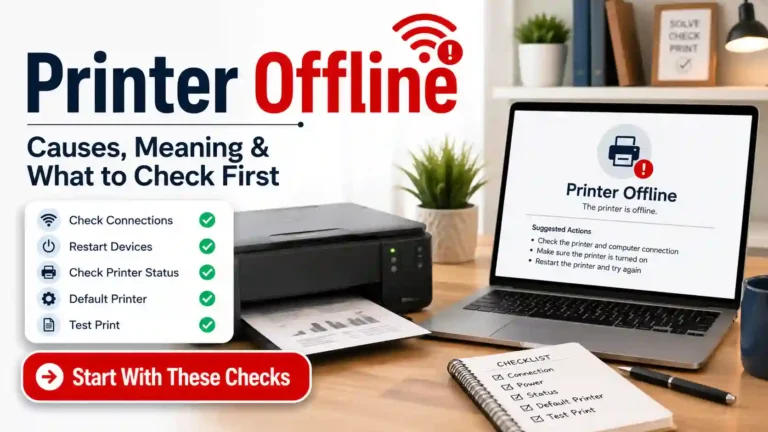
If you want the shortest version, use this order:
- Check power and current error messages
- Confirm USB or Wi-Fi connection
- Restart the printer, computer, and router
- Select the correct Canon printer and set it as the default
- Turn off offline mode
- Clear stuck print jobs
- Reconnect the printer to Wi-Fi if needed
- Reinstall the correct Canon driver only if the earlier steps fail
Final thoughts
If your Canon printer is offline, do not start with the hardest fix. In most cases, the real cause is one of four things: connection loss, the wrong Canon printer entry, offline mode, or a stuck queue.
Work through the steps in order. That gives you the best chance of fixing the problem quickly without turning a small issue into a full reinstall.
FAQ section
Why is my Canon printer offline even though it is turned on?
Because power is only one part of the connection. A Canon printer can still show offline if the USB cable is loose, the Wi-Fi connection drops, the wrong printer entry is selected, or the queue is stuck.
How do I get my Canon printer back online?
Start by checking the connection, restarting the printer and computer, selecting the correct Canon printer, turning off offline mode, and clearing any stuck jobs. If that does not work, reconnect the printer to Wi-Fi or reinstall the correct Canon driver.
Why do I see more than one Canon printer on my computer?
This usually happens after reinstalling the printer, switching from USB to Wi-Fi, or changing networks. Duplicate Canon entries can make the computer send jobs to the wrong printer, which can trigger offline errors.
Do I need to reinstall my Canon printer driver to fix the offline status?
Not always. Reinstalling the driver can help, but it is usually better to check the connection, printer selection, offline mode, and queue first. Many offline errors are caused by setup confusion rather than a broken driver.
Can Wi-Fi problems make a Canon printer show offline?
Yes. If the printer disconnects from the network, has a weak signal, or joins a different network than your computer, it may appear offline even though the printer is powered on.
What should I do if my Canon printer comes online but still does not print?
That usually means the issue is no longer true offline status. The next step is to check for a print queue problem, driver issue, or another printing error instead.
Short excerpt
Canon printer offline? This beginner-friendly guide explains the most common Canon-specific causes and the right fix order to get your printer back online.