Printer Not Printing Anything: What to Check

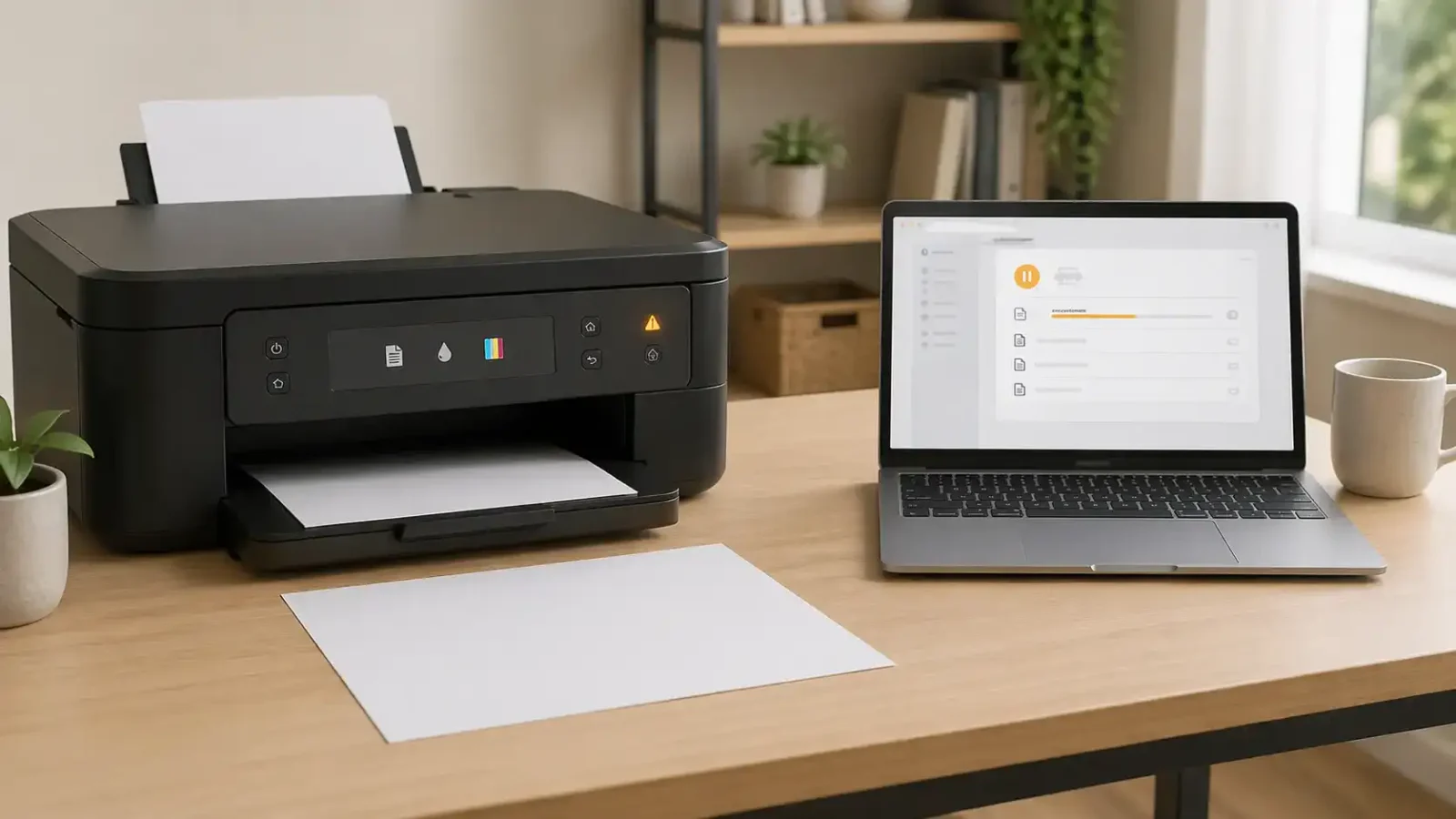
If your printer is not printing anything, start by checking whether the print job is stuck before it reaches the printer. A printer can look ready, connected, or available but still do nothing if the job is paused, sent to the wrong printer, blocked in the queue, stopped by the app, or waiting for paper, ink, toner, or a printer-side action.
This guide focuses on no-output problems: you click print, but nothing useful comes out. If you are not sure which symptom fits, use the broader printer not printing guide instead.
Table of Contents
First, check what “not printing anything” means
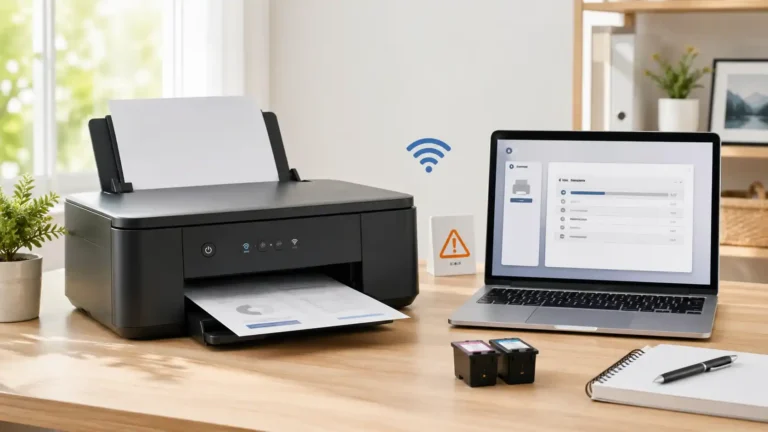
Before changing settings, identify what the printer is actually doing. This helps you avoid fixing the wrong problem. Printer not printing anything?
The printer does not react at all
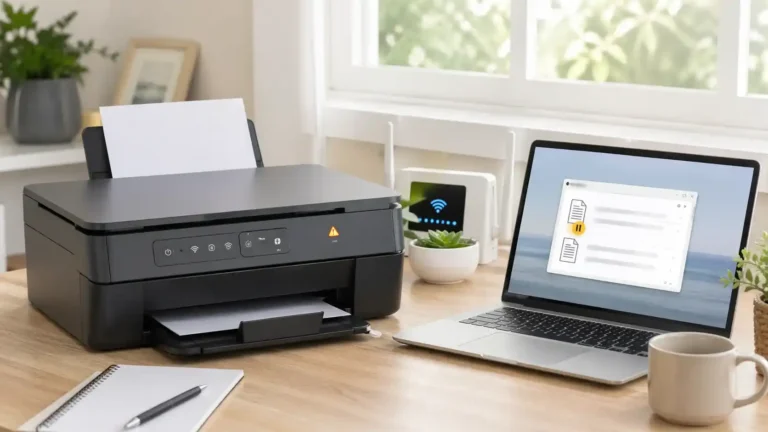
This usually means the job is not reaching the printer or the printer is not processing it. You may see the job sitting on your computer, staying pending, or disappearing without any printer movement.
Common causes include:
- Wrong printer selected
- Print queue paused or stuck
- Printer connection issue
- Driver problem
- App or document problem
- Spooler problem on the computer
The printer starts, but no paper comes out
If the printer makes noise but does not feed paper, the issue may be inside the printer rather than the document.
Possible causes include:
- Empty or misloaded paper tray
- Paper guides are set too tightly
- Wrong paper size selected
- Paper jam or jam sensor warning
- Printer waiting for a tray, paper type, or user action
The printer feeds paper but the page is blank
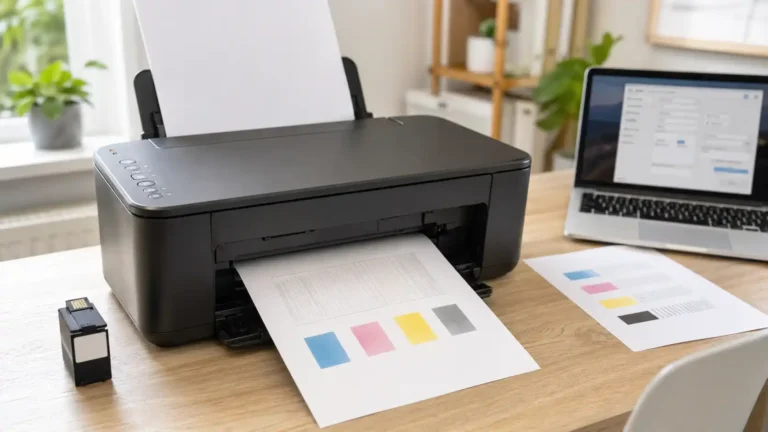
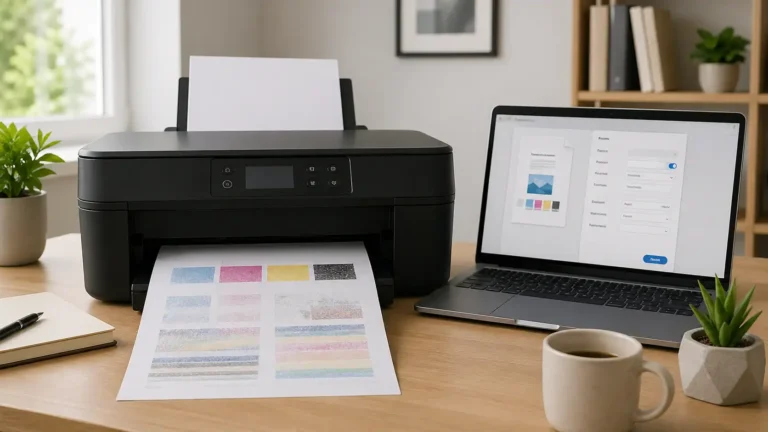
Blank pages are different from no movement at all. If the paper comes out blank, the printer may be receiving the job but not putting ink or toner on the page.
Possible causes include:
- Empty ink or toner
- Cartridge not installed correctly
- Protective tape left on a new cartridge
- Clogged printhead
- Toner or drum issue
- Printer maintenance problem
The job disappears, but nothing prints
If the print job vanishes from the computer but nothing comes out, check whether the job went to the correct device. Sometimes the document is sent to an old printer entry, a virtual printer, or Save to PDF instead of the real printer.
Step 1: Check the print queue
The print queue is the list of jobs waiting to print. If one job is stuck, paused, or not clearing, it can block everything behind it.
Open your printer’s queue and look for:
- Jobs marked pending
- Jobs stuck on deleting
- Old documents still waiting
- A paused printer or paused queue
- Multiple copies of the same document
- An error beside the current job
Cancel the oldest stuck job first. Then send one simple test page, not a large PDF or photo-heavy file.
On Windows, Microsoft’s print queue help is useful if jobs will not cancel or keep sitting in the queue. For deeper help on this site, use the print queue and spooler guide.
If jobs keep getting stuck, refuse to delete, or remain pending, the issue is probably a queue or spooler problem rather than a paper, ink, or toner problem.
Step 2: Make sure you selected the real printer
A printer can seem like it is not printing anything when the job is actually going somewhere else.
Check the printer name before sending the job. Avoid selecting:
- Save to PDF
- Microsoft Print to PDF
- Fax
- An old printer name
- A duplicate printer entry
- A printer marked offline
- A printer you no longer use
If you see two similar printer names, try the one that matches your current connection. For example, a printer may appear once as a network printer and once as an older USB setup.
After selecting the correct printer, print a one-page test document.
Step 3: Try another app or file
Sometimes the printer is not the problem. The document or app may be failing to send the job correctly.
Try printing from a different source, such as:
- A simple text document
- A one-page PDF
- A basic web page
- A different browser
- A different app
If one file will not print but another file prints normally, the issue is likely with the original file or app settings. Large PDFs, damaged files, unusual fonts, or image-heavy pages can sometimes fail while simple documents print fine.
Step 4: Restart the printer and your device
A restart can clear temporary communication, queue, or printer memory problems.
Use this order:
1. Cancel any stuck jobs in the queue.
2. Turn off the printer.
3. Unplug the printer from power.
4. Wait briefly.
5. Plug it back in.
6. Turn the printer on and let it fully start.
7. Restart the computer, phone, or tablet.
8. Try one simple test print.
Do not send the same document many times while waiting. That can create duplicate jobs and make the queue harder to clear.
Step 5: Check paper, tray, and printer messages
If the printer receives the job but does not feed paper, check the printer itself.
Look for:
- Empty paper tray
- Paper loaded unevenly
- Paper guides are pressing too tightly
- Paper size mismatch
- The rear tray is selected when paper is in the cassette
- Cassette selected when paper is in the rear tray
- Door or cover not fully closed
- Jam warning
- Paper type warning
Also, check the printer screen or printer app. Some printers wait silently for confirmation when the paper size, tray, or paper type does not match the job.
If your printer has a display, read the exact message before changing settings. A paper-mismatch warning needs a different fix than a stuck queue.
Step 6: Check ink, toner, and blank-page symptoms
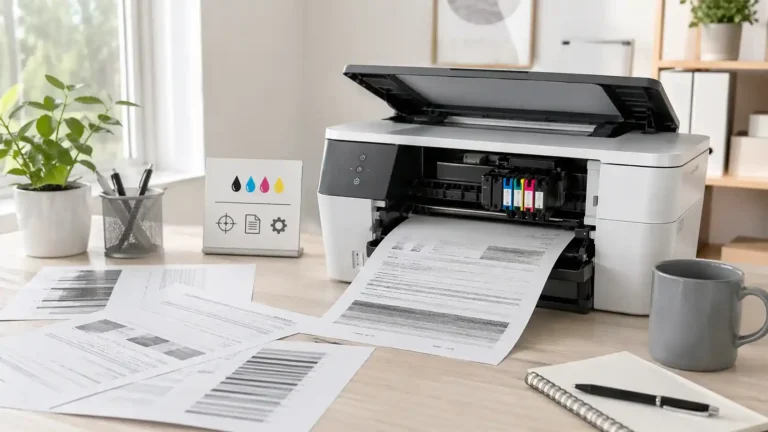
If the printer feeds paper but the page comes out blank, focus on supplies and print output.
Check:
- Ink or toner level
- Cartridge installation
- Protective tape or a sealing strip on a new cartridge
- Cartridge door or latch
- Printhead warning
- Toner or drum warning
- Maintenance alerts in the printer app
For inkjet printers, a clogged printhead can cause blank or nearly blank pages. For laser printers, blank pages may point to toner, drum, cartridge seating, or transfer problems.
If your printer has a built-in test page, nozzle check, or printer status report, run it from the printer’s own menu if available. Avoid guessing the exact menu path unless you are using your model’s manual.
The result matters:
- If the printer’s own test page prints, the printer hardware may be working, and the issue may be with the computer, app, driver, or queue.
- If the printer’s own test page does not print, the issue is more likely inside the printer, supplies, paper path, or print mechanism.
Step 7: Check whether the driver is involved
A driver helps your computer send the print job in a format the printer can understand. If the driver is damaged, outdated, mismatched, or pointing to the wrong printer entry, the printer may receive nothing useful.
Driver issues are more likely if:
- The printer can print its own test page, but not from the computer
- Jobs disappear without output
- The problem started after a system update
- You see duplicate printer entries
- The printer was recently reinstalled
- Only one computer has the problem
Try removing duplicate printer entries first. Then reinstall the printer through your system settings or the manufacturer’s official setup method.
Avoid random driver download websites. Use the printer manufacturer’s official support page when you need model-specific software.
Step 8: Check the connection after the basic no-output checks
Connection issues can cause no output, but do not start there if the queue is clearly stuck or the wrong printer is selected.
For USB printers
Check that the USB cable is firmly connected at both ends. Try a different USB port on the computer. If the printer is connected through a USB hub, connect it directly to the computer for testing.
If the printer appears only sometimes, the cable or port may be part of the problem.
For Wi-Fi printers
Make sure the printer and your computer or phone are on the same network. This matters especially if your router has separate network names, guest Wi-Fi, extenders, or both 2.4 GHz and 5 GHz networks.
Try printing from another device. If another device prints successfully, the issue is probably limited to the first computer, app, driver, or queue.
On a Mac, Apple’s printing problems page can help when the printer does not appear, the Mac is on a different network, or the printer setup needs to be checked.
Step 9: Know when it is probably a hardware problem
Basic troubleshooting cannot fix every no-output issue. The printer may need model-specific support or repair if the problem is inside the printer.
Hardware is more likely if:
- The printer cannot print its own test page
- The paper never feeds, even when loaded correctly
- The printer makes grinding or clicking sounds
- Ink or toner errors will not clear
- A cartridge is not detected after reseating
- The printer shows a service or hardware error
- The control panel does not respond
- The same problem happens on every device
At that point, check the official manual for your exact model. If the printer is under warranty, use the manufacturer’s support option before trying risky repairs.
Quick checklist: printer not printing anything
Use this order:
1. Check the print queue.
2. Cancel stuck or old jobs.
3. Confirm the correct printer is selected.
4. Try a simple file from another app.
5. Restart the printer and device.
6. Check the paper tray and printer screen.
7. Check the ink or toner if blank pages come out.
8. Run a printer test page if available.
9. Reinstall the printer or driver if only the computer printing fails.
10. Use official support if the printer cannot print its own test page.
Related printing problems
If your issue is broader than no output, use the main printer not printing guide.
If print jobs are stuck, pending, deleting, or blocking other jobs, use the print queue and spooler guide.
If the printer says offline, treat it as an offline issue.
If the computer says driver unavailable, treat it as a driver issue.
If the printer is connected but not printing, that is close to this problem, but not always the same. This page is focused on cases where the printer seems available or receives the job, but nothing comes out.
FAQ section
Why is my printer not printing anything, even though it is on?
Your printer may be on, but not receiving or processing the job. Check the print queue, selected printer, paper tray, printer screen, and whether a test page prints from the printer itself.
What should I check first when my printer prints nothing?
Start with the print queue. A stuck, paused, or pending job can stop everything behind it. After that, confirm the correct printer is selected and try a simple one-page test print.
Why does my print job disappear, but nothing prints?
The job may have been sent to the wrong printer, an old printer entry, or a virtual printer. It can also happen when the driver or app fails to send the job correctly.
Is this the same as printer offline?
Not always. A printer can appear online or ready but still print nothing because of a queue, app, driver, paper, ink, toner, or hardware issue. If the printer specifically says offline, troubleshoot it as an offline problem.
Why does my printer make noise, but no paper comes out?
The printer may be trying to feed paper, but cannot. Check the paper tray, paper guides, paper size setting, jam warnings, and any message on the printer screen.
Why is my printer printing blank pages?
Blank pages usually mean the printer is receiving the job but not putting ink or toner on the paper. Check ink or toner, cartridge installation, printhead condition, and the printer’s own test page.
Should I reinstall the printer driver?
Reinstall the printer or driver if simpler checks do not work and the printer can print its own test page. If the printer’s own test page fails, the issue is more likely with the printer, supplies, or hardware.
When should I contact official printer support?
Contact official support if the printer cannot print its own test page, shows a service error, repeatedly fails to feed paper, or has cartridge, toner, or hardware errors that do not clear.
Short excerpt
Printer not printing anything, even though it looks ready? Check the queue, selected printer, app, paper, ink or toner, driver, and hardware in the right order.