HP Printer Offline But Connected to Wi‑Fi? What to Check First

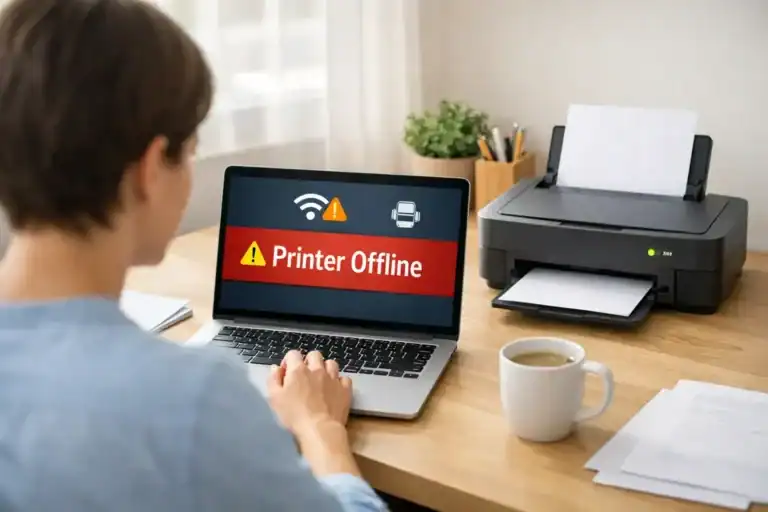
If your HP printer is connected to Wi‑Fi but still shows Offline, the problem is usually not the wireless connection alone. In many cases, the printer is still on the network, but your computer, phone, or app is talking to the wrong printer entry, an old IP address, a stuck print queue, or a broken driver. That is why the printer can look connected on its screen or in the HP app and still appear offline when you try to print.
This guide covers one specific situation: your HP printer is on Wi‑Fi, but your device still says it is offline. It is not the same as a general printer offline guide, and it is not the same as a printer that is connected but simply not printing. Why Is My Hp Printer Offline But Connected To Wifi?
Table of Contents
Why your HP printer can be offline even when it is connected to Wi‑Fi
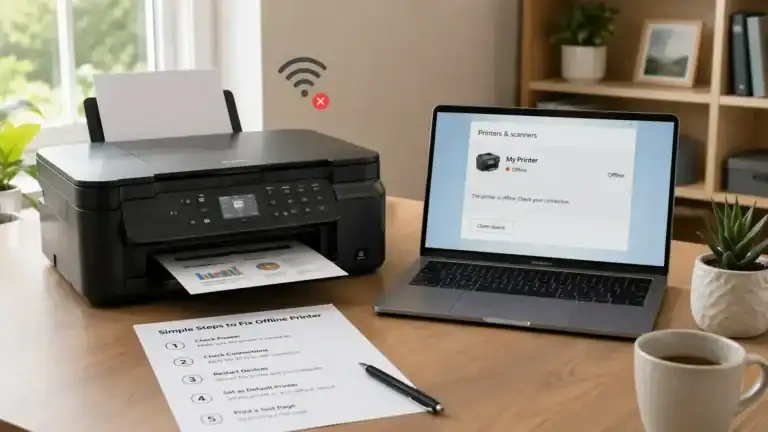
“Connected to Wi‑Fi” only means the printer joined a wireless network. It does not always mean your computer is reaching the correct printer queue.
That mismatch can happen for a few common reasons:
- The printer and computer are on different Wi‑Fi networks or bands
- The printer got a new IP address after the router restarted
- Windows or Mac is using an older printer entry
- A stuck print job is blocking communication
- The driver or HP software is out of sync
- The app is showing an old status even though the printer is still on the network
A simple way to think about it is this: the printer may still be online to the router, but offline to your device.
What to check first
Make sure the printer itself looks ready
Look at the printer screen or lights first. Make sure the printer is awake, fully powered on, not paused, and not showing a paper jam, low-ink warning, or another error. If your model has a wireless light, it should look normal for that printer and not keep flashing like it is still trying to reconnect.
Confirm it is on the same Wi‑Fi as your computer or phone
This is one of the most common causes. Your HP printer may be connected to Wi‑Fi, but not to the same Wi‑Fi your device is using. For example, your laptop may be on a guest network, or your printer may still be saved to an older network name. Microsoft’s official offline printer troubleshooting for Windows also starts by checking that the printer is on the same network as the device.
See whether the problem happens on one device or on every device
This check saves time. If only one computer shows the HP printer offline, the problem is usually local to that device. If every device shows the printer offline, the problem is more likely the printer’s network path, Wi‑Fi connection, or router setup.
Restart in the right order
Do not only restart the printer. Restart the full connection path instead:
- Turn off the printer
- Restart your computer or phone
- Restart the router if the printer is wireless
- Turn the printer back on and wait for Wi‑Fi to reconnect
This clears temporary status errors and refreshes the connection between the device, router, and printer.
If only one computer shows the HP printer offline
Check the selected printer carefully
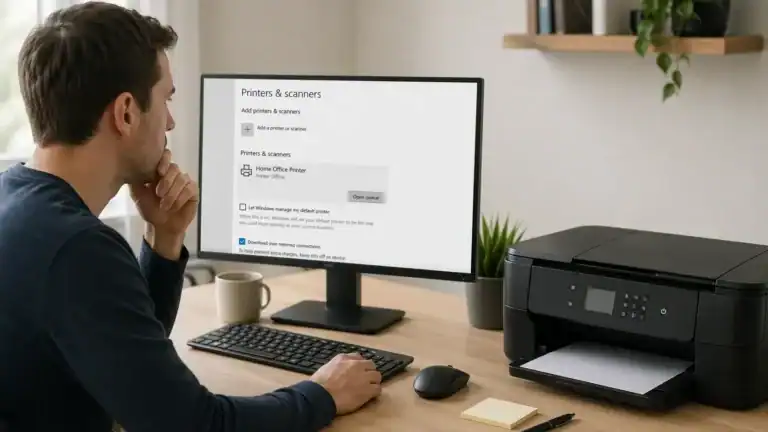
On many systems, the same HP printer can appear more than once. You may see a current wireless printer, an older saved printer, a USB version, or a duplicate queue created by HP software or the operating system. If your device is trying to print to the wrong copy, it can show Offline even though the real printer is still connected.
Remove duplicate entries you do not use and keep the one that is actually active.
Set the correct HP printer as the default
If the wrong default printer is selected, jobs can keep going to an inactive queue. This is a small setting, but it can make a working printer look offline.
Check whether “Use Printer Offline” is turned on
On Windows, this setting can make a working printer appear offline even when the printer itself is fine. If your HP printer is connected but still shows offline on one PC, this is one of the first settings to inspect.
Clear the queue and status confusion first
Open the queue and cancel old jobs
A stuck print job can make an HP printer look offline even when the network connection is still there. Open the queue, cancel any failed or frozen jobs, and then try one fresh test page.
Restart the Print Spooler on Windows
If the queue keeps getting stuck, restart the Print Spooler service. Microsoft’s guide to fixing print jobs stuck in the queue can help if jobs stay in “printing” forever or the printer flips between online and offline on one PC.
On Mac, re-add the printer or reset the printing system if needed
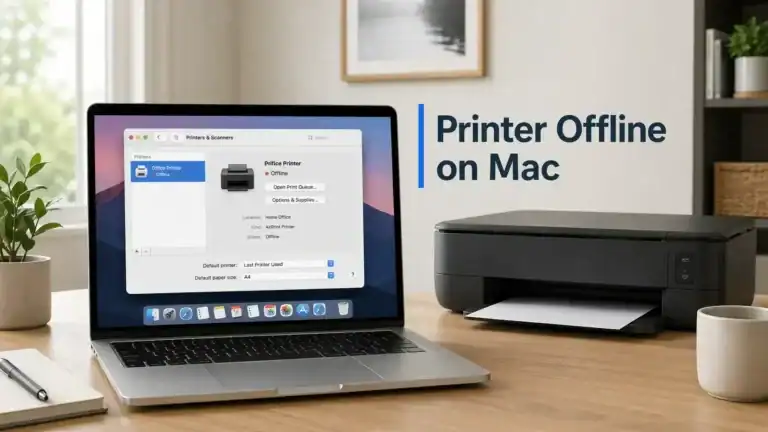
If the printer is only affected on a Mac, try re-adding the printer first. If that does not help, Apple’s guide to resetting the printing system on Mac is the official next step when queues or printer setup problems do not clear.
Check for an IP address mismatch
This is one of the biggest reasons an HP printer can be connected to Wi‑Fi but still show offline. Your printer may reconnect to the router with a new IP address, but your computer may still be trying to reach the old one. When that happens, the printer looks connected on its own screen, but the device sees it as offline.
Signs this is the issue
- The printer went offline after a router restart
- It works for a while, then disappears again
- One printer entry works, and another does not
- The HP app can see the printer, but the computer queue still says offline
What to do
Find the printer’s current IP address, then compare it with the printer entry your computer is using. If they do not match, remove the old printer and add it again so the system creates a fresh connection. HP’s support steps for finding a printer IP address can help if you are not sure where to look.
If every device shows the HP printer offline
Recheck the wireless connection on the printer
Even if the printer says it is connected, it may have joined the wrong network, saved an old password, or reconnected weakly after a setup change. HP’s wireless printer troubleshooting is useful when you suspect the printer itself needs to reconnect to Wi‑Fi.
Watch for guest network or router isolation issues
Some routers separate devices so they cannot talk to each other properly. This can happen when the printer is on a guest network, your phone is on one network, and the printer is on another, or the router blocks device-to-device traffic.
Move the printer closer to the router if the signal is weak
A weak signal can create a connected-but-unreliable state. The printer may stay on Wi‑Fi but drop long enough for the computer to mark it offline.
Check the driver or HP app only after the basics
Many pages jump straight to reinstalling everything. That is usually too early. First, rule out the wrong network, wrong printer entry, stuck queue, IP mismatch, and offline setting on the computer. After that, move to software.
Re-add the printer
Re-adding the printer is helpful when the device keeps showing an old status, you see duplicate queues, the printer was moved to a new router, or HP Smart and the operating system disagree about whether the printer is online.
Update the driver or HP software
An outdated or corrupted driver can cause status confusion or failed communication. If basic checks did not help, update the printer software and driver. Microsoft’s printer driver help is useful on Windows, and HP also has model-specific software support if you need to reinstall the printer cleanly.
How to tell what kind of problem this really is
It is probably a network problem if:
- Every device shows the printer offline
- The printer recently changed Wi‑Fi networks
- The router was replaced or reset
- The printer disappears from the network completely
It is probably a queue or spooler problem if:
- Only one computer is affected
- Jobs are stuck in the queue
- The printer comes back after clearing jobs or restarting the spooler
It is probably a printer-entry or port problem if:
- You see duplicate HP printers
- One queue prints, and another says offline
- The printer went offline after a router restart
It is probably a driver or software problem if:
- The printer is visible on the network, but not usable on one device
- HP Smart and your system show different statuses
- The printer only returns after reinstalling or re-adding it
It may only be a status-display problem if:
- The printer still prints from one app or one device
- The offline warning appears briefly and then clears
- HP Smart lags behind the real printer state
This page covers one specific HP issue
This article is intentionally narrow so it does not overlap with broader pages. It is for an HP printer offline, but connected to Wi‑Fi, and the HP printer says offline, but is connected. It is not the main page for general printer offline fixes, all-brand connected-but-offline issues, or recurring cases where a printer keeps dropping offline over time.
If your HP printer is no longer offline but still does not print, that is a different problem and should be handled as a not-printing issue.
When to contact HP support
Try HP support or your router provider if the printer drops off Wi‑Fi again and again on every device, keeps getting a new connection after every restart, still fails after you re-add it, or never settles into a stable wireless connection.
In short, an HP printer can be connected to Wi‑Fi and still show offline because the real issue is often between the printer and the saved device connection, not between the printer and the router. Start with status, network match, and queue checks first. Then move to IP, printer entry, and driver checks only if needed. If you need extra help with HP-specific offline status, HP’s printer offline support page is a useful official reference.
FAQ
Why does my HP printer say offline when it is connected to Wi‑Fi?
Usually, because the printer is still on the network, but your computer or app is using the wrong queue, an old IP address, a stuck print job, or a broken driver connection.
Can a printer be connected to Wi‑Fi and still be offline on my computer?
Yes. A Wi‑Fi connection does not always mean your device is talking to the correct printer entry.
Is this a Wi‑Fi problem or a printer setting problem?
It can be either. If every device shows the printer offline, it is more likely a network problem. If only one device is affected, it is more likely a queue, setting, or driver problem on that device.
Can a stuck print queue make my HP printer appear offline?
Yes. A frozen queue can block communication and make the printer look offline even when it is still connected.
Why does my HP printer show offline on one laptop but not on another?
That usually points to a local problem on the affected laptop, such as the wrong default printer, duplicate printer entries, an old queue, or a spooler issue.
Can an IP address change cause an HP printer to go offline?
Yes. If the router gives the printer a new IP address, your computer may still be trying to use the old one.
Should I remove and re-add my HP printer?
Yes, if basic checks did not help, and you suspect an old printer entry, a duplicate queue, or an IP mismatch.
Does HP Smart showing Offline always mean the printer is disconnected?
No. Sometimes the app status is outdated, or the app is linked to an old printer entry.
Why does my HP printer come back online after a restart and then go offline again?
That often points to an IP change, weak Wi‑Fi, router isolation, or a software queue problem that returns after the system settles.
When should I contact HP support?
When the printer goes offline across all devices, keeps dropping off Wi‑Fi, or still fails after you re-add it and confirm the correct network connection.
Short excerpt
Your HP printer can stay connected to Wi‑Fi and still show offline if the real problem is the queue, printer entry, IP address, driver, or device status. This guide shows what to check first.