Printer Not Printing in Color

If your printer is not printing in color, the problem is usually caused by a color setting, low or blocked color ink, a toner issue, a clogged printhead, or an app or driver setting that is forcing black-and-white printing.
This guide is for printers that still print something, but the color is missing, faded, incorrect, or only printing in black and white. If your printer is not printing anything at all, start with our broader printer not printing guide instead.
Table of Contents
Why your printer is not printing in color
A printer may stop printing in color for several reasons. The most common cause is that grayscale, black-and-white, or monochrome printing is turned on. This can happen inside the app you are printing from, in the printer preferences, or through a saved print preset.
If the settings look correct, the next likely causes are color ink or toner problems. One empty or blocked color can affect the whole print. On inkjet printers, dried ink can also block the small nozzles that place color onto the page.
Driver settings can also cause color issues, especially if the printer prints in color from one device but not another.
First, make sure this is really a color-output problem
Before replacing cartridges or reinstalling software, check what the printer is actually doing.
- If the printer prints black text but no color, this is likely a color-output issue.
- If a color image prints in black and white, a color setting may be turned off.
- If one color is missing, the issue may be a cartridge, toner, tank, nozzle, or printhead problem.
- If colors are faded or streaky, the issue may be low ink, clogged nozzles, draft mode, or paper settings.
- If nothing prints at all, this is not mainly a color issue. Use the main printer not printing in color, instead.
Check the document and printer selection
Start with the simplest checks. They sound basic, but they can prevent unnecessary cartridge replacement.
Make sure the file actually has color
Open the document and check whether it contains real color. Some forms, scans, receipts, shipping labels, and PDFs may look dark on screen but are actually black and white or grayscale.
Try printing a simple test document with red, blue, green, and black text. If that prints in color, the original file may be the problem.
Select the correct printer
Make sure you are sending the job to the correct printer. Many computers have old printers, PDF printers, work printers, or duplicate printer names saved in the print menu.
If you choose the wrong printer profile, the color options may not match your actual printer.
Turn off grayscale, black-and-white, or monochrome mode
If you are asking, “Why is my printer not printing in color?”, this is one of the first settings to check.
Open the print window before sending the job. Look for settings such as:
- Color
- Black and white
- Grayscale
- Monochrome
- Print in grayscale
- Use black ink only
- Draft mode
- Economy mode
Choose color printing if it is available. Turn off grayscale, monochrome, or black-ink-only mode.
Also, check saved presets. A printer can keep using an old black-and-white preset from a previous job, especially if you often print forms, labels, or text documents.
Check color settings in the app you are printing from
Your printer settings may be correct, but the app can still send the job in black and white.
Check the print options inside the app you are using, such as a PDF viewer, browser, photo app, Microsoft Word, or design program. Look for a color option in the app’s own print window.
This matters because app-level settings can override your normal printer defaults. If color works from one app but not another, the printer may not be broken. The issue may be inside that specific app or file.
Check color ink or toner levels
If color printing is enabled but color still does not appear, check the color supplies.
Do not only check black ink or black toner. Color printing usually depends on separate cyan, magenta, and yellow supplies. Some printers also have extra photo black, gray, or additional color tanks.
For HP inkjet users, HP’s official print-quality guidance is a useful reference for checking ink levels, cartridges, print settings, and built-in cleaning options.
For inkjet printers
Check each color cartridge or ink tank. If one color is empty, very low, blocked, or not seated correctly, the printer may print weak colors, wrong colors, or no color at all.
Make sure:
- The cartridge or tank is installed in the correct slot.
- The protective tape or seal has been removed.
- The cartridge is clicked into place.
- The printer recognizes the cartridge or tank.
- The ink tank has visible ink if your printer uses refillable tanks.
For laser printers
Check the cyan, magenta, yellow, and black toner cartridges. A low or faulty color toner can cause missing, pale, or incorrect color output.
Some laser printers also use separate drums, transfer belts, or imaging parts. If the printer shows a toner, drum, or transfer-related warning, follow the printer’s own instructions or official support guidance for that model.
Do not assume full ink means ink is flowing
A printer may show that color ink is available, but still fail to print in color. This can happen when the cartridge is not seated properly, the printhead is clogged, the nozzle is blocked, or the printer is not pulling ink correctly.
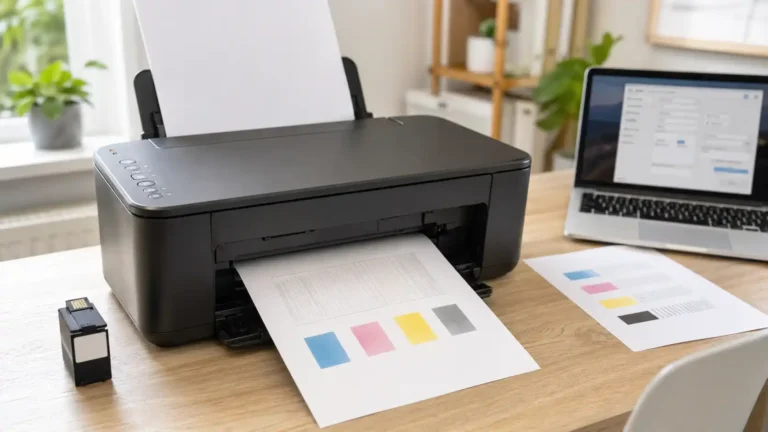
This is why a test page is useful. It shows whether the printer itself can place color on paper.
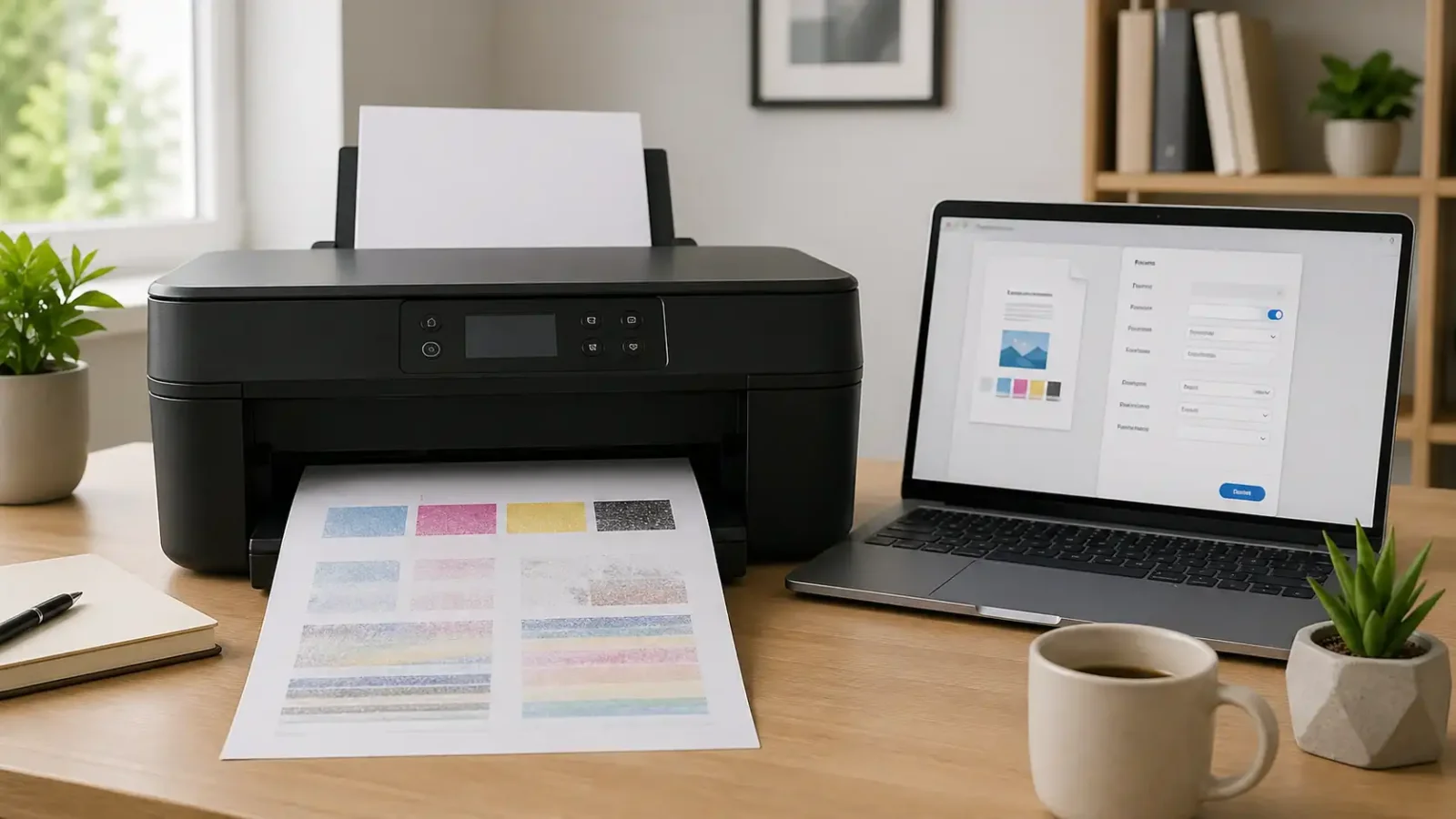
Print a color test page or nozzle check
A color test page helps separate printer hardware problems from computer or app settings.
If your printer has a built-in test page, print quality report, or nozzle check, run it from the printer menu or printer software. The exact name depends on the printer.
For Canon inkjet users, Canon’s nozzle check guidance explains how missing or broken color patterns can point to clogged printhead nozzles.
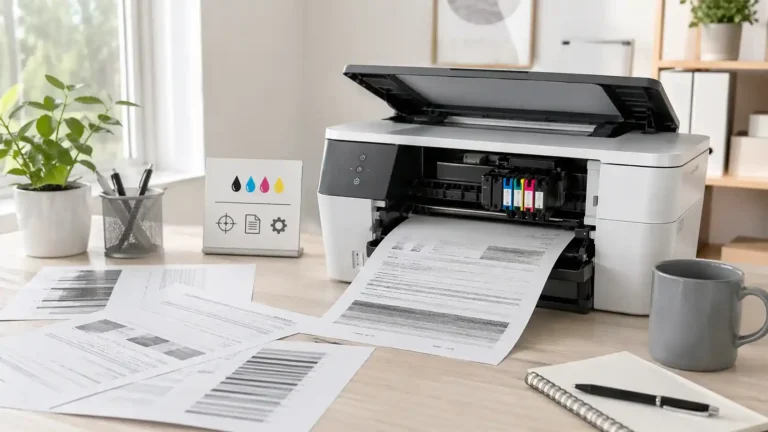
What the test page can tell you
- If the test page prints full color, the printer can print color. The issue is more likely the app, driver, preset, or computer settings.
- If the test page is missing one color, that color supply or nozzle may be blocked or empty.
- If the test page has broken lines or white gaps, the printhead or nozzles may need cleaning.
- If the test page is faded, check ink or toner levels, print quality settings, and paper type.
- If the printer’s own test page does not print color at all, the issue is probably inside the printer rather than the document.
Run the printer’s built-in cleaning or maintenance tool
For inkjet printers, blocked nozzles are a common reason color does not print correctly. Use the printer’s built-in cleaning option first.
The setting may be called printhead cleaning, nozzle cleaning, print quality tools, cartridge cleaning, or maintenance. The name depends on the printer and software.
After running one cleaning cycle, print another test page. Compare the new page with the first one.
Avoid running cleaning cycles over and over without checking the result. Cleaning uses ink, and repeated cycles may not fix an empty cartridge, damaged printhead, or hardware problem.
Check paper type and print quality settings
Paper and quality settings can change how color appears on the page. This is especially noticeable with photos, graphics, labels, or glossy paper.
For a basic test, use normal plain paper and standard print quality. Turn off draft or economy mode while testing because it may make the color look weak or washed out.
If you are printing photos, choose the correct paper type in the print settings. Using photo paper with plain paper settings, or plain paper with photo settings, can make colors look wrong.
Check the printer driver only after the basic color checks
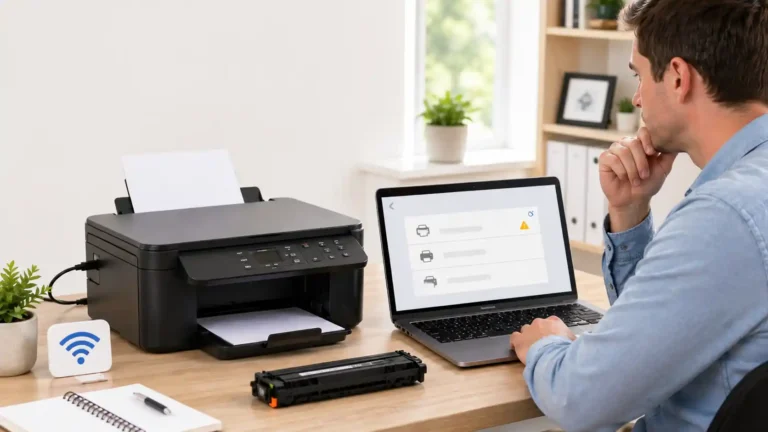
Driver problems can affect color printing, but they should not be the first thing you try. Check color mode, app settings, ink or toner, and test pages first.
The driver may be involved if:
- The color option is missing from the printer settings.
- The printer prints color from a phone but not from a computer.
- The printer prints color from one computer but only black and white from another.
- The problem started after a system update.
- The wrong printer model appears in the printer list.
If color options are missing on Windows, Microsoft’s printer troubleshooting help can be useful after you have checked the simpler color settings first.
If needed, remove and re-add the printer after installing the correct software. Do this only after checking the simpler settings first.
What if the printer prints color from the printer but not from the computer?
If the printer’s own test page or copy function prints in color, the printer hardware is probably capable of printing color. In that case, focus on the computer or app.
Check these areas:
- The app’s print settings
- Saved black-and-white presets
- Printer preferences
- The selected printer profile
- The installed printer driver
- Whether another device can print color correctly
This test is useful because it stops you from replacing ink or toner when the real issue is a setting.
What if one color is missing?
If only one color is missing, such as blue, red, yellow, cyan, or magenta, the issue is usually more specific than a general printer problem.
Check that the color’s cartridge, tank, or toner first. Then run a nozzle check or print quality report. If the pattern shows gaps for only one color, use the printer’s built-in cleaning tool.
If the same color is still missing after cleaning and reseating the cartridge, the cartridge, printhead, or another internal part may need attention.
What if the colors are faded or wrong?
Faded or incorrect colors can happen even when the printer technically prints in color.
Common causes include:
- Low color ink or toner
- Partly clogged nozzles
- Draft or economy mode
- Wrong paper type
- Incorrect app color settings
- Old or poor-quality paper
- Printer maintenance problems
Start with a normal-quality color test page on plain paper. If the test page looks good, the issue may be with the file, app, photo settings, or paper choice.
When this is not a color printing problem
Sometimes the color symptom is only part of a wider printing issue.
If the printer does not print any page at all, use the main printer not printing troubleshooting page.
If the print job is stuck, pending, deleting, or not leaving the queue, color settings will not fix it. Use the print queue and spooler guide instead.
If the printer shows a driver unavailable message, error state, paper jam, or offline warning, handle that issue first before troubleshooting color output.
When to contact official support
Contact the printer manufacturer’s official support or check the printer manual if:
- The printer shows a hardware error.
- The color cartridges or toner are recognized but never print.
- The printhead may be damaged.
- Built-in cleaning does not improve the test page.
- The printer is still under warranty.
- You are unsure about removing or cleaning printer parts.
Manual cleaning can damage some printers if done incorrectly, so it is better to use the built-in maintenance tools first and follow the official instructions for your model.
Bottom line
When a printer is not printing in color, check the color settings before replacing ink or toner. Turn off grayscale or black-and-white mode, test from another app, check color supplies, print a nozzle check or quality report, and then use the printer’s built-in cleaning tool if needed.
If the printer prints color from its own test page but not from your computer, focus on app, preset, and driver settings. If the printer’s own test page is missing color, focus on ink, toner, printhead, or printer maintenance.
FAQs About a Printer Not Printing in Color
Why is my printer only printing in black and white?
Your printer may be set to grayscale, black-and-white, monochrome, or black-ink-only mode. Check the print window, printer preferences, and saved presets. If those settings are correct, check the color ink or toner.
Why does my printer print black but not color?
If black prints but color does not, the issue is usually color mode, color ink or toner, clogged nozzles, or a printhead problem. Print a color test page or nozzle check to see whether the printer itself can print color.
Why is my printer not printing in color even though the ink is full?
Full ink does not always mean ink is flowing. A cartridge may not be seated correctly, a nozzle may be clogged, the printhead may be blocked, or the print job may still be set to grayscale.
How do I know if the problem is the printer or my computer?
Print a color test page from the printer itself, or make a color copy if your printer supports copying. If that prints in color, the issue is more likely on the computer, app, preset, or driver side.
Can a printer driver stop color printing?
Yes. A basic, wrong, outdated, or corrupted driver can hide color options or apply the wrong print settings. Check simpler color settings first, then update or reinstall the correct printer software if needed.
Why are my printer colors faded?
Faded colors can come from low ink or toner, draft mode, clogged nozzles, wrong paper type, or poor print quality settings. Print a test page on plain paper using normal quality to narrow down the cause.
Should I clean the printhead manually?
Use the printer’s built-in cleaning tool first. Manual cleaning can damage some printers if done incorrectly, so beginners should check the printer manual or official support before removing or cleaning parts.
Is this a print queue problem?
Usually not if the printer is printing pages but missing color. It becomes a print queue problem if the job is stuck, pending, deleting, or not reaching the printer.
Short excerpt
Printer not printing in color? Learn what to check first, including grayscale settings, color ink or toner, printhead cleaning, app settings, driver options, and when the issue is really a broader printing problem.