Epson Printer Offline: How to Fix It Gudie 2026

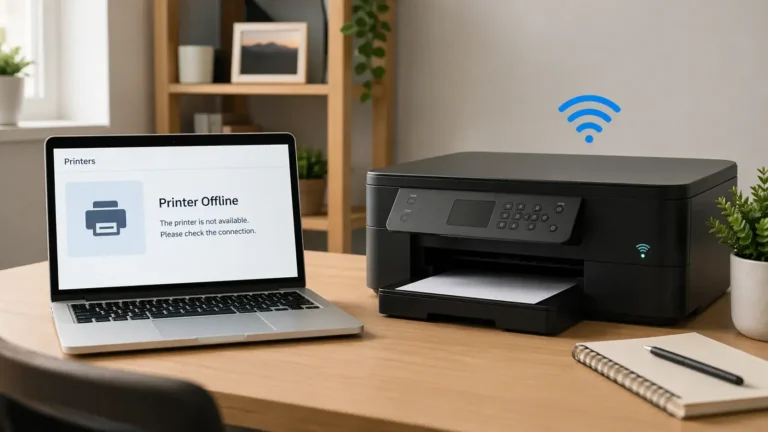
If your Epson printer shows offline, the problem is usually not the printer alone. In most cases, it is a communication problem between the printer, your computer, and the way the printer was added.
The easiest way to fix it is to work in the right order. Start with the printer itself, then check the print queue, then check the connection type, and only reinstall the printer if the earlier steps do not help.
This guide is for Epson-specific offline troubleshooting. It stays focused on Epson printers showing offline and does not try to replace a broader offline guide or a separate not-printing guide.
Table of Contents
What “Epson printer offline” usually means
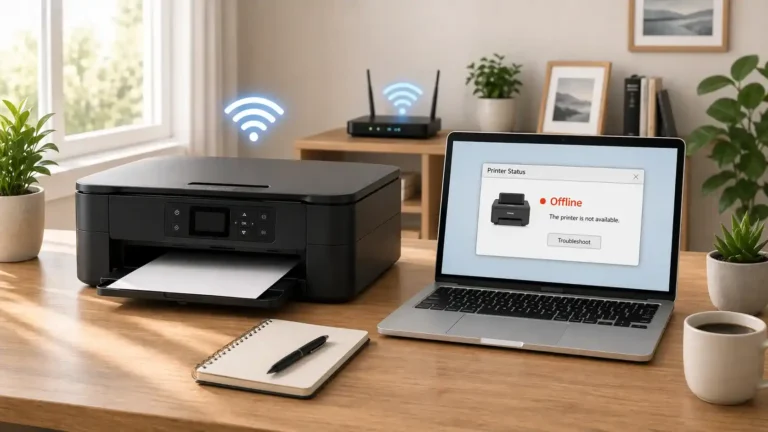
When an Epson printer says offline, your computer is not talking to it correctly at that moment.
That can happen even when the printer is turned on. The printer may be asleep, stuck on an error, disconnected from Wi‑Fi, connected to the wrong network, pointing to an old IP address, or blocked by a stuck print job.
In simple terms, offline usually means one of these things:
- the printer is not ready
- the connection is broken
- the print queue is stuck
- the computer is using the wrong Epson printer entry
Why your Epson printer may be offline
Before you start changing settings, it helps to know the most common causes.
The printer has its own error
If the printer has a paper issue, ink issue, setup message, or another warning on the screen, your computer may show it as offline until that problem is cleared.
The Wi‑Fi connection dropped
This is common with wireless Epson printers. The printer may look powered on and normal, but it may no longer be connected to the same network as your computer.
A stuck print job is blocking the queue
One failed print job can leave the Epson queue hanging. After that, every new job may sit there and the printer may appear offline.
The printer was set to offline or paused
Sometimes the queue itself is the problem. A paused queue or offline setting can stop jobs from reaching the printer.
The printer was added with the wrong connection
This often happens after router changes, printer resets, or software reinstallations. Your computer may still be trying to use an old Epson printer entry.
The Epson software needs to be refreshed
If the connection is fine but the computer still cannot talk to the printer correctly, removing and re-adding the printer may solve it.
Start with the printer itself first
Do this before changing anything on your computer.
Make sure the printer is fully awake
If your Epson printer has a screen, check it for any message, warning, or setup prompt. If it has lights instead, look for blinking lights or an error light.
Clear anything obvious first, such as:
- paper loaded incorrectly
- empty or unrecognized ink
- cover open
- paper jam message
- setup not completed
If the printer cannot finish its own startup or clear its own warning, the offline message on your computer is usually a side effect.
Print a nozzle check or printer test page
This is one of the most useful Epson-specific checks because it tells you whether the printer can work on its own without depending on your computer.
If the printer cannot print a built-in test or nozzle check, the issue is not just offline. The printer itself still needs attention before your computer can use it normally.
If the test page prints, move on to the next steps.
Restart everything in the right order
A quick restart can clear temporary connection problems.
1. Turn the Epson printer off.
2. Shut down your computer.
3. If the printer uses Wi‑Fi, restart your router.
4. Turn the router back on and wait for it to settle.
5. Turn the printer on.
6. Turn the computer back on.
7. Try printing again.
This is especially useful when the printer recently changed networks, lost Wi‑Fi, or came back from sleep but still shows offline.
Clear the Epson print queue
A stuck queue is one of the most common reasons an Epson printer says offline.
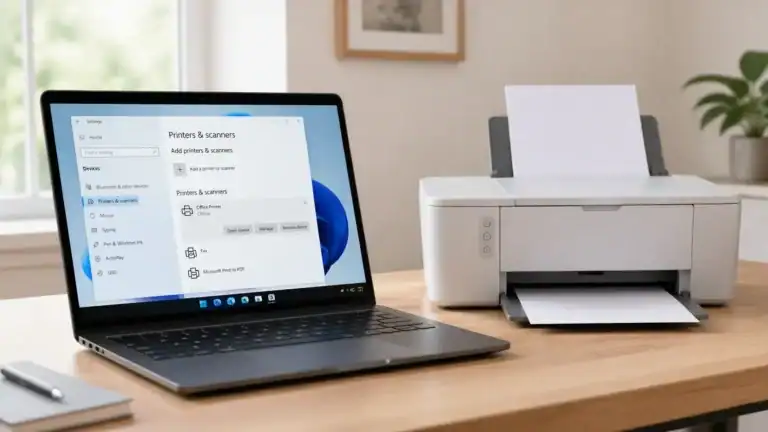
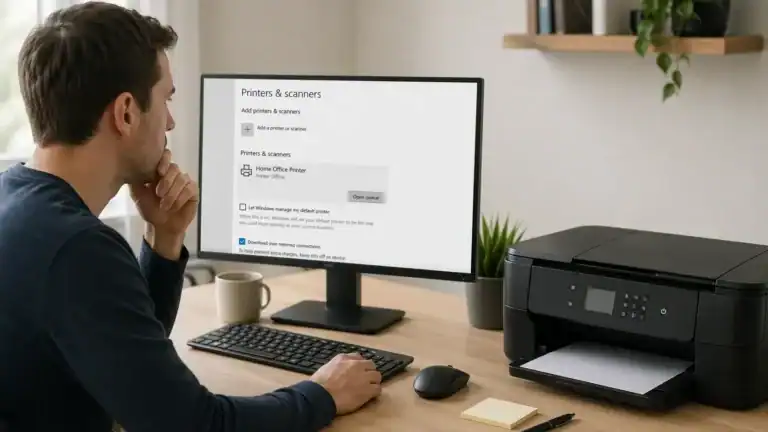
If you use Windows and need help getting to the queue, Microsoft explains how to view a printer’s print queue in Windows.
Open the printer queue for your Epson printer and cancel any jobs that are stuck, paused, or failed. Then wait a few seconds and send one small test page.
If there are many old jobs, clear all of them first. Testing with one simple page is better than sending several new jobs at once.
If your Epson printer comes back online after clearing the queue, the original problem was likely a blocked print job rather than a hardware issue.
Make sure the printer is not set to offline or paused
After clearing the queue, check whether the printer itself is being held in an offline or paused state.
On Windows, this often appears inside the printer queue menu. If you see an option that keeps the printer in offline mode or paused mode, turn that off and try again.
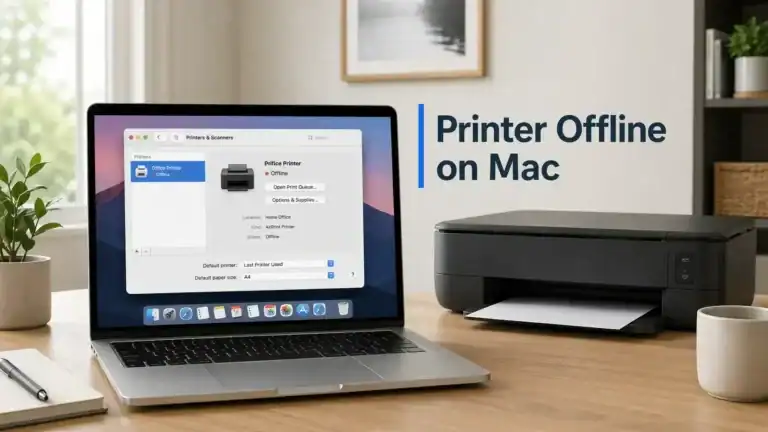
If you use a Mac and the printer entry seems stuck, Apple explains how to reset the printing system on your Mac.
Keep this step simple. You are not trying to rebuild your whole setup yet. You are only checking whether the queue is forcing the printer to stay unavailable.
If your Epson printer is connected over Wi‑Fi
Confirm the printer is actually on Wi‑Fi
Check the printer’s screen, wireless icon, or network light. If the Wi‑Fi status looks disconnected, reconnect the printer to your network before doing anything else.
If your printer supports it, printing a network status sheet can also help confirm whether it is connected.
Make sure the printer and computer are on the same network
This matters more than many beginners expect.
If your computer is on one Wi‑Fi network and the Epson printer is on another, they may not see each other correctly. This can happen after changing internet providers, replacing a router, or switching between main and guest networks.
Restart the router if the printer looks connected but still shows offline
Sometimes the printer is still joined to Wi‑Fi, but the network path is stale. Restarting the router can refresh the connection between the printer and the computer.
After the router restart, try one test page again.
Check for an IP mismatch
This is one of the most overlooked Epson offline causes.
Your printer may still be on the network, but your computer may be trying to reach it at an old address. This can happen after the printer reconnects, after a long power outage, or after router changes.
On many Epson models, you can view network details on the printer screen or print a network status page. If the printer’s current address no longer matches the connection saved on your computer, the fastest fix is often to remove the printer and add it again.
If your Epson printer is connected by USB
Reseat the USB cable
Disconnect the USB cable from both ends, then reconnect it firmly. If possible, try another USB port on the computer.
Avoid hubs and adapters for testing
If the printer is connected through a hub, dock, or adapter, connect it directly to the computer for testing. That removes one extra point of failure.
Remove duplicate Epson printers
Sometimes your computer stores more than one Epson printer entry. One may be the real printer and another may be an old or incorrect connection.
If you see duplicate Epson entries, remove the ones you are not using and test with the correct one.
Remove and re-add the Epson printer
If the printer passes its own test, the queue is clear, and the connection looks fine, re-adding the printer is often the cleanest next step.
Remove the Epson printer from your computer, restart the computer, and add the printer again.
This is especially helpful when:
- the printer changed networks
- the printer was reinstalled before
- the queue keeps getting stuck
- the saved printer entry looks wrong or duplicated
When you add it again, choose the entry that clearly matches the real printer you are using.
Reinstall Epson software only if simpler steps fail
Do not jump straight to reinstalling software unless the earlier steps have failed.
Reinstalling is useful when:
- the Epson printer keeps returning offline
- the printer was added incorrectly
- the driver or utility seems broken
- the computer no longer recognizes the printer properly
Download software only for your exact Epson model from the official Epson printer support page. During setup, make sure you are reconnecting the same printer you are actually trying to use.
If your Epson printer comes online but still will not print
That is a different problem.
If the printer is no longer offline but the page still does not print, the issue may have moved into a not-printing, driver, ink, or paper-related problem instead.
At that point, do not keep forcing offline fixes. Move to the next troubleshooting path so you do not waste time repeating the wrong steps.
If your Epson printer keeps going offline
If the problem keeps coming back, the most likely causes are:
- unstable Wi‑Fi
- repeated IP changes
- duplicate printer entries
- an old queue that never clears fully
- a setup that was only partially reinstalled
In that situation, start fresh:
1. clear the queue
2. remove the printer
3. restart the printer, computer, and router
4. add the printer again
5. test with one page only
If the printer still drops offline after that, the issue may be deeper than a basic queue or connection problem.
When to contact Epson support
You should contact Epson support when:
- the printer cannot print its own test page
- the printer keeps showing a hardware or setup error
- Wi‑Fi will not reconnect even after network setup
- the printer goes offline again immediately after reinstalling it
- the printer is visible on the network but still cannot be used normally
At that point, model-specific support may be the fastest way forward.
Final thoughts
If your Epson printer is offline, do not start with random settings changes.
Begin with the printer itself. Make sure it can print a test page, clear the Epson queue, confirm the connection type, and only then remove and re-add the printer if needed.
That order is usually faster, easier, and less frustrating for beginners than jumping straight into driver changes or advanced fixes.
FAQ section
Why does my Epson printer say offline when it is turned on?
Because offline does not always mean powered off. It usually means your computer cannot communicate with the printer correctly. The cause may be a stuck queue, lost Wi‑Fi connection, duplicate printer entry, or an Epson printer error.
How do I get my Epson printer back online?
Start with the basics in order: check the printer for errors, print a test page, restart the printer, clear the queue, make sure it is not paused or set offline, then check the connection type. If that fails, remove and re-add the printer.
Should I clear the Epson print queue when the printer is offline?
Yes. A blocked or failed print job can keep the Epson printer stuck in an offline state. Clearing the queue is one of the quickest and most useful steps.
Why is my Epson printer offline even though Wi‑Fi is on?
The printer may still be on Wi‑Fi but connected to the wrong network, or your computer may be trying to use an old saved address. In that case, removing and re-adding the printer often helps.
Do I need to reinstall Epson drivers to fix an offline printer?
Not always. Reinstalling should come after simpler steps like checking the printer, clearing the queue, and confirming the connection. Many offline problems are solved before a full reinstall is needed.
What is the difference between Epson printer offline and Epson printer not printing?
Offline means the computer is not communicating with the printer correctly. Not printing means the printer is available but still cannot complete the job. They can overlap, but they are not the same issue.
When should I stop troubleshooting and contact Epson support?
Contact Epson support if the printer cannot print its own test page, keeps showing hardware errors, will not reconnect to Wi‑Fi, or goes offline again right after a clean reinstall.
Short excerpt
Epson printer offline? Use this simple troubleshooting order to check the printer, clear stuck jobs, confirm the connection, and bring your Epson printer back online.